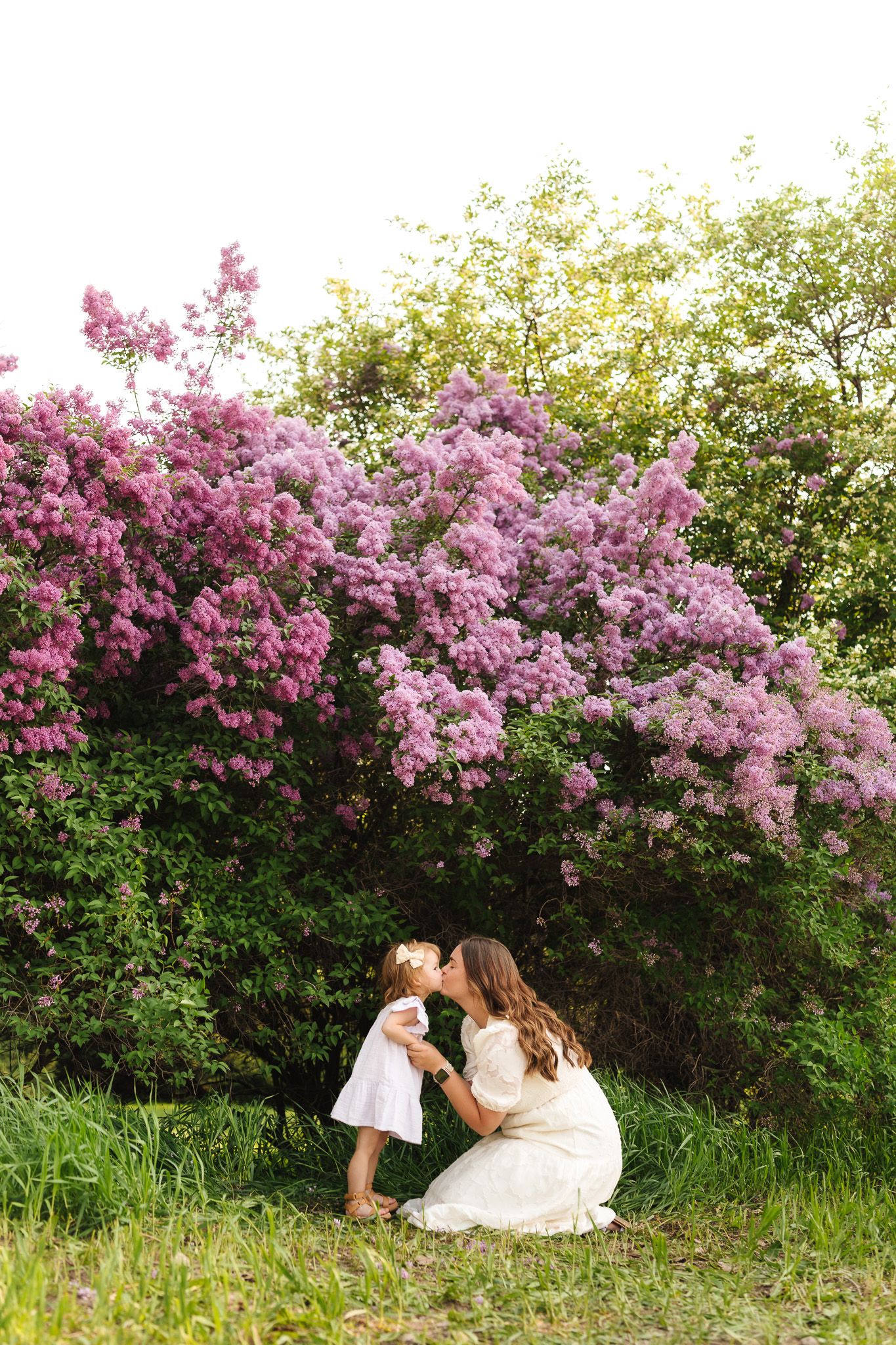
Edit Bright, Clean, True-to-Color Photos in Lightroom | Natural Skin Tones & Lighting
When I first started as a photographer, keeping consistency across my galleries felt nearly impossible. One session would turn out great, and the next would be a struggle because of changing light. I found myself adjusting every image individually—trying to fix skin tones, color, and exposure across an entire gallery. It was frustrating and time-consuming.
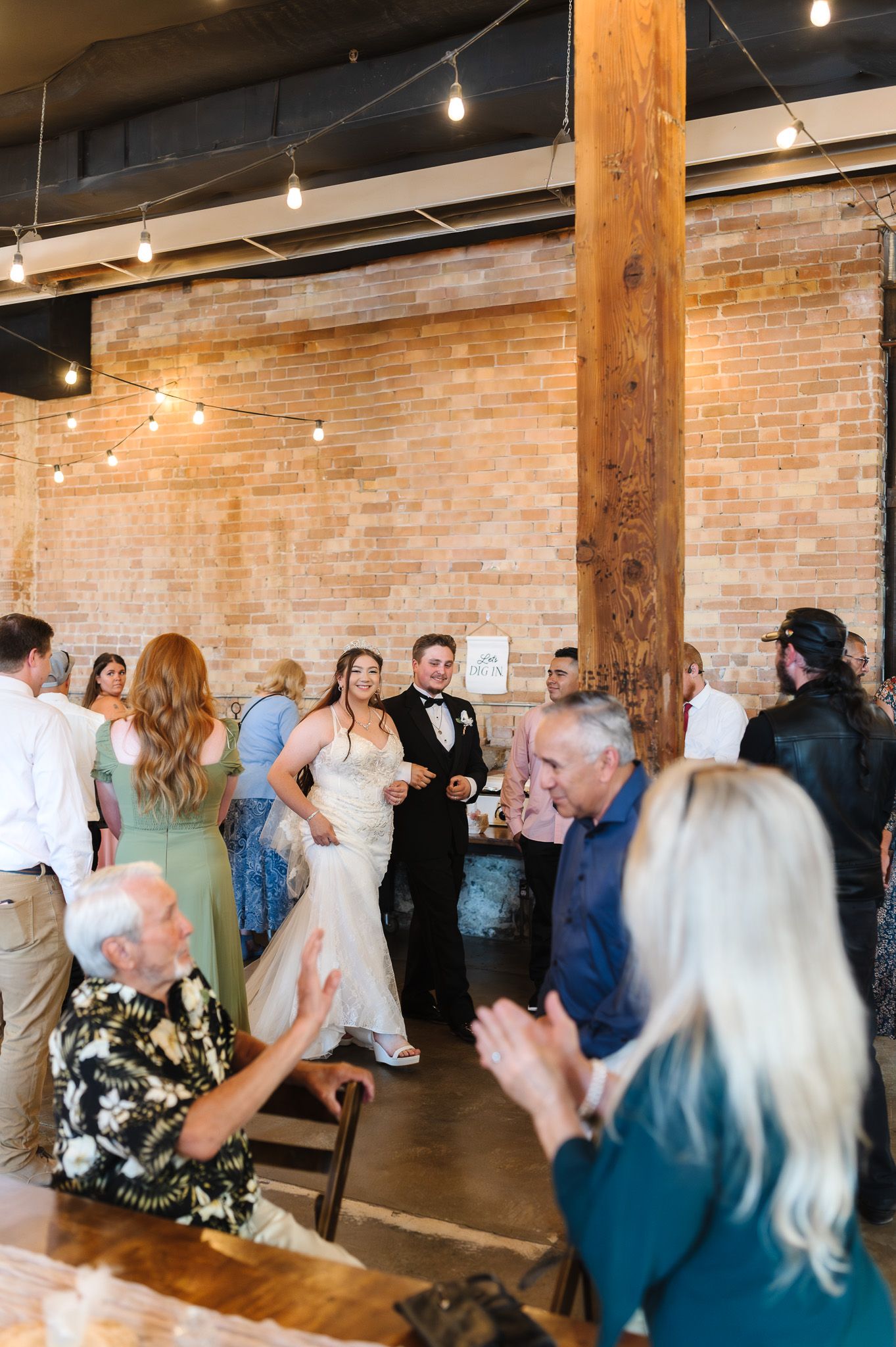
If you’ve ever felt the same way, you’re not alone. Whether it’s skin tones looking too orange or slightly green, harsh sunlight washing everything out, or snow turning blue instead of clean white, these are some of the most common challenges photographers face in Lightroom.
Over time, I’ve refined a process that helps me create bright, natural, true-to-color edits that stay consistent—without overcomplicating things. In this post, I’ll walk you through how I approach these situations across different lighting conditions—from harsh sunlight to open shade to snow.
How I Capture Images for Better Skin Tones (Before Editing)
- I shoot in manual for full control of exposure, shutter speed, and aperture
- I use Kelvin to control warmth and maintain white balance consistency and consistently adjust throughout sessions
- I adjust tint, especially in green-heavy environments
- I pay attention to lighting (harsh sun, shade, backlight, haze)
- I slightly underexpose in harsh light and adjust positioning to reduce haze
How I take the image directly affects how easy it is to edit. Once I started shooting with my final edit in mind, everything became more consistent across my galleries.
Before diving into my Lightroom process, I always emphasize that strong editing starts in camera. If you’ve ever struggled with consistency, it’s worth understanding what’s happening before Lightroom—I break that down here: Why I Focus on Getting the Image Right in Camera (Instead of Relying Only on Presets)
My Approach to Natural, True-to-Color Skin Tones
When I’m editing a session, my goal is always:
- soft, even skin tones
- nothing overly orange or overly desaturated
- consistency across the entire gallery
I don’t want one image to feel warm and the next to feel completely different. That consistency is what makes galleries feel clean, professional, and cohesive.
3 Simple Ways to Improve Skin Tones in Lightroom
1. Start with White Balance First
Before touching anything else, adjust your temperature and tint.
- Too warm → skin turns orange
- Too cool → skin looks dull or gray
Focus on making skin look natural, not just the overall image.
2. Be Careful with the Orange Slider
This is where most edits go wrong, which is why adjusting temperature first is so important
In Lightroom:
- Lowering orange saturation too much → lifeless skin
- Raising it too much → overly warm/orange tones
Instead, make small, subtle adjustments and watch the skin—not the background.
3. Keep Your Edits Consistent
If every photo starts differently, you’ll constantly be chasing skin tones.
If you want a consistent starting point for all of this, these are the exact presets I use - you can shop them here.
My Editing Foundation in Lightroom
Even after I’ve been intentional while shooting, my editing process always starts with refining white balance and exposure to maintain consistency across the entire gallery.
My goal when editing is always:
- bright, clean images
- natural, true-to-life skin tones
- consistency across the entire gallery
Not overly warm, not overly cool—just balanced and true to what it felt like in real life. To achieve this, I focus on:
- Fine-tuning white balance (temperature + tint) to correct lighting inconsistencies
- Adjusting exposure to bring the image back to a natural, balanced starting point
- Making small global adjustments first (like exposure and white balance) so the image feels balanced overall before I start refining individual colors through HSL or color grading.
- This step is about refining what was already intentionally captured—not redoing it.
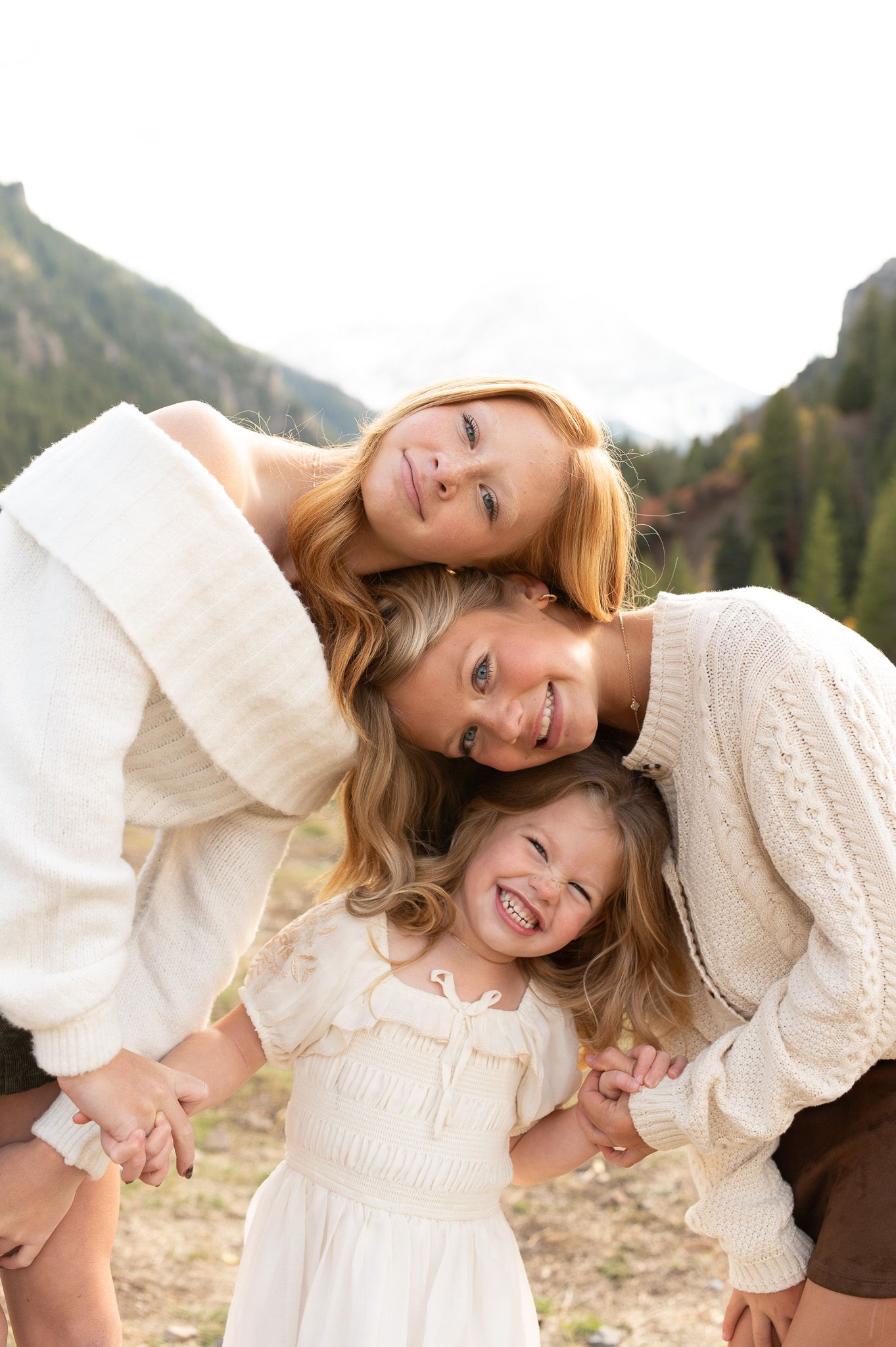
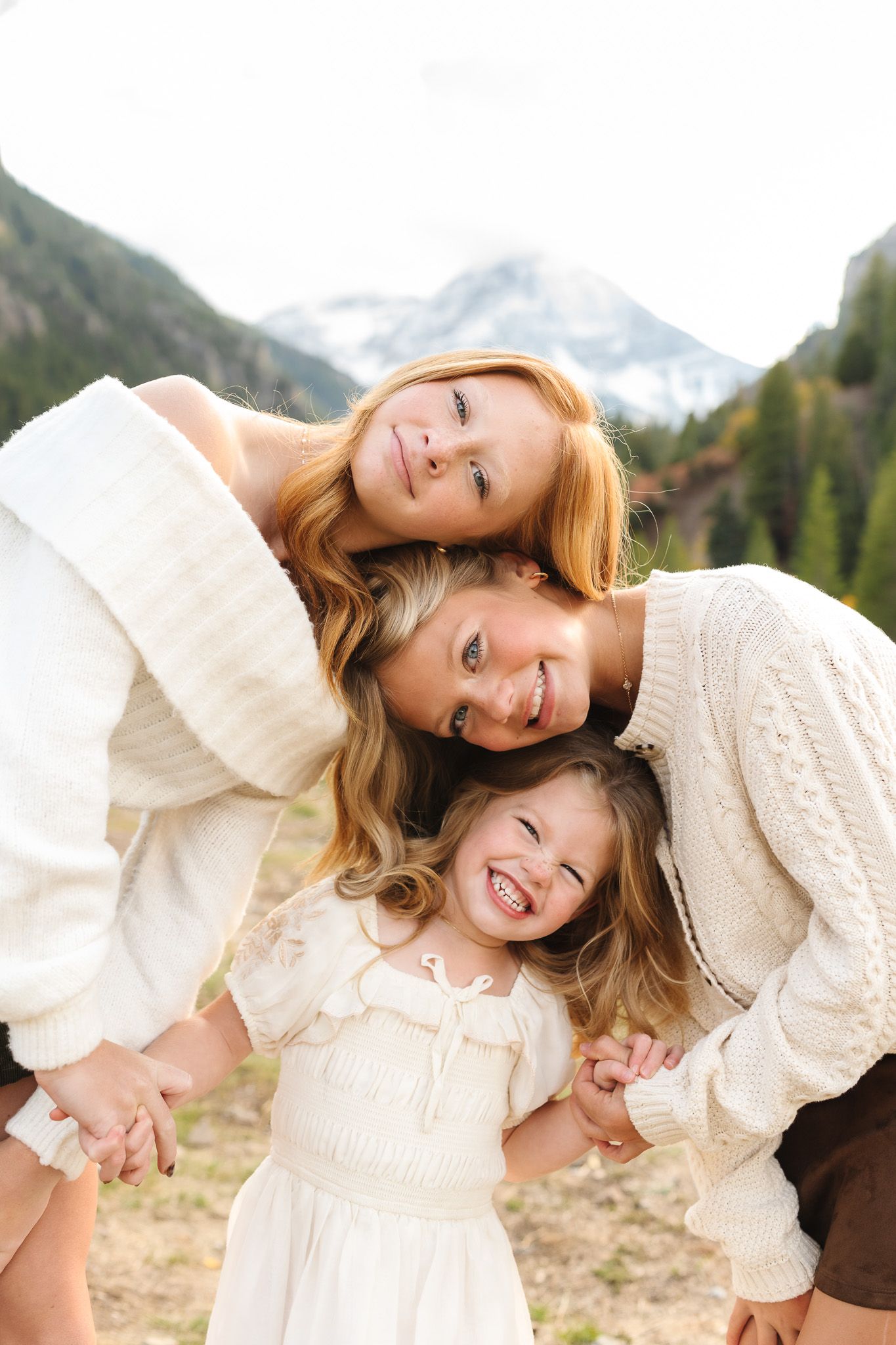
BEFORE VS. AFTER
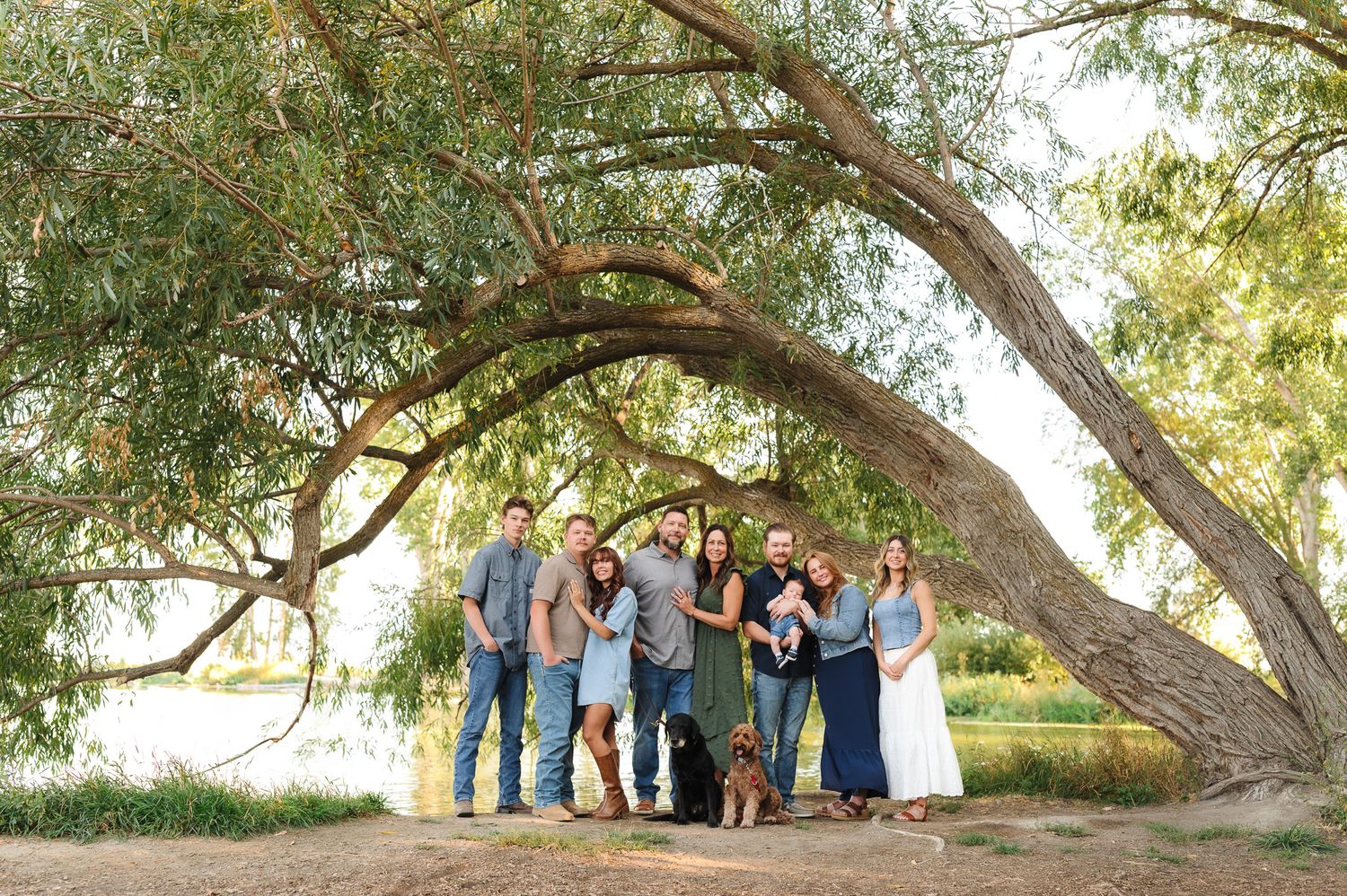
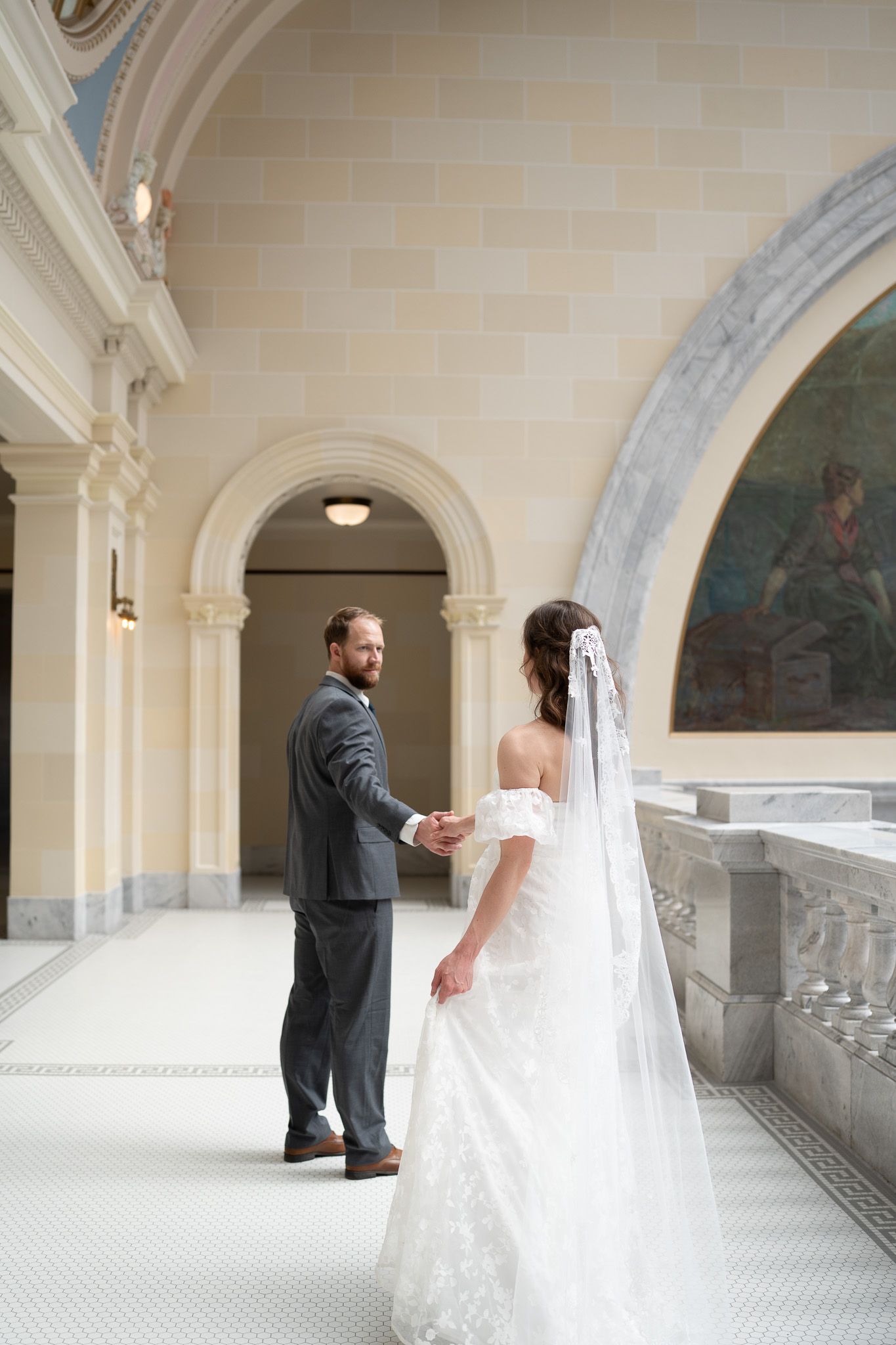
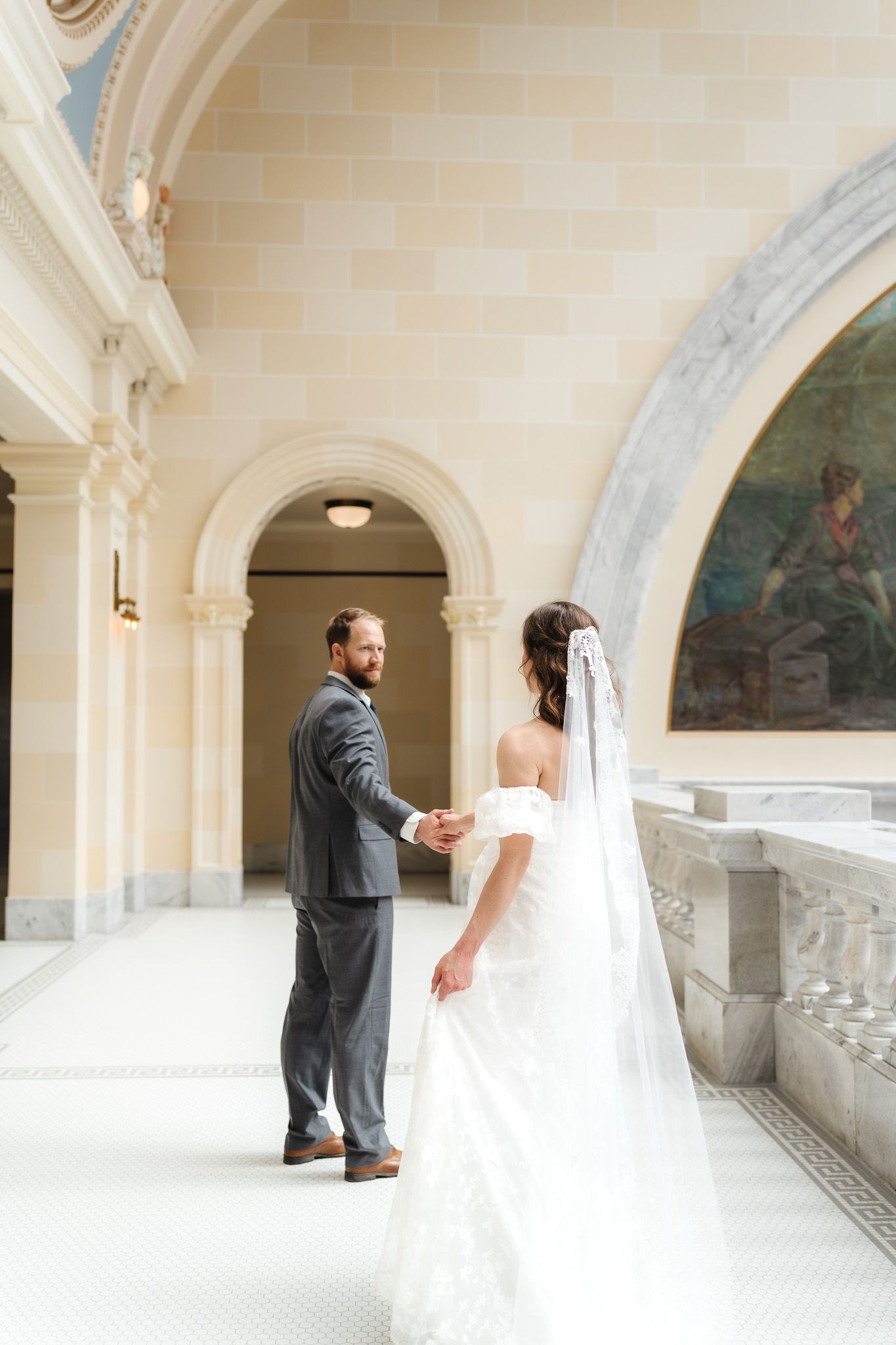
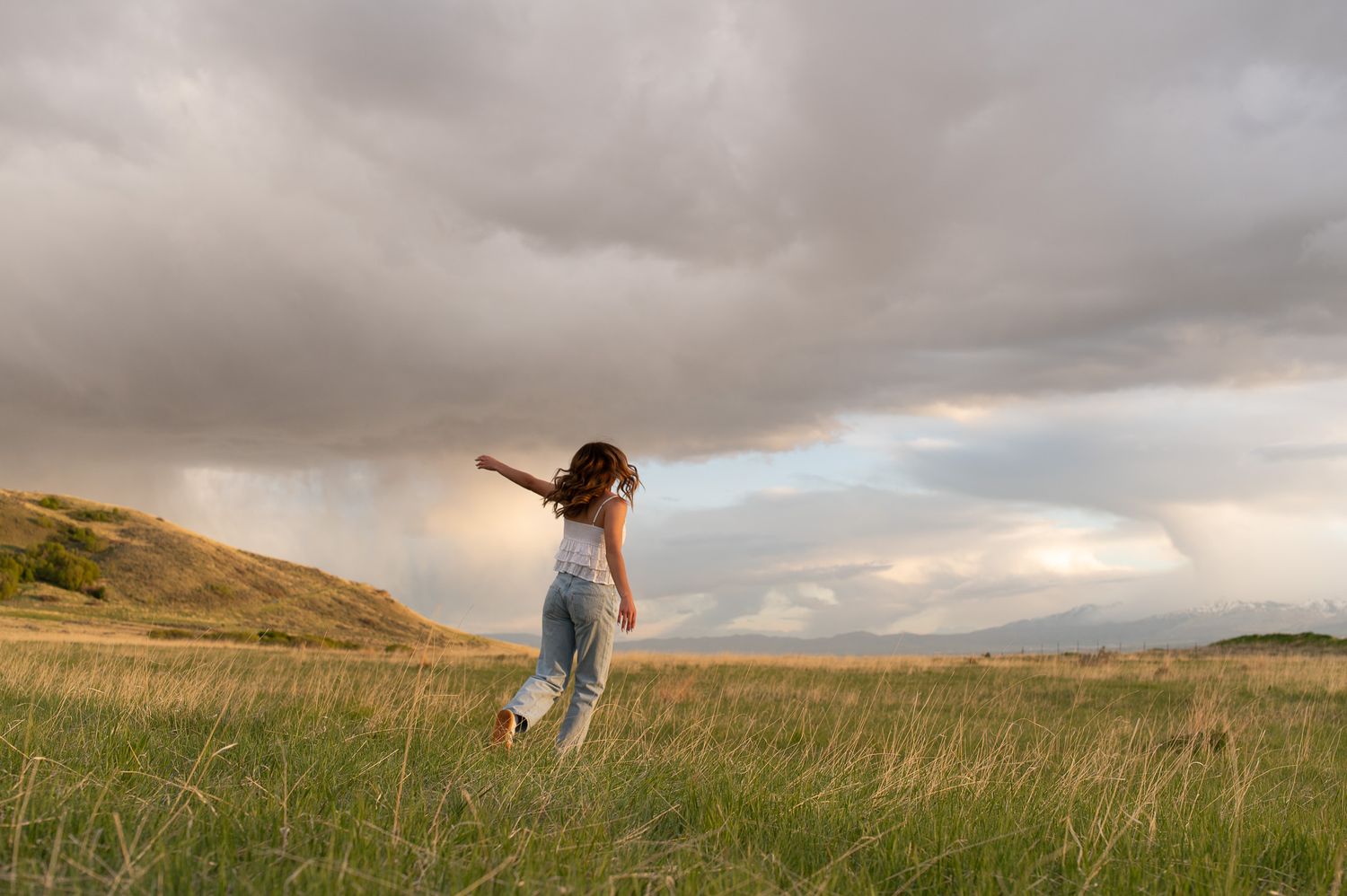
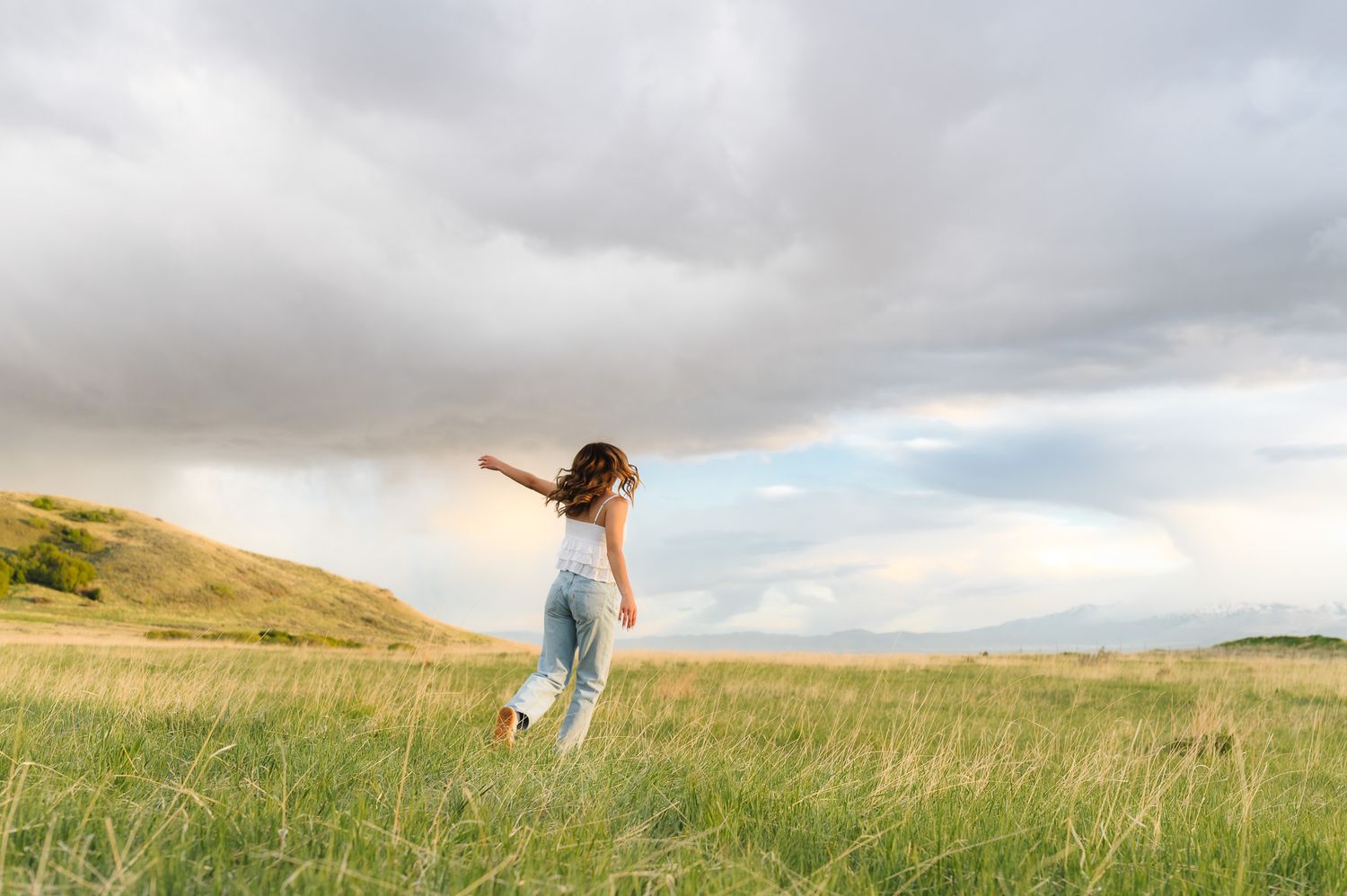
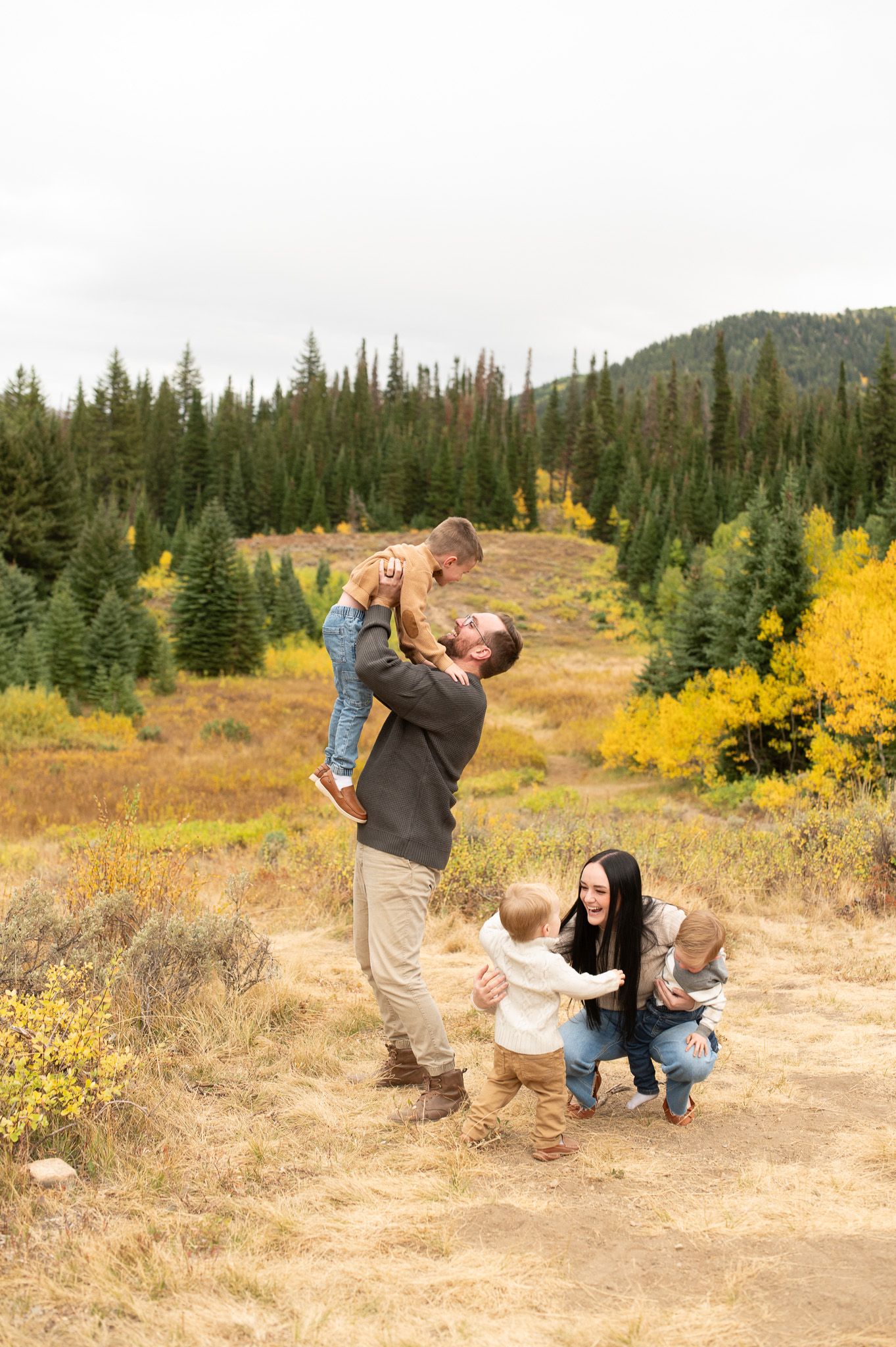
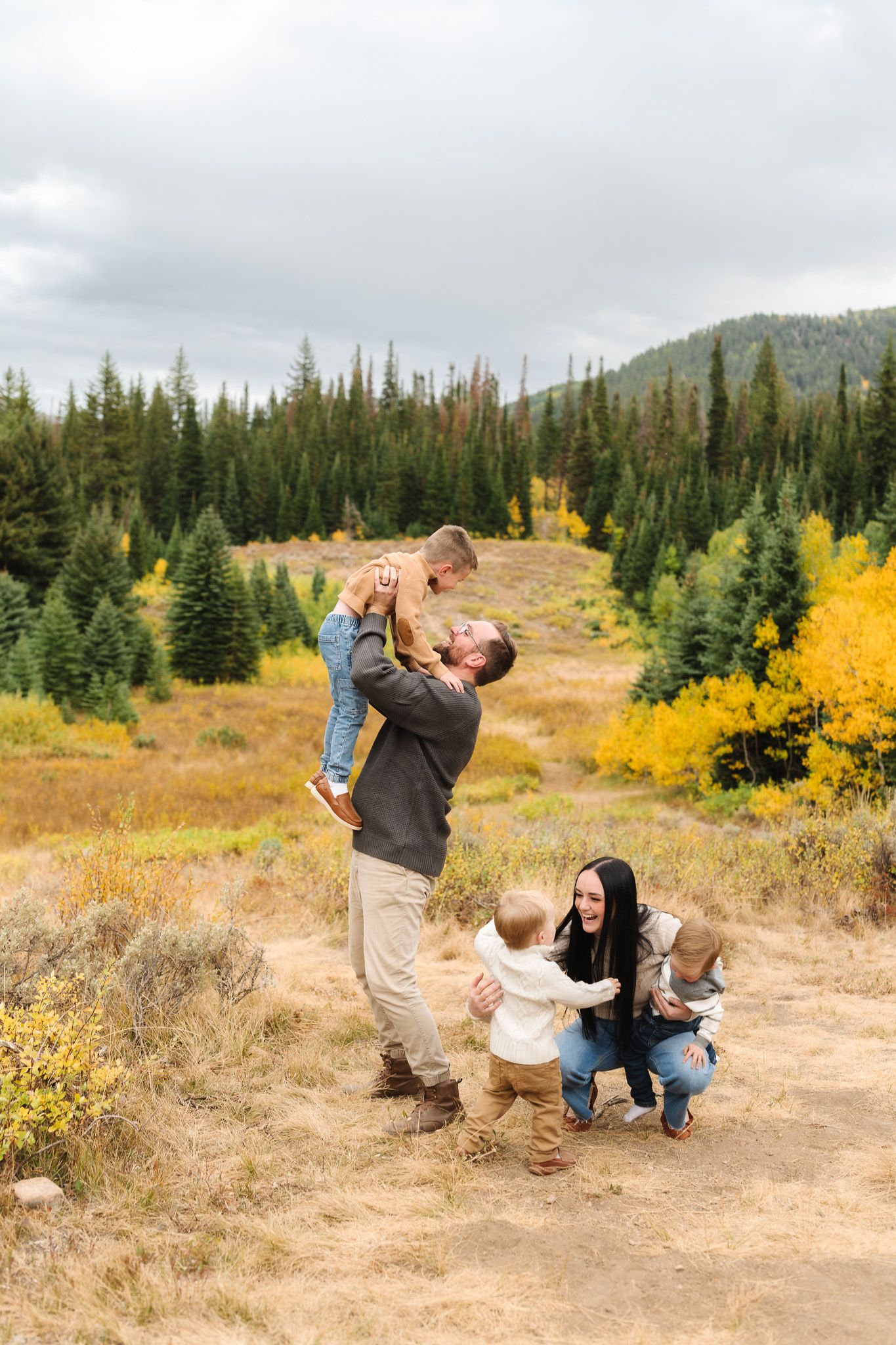
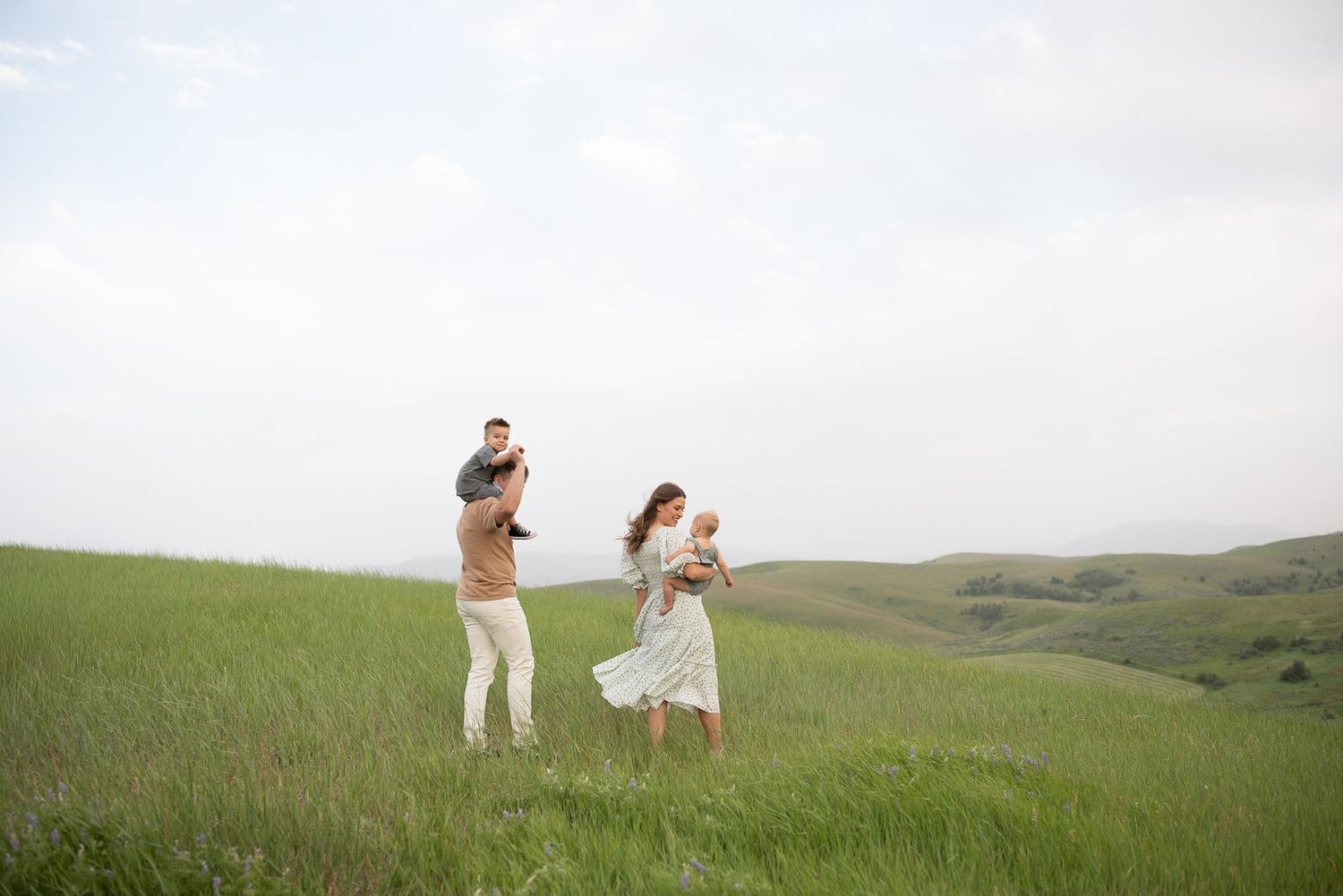
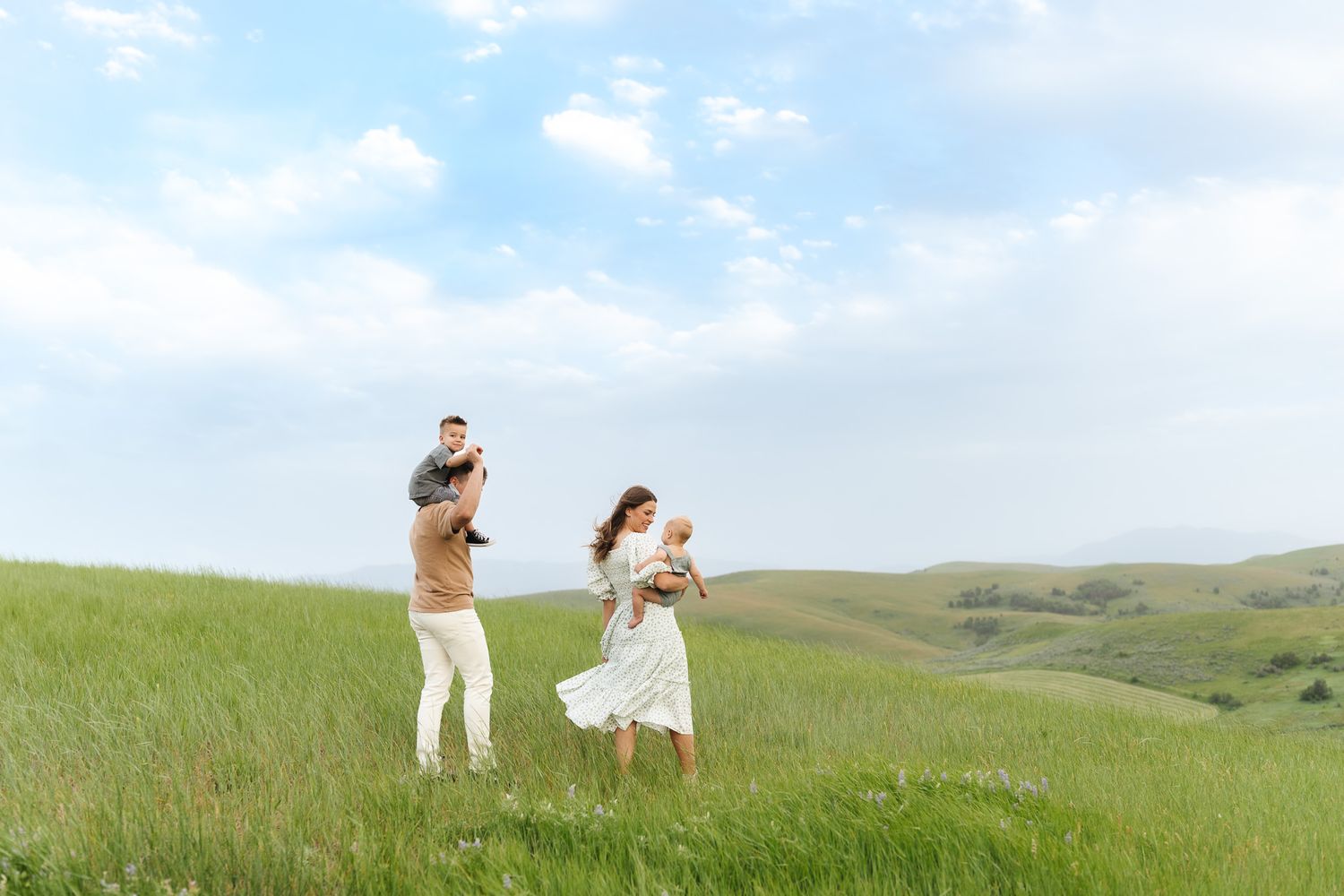
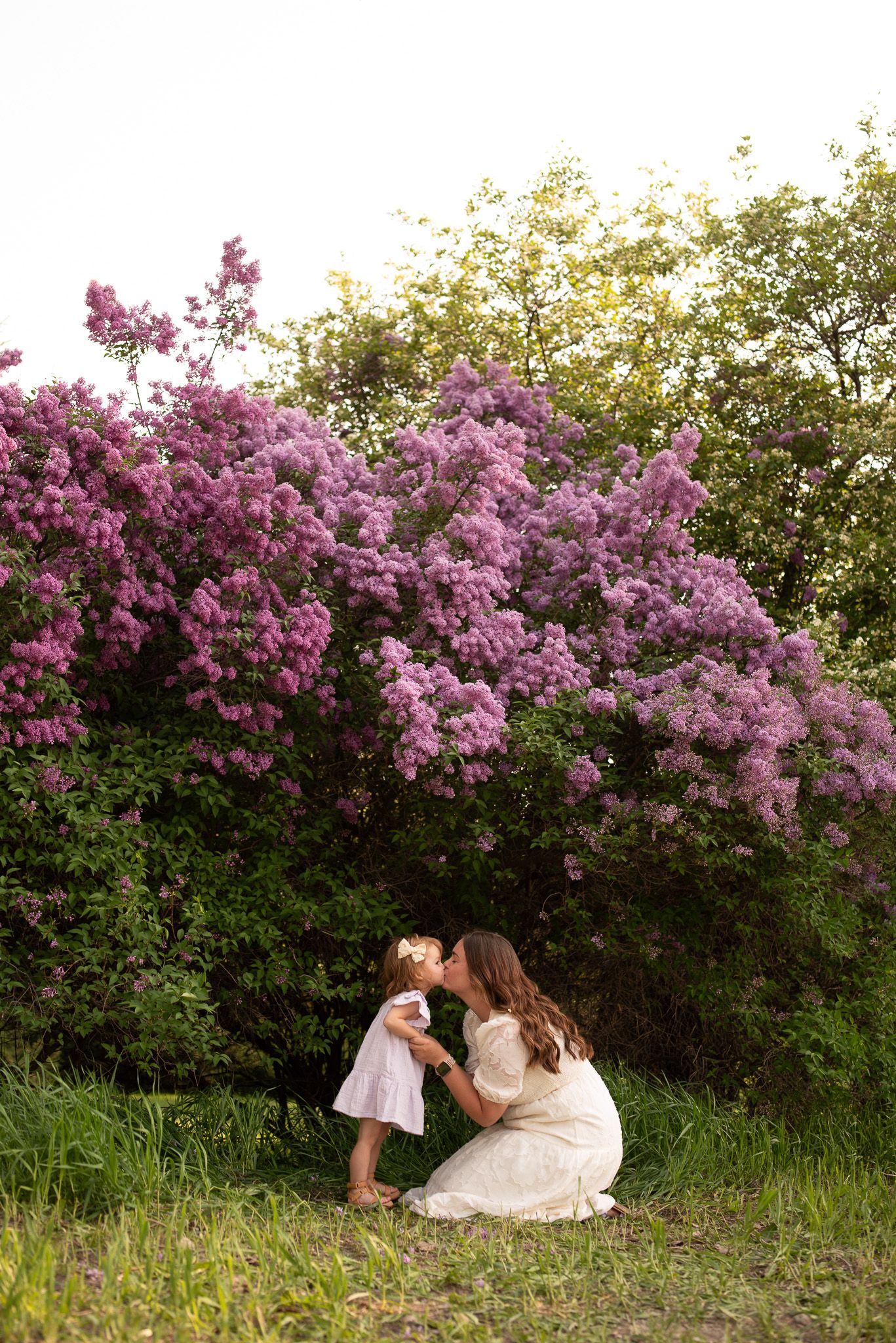
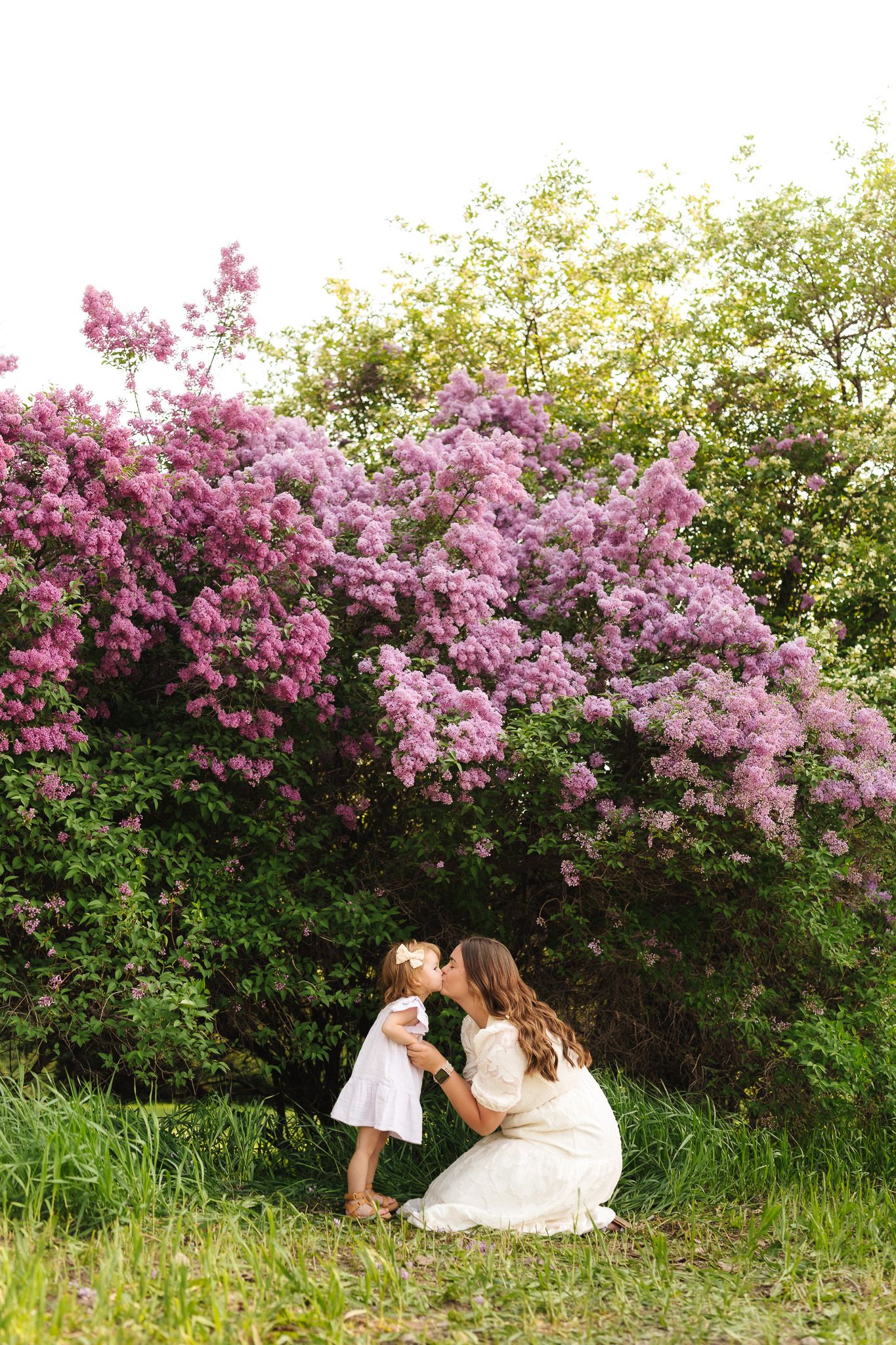
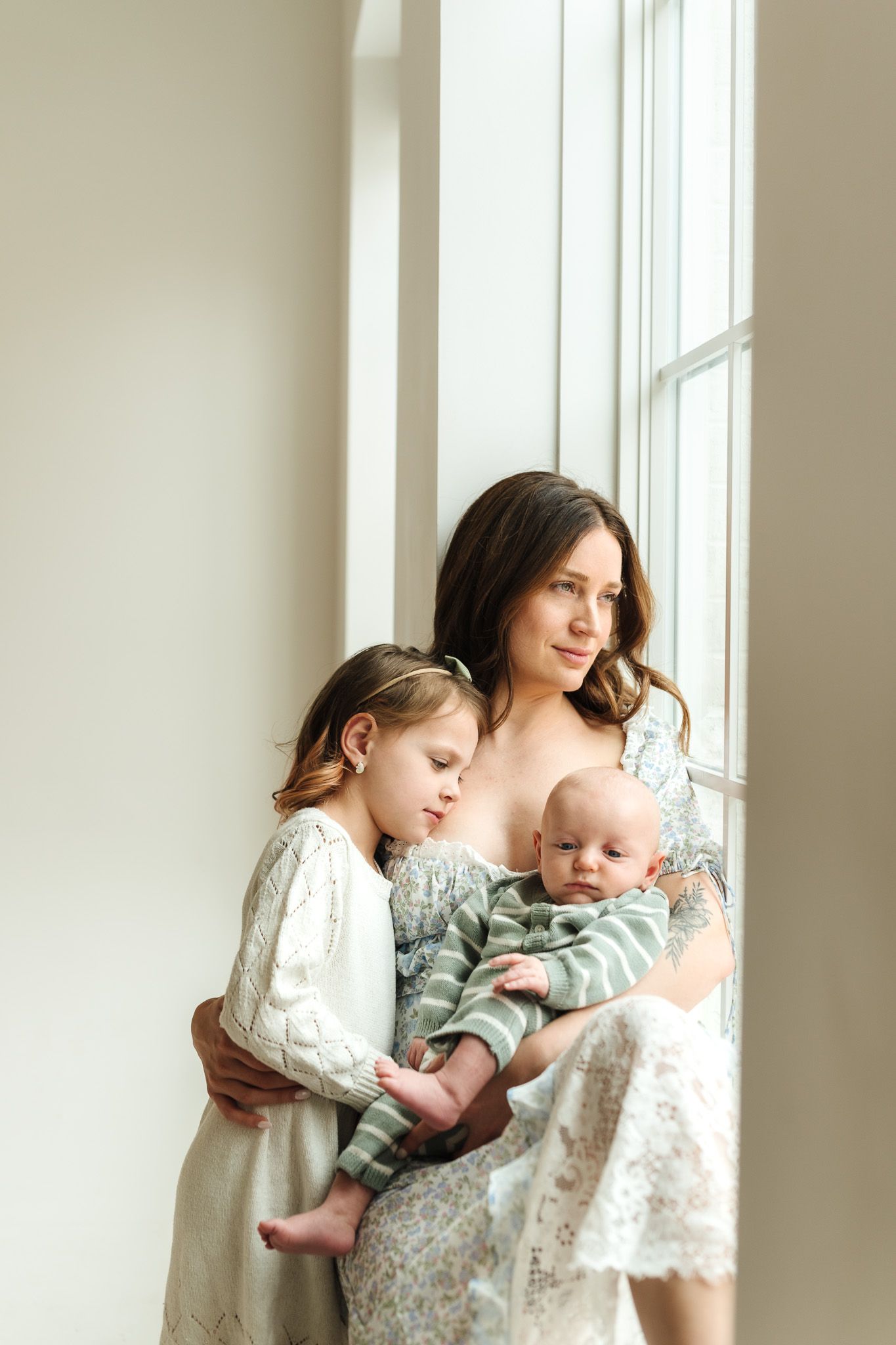
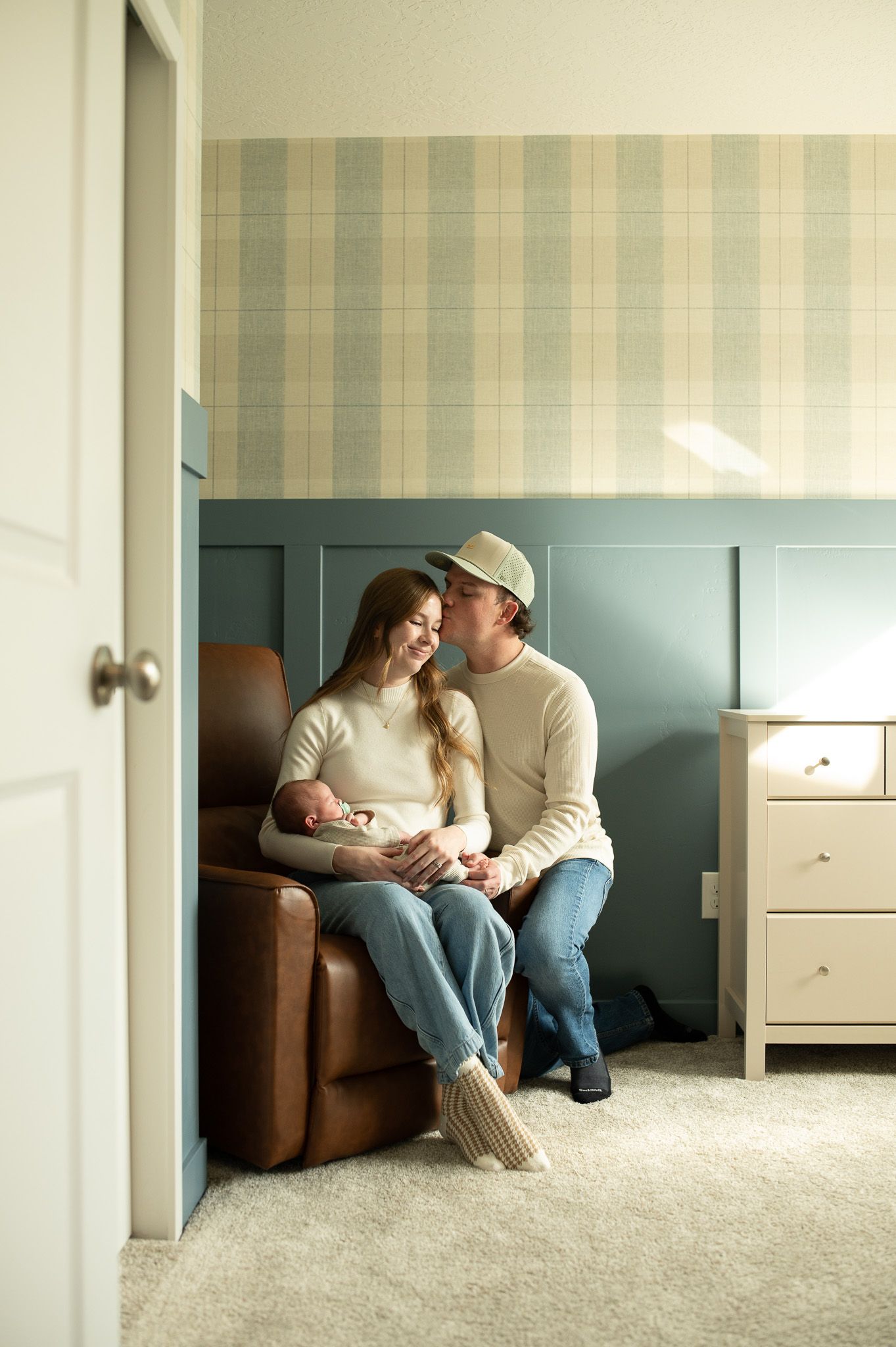
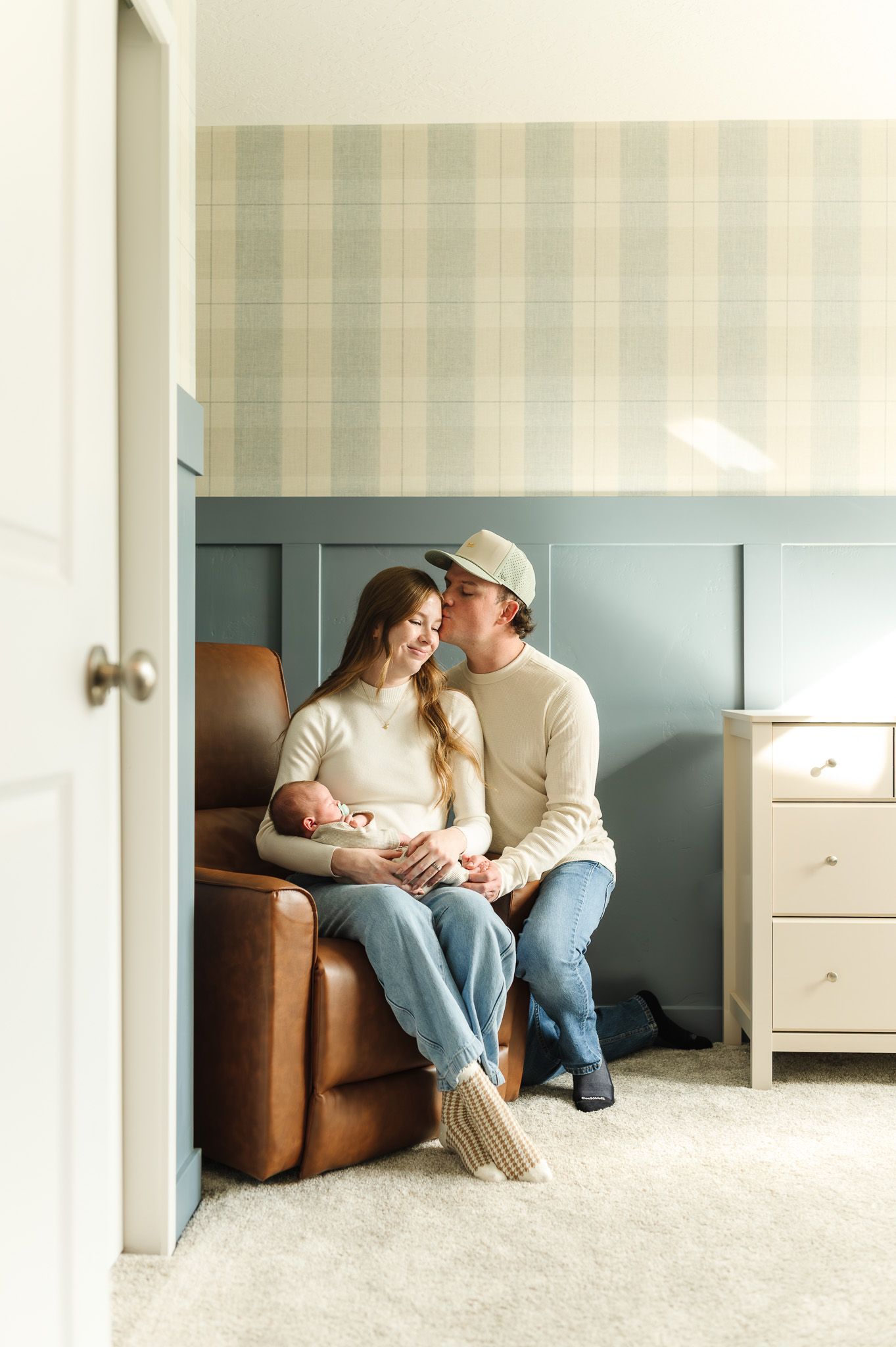
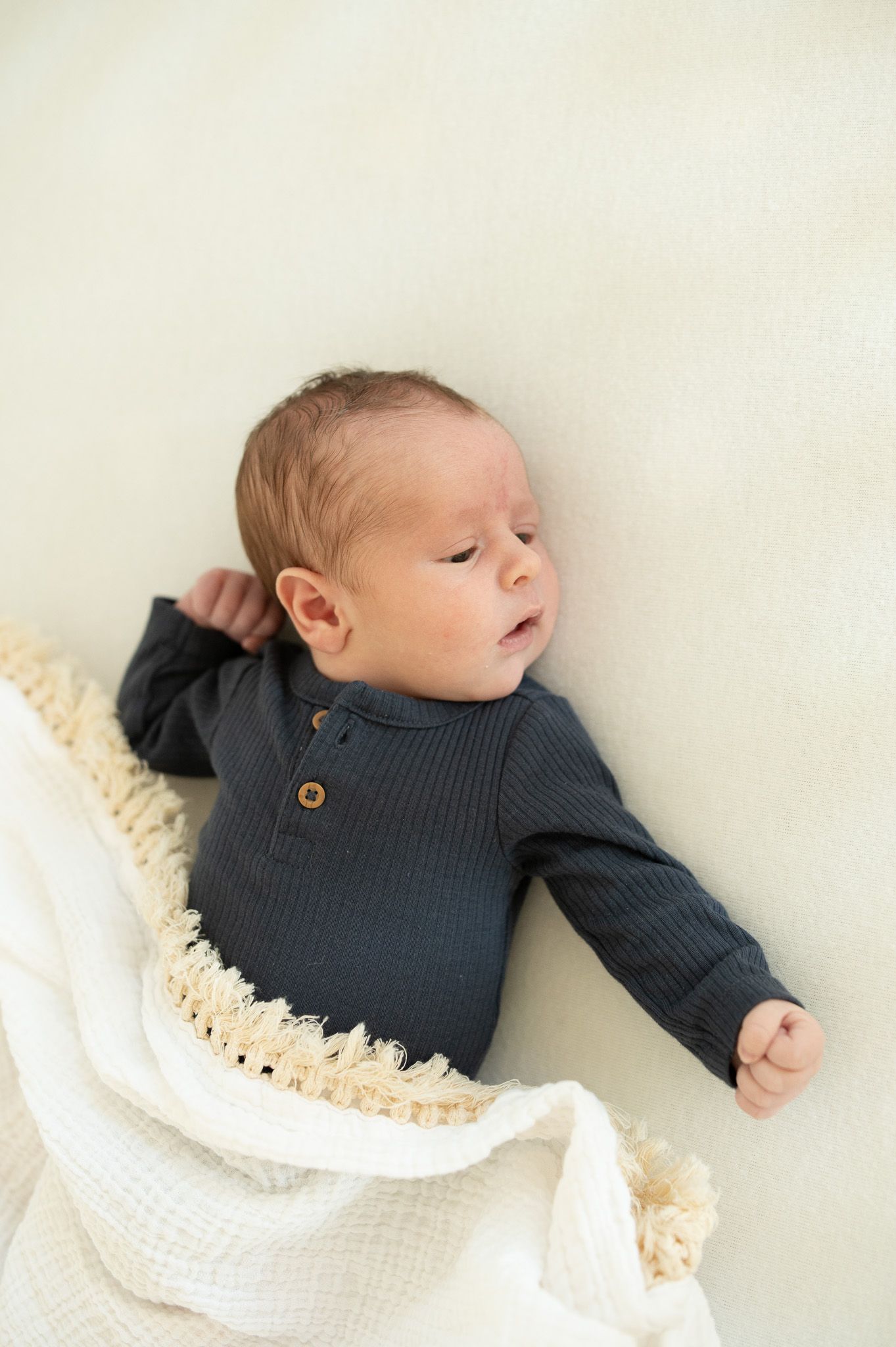
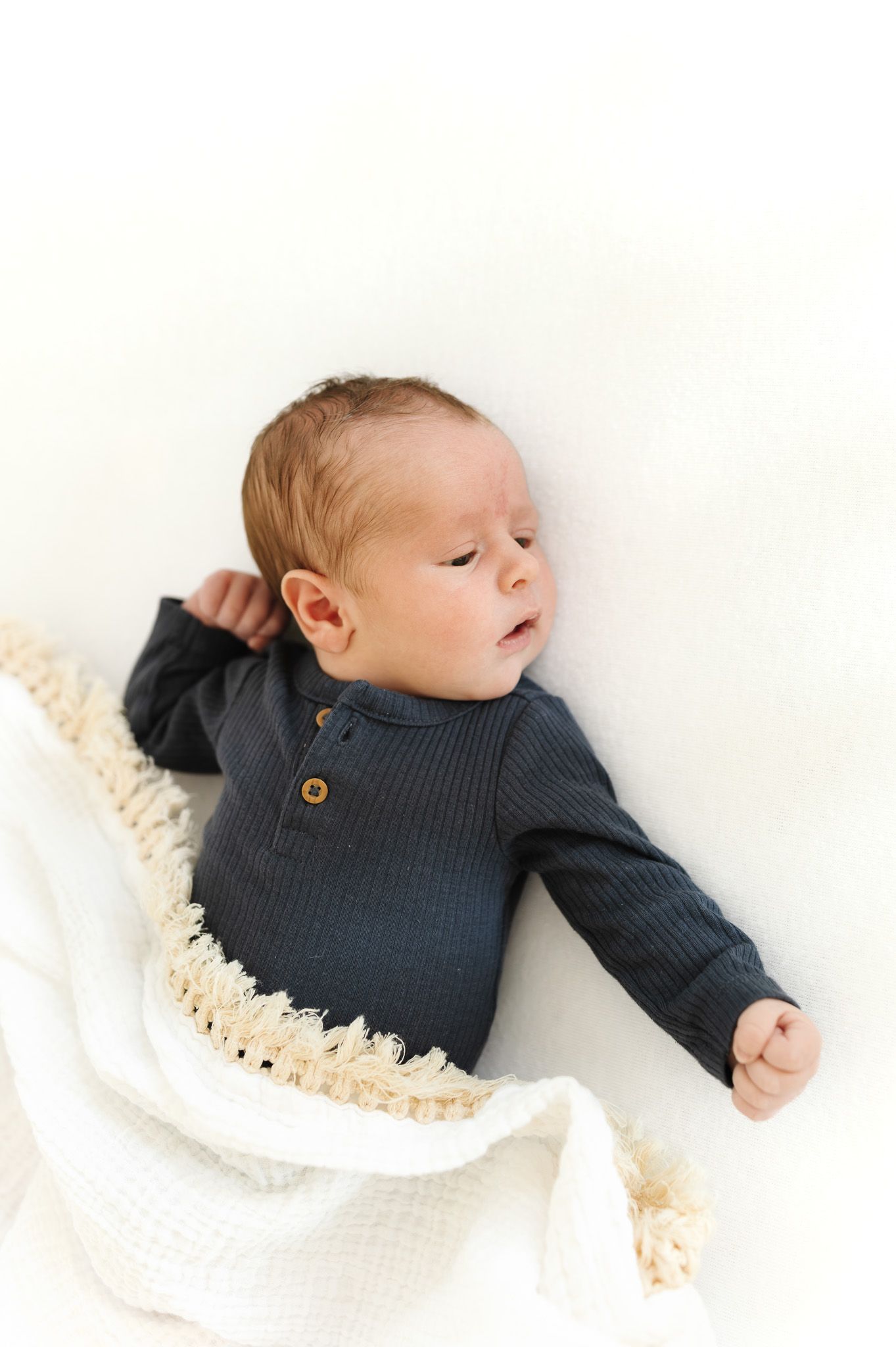
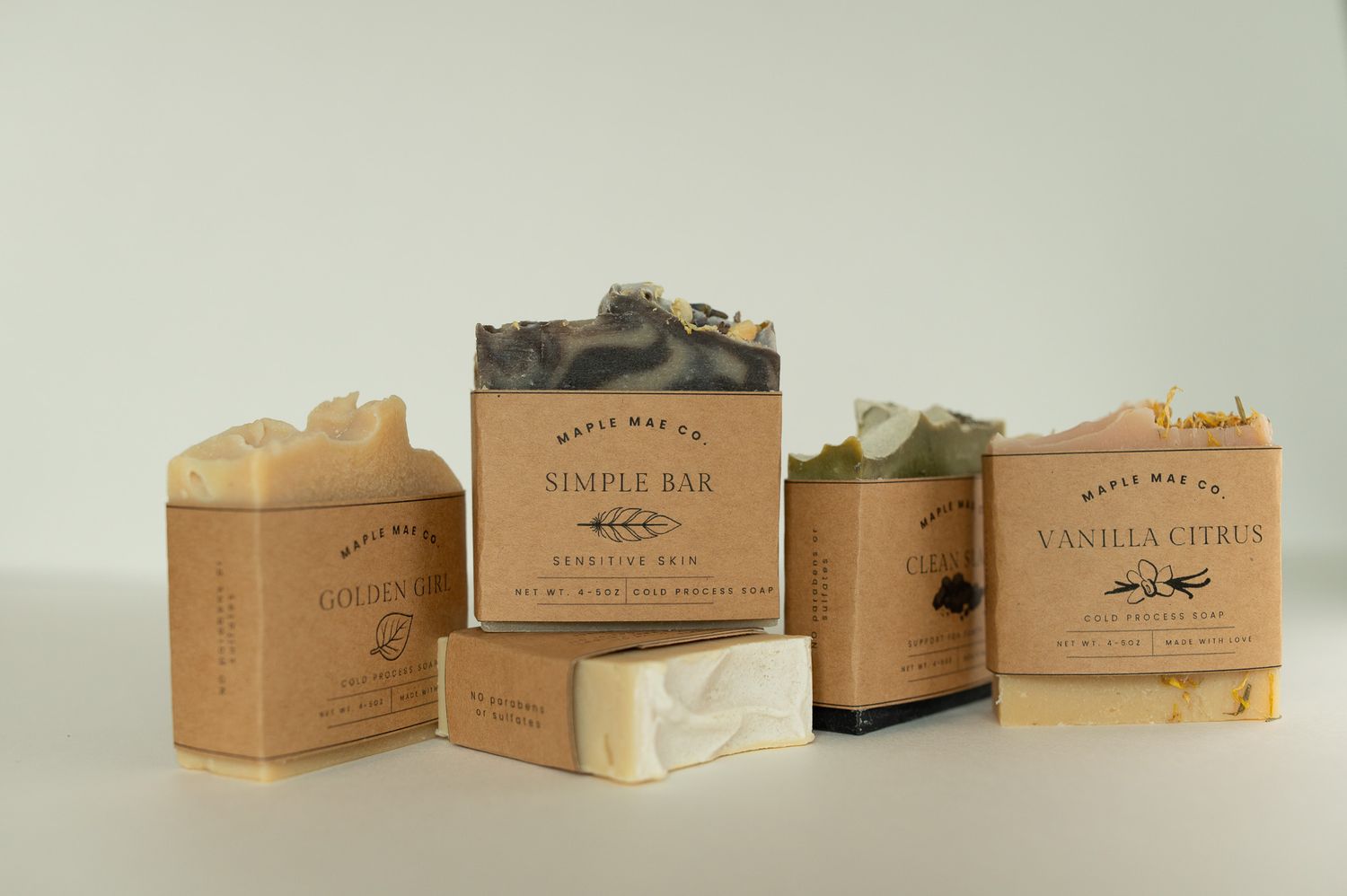
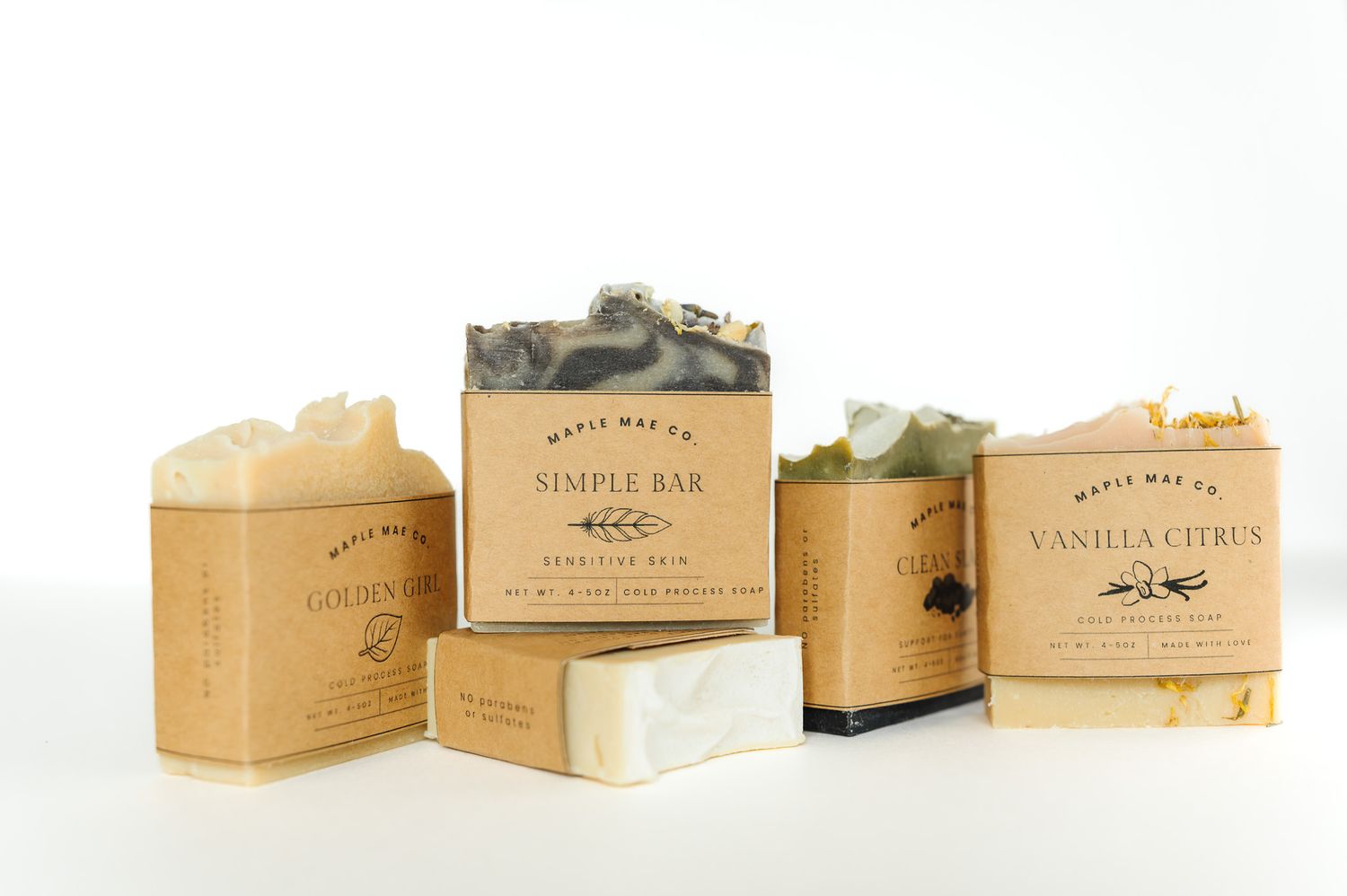
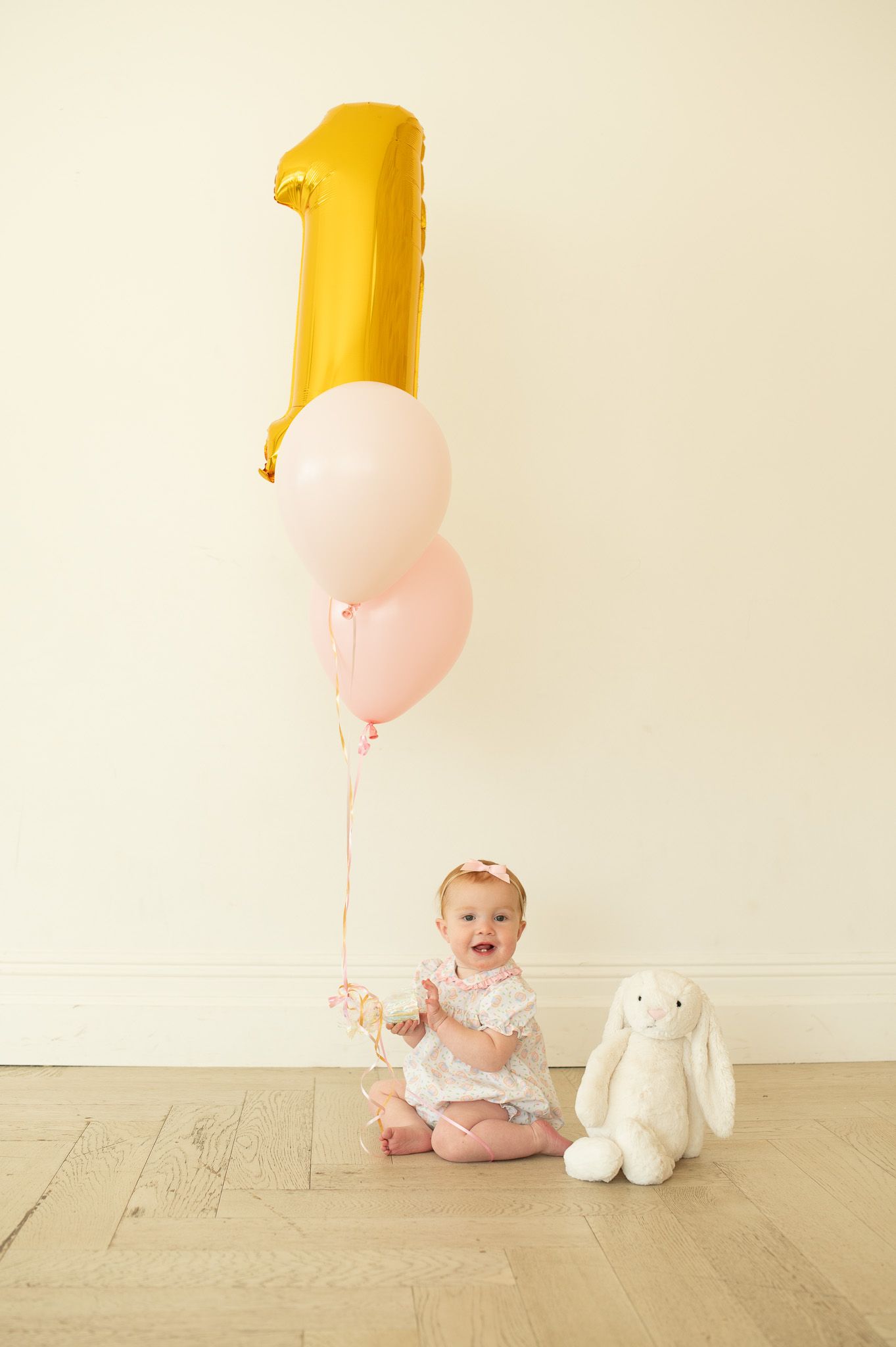
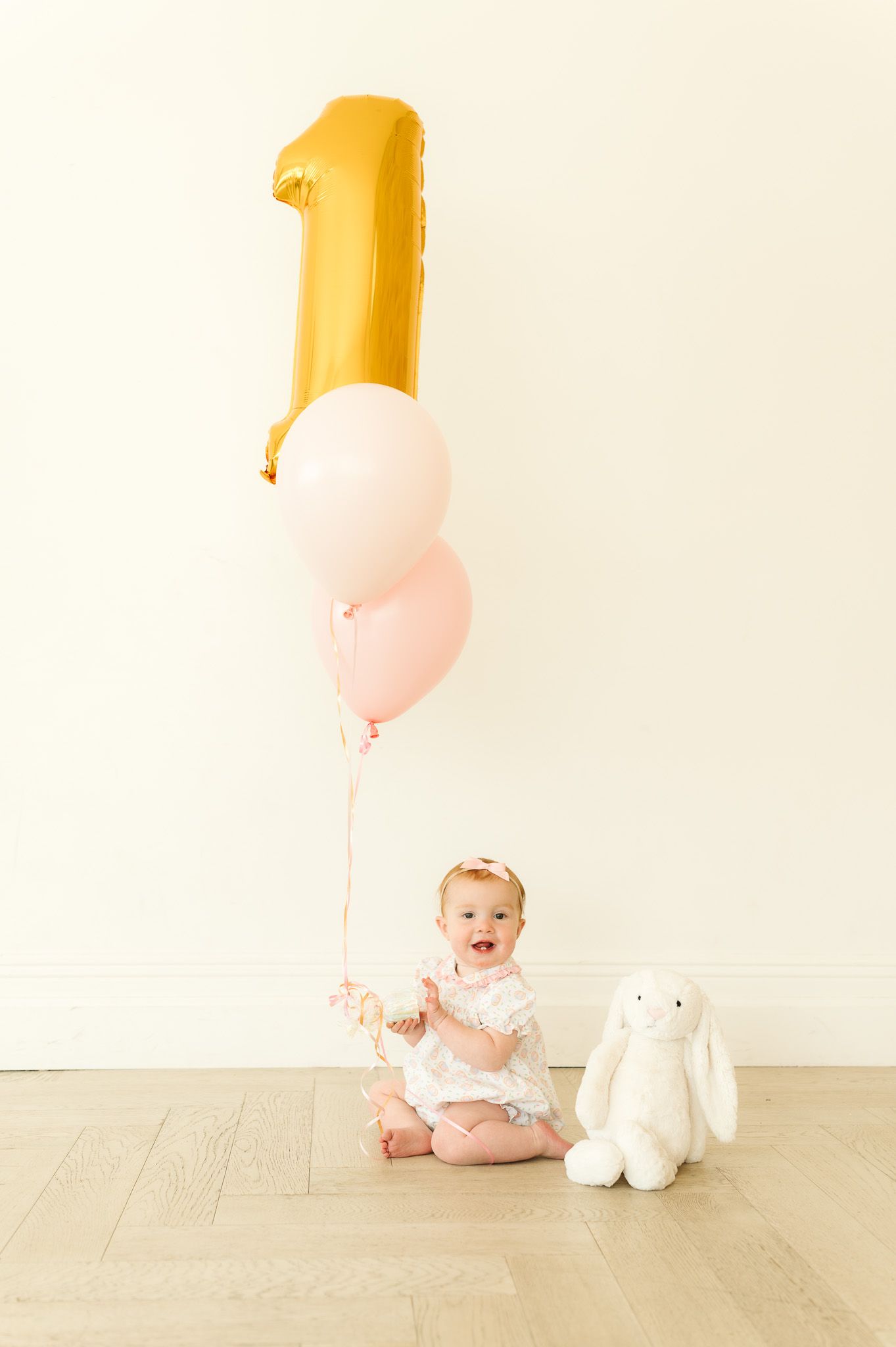
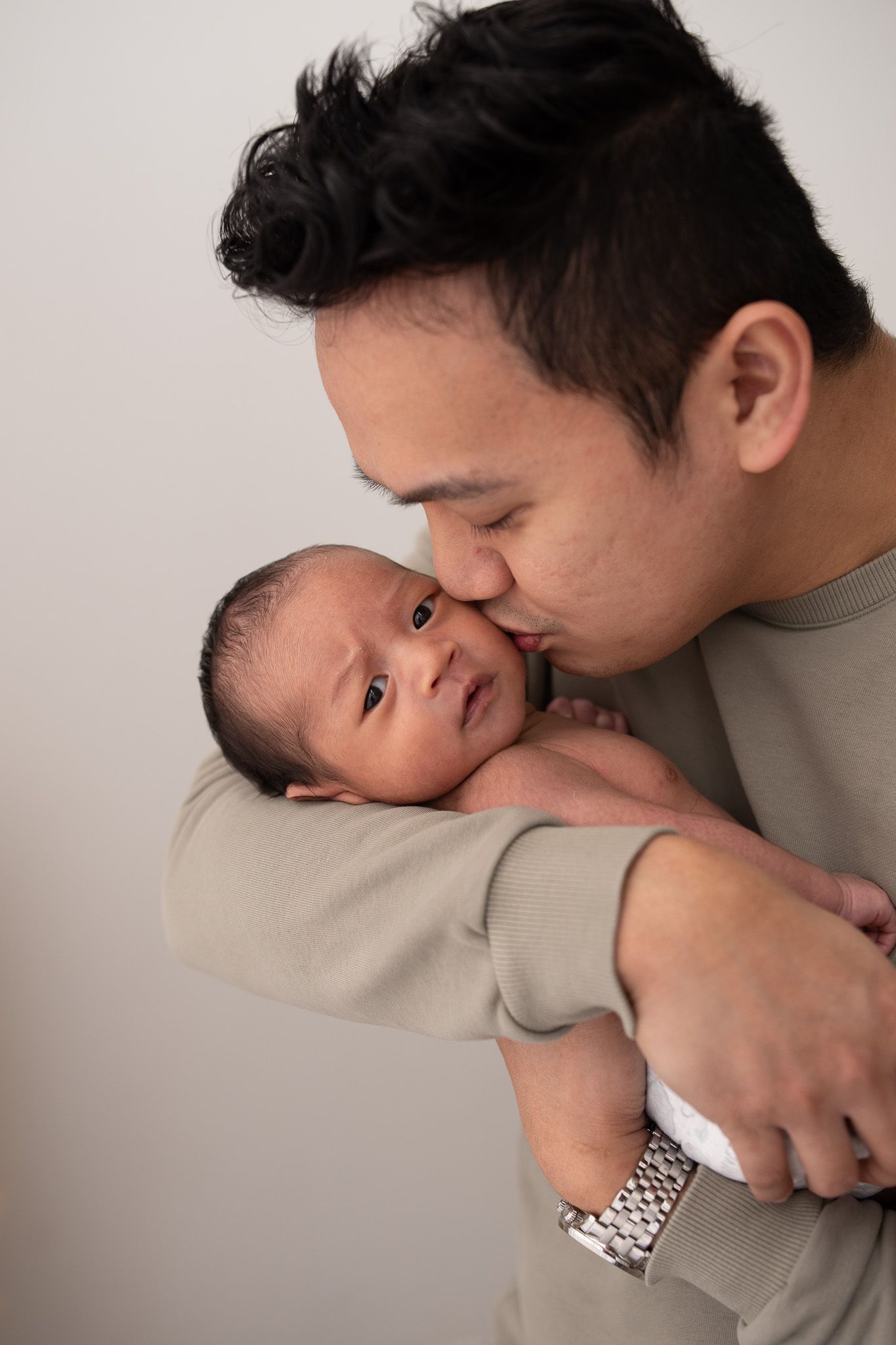
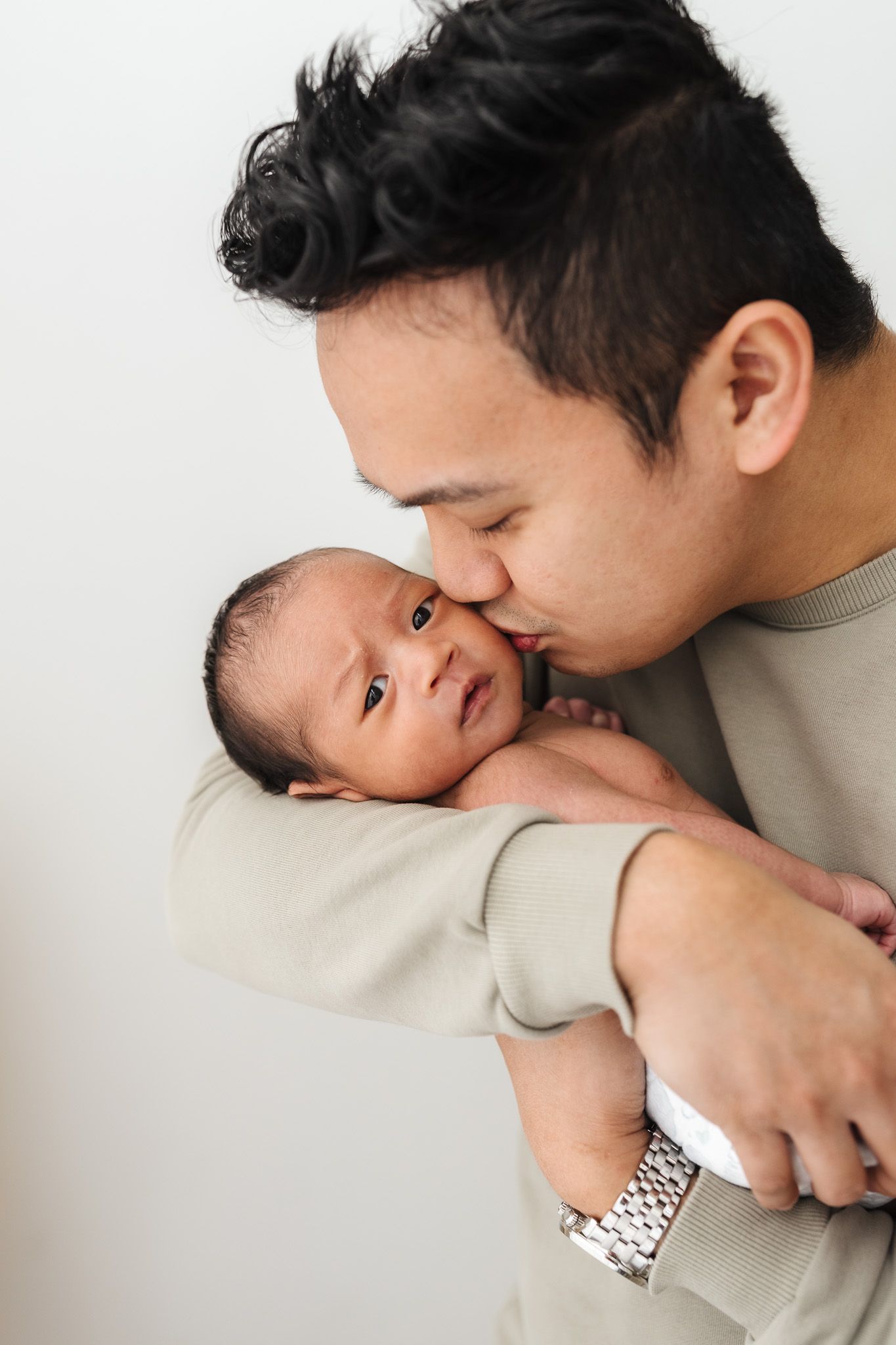
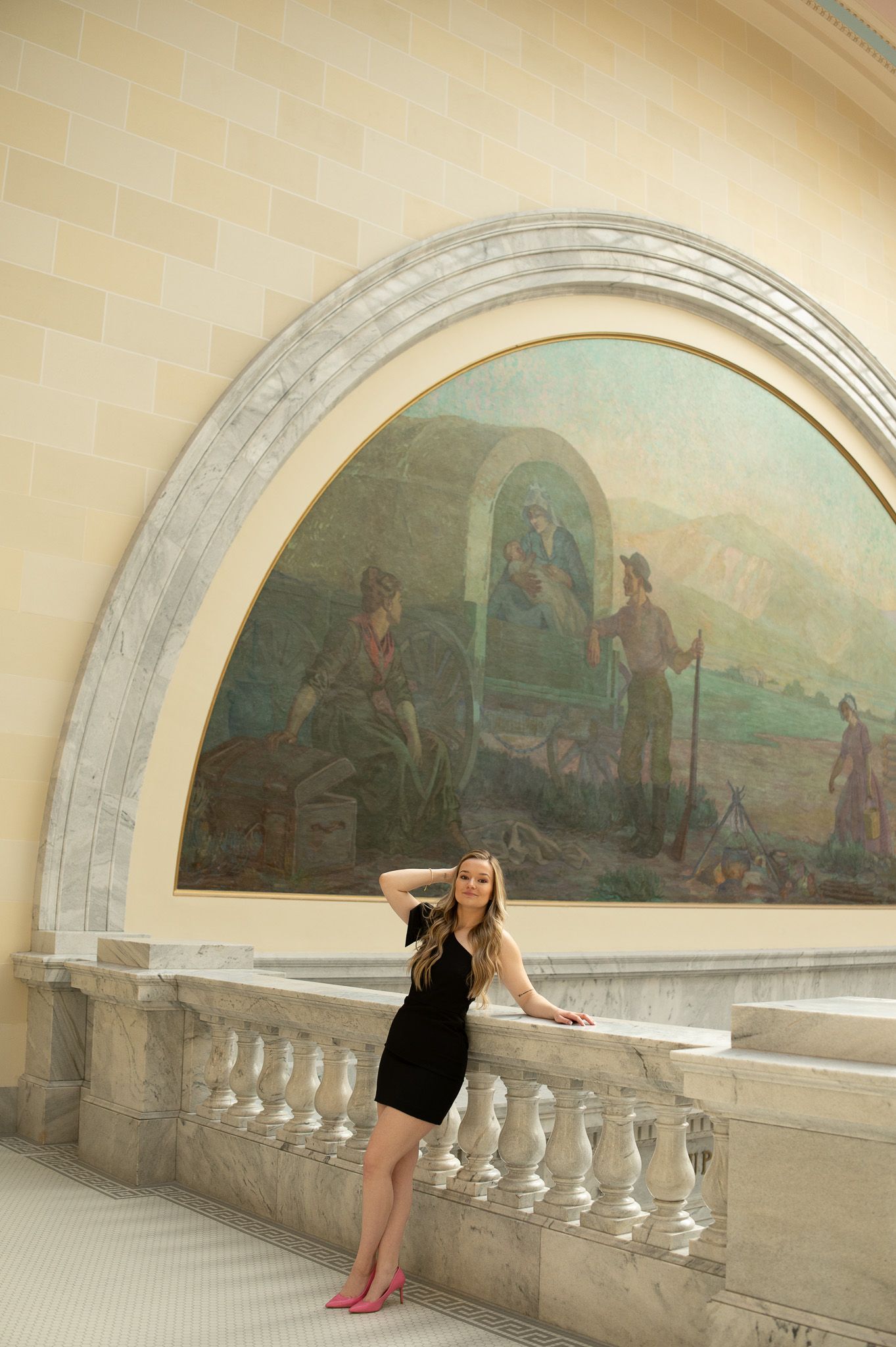
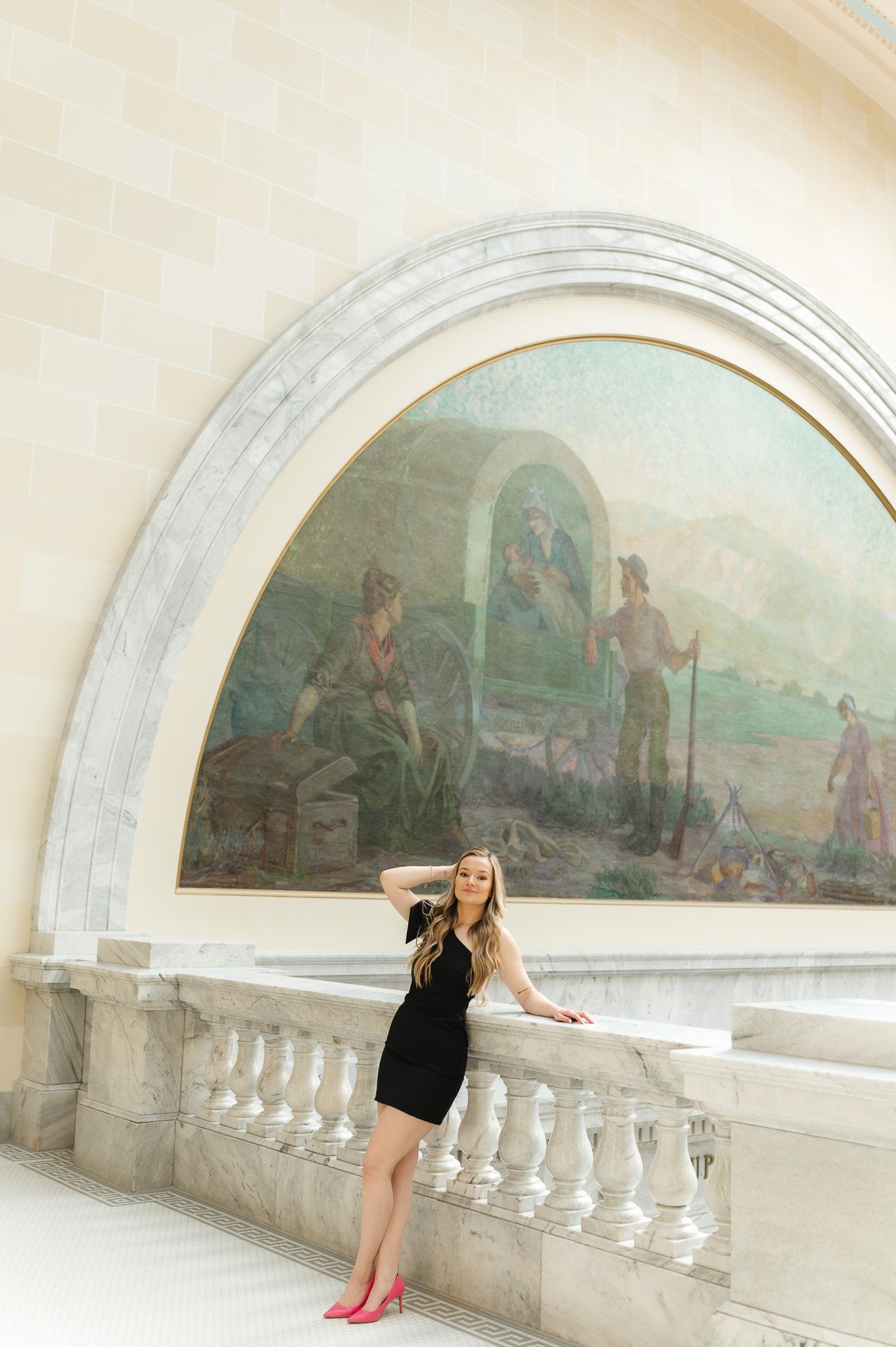
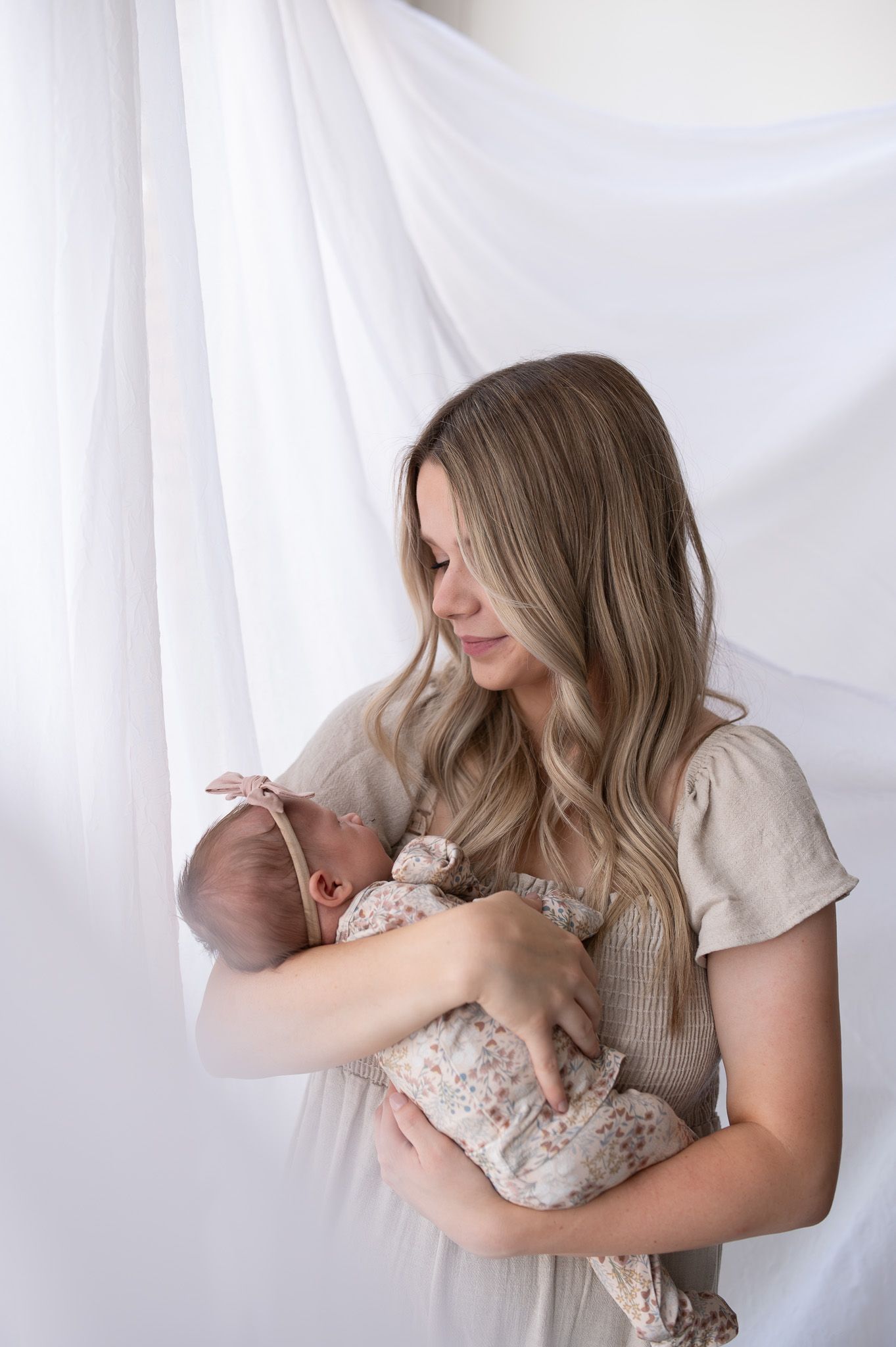
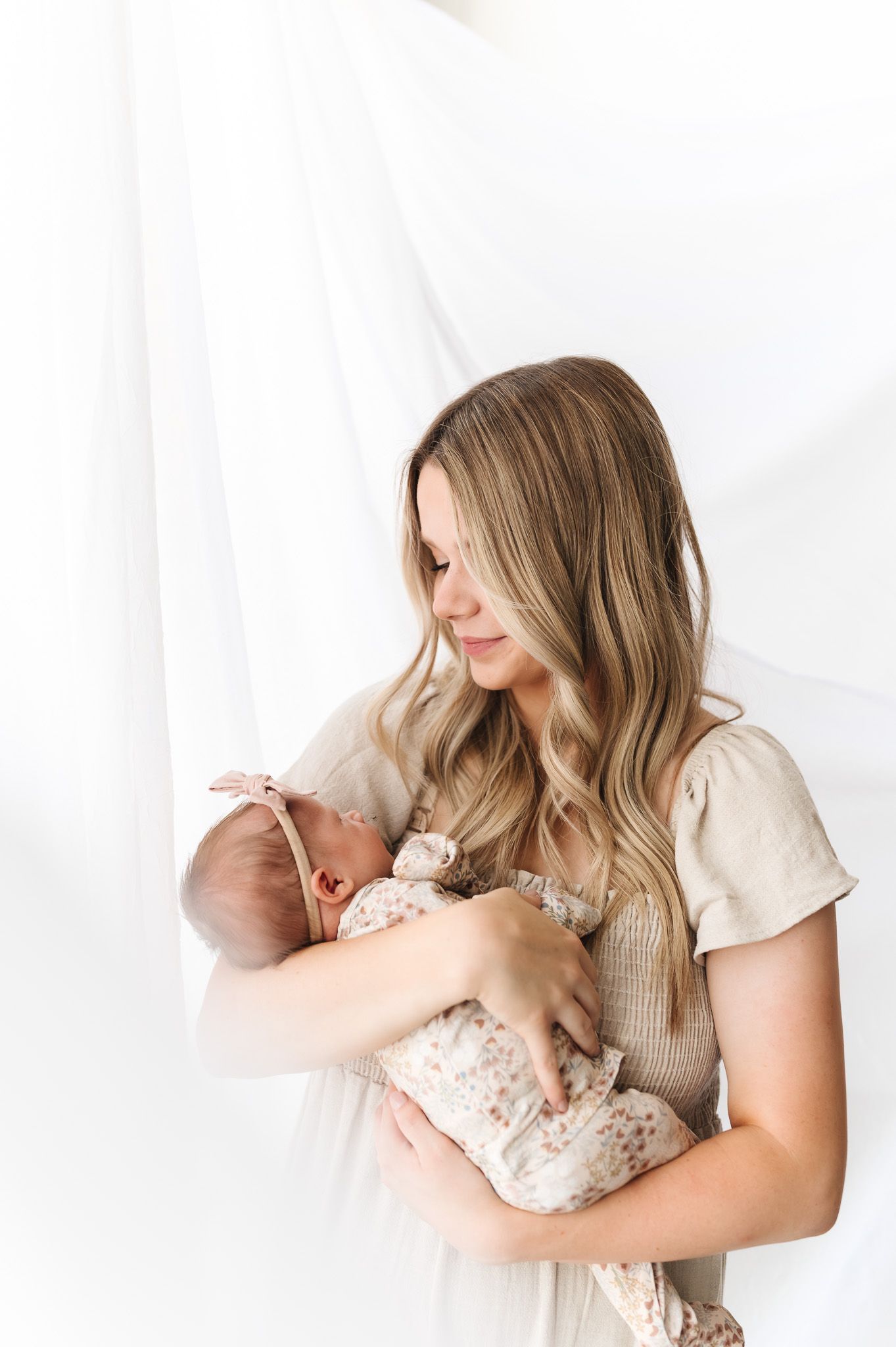
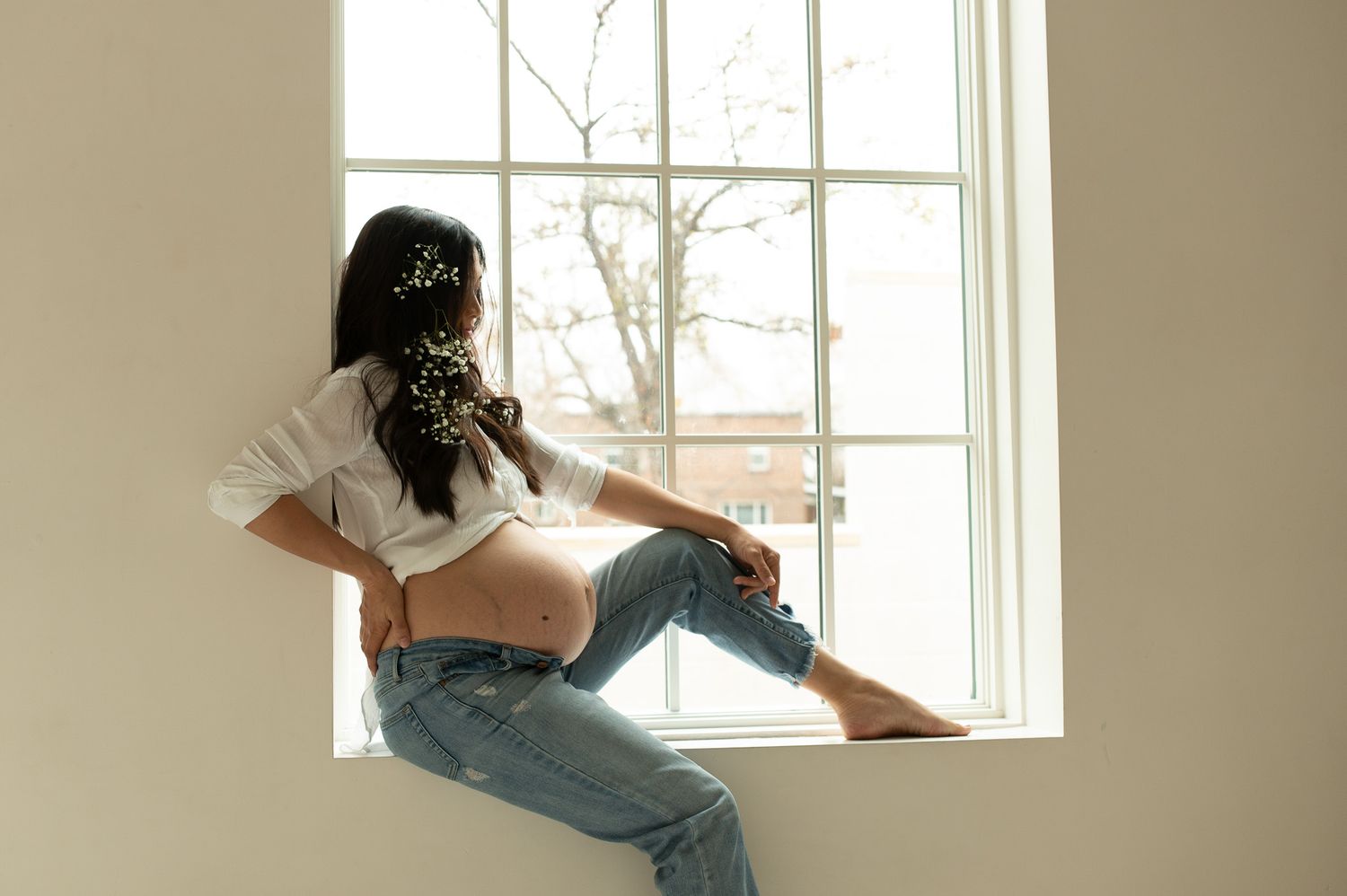
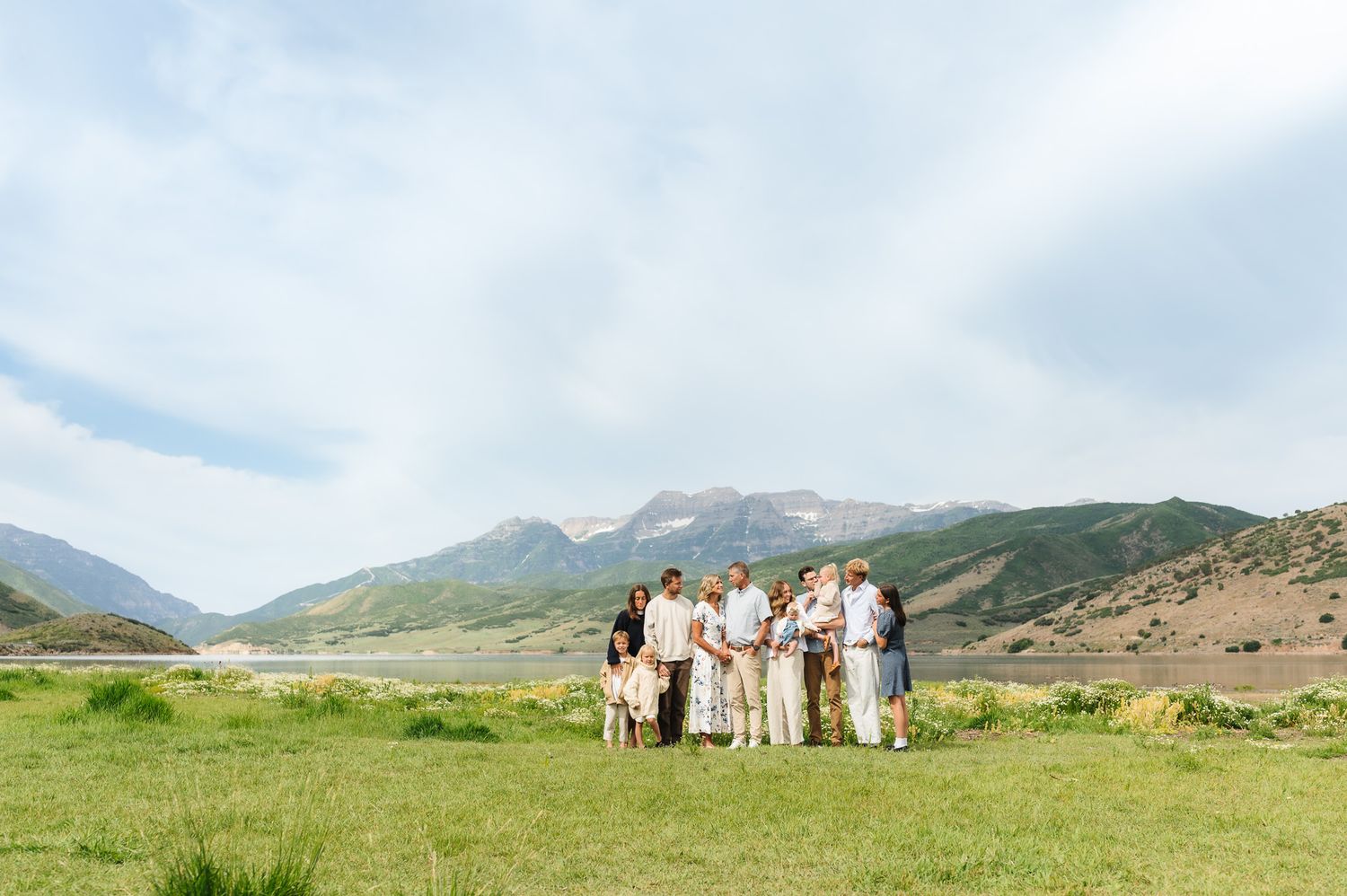
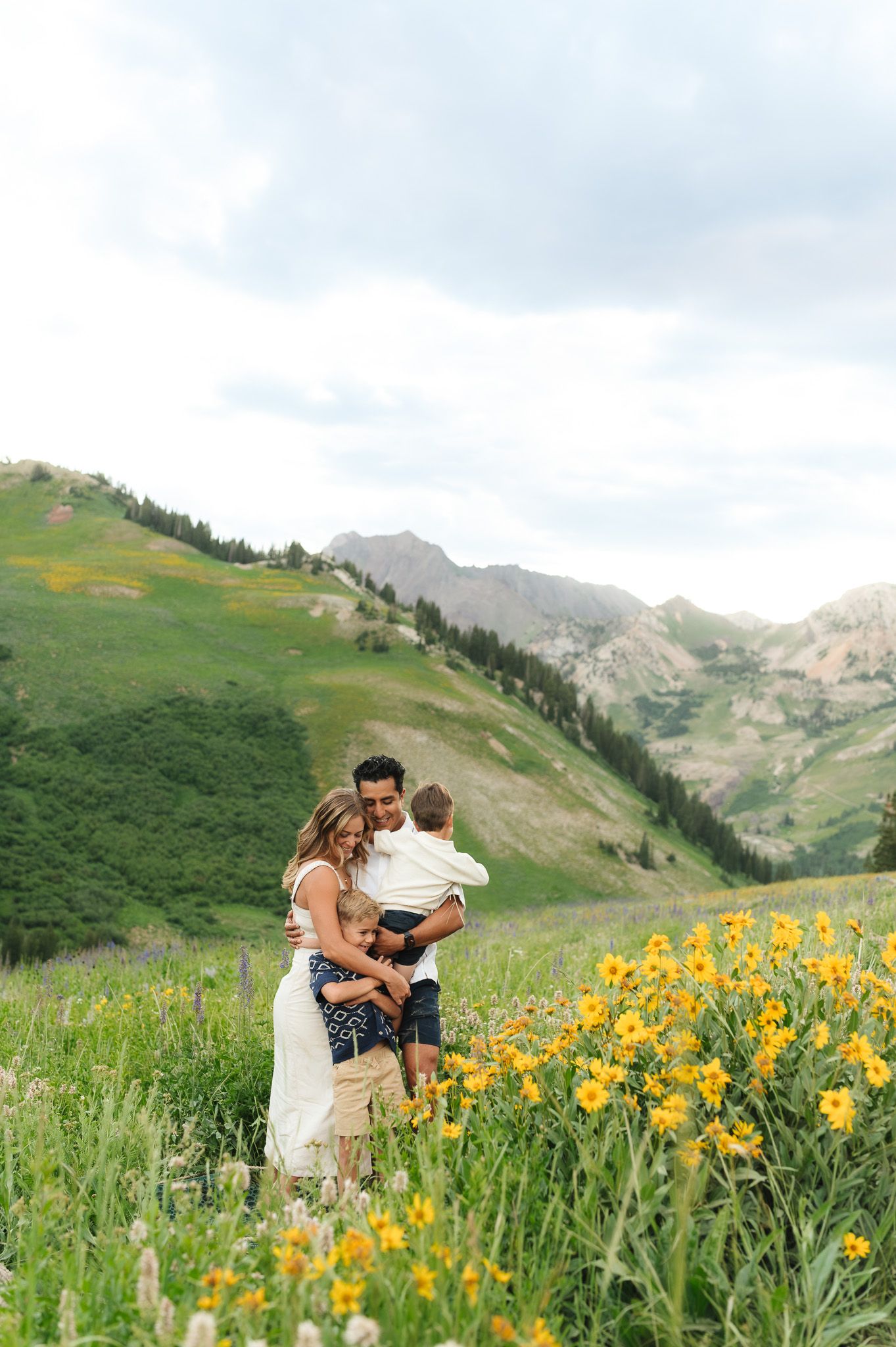
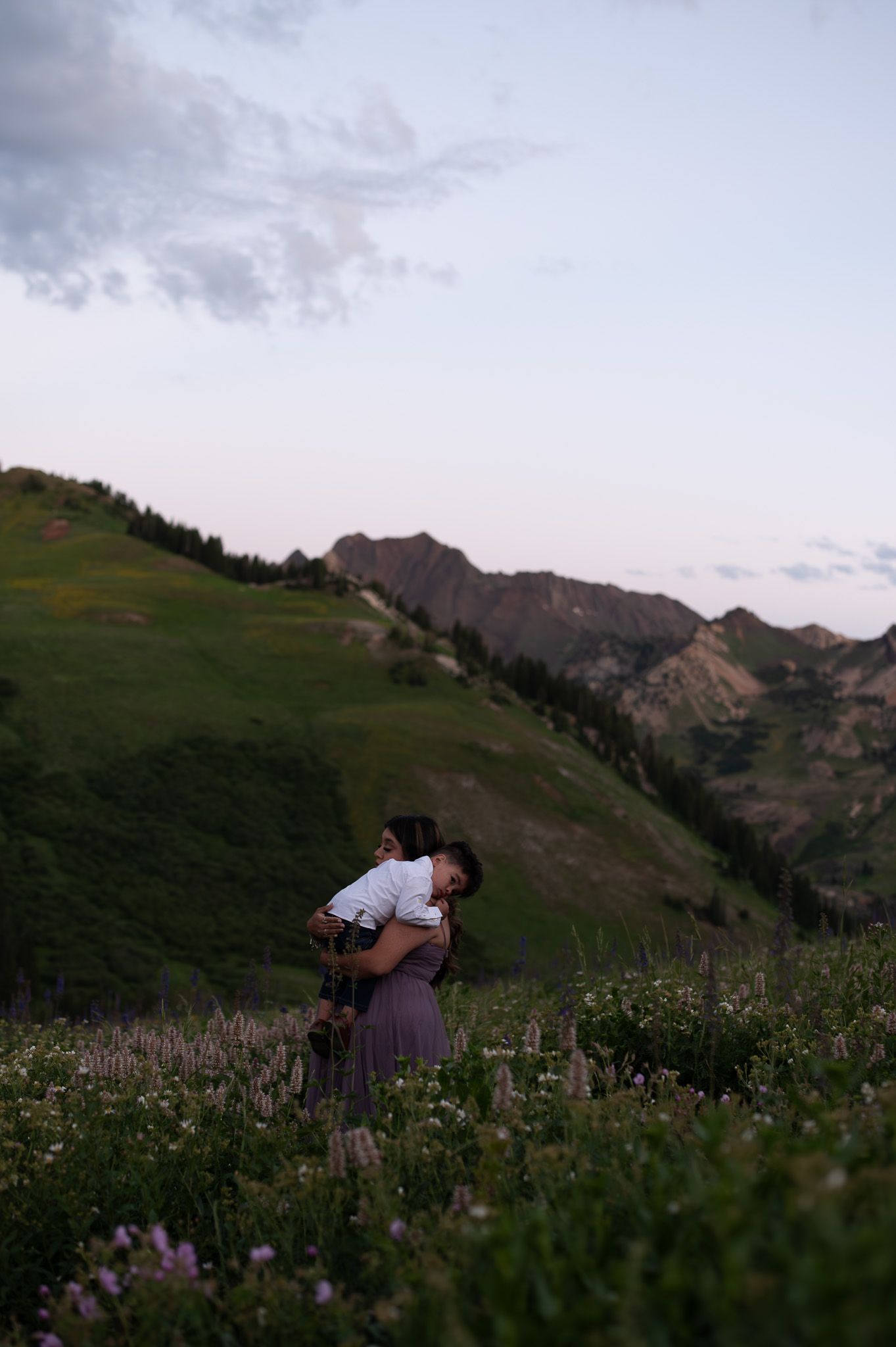
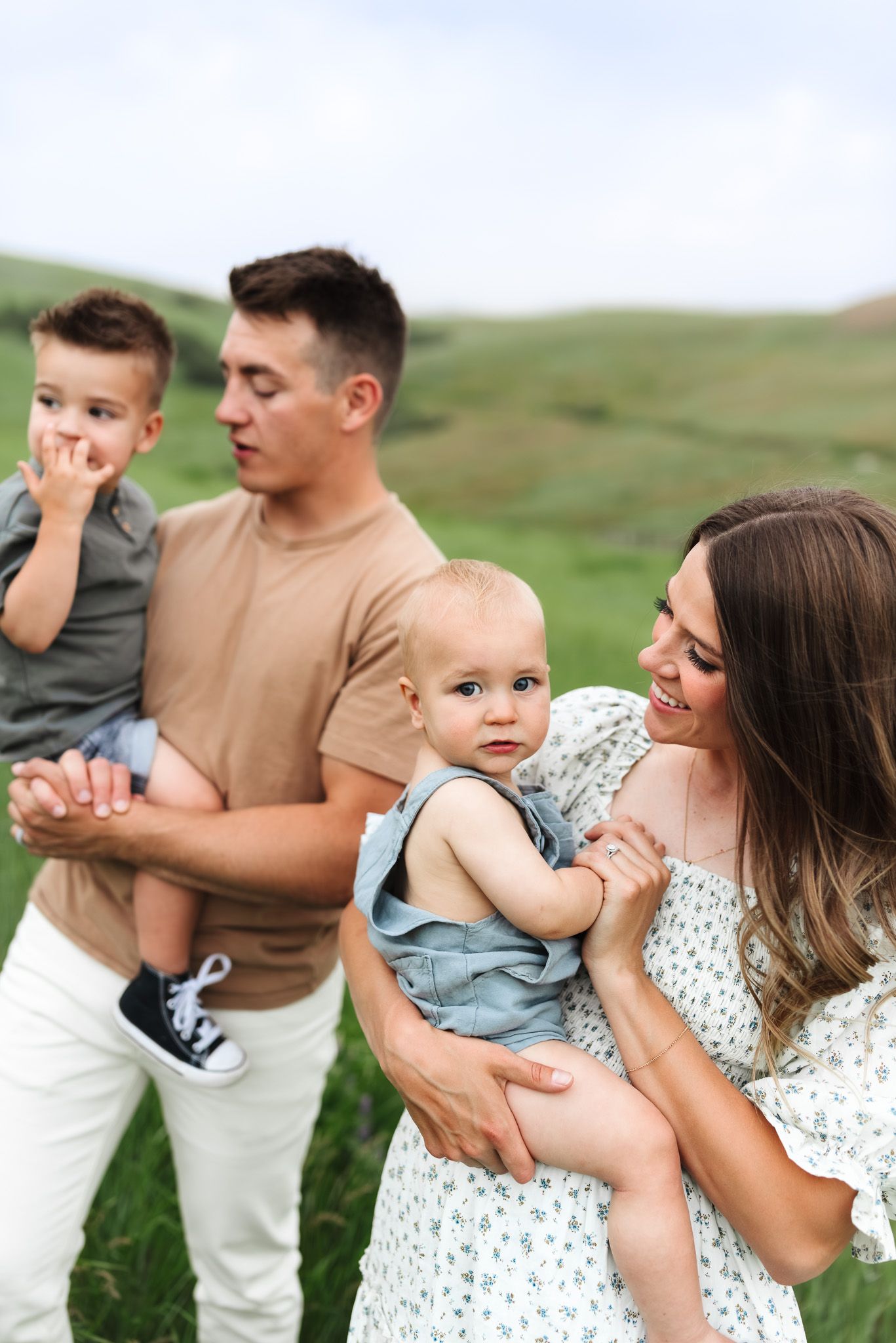
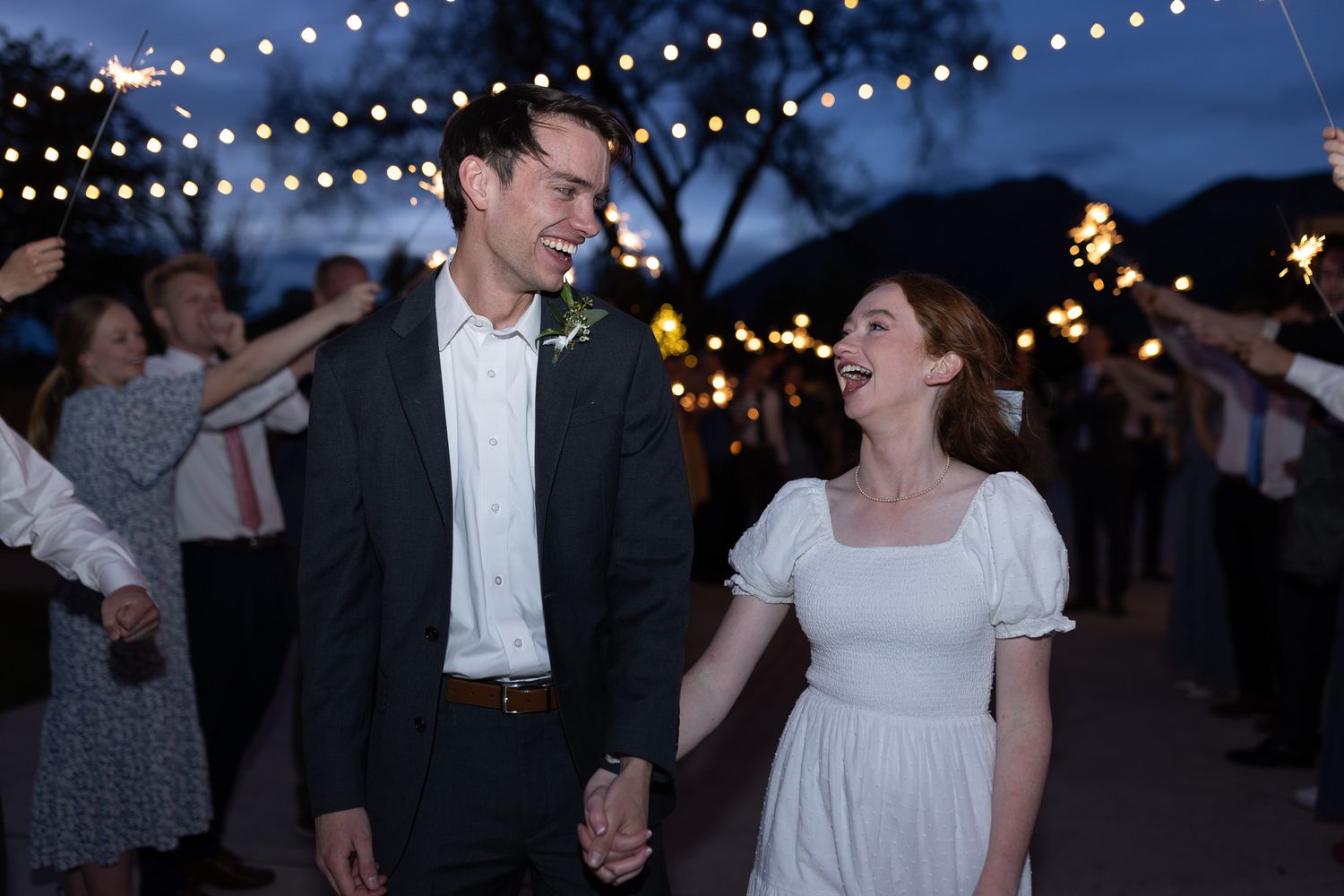
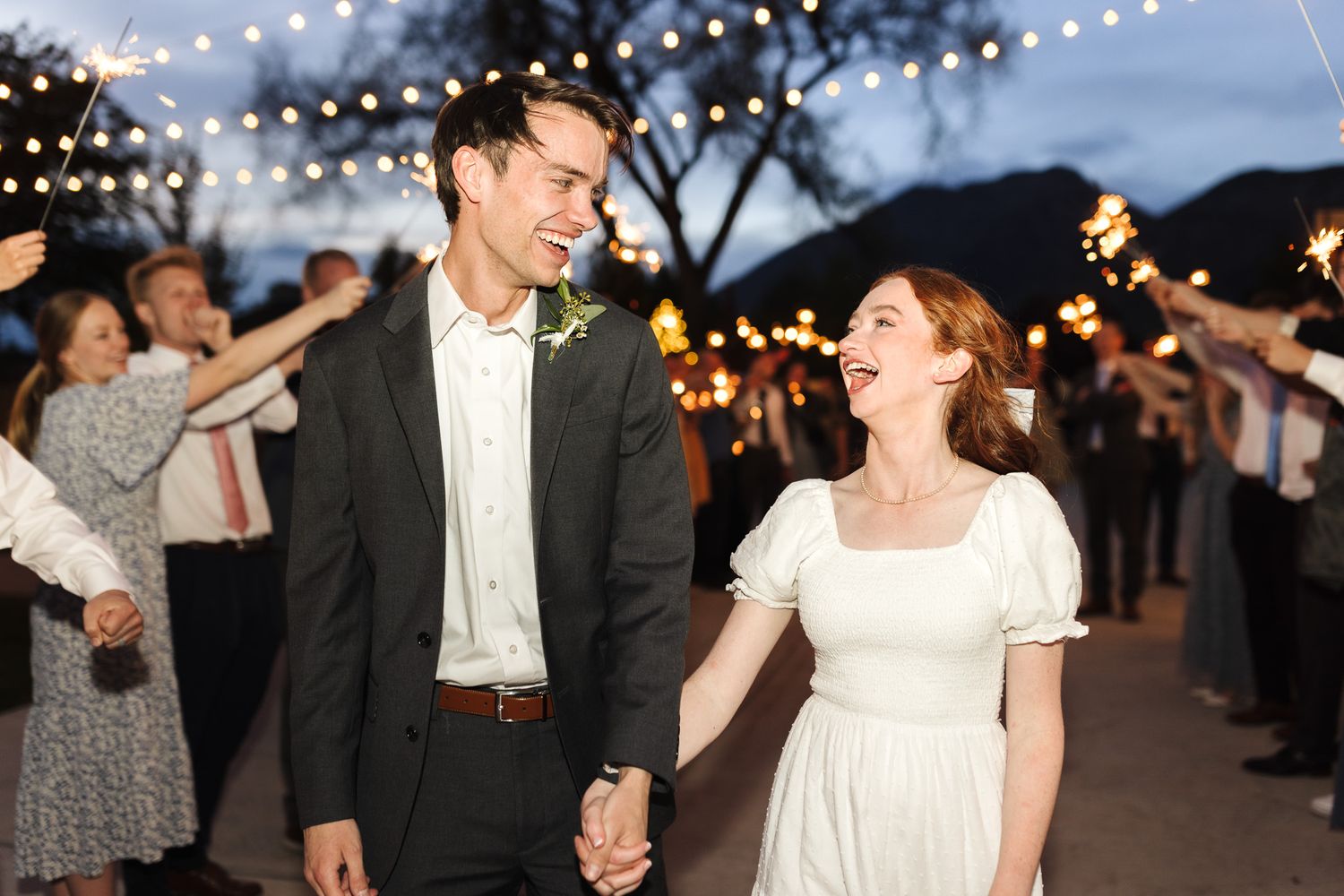
How these RAW images were taken is what I strive for at all my sessions—everything from white balance to exposure and are the exact types of final edits I created my presets for—giving a clean, consistent base across different lighting situations.
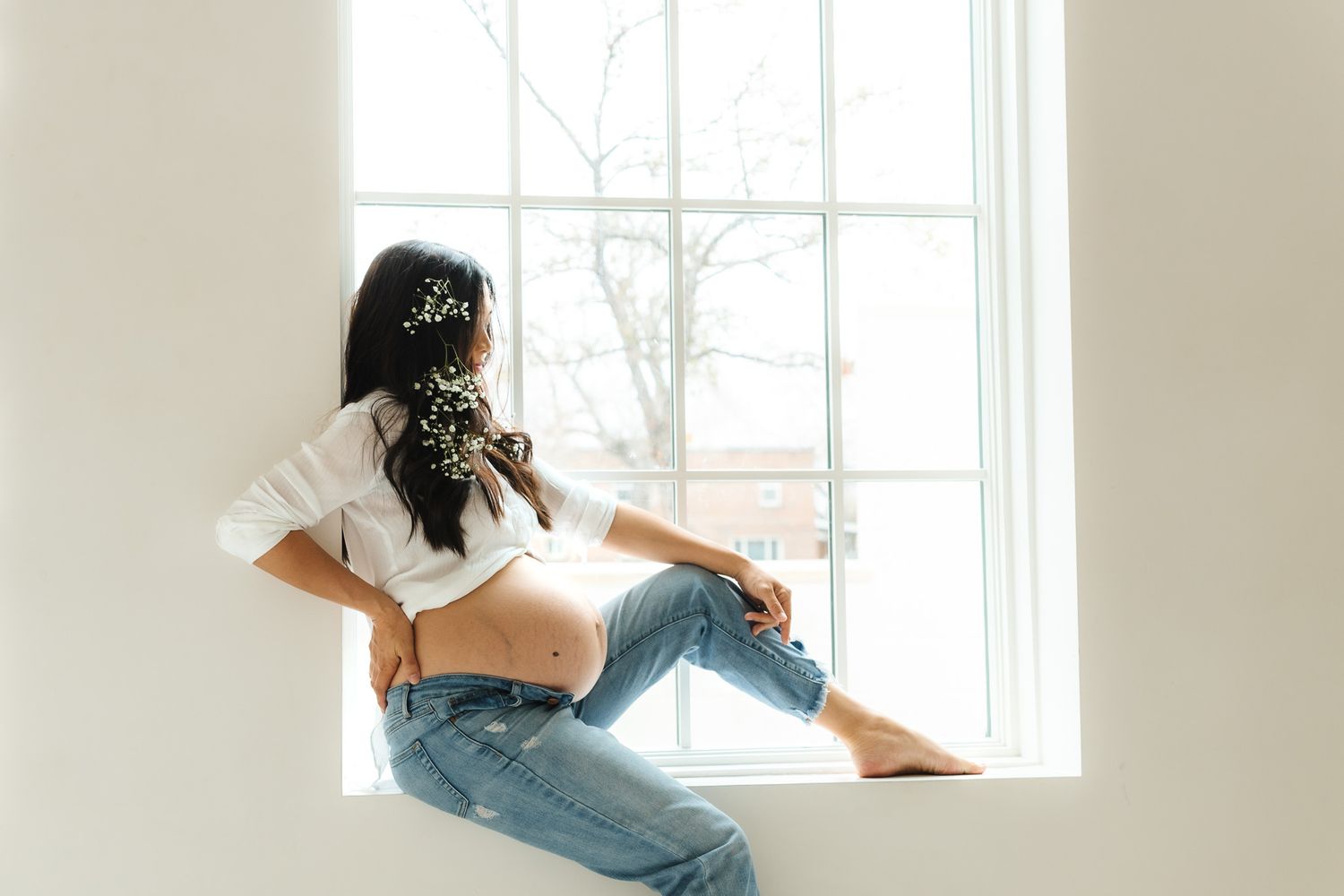
How to Edit Indoor Sessions
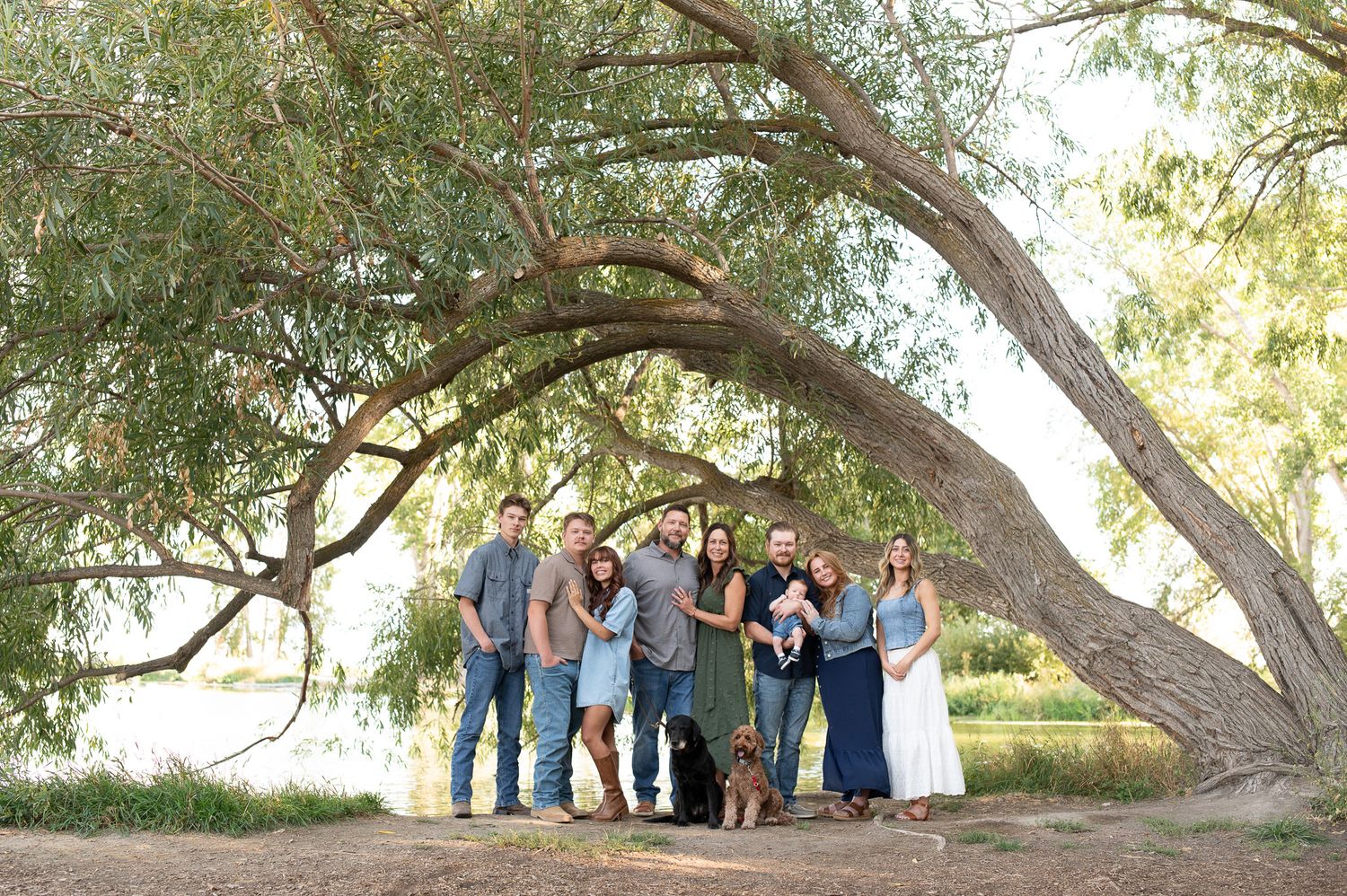
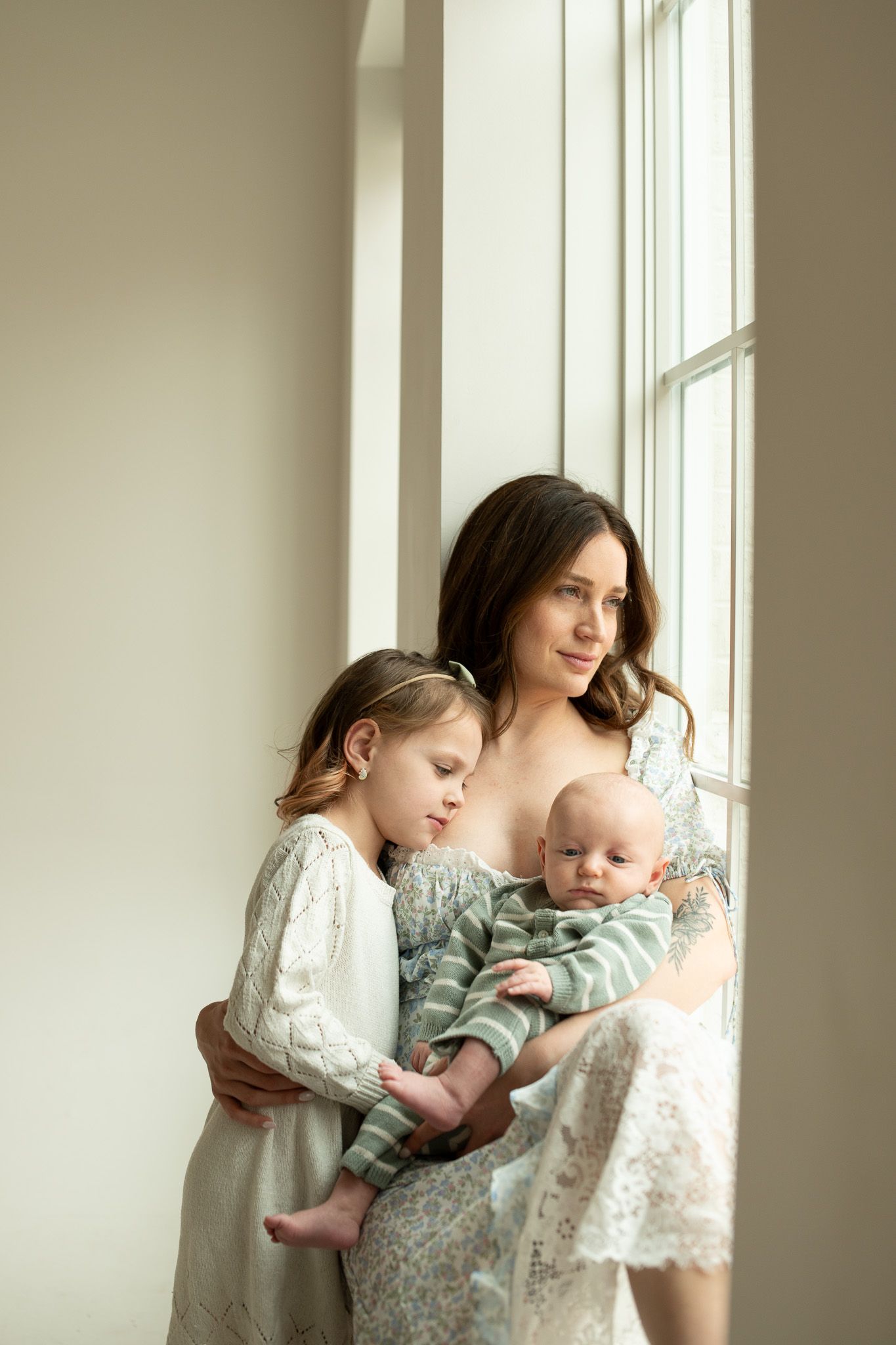
Indoor light can be tricky because you’re balancing:
- limited natural light
- shadows
- natural looking skin tones
Common issues:
- dark or noisy images
- too much contrast
- uneven skin tones
To correct this:
- adjust temperature first
- adjust exposure
- decrease contrast
- increase shadows
- lift shadows on the parametric curve (on the tone curve)
- make small, subtle HSL adjustments if needed
BEFORE VS. AFTER


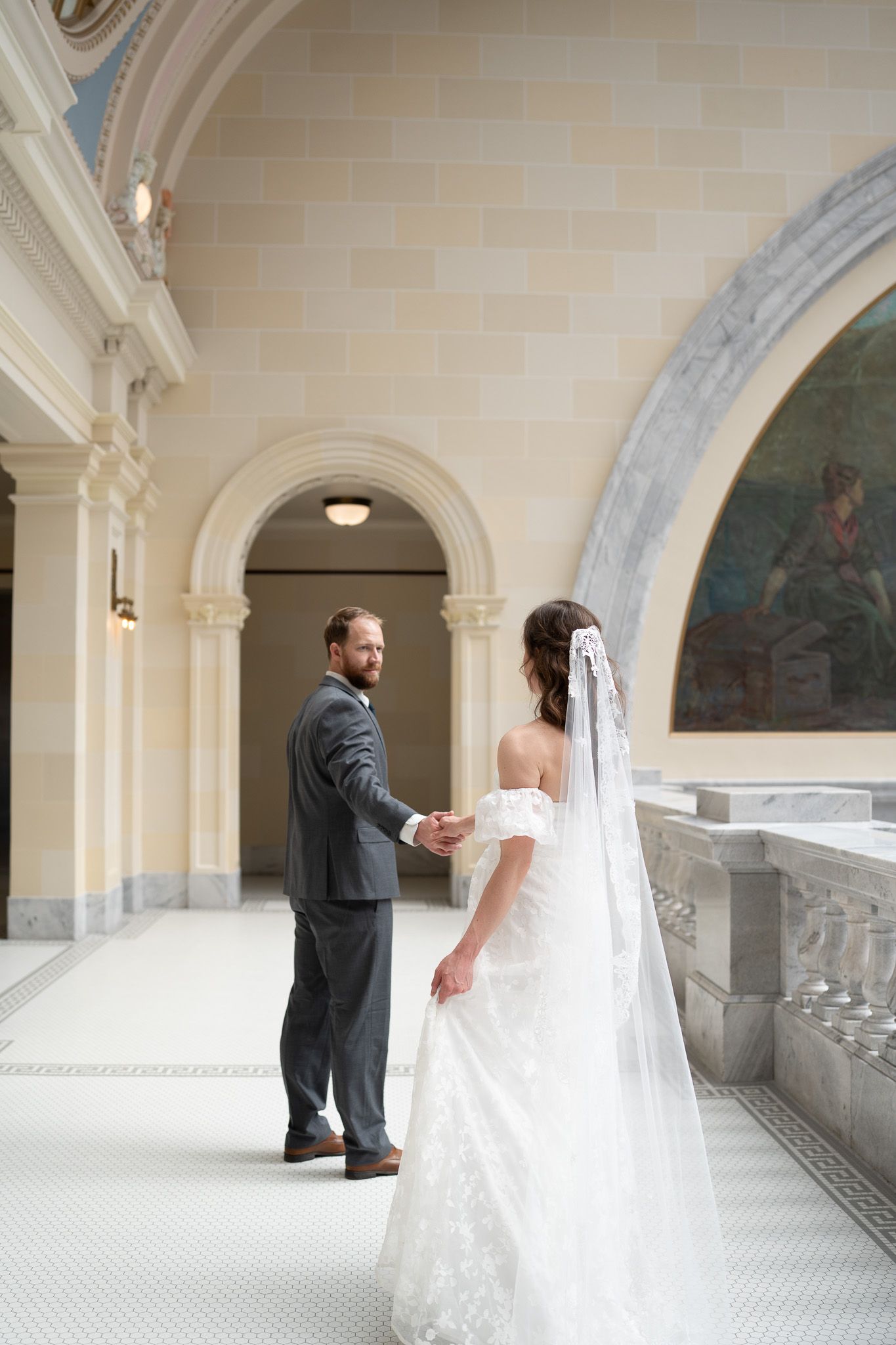
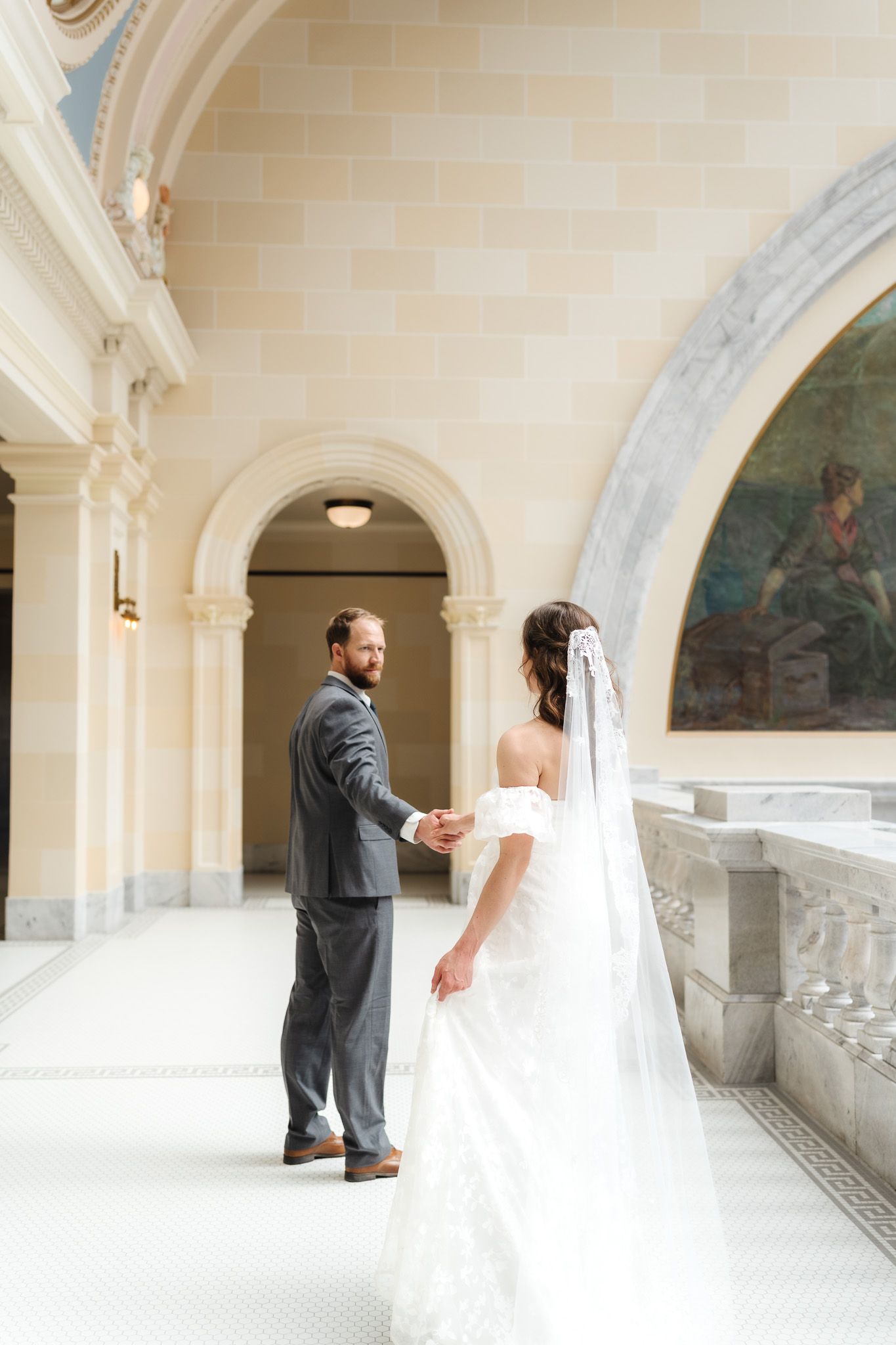
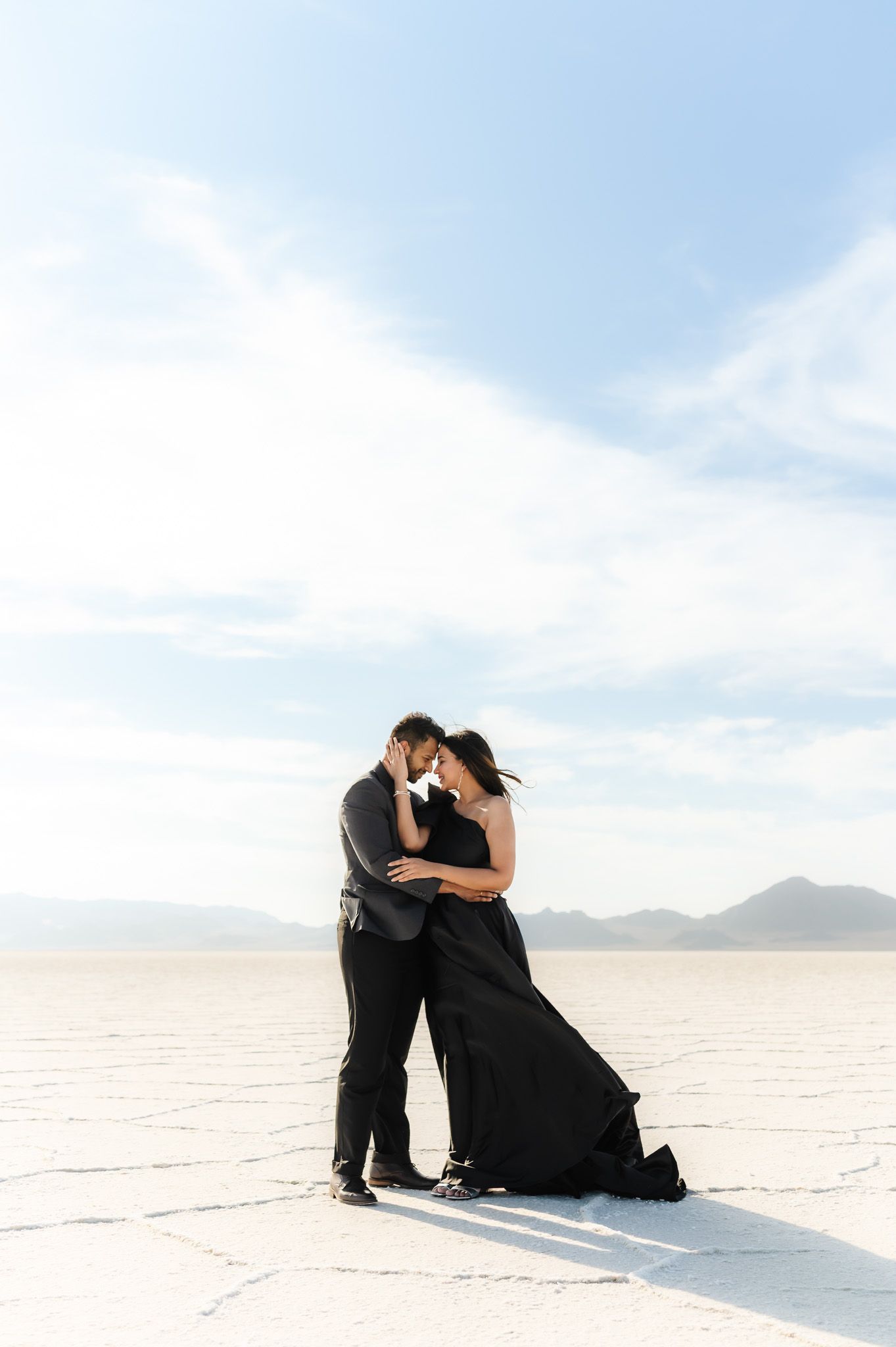
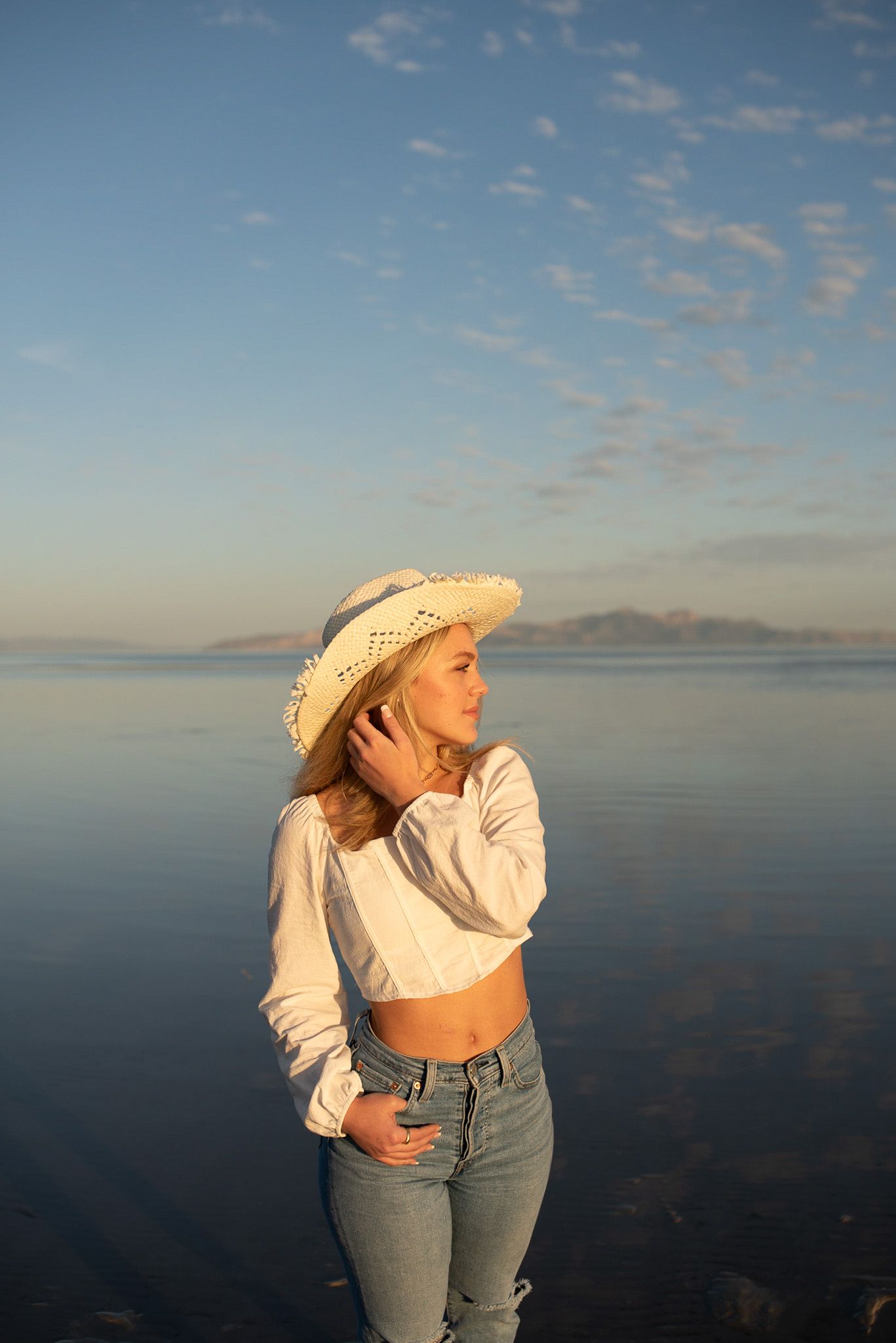
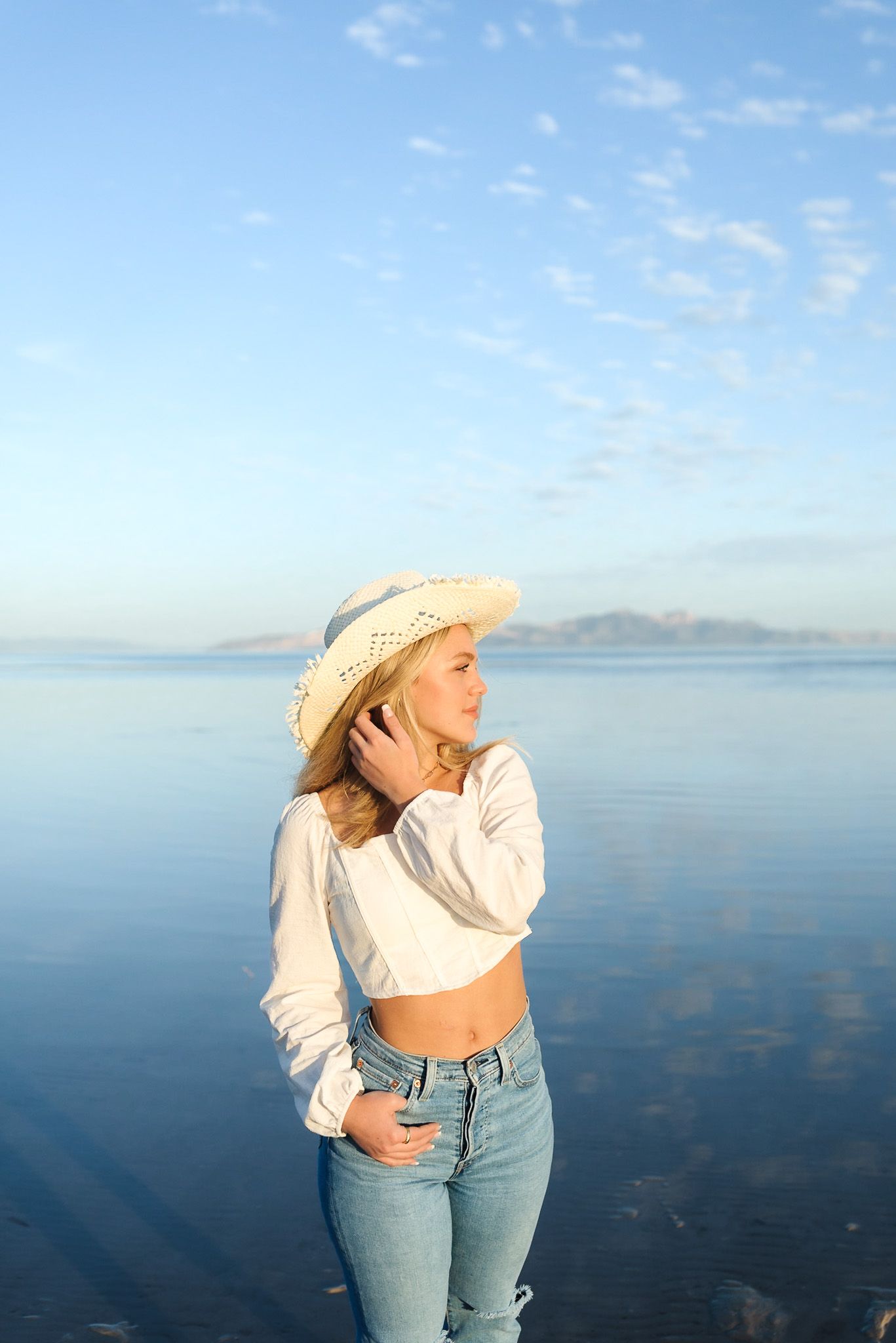
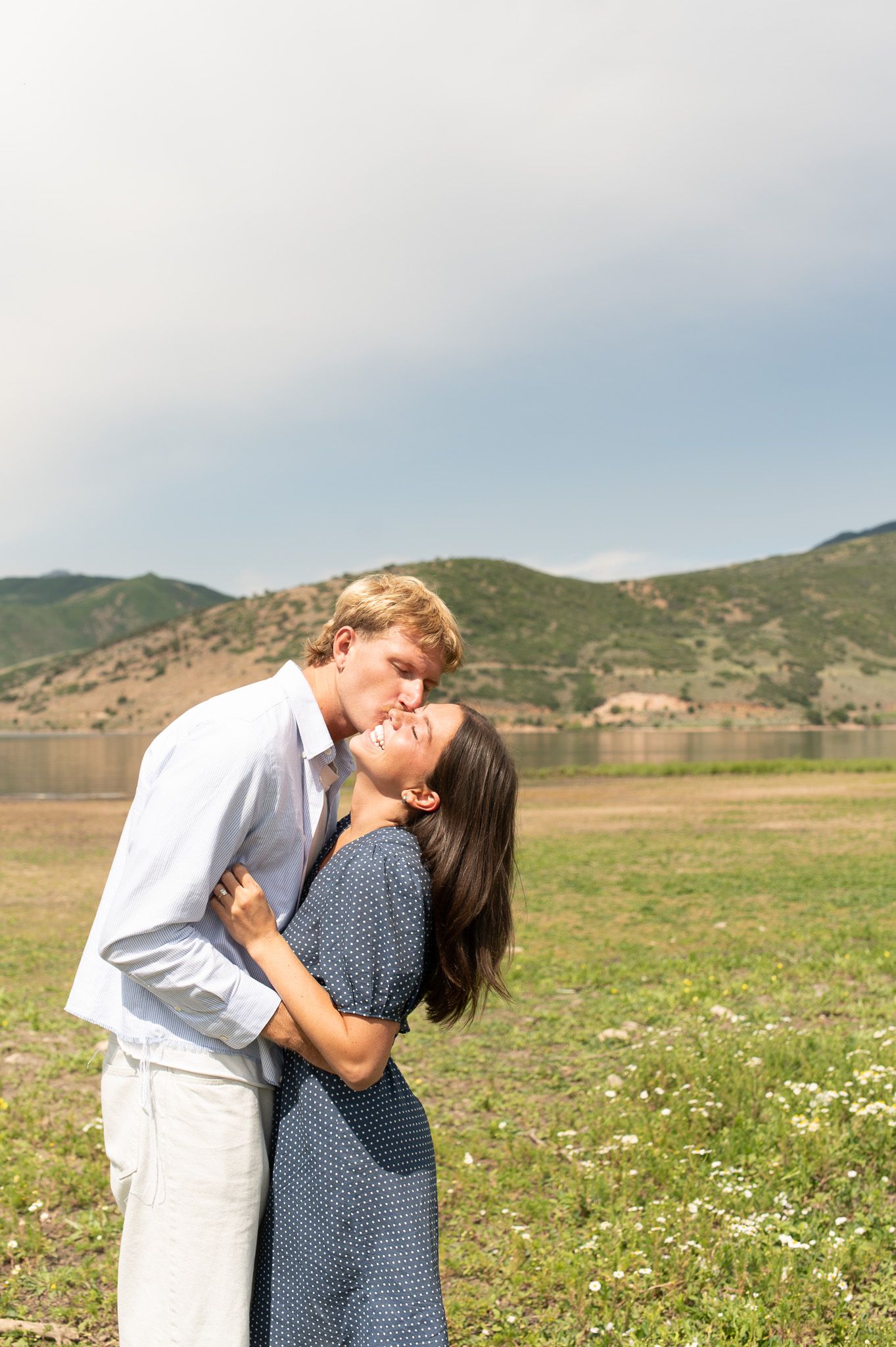
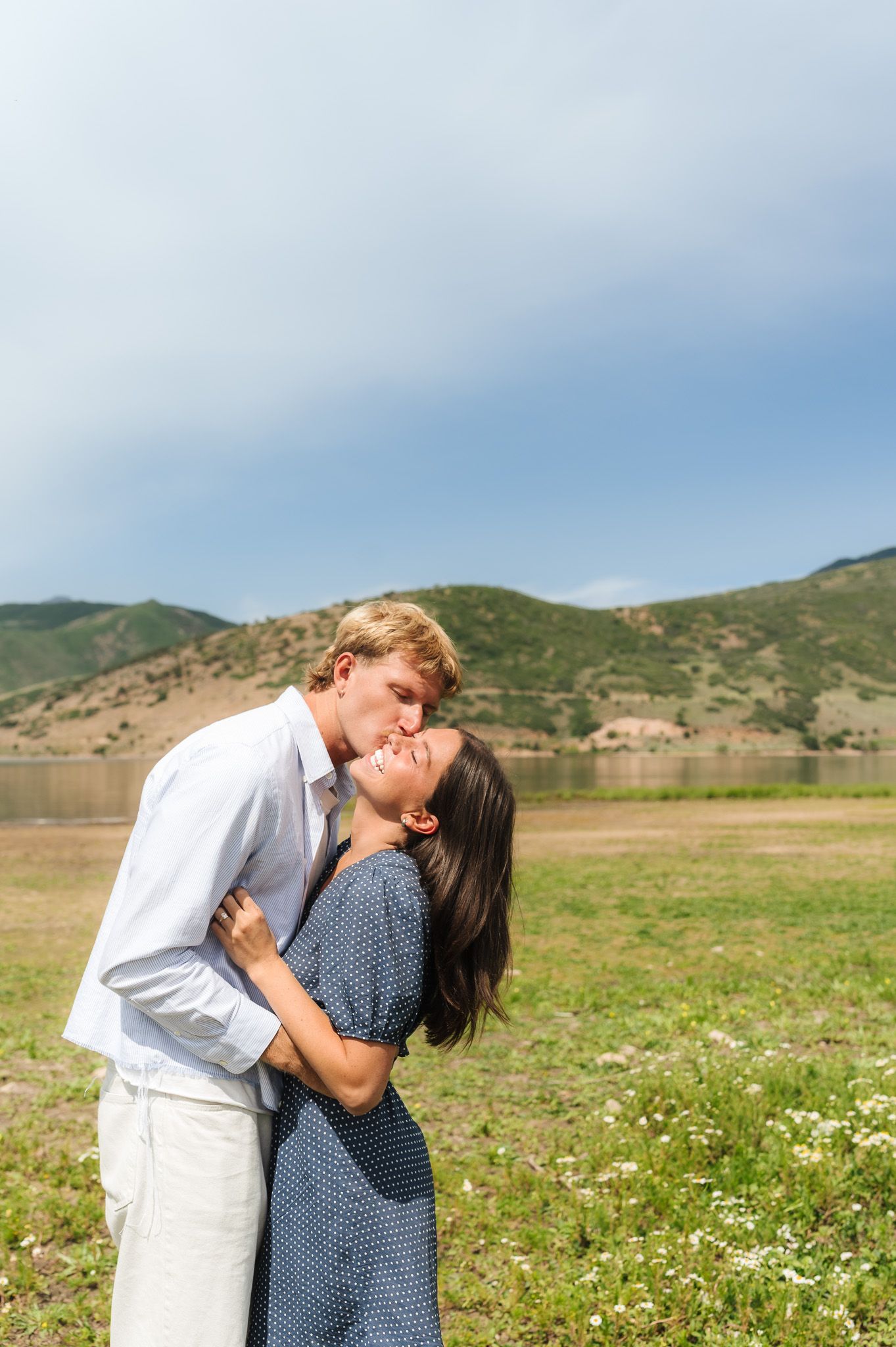
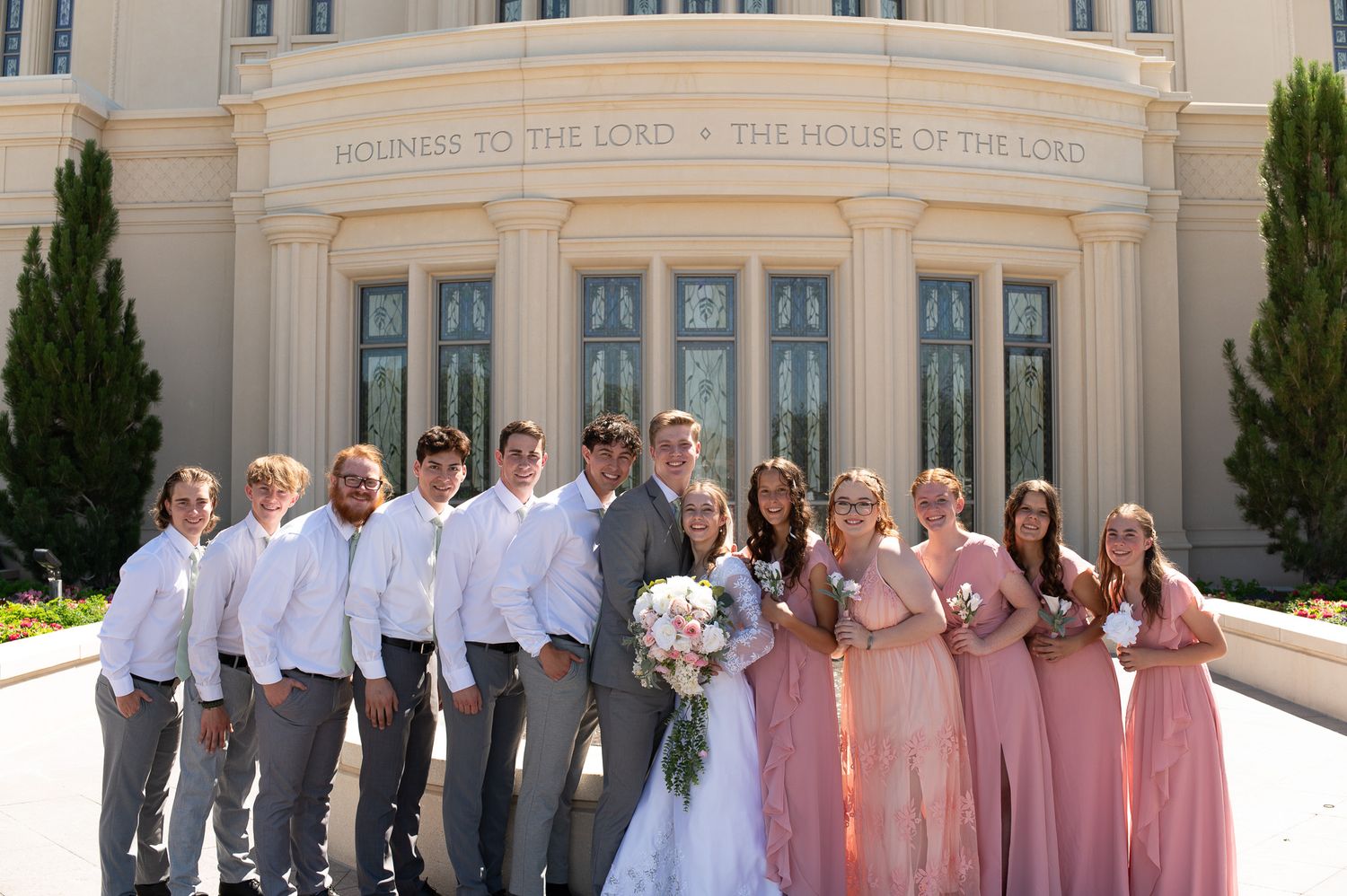
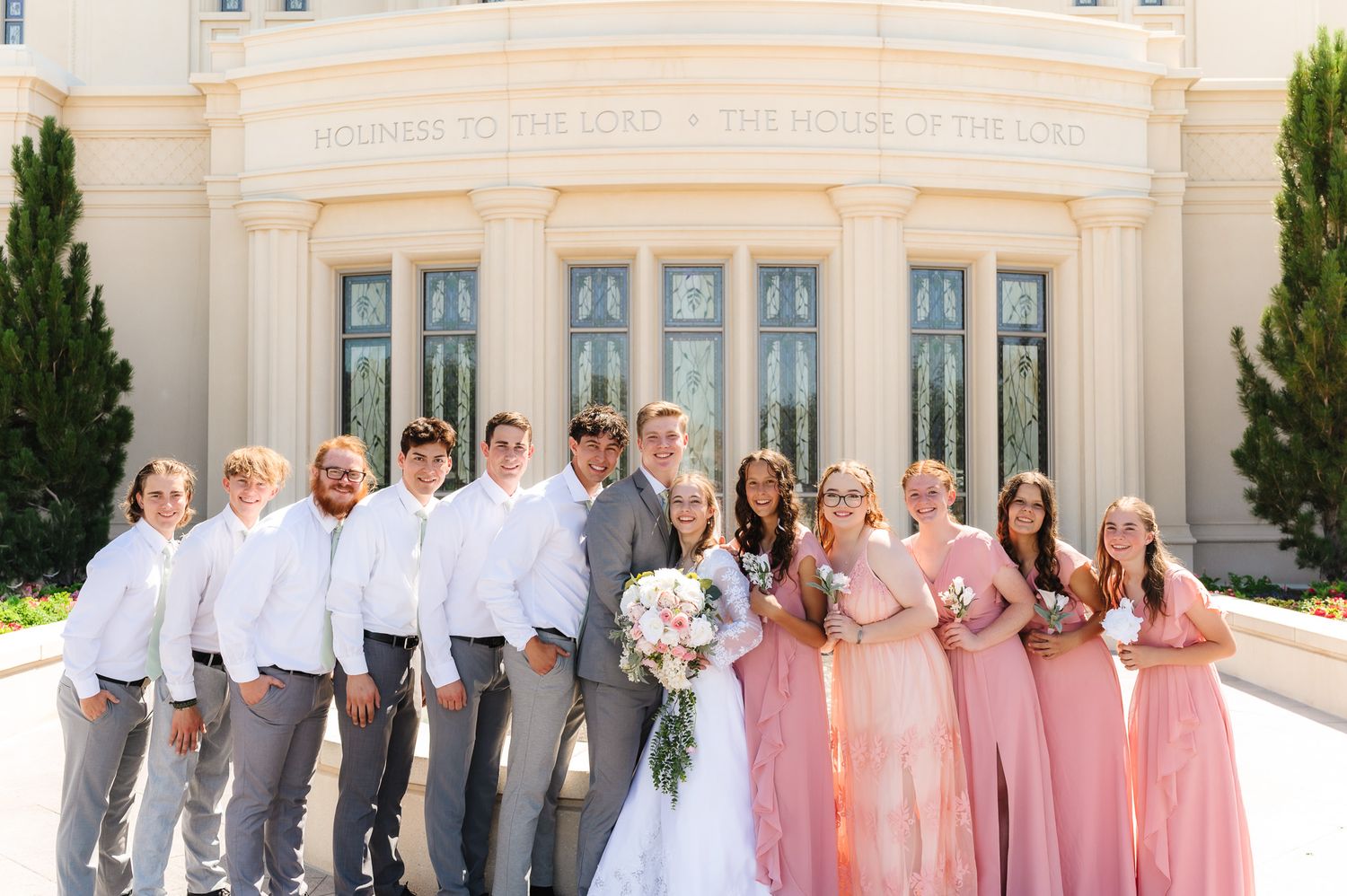
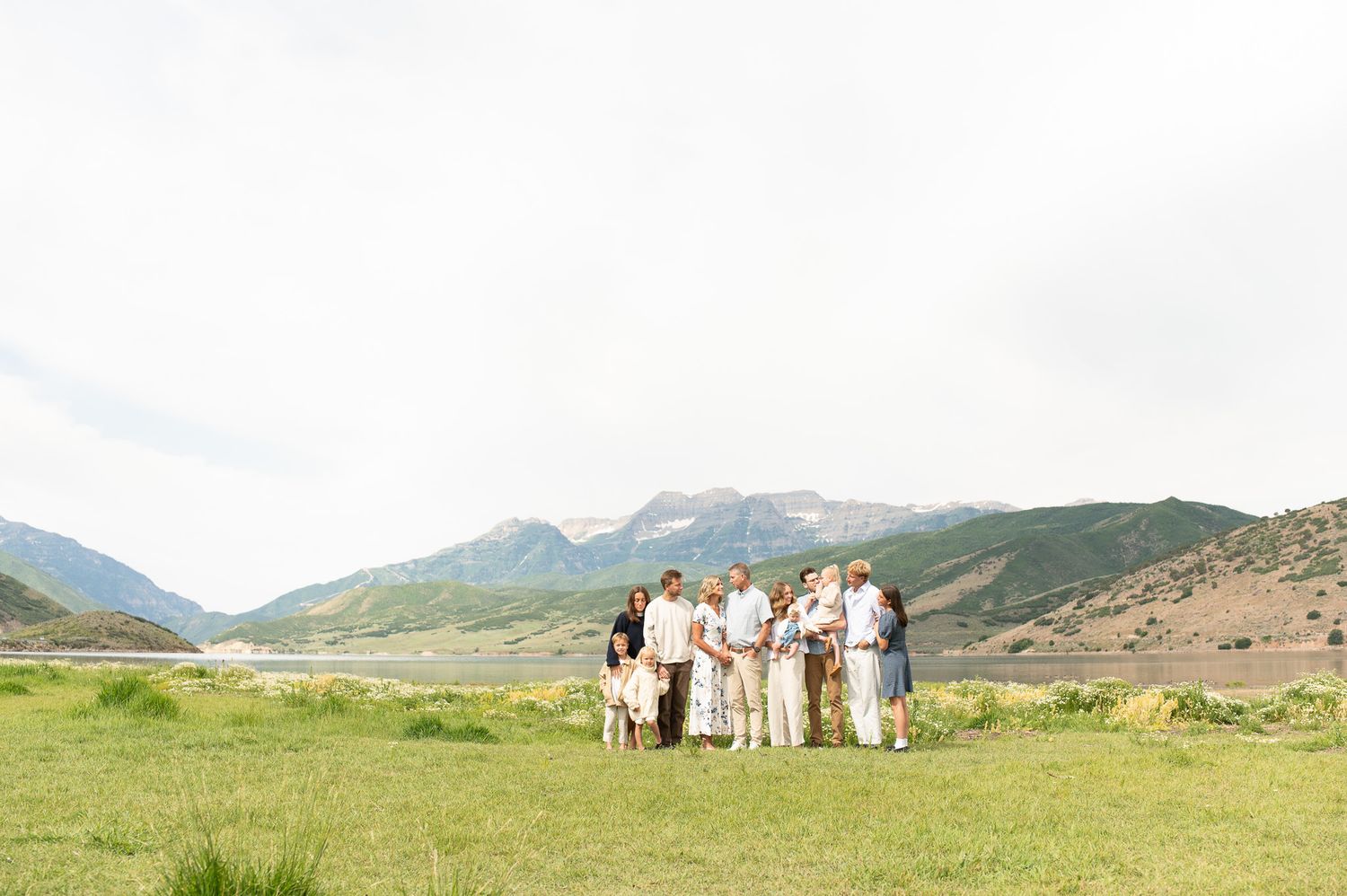
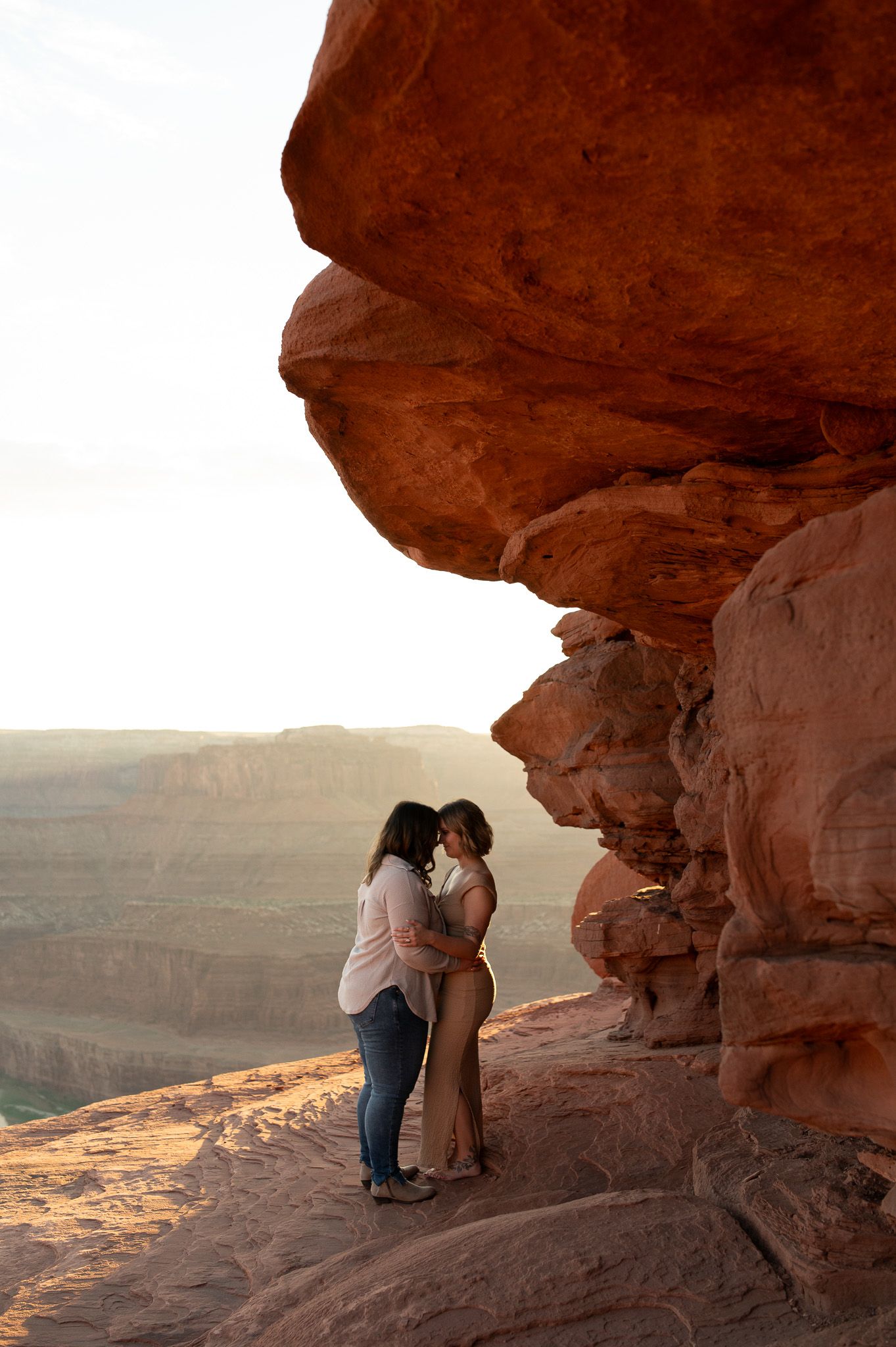
How to Edit Photos Taken in Harsh Sunlight
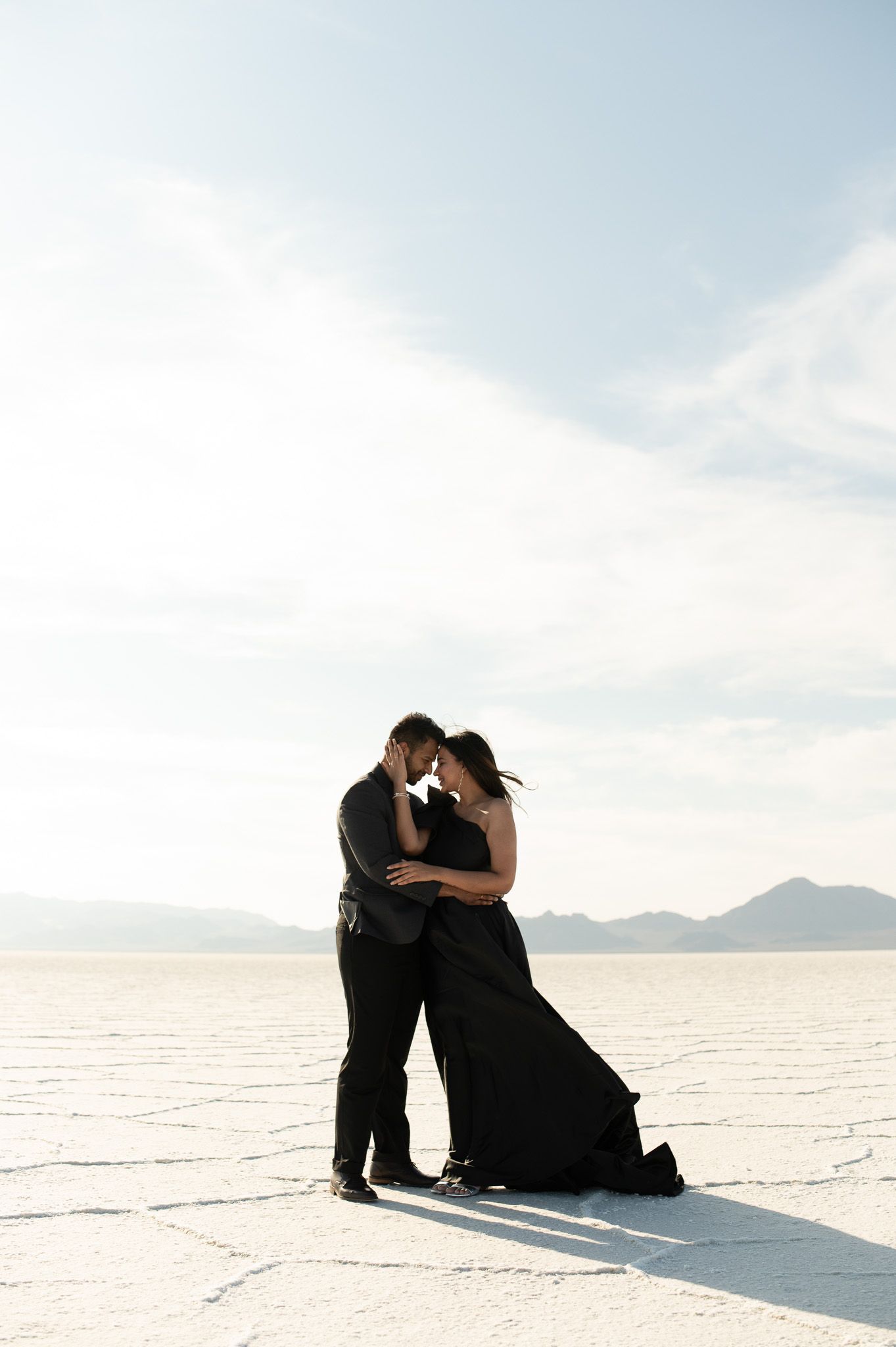
Bright sunlight can be tricky because you’re balancing:
- strong highlights
- deep shadows
- keeping consistent skin tones
Common issues:
- blown highlights
- overly contrasty images
- uneven skin tones
To correct this:
- bring down highlights
- slightly reduce temperature if needed
- lift shadows
- decrease contrast
- avoid over-saturating colors
- decrease texture if needed
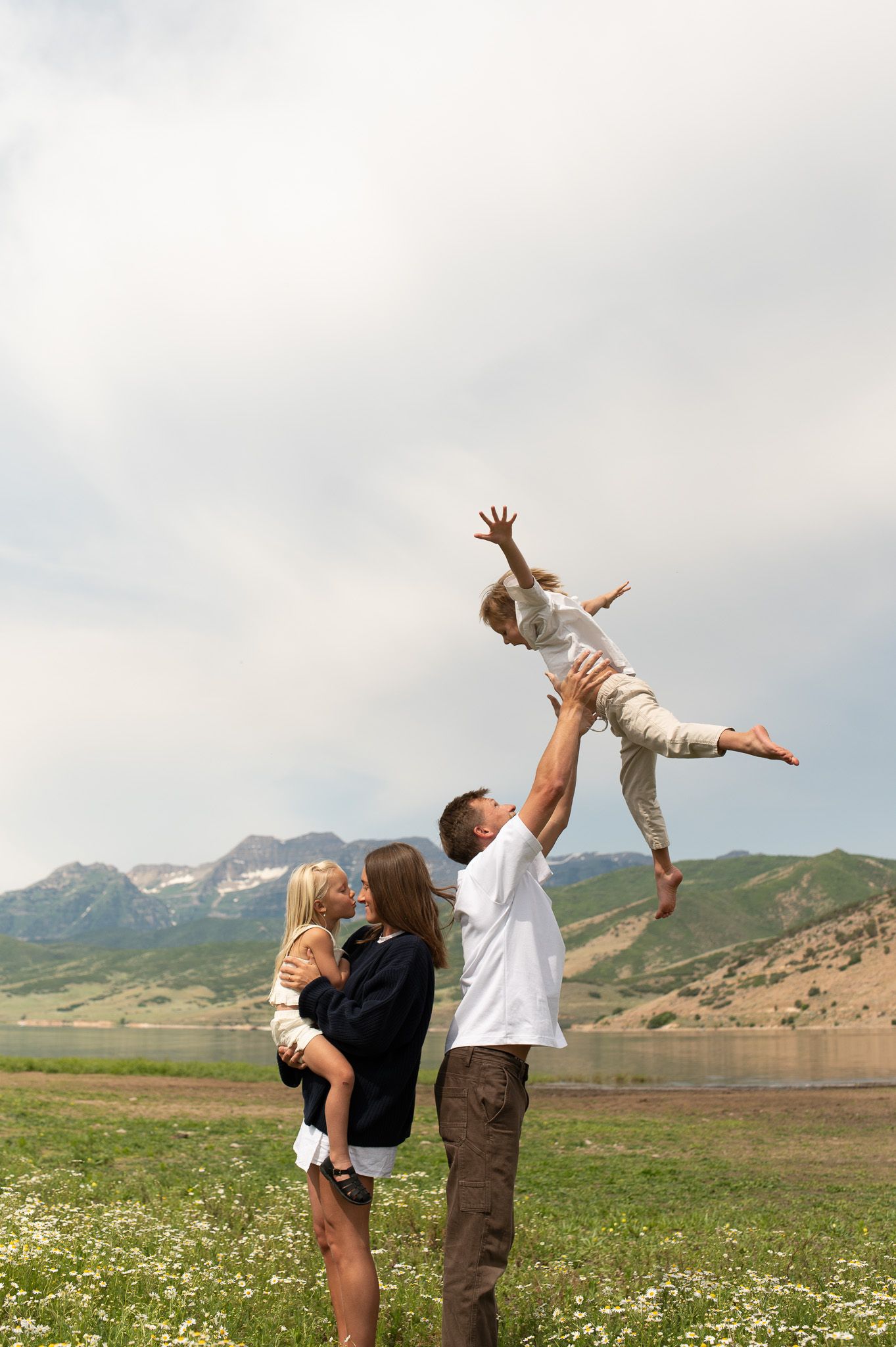
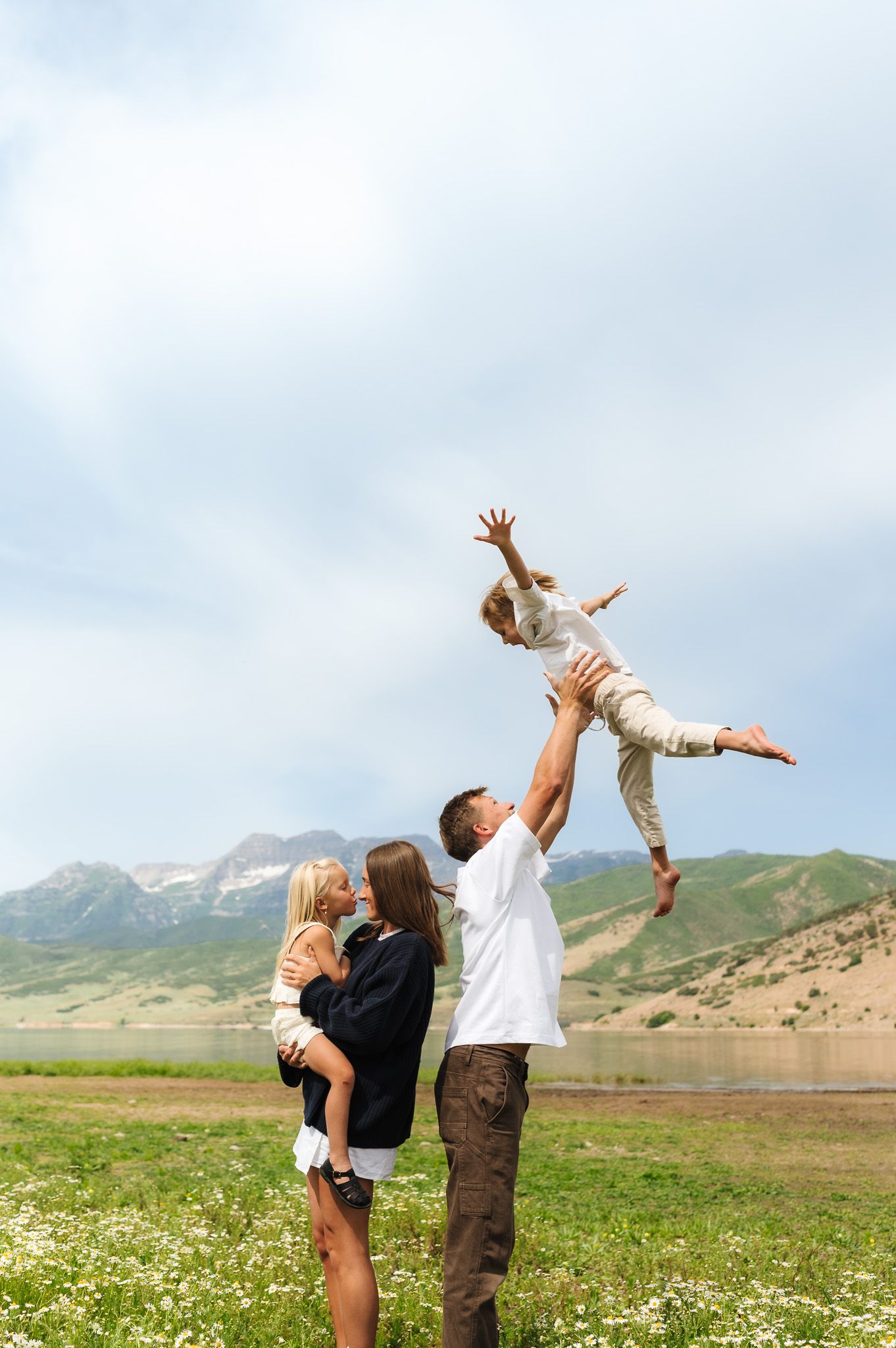
BEFORE VS. AFTER
How to Fix Dark Images in Lightroom
Very dark images can affect more than exposure—they impact color too.
This usually comes from:
- detail being lost
- muted colors
To correct this:
- adjust temperature first
- increase exposure
- lift shadows
- reduce contrast
- make subtle HSL adjustments
This is exactly the kind of situation my presets were built for—giving you a clean, consistent base so you’re not fixing every image from scratch.
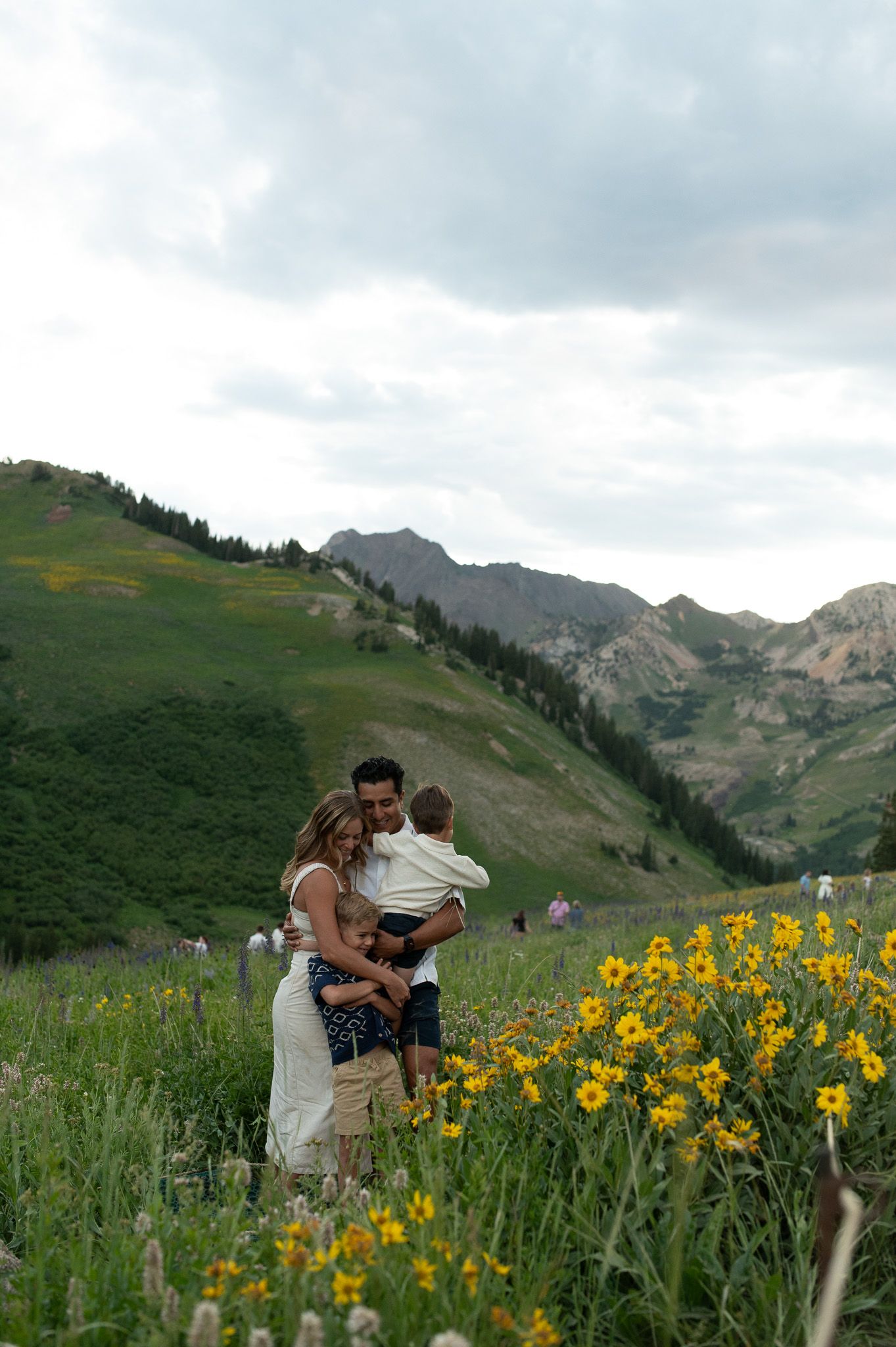
BEFORE VS. AFTER
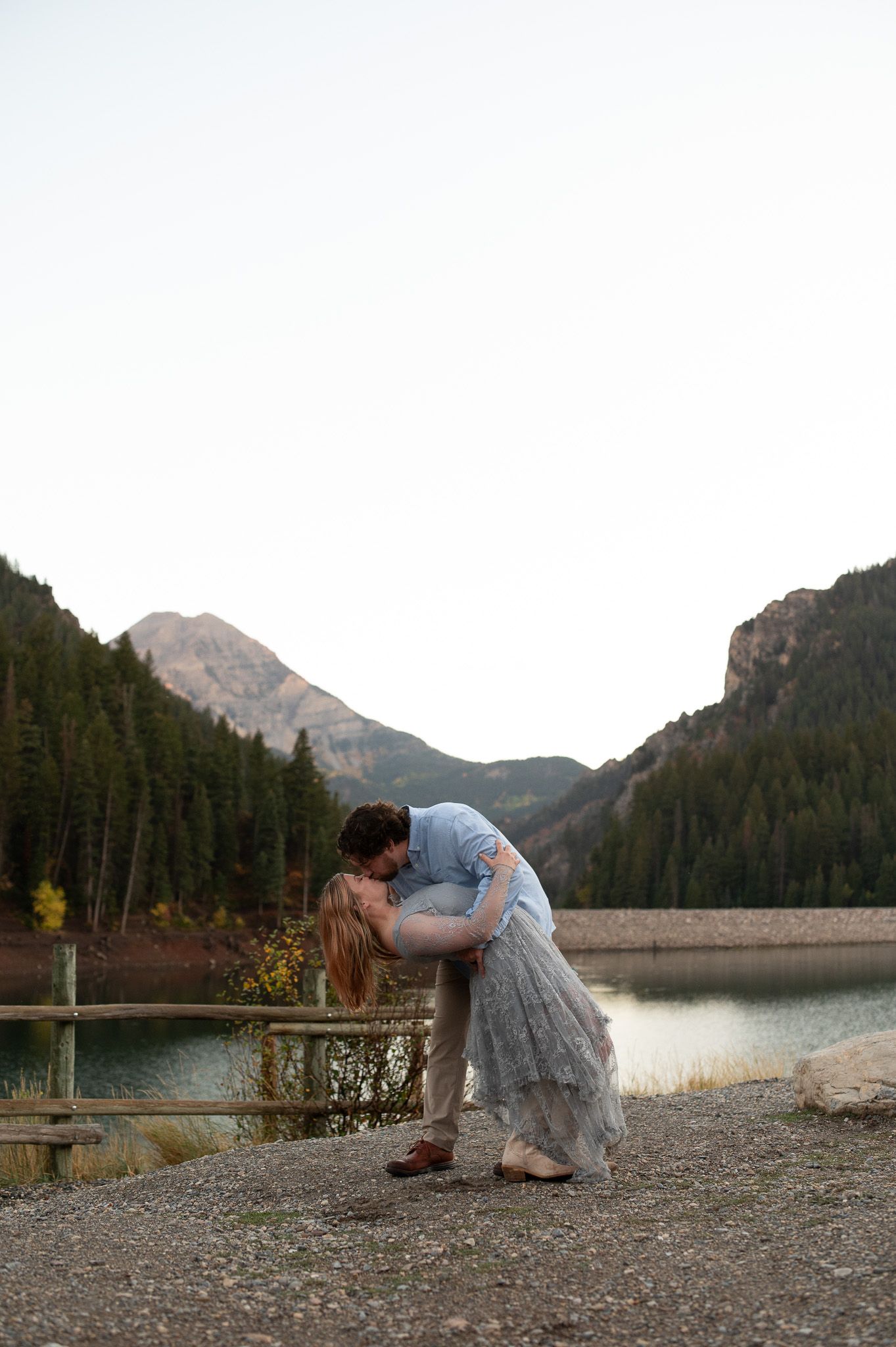
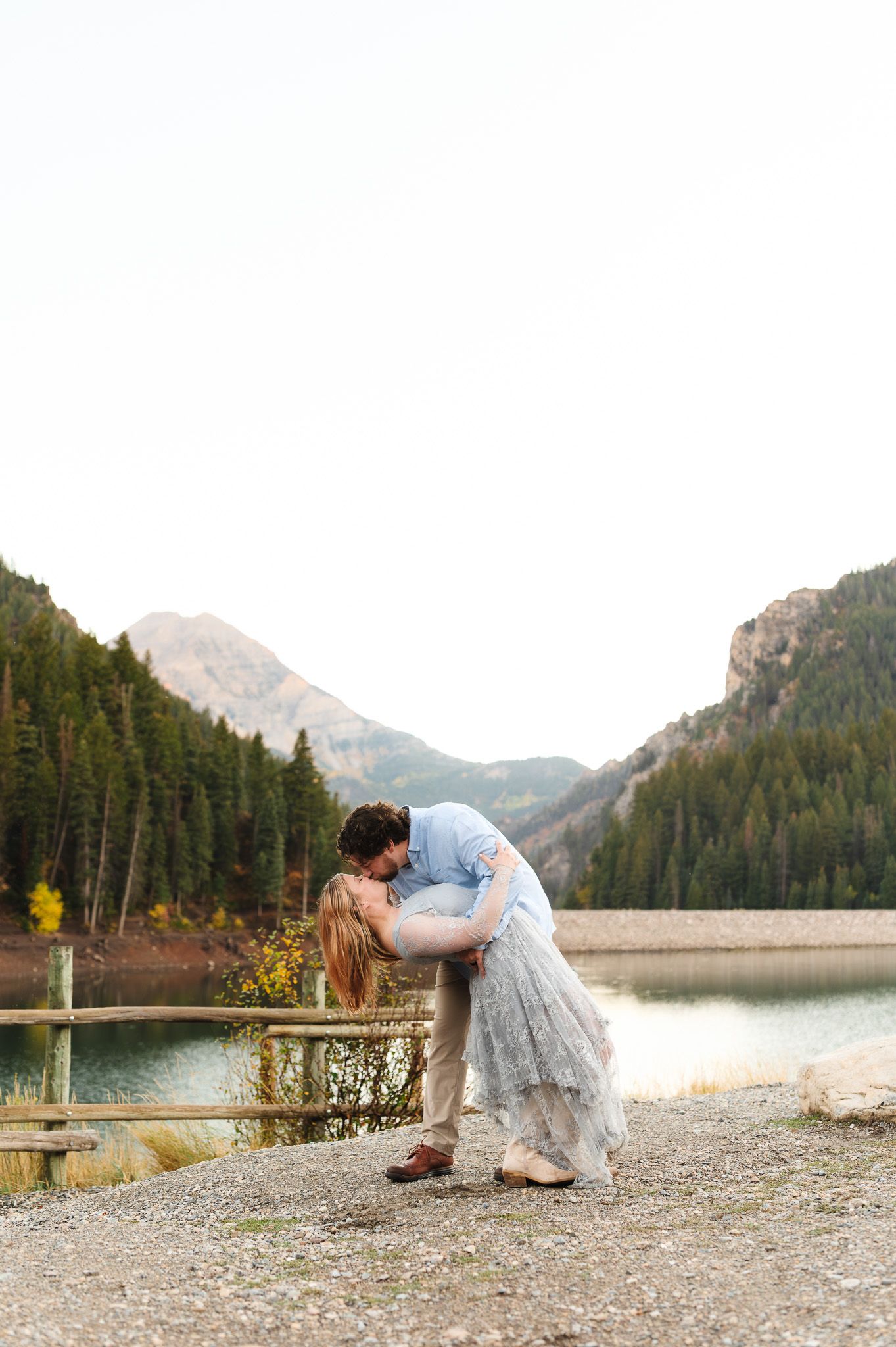
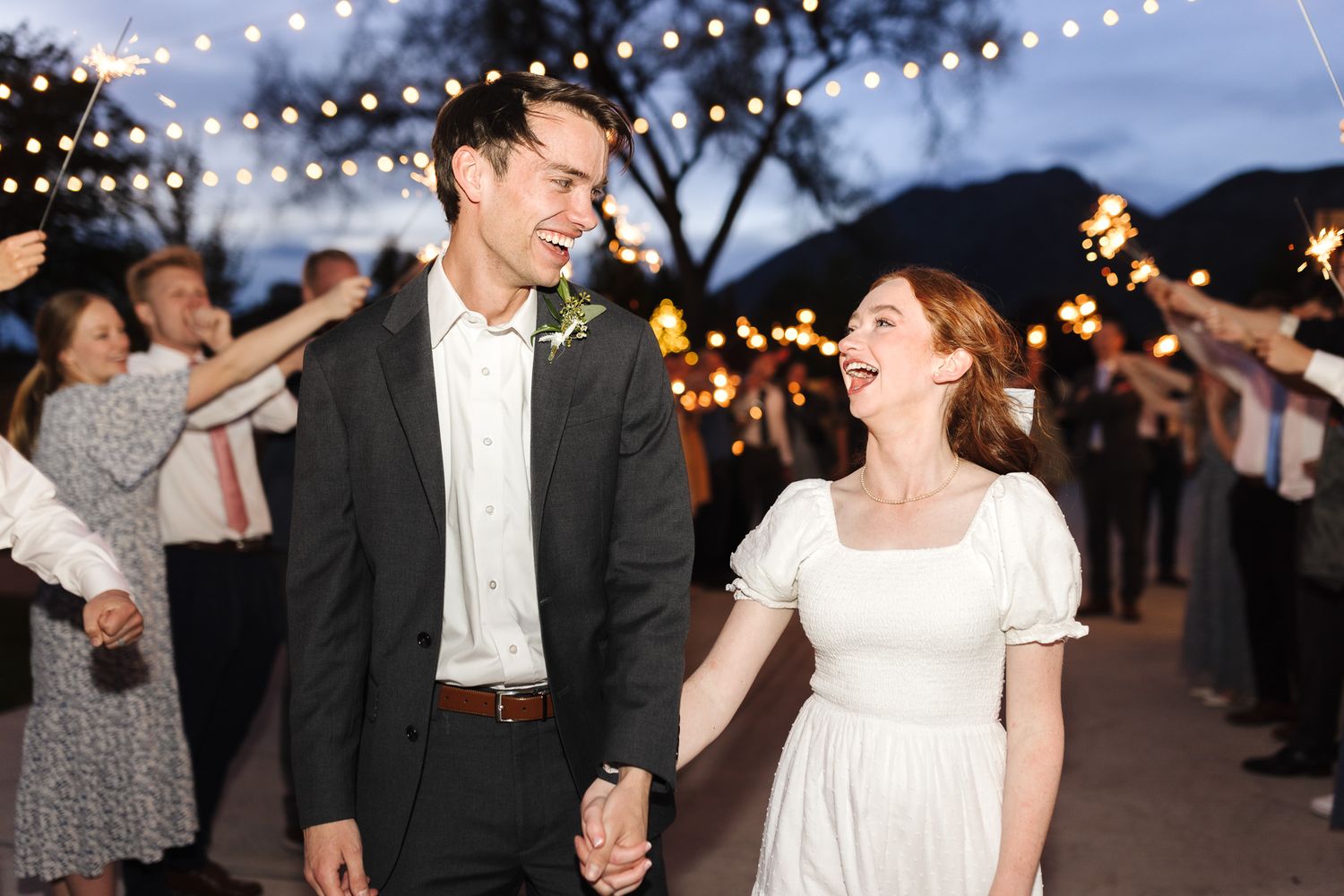
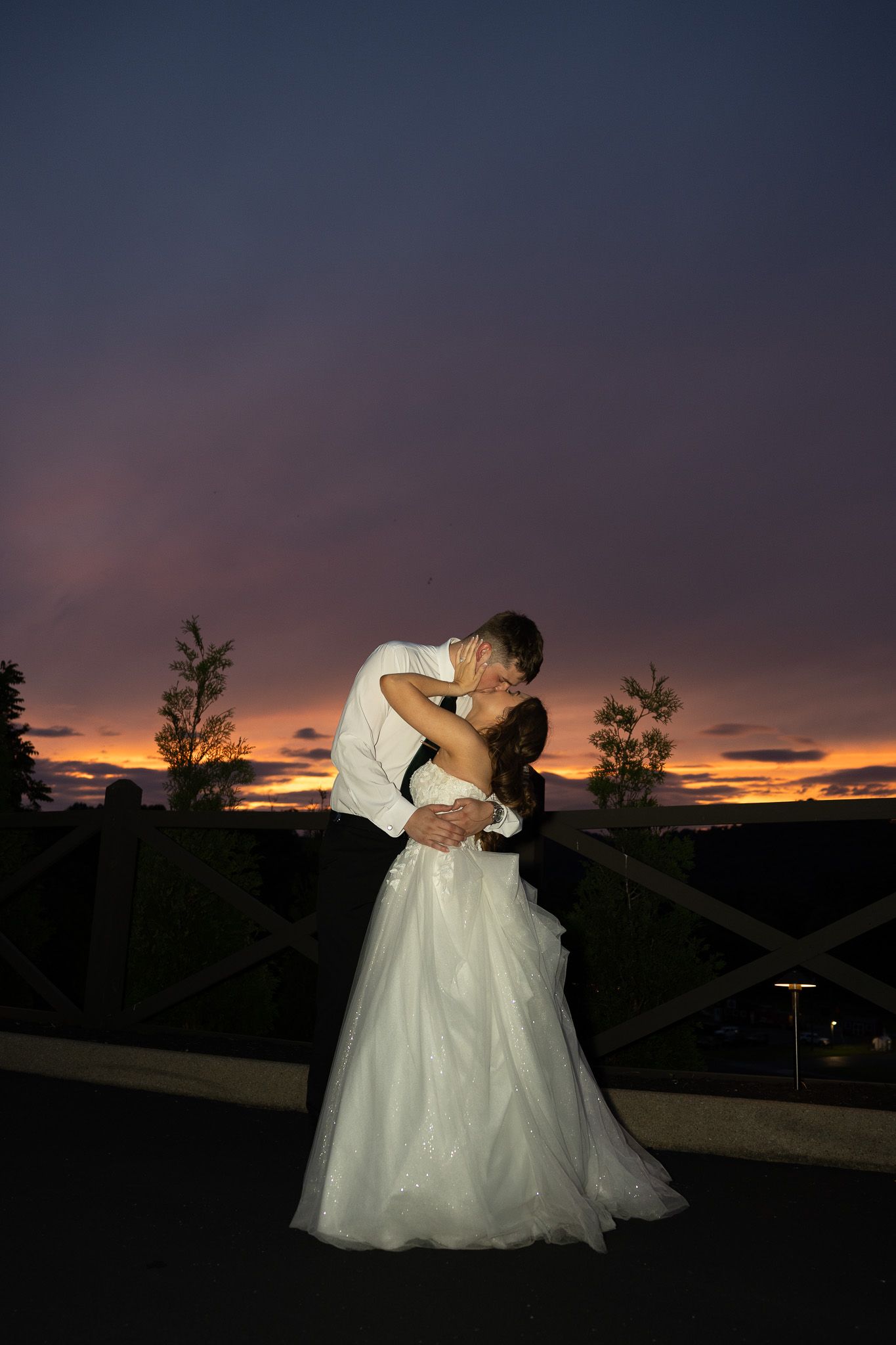
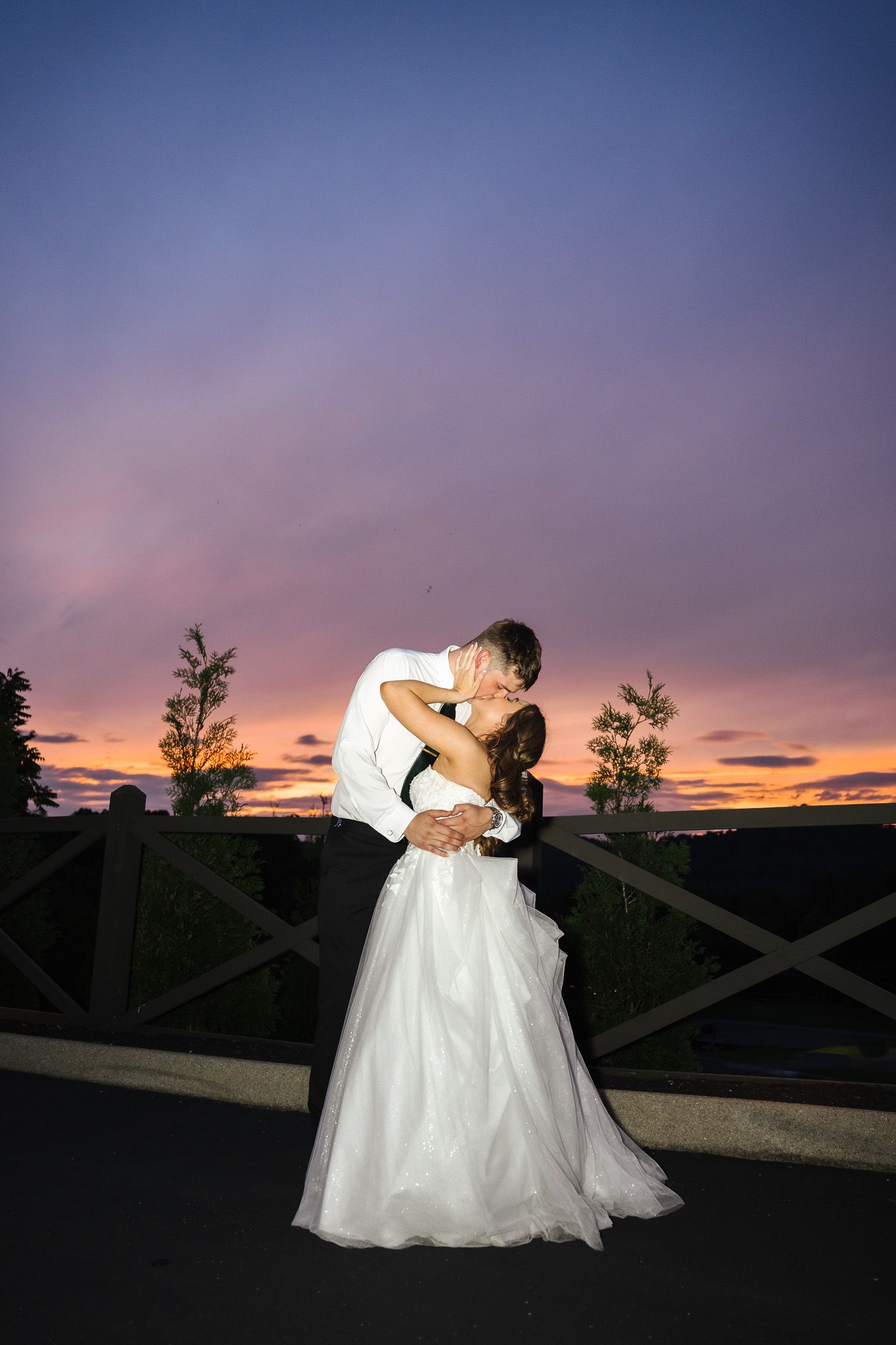
(Notice how the skin tones shift from dull, cool and flat to neutral and balanced)
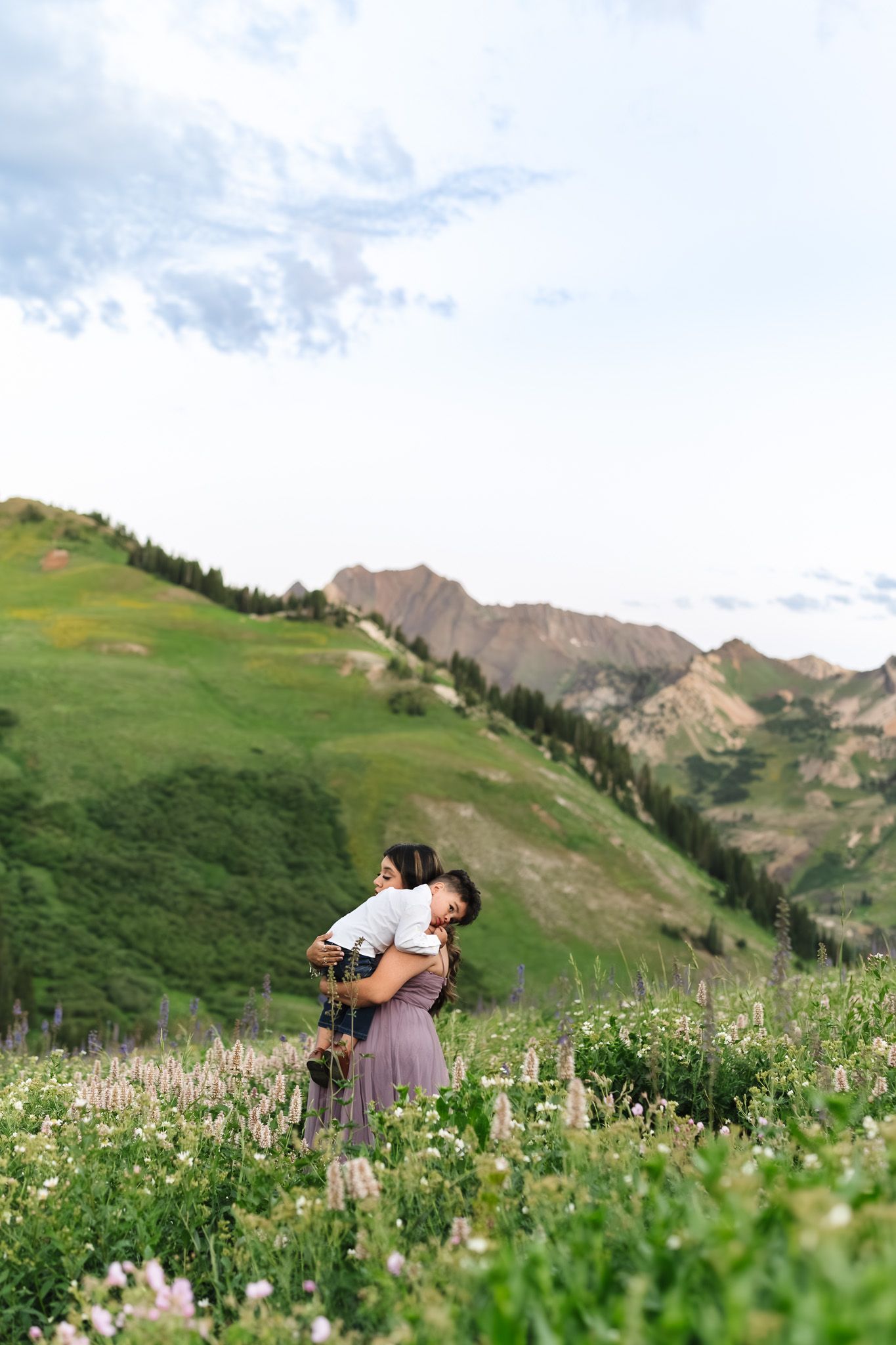
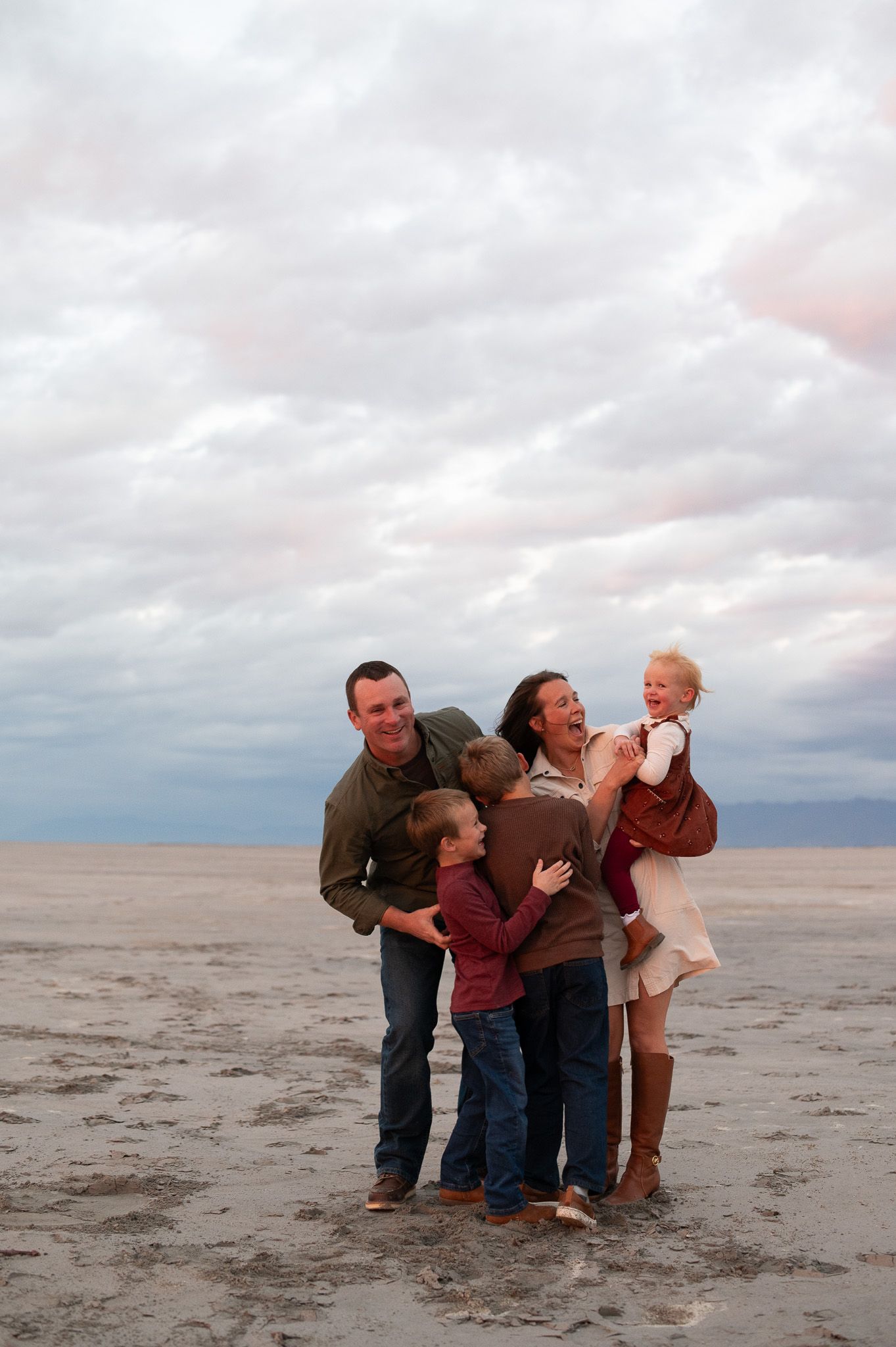
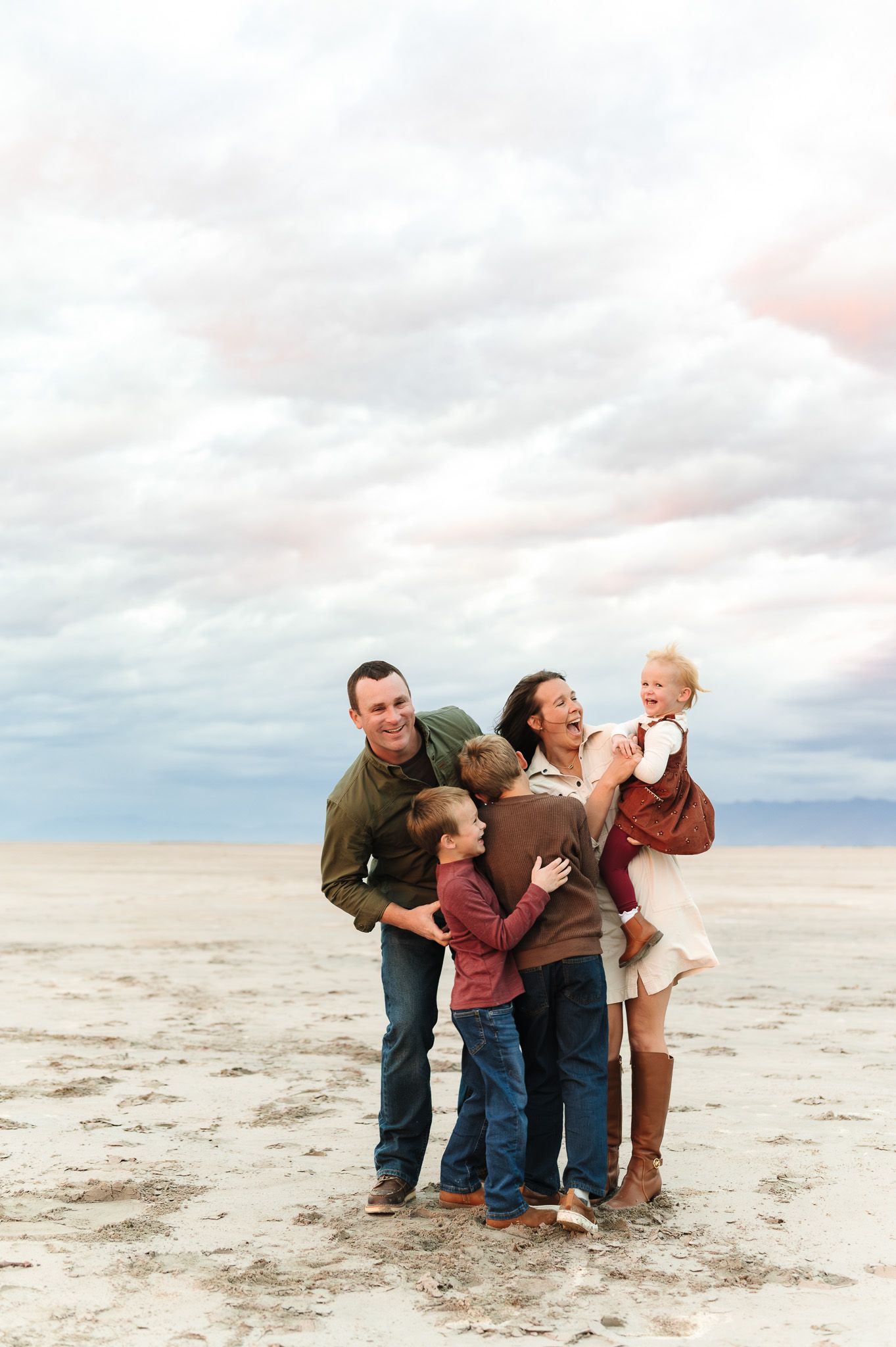
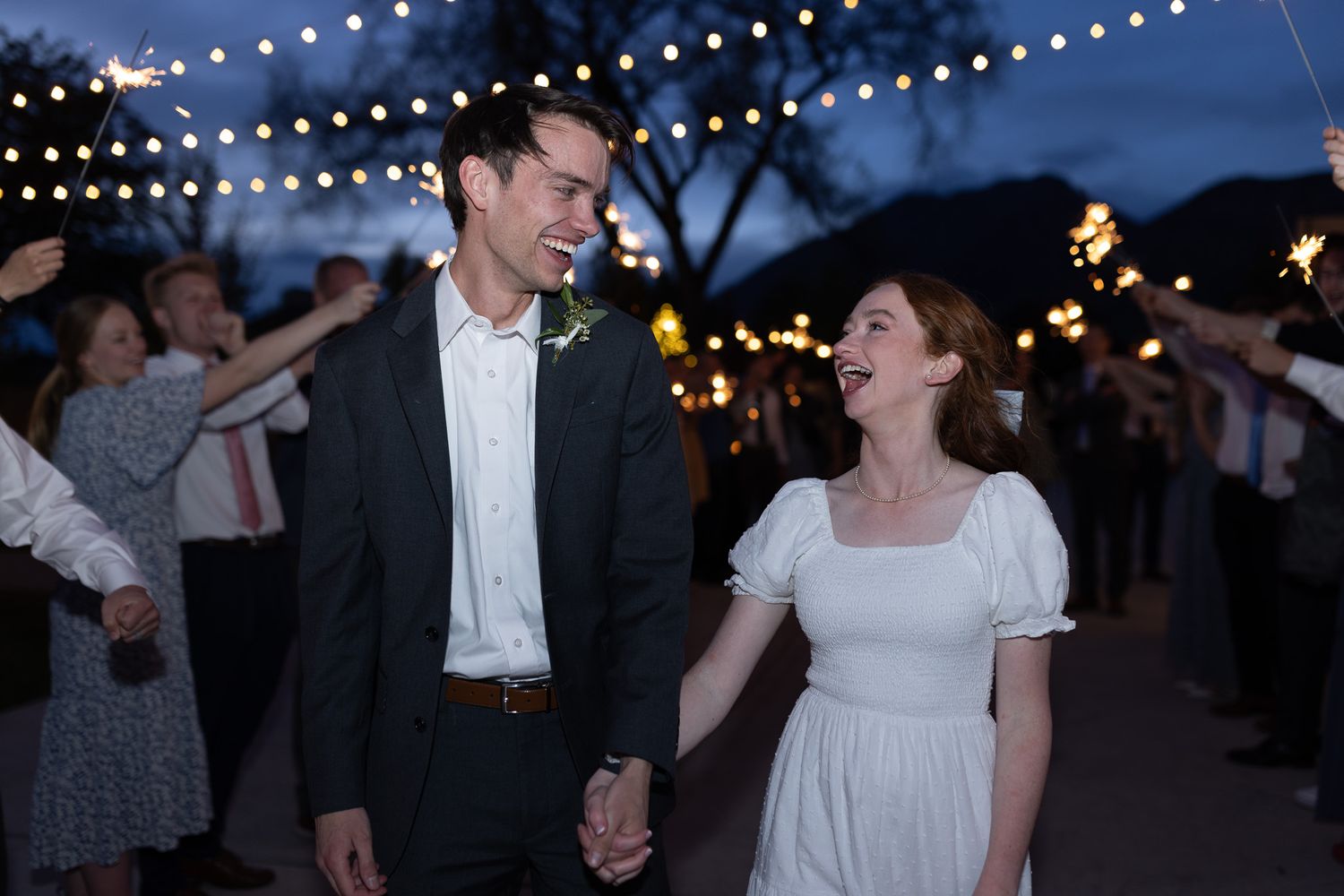
How I Fix Overly Warm Images While Keeping Natural Skin Tones in Lightroom
Overly warm images are common, especially in indoor lighting or mixed light situations where artificial warmth affects the overall color balance.
This usually comes from:
- white balance being set too warm in-camera or in post
- warm ambient lighting affecting the entire frame
- color casts becoming more noticeable in shadows and highlights
To correct this:
- dialing in white balance first (temperature + tint)
- correcting exposure if needed so color reads accurately
- making small, intentional HSL adjustments rather than heavy shifts
- reducing contrast slightly if it’s exaggerating warm tones
On some occasions, the overall warmth is corrected but certain areas (most commonly in shadows on skin or clothing) still hold onto color casts.
In those cases, I’ll use a radial filter or local adjustment to subtly refine saturation and balance contrast in just that area—rather than affecting the entire image.
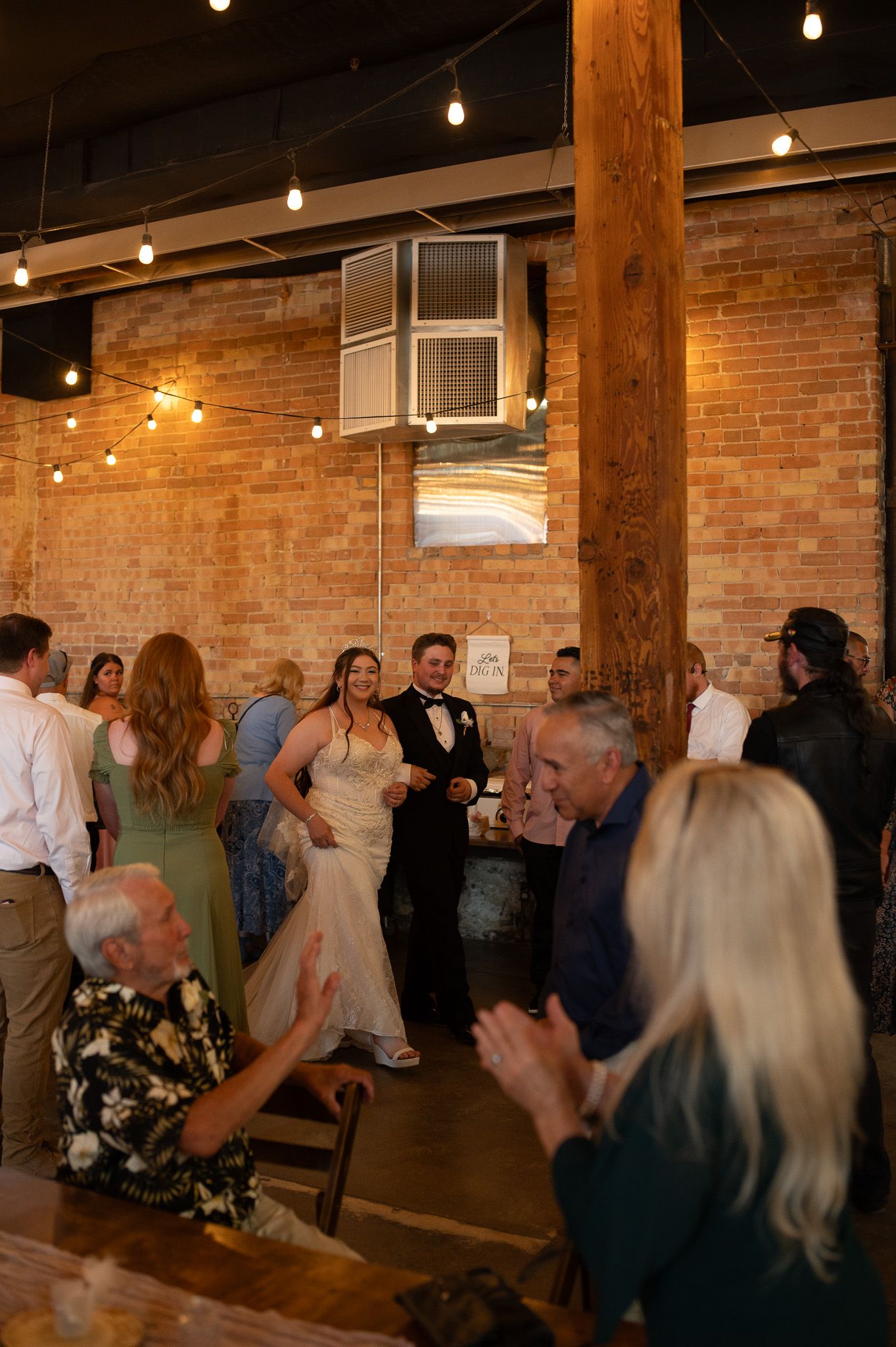
BEFORE VS. AFTER
(Notice how the skin tones shift from warm to neutral and balanced)


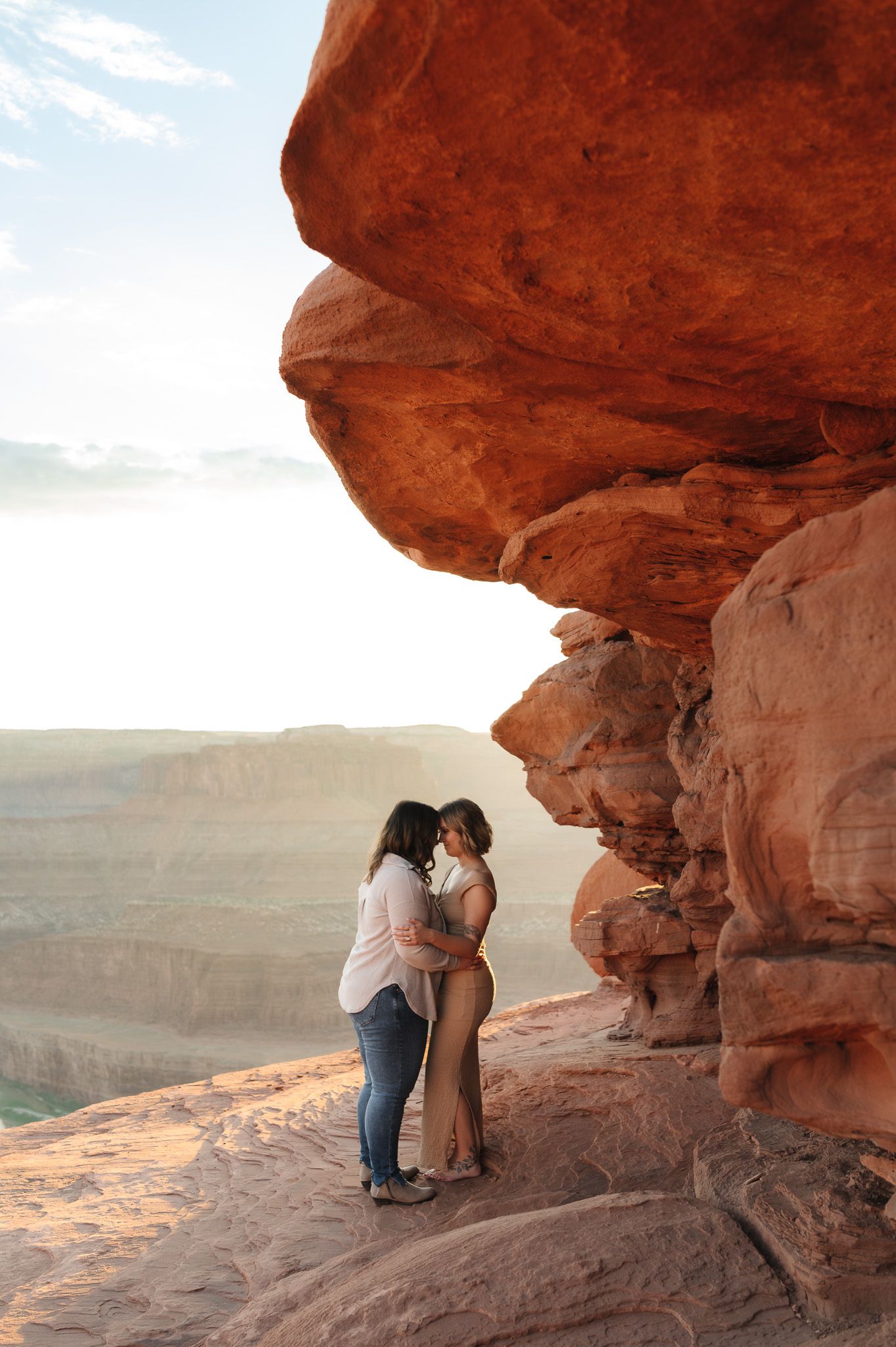
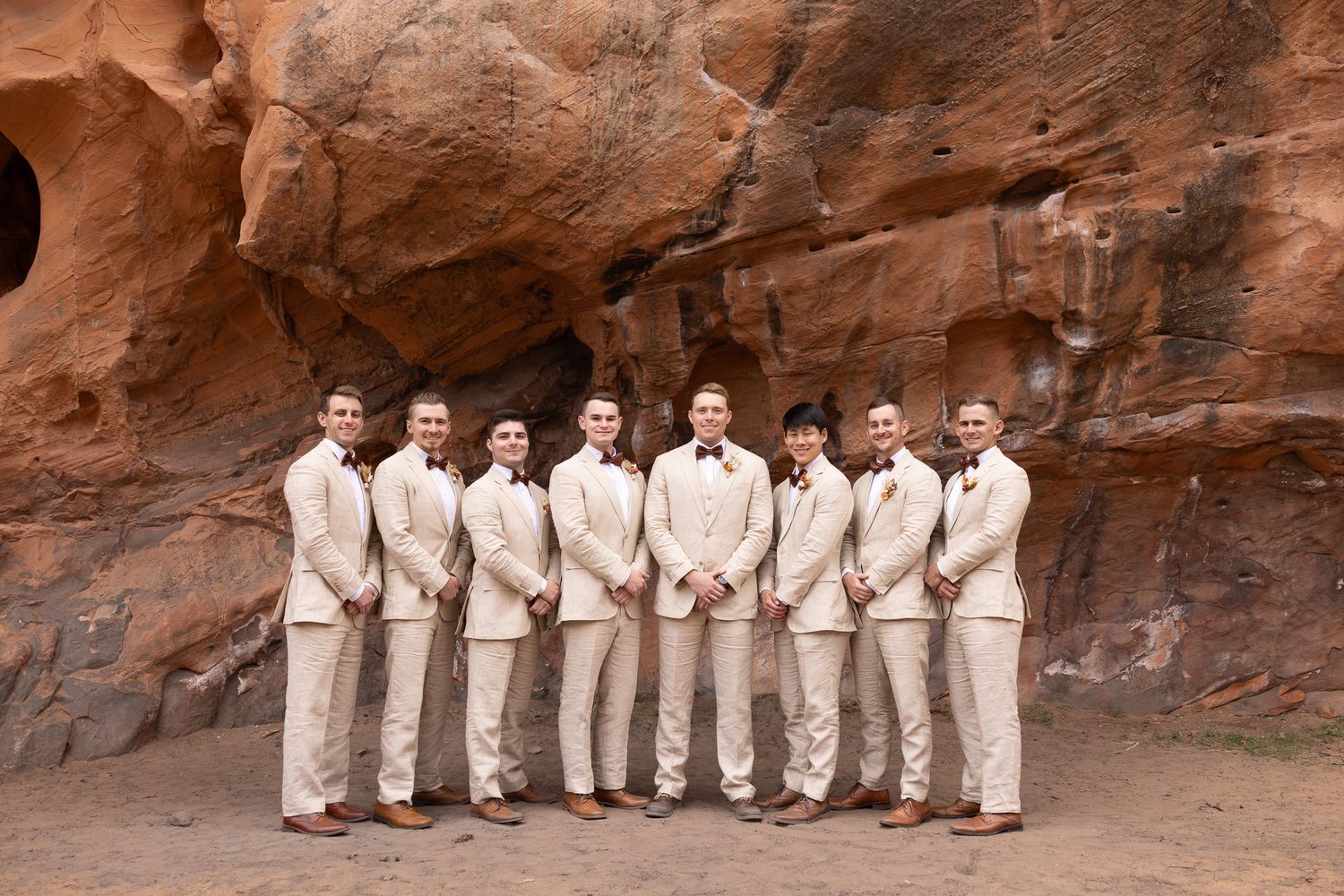
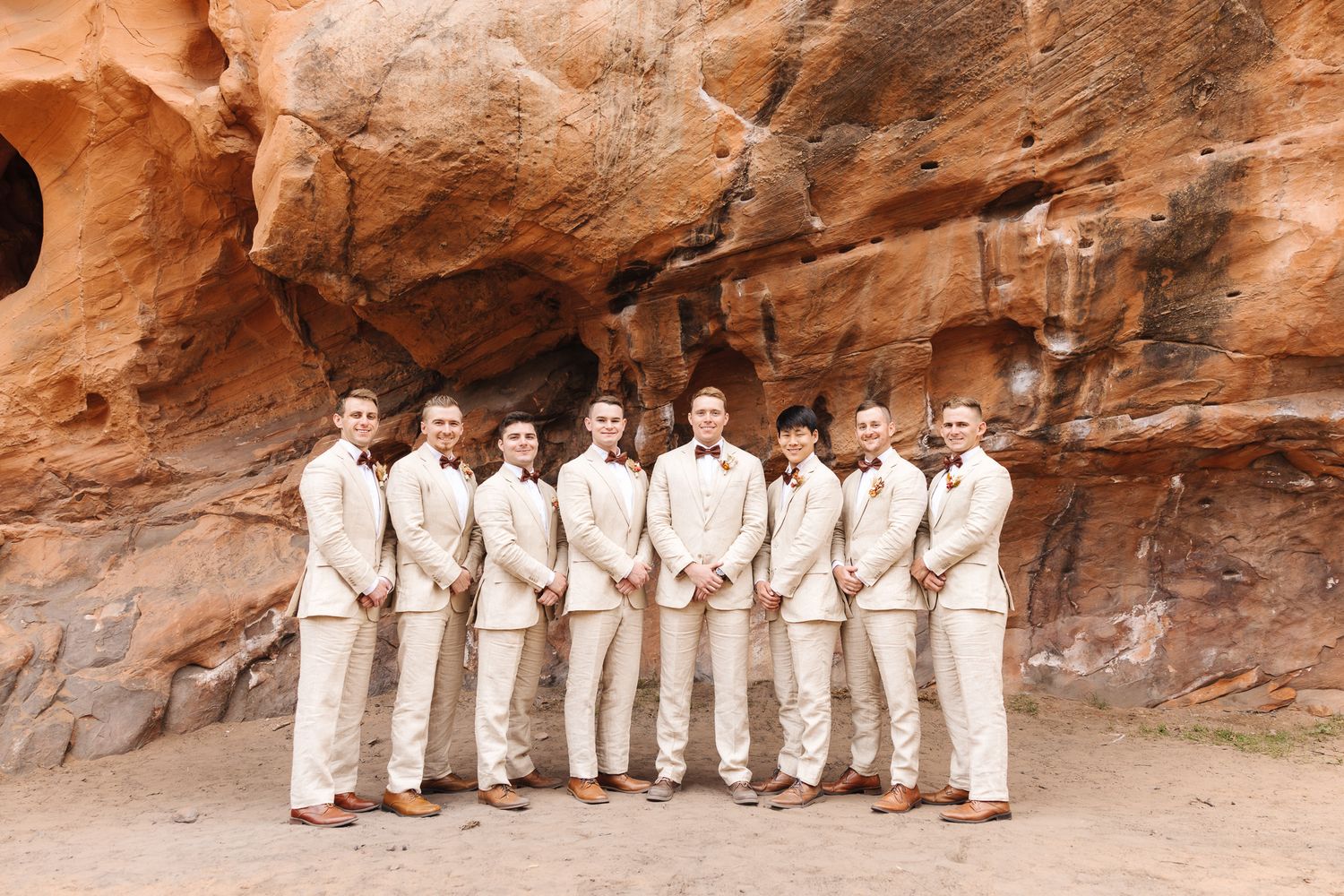
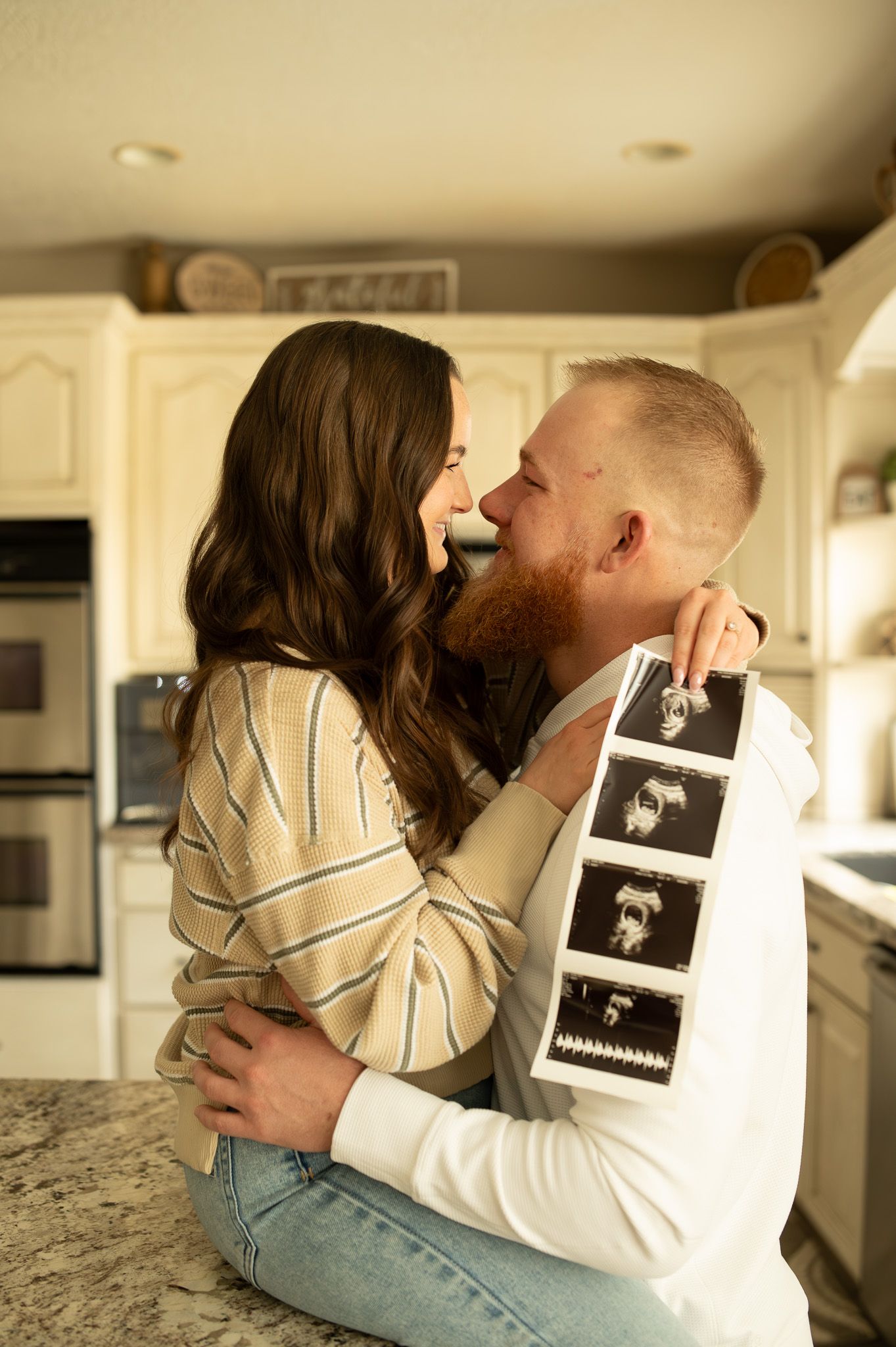
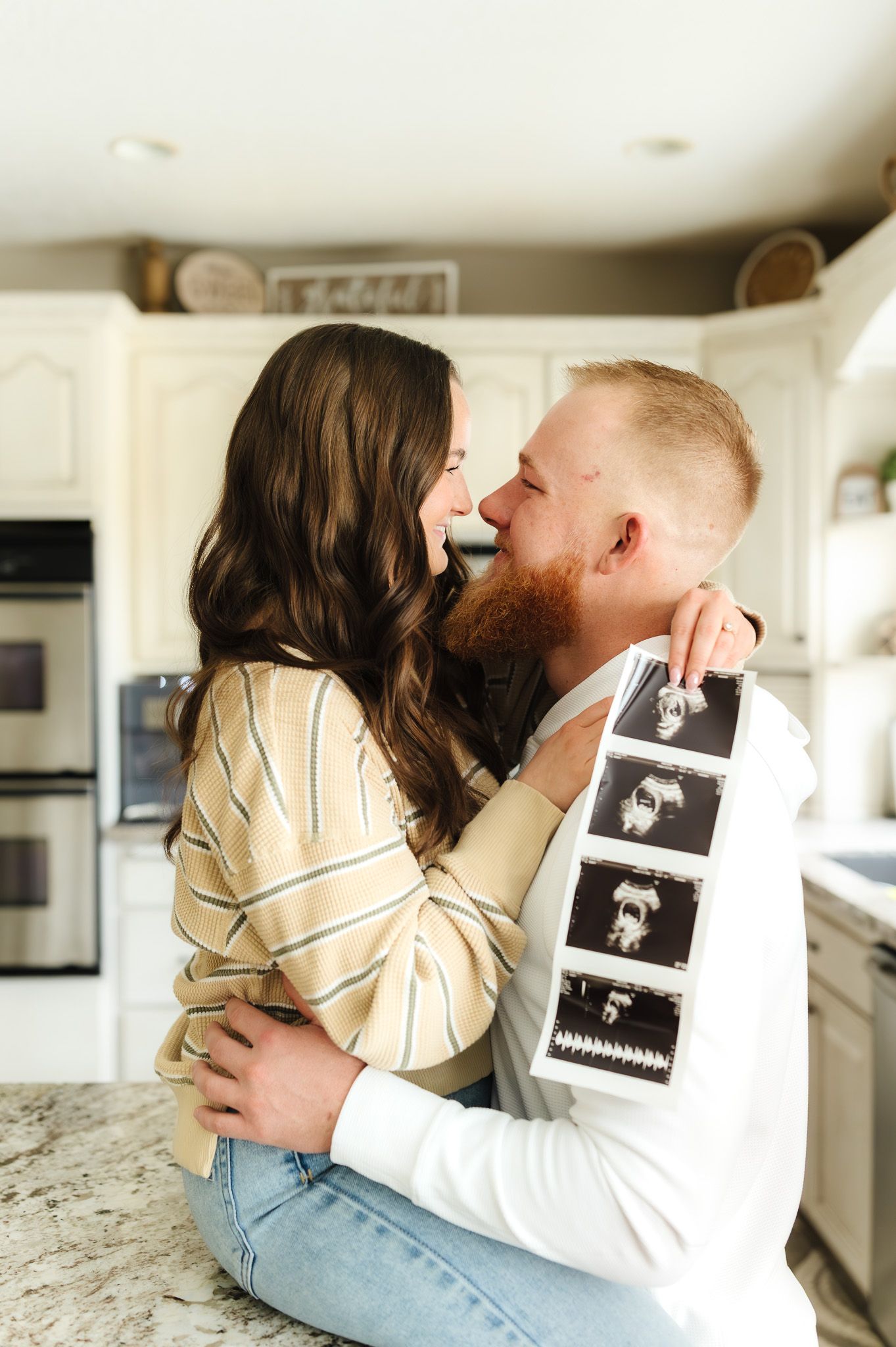
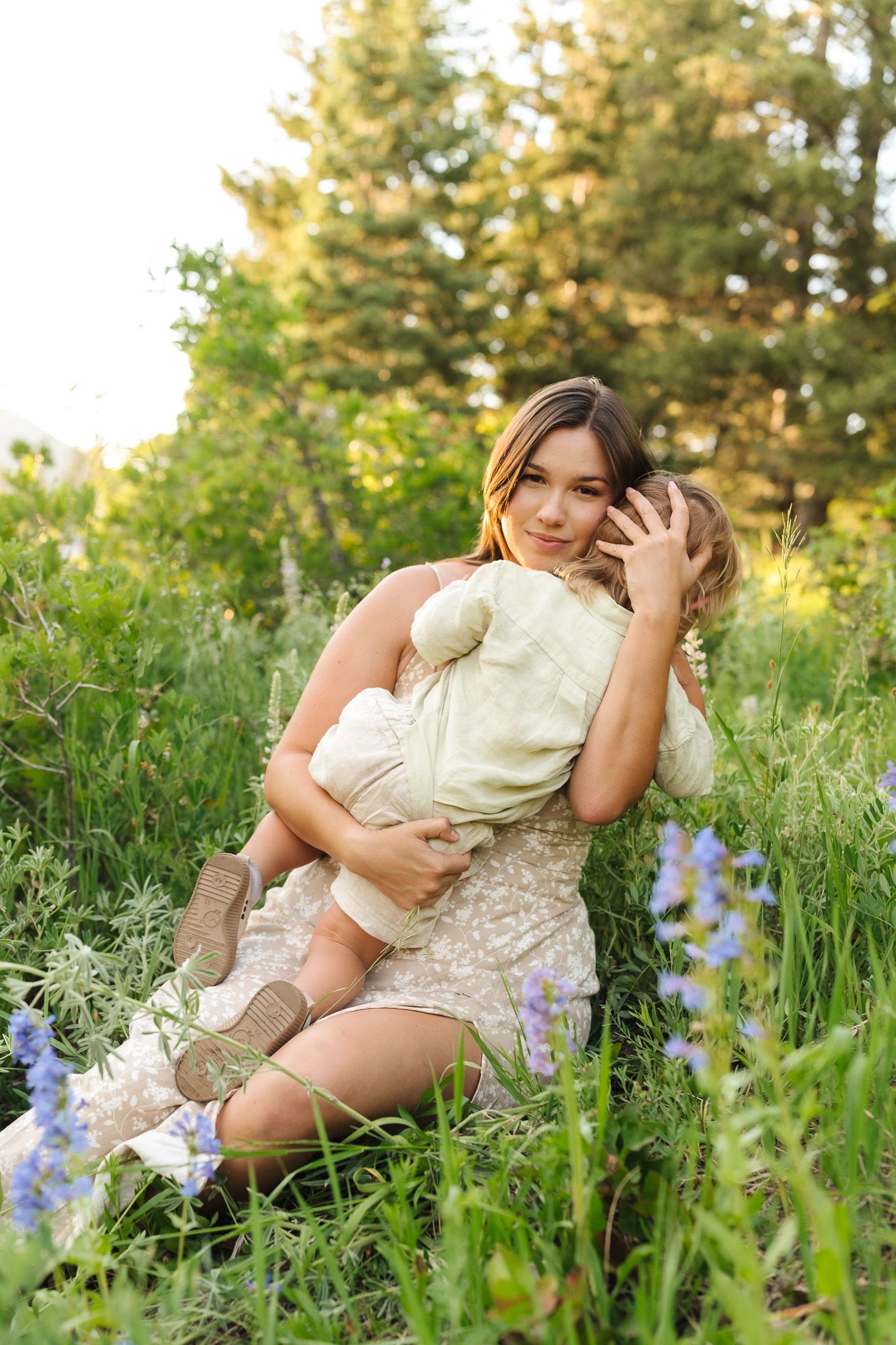
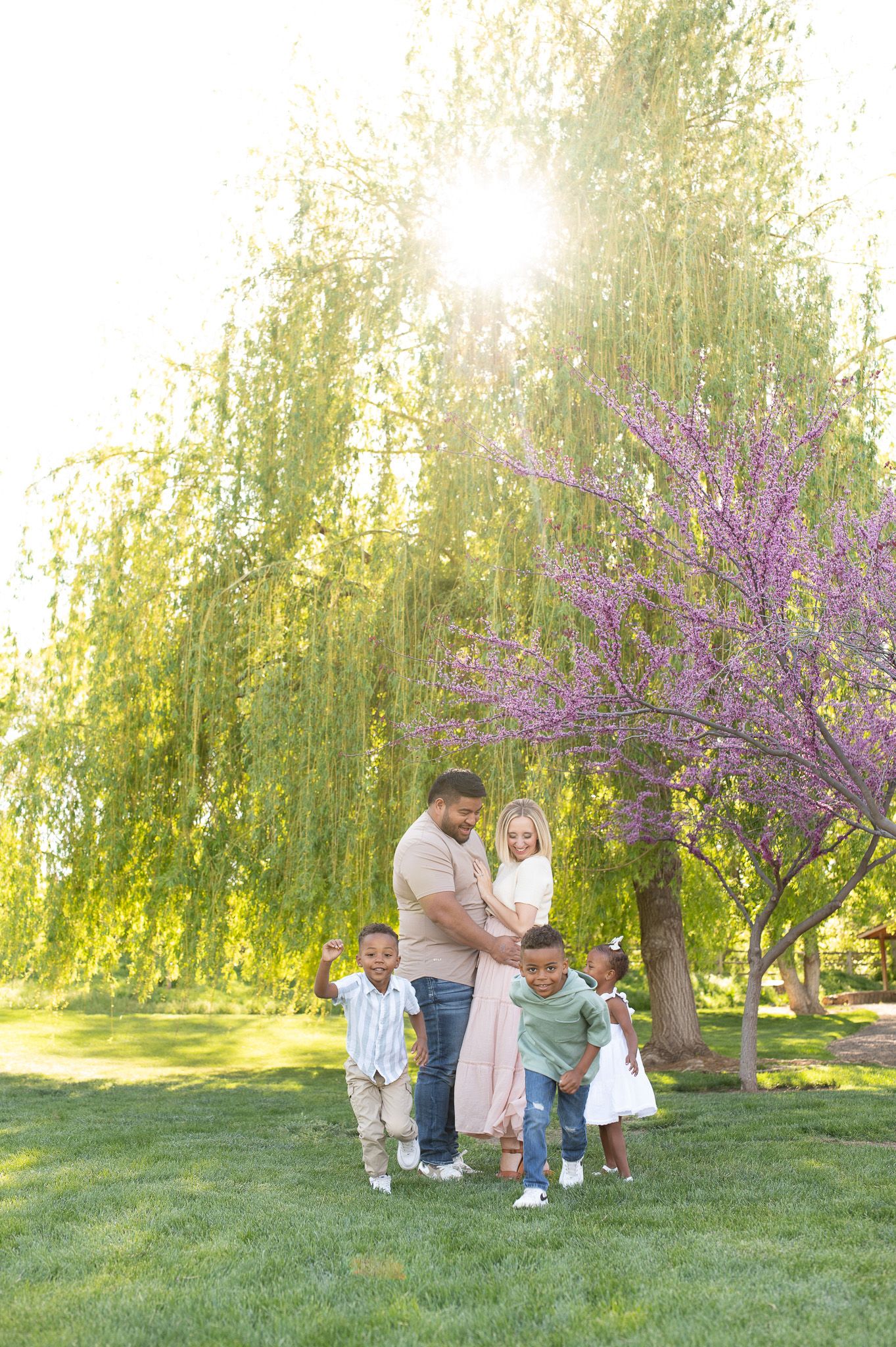
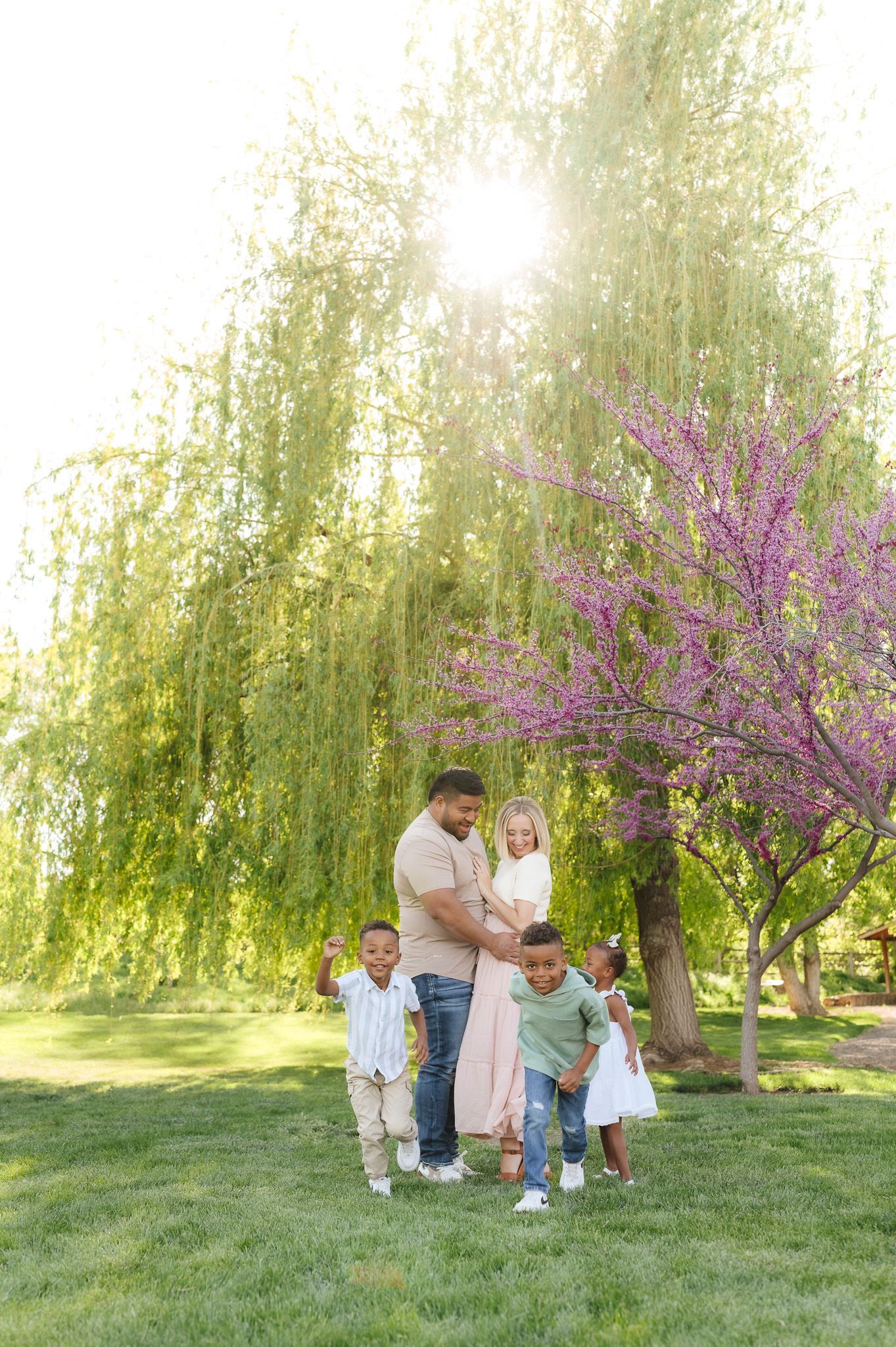
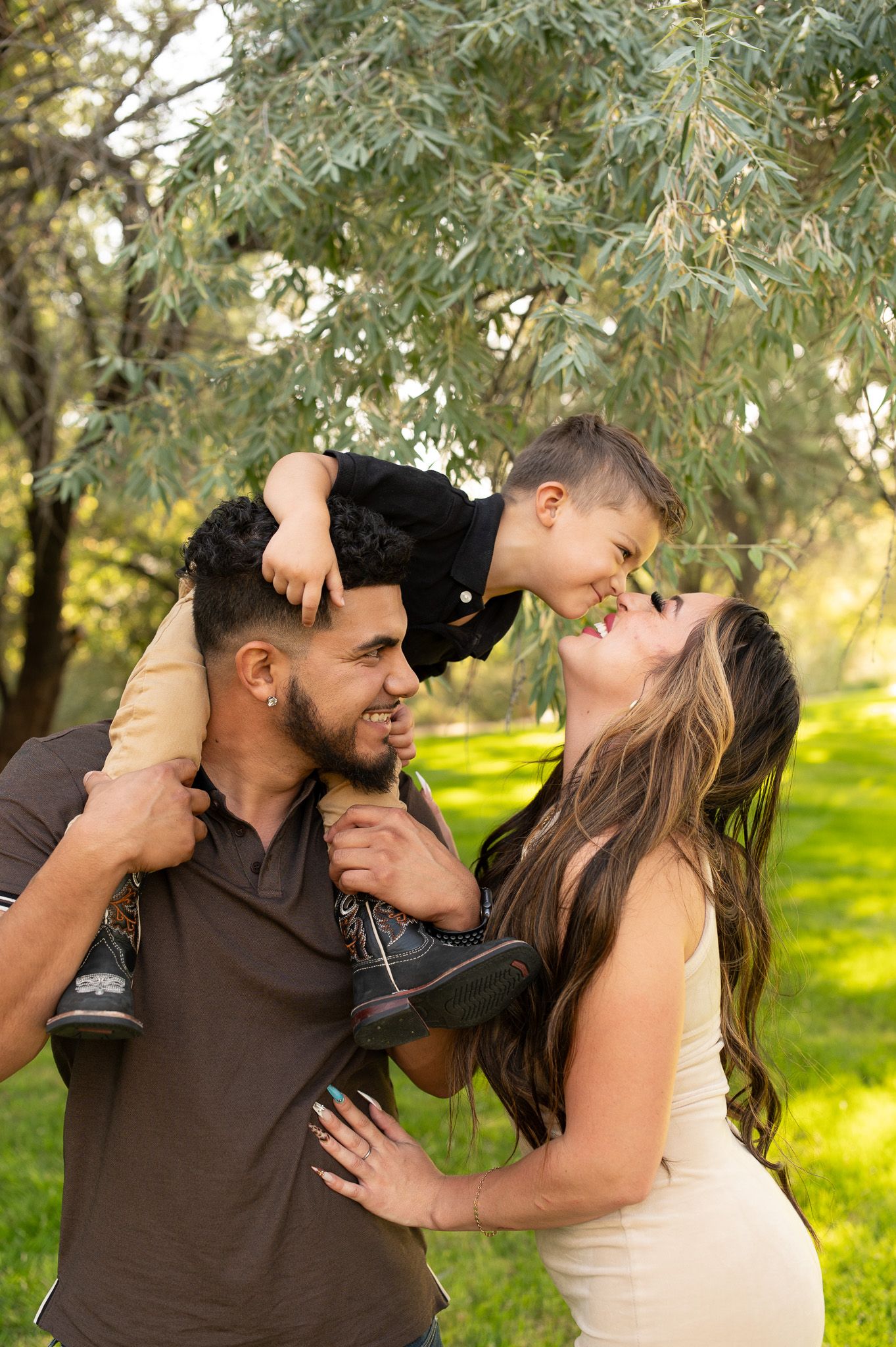
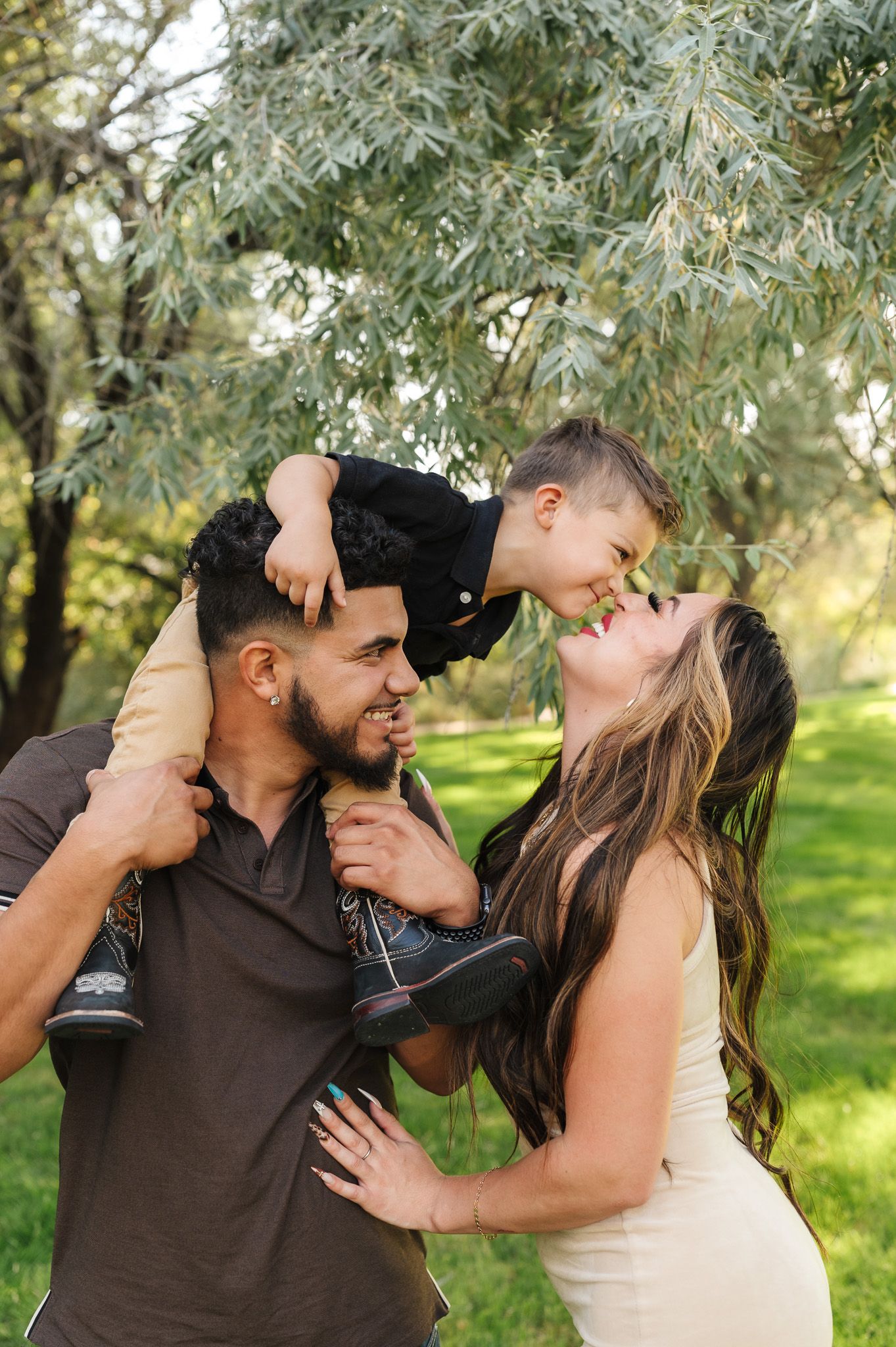
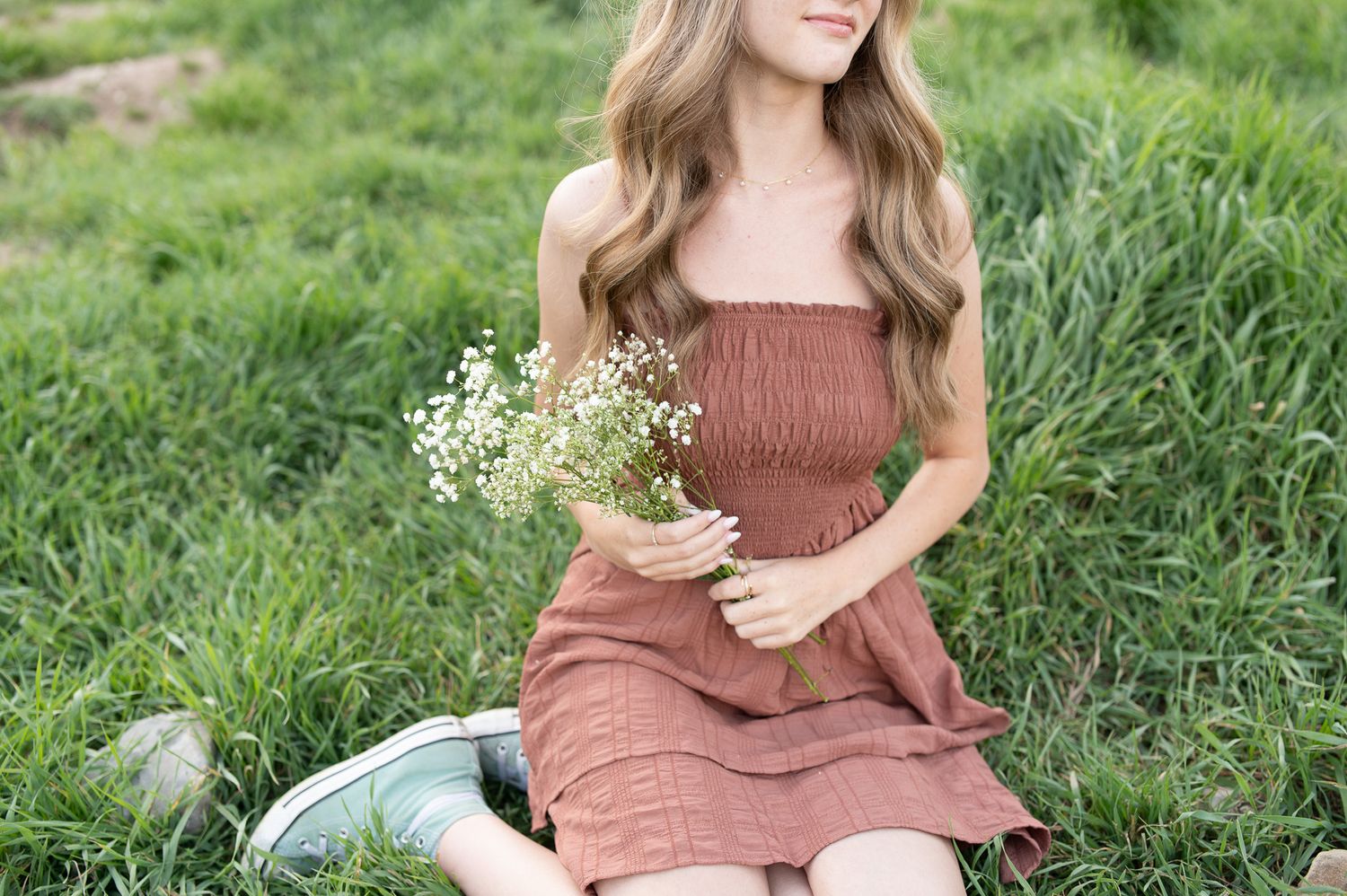
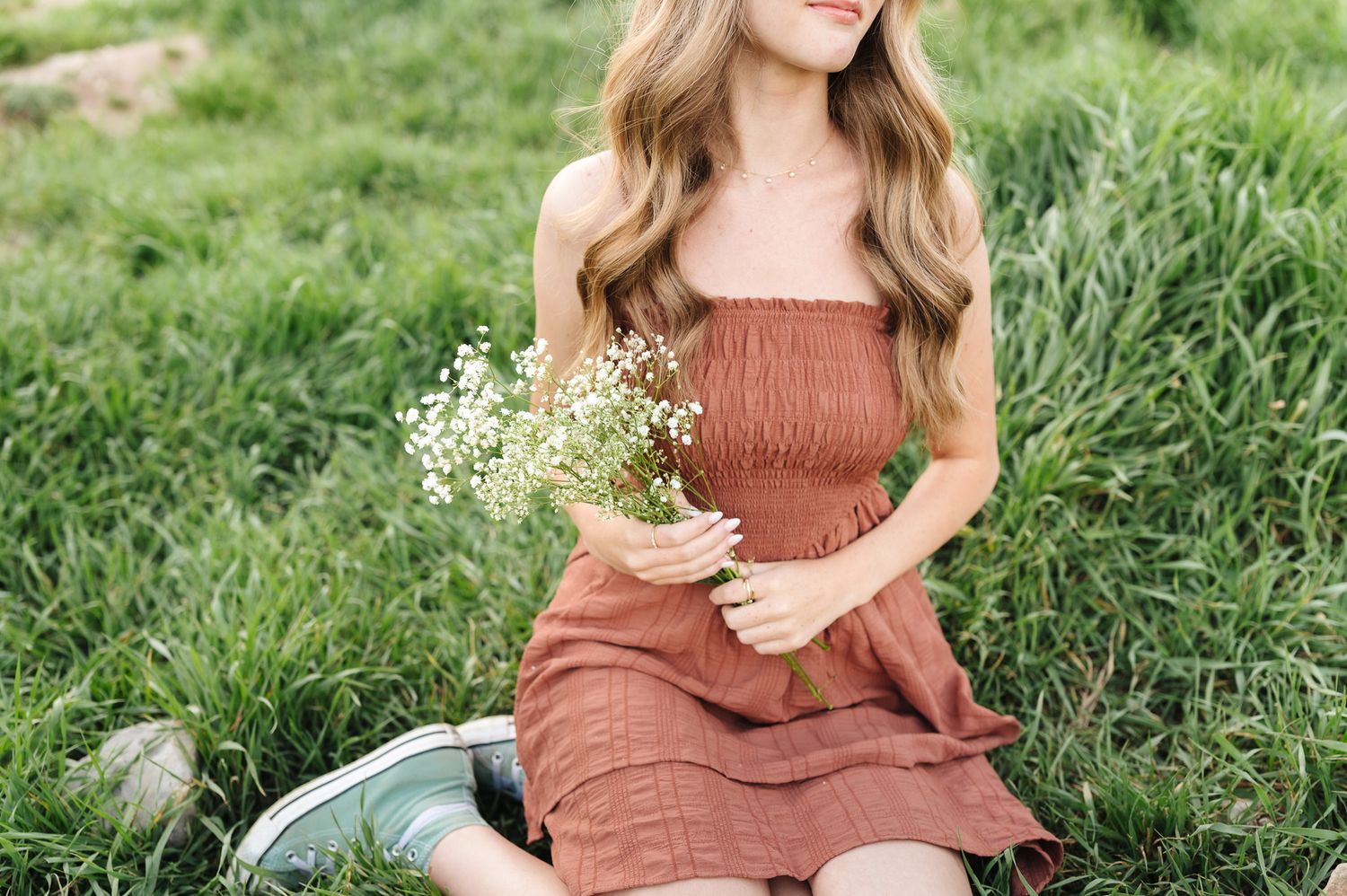
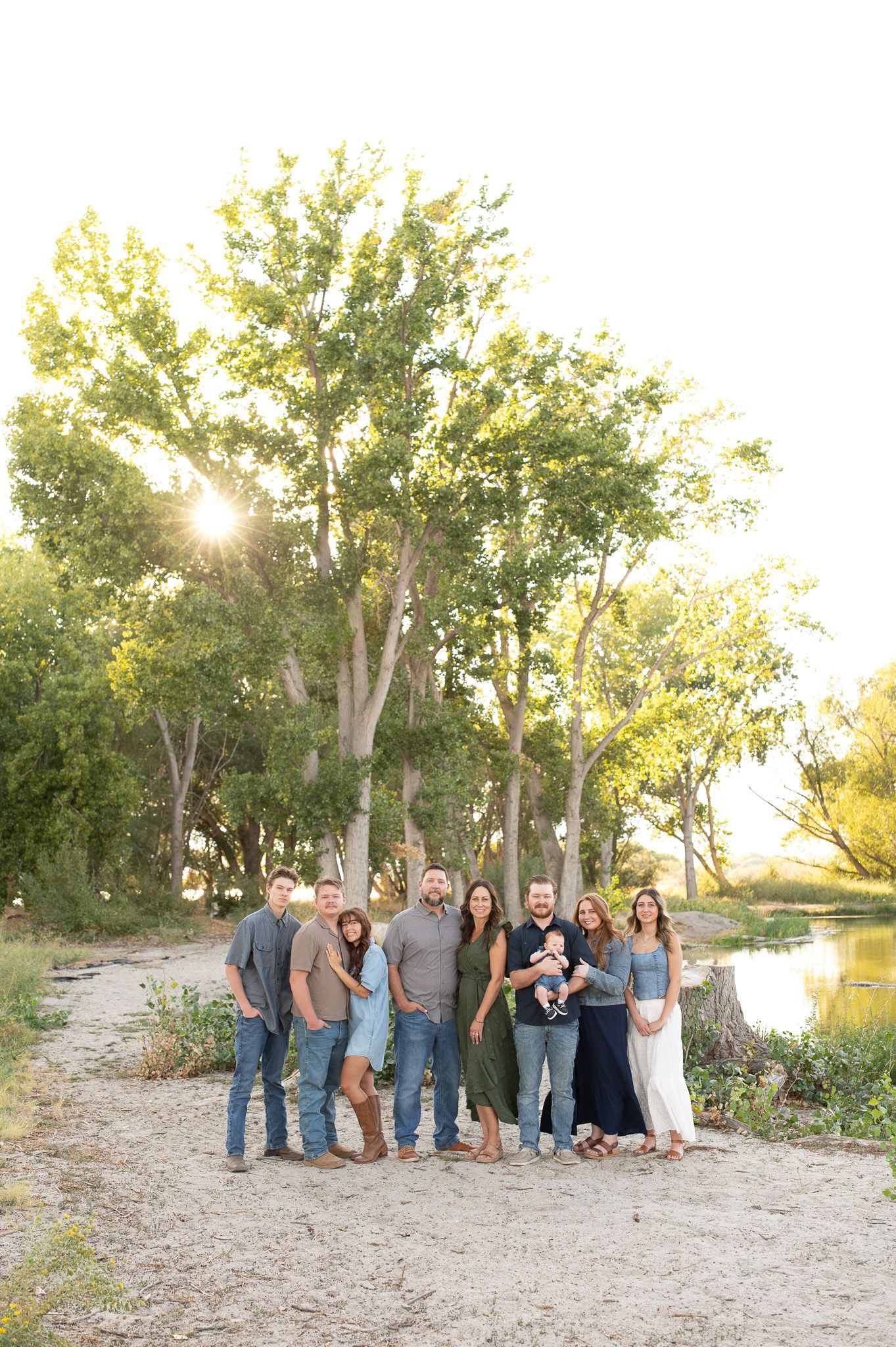
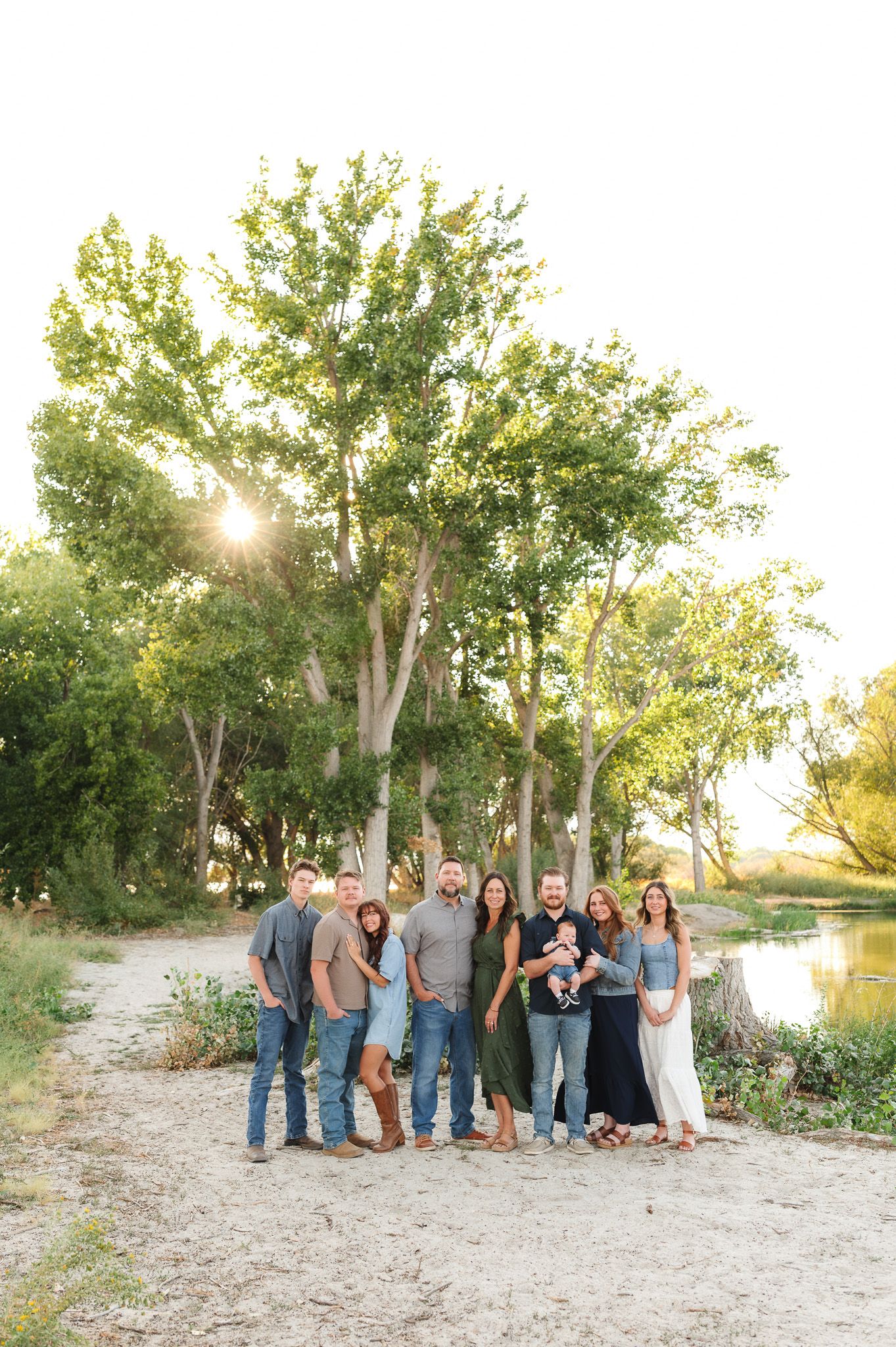
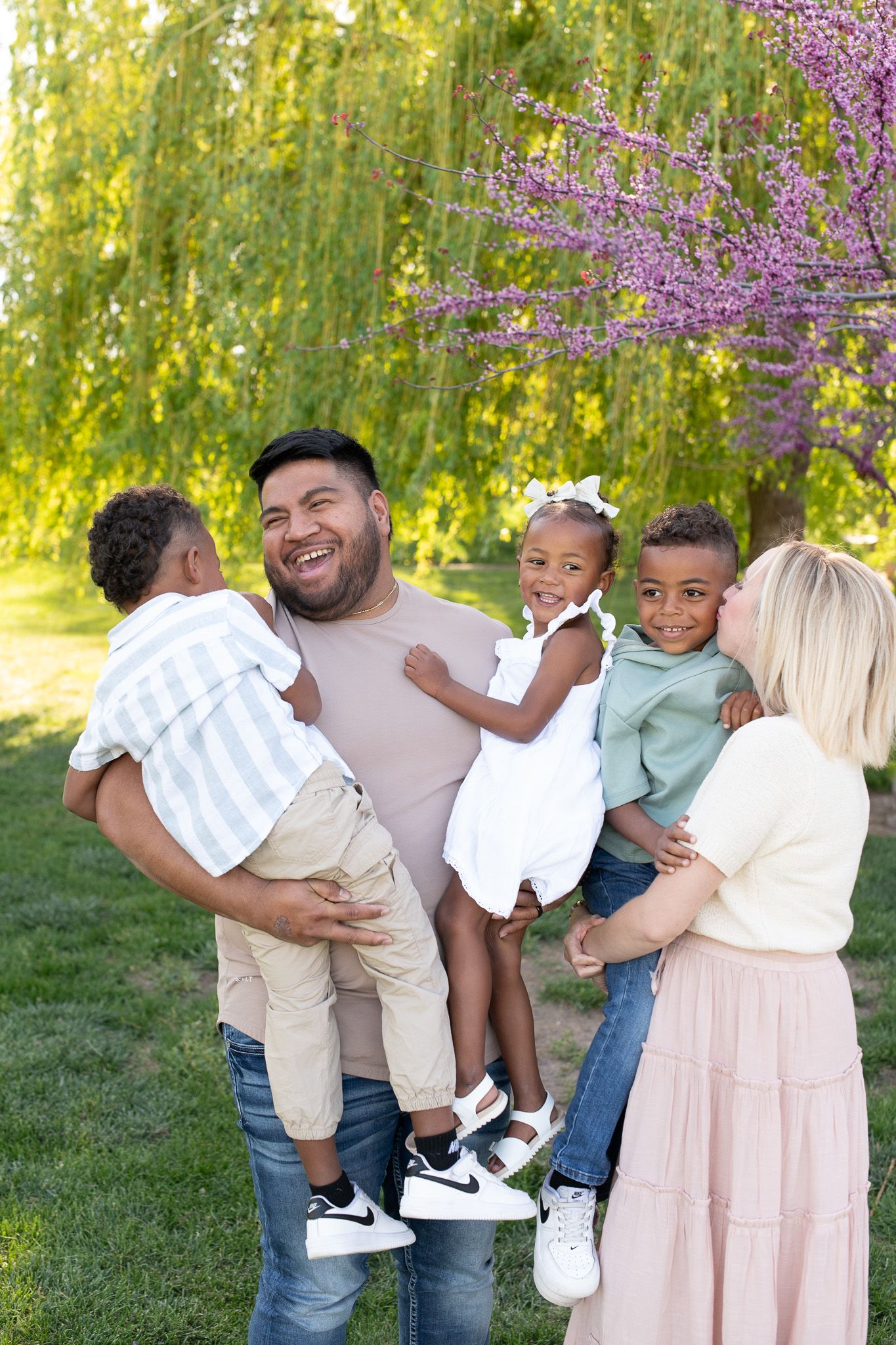
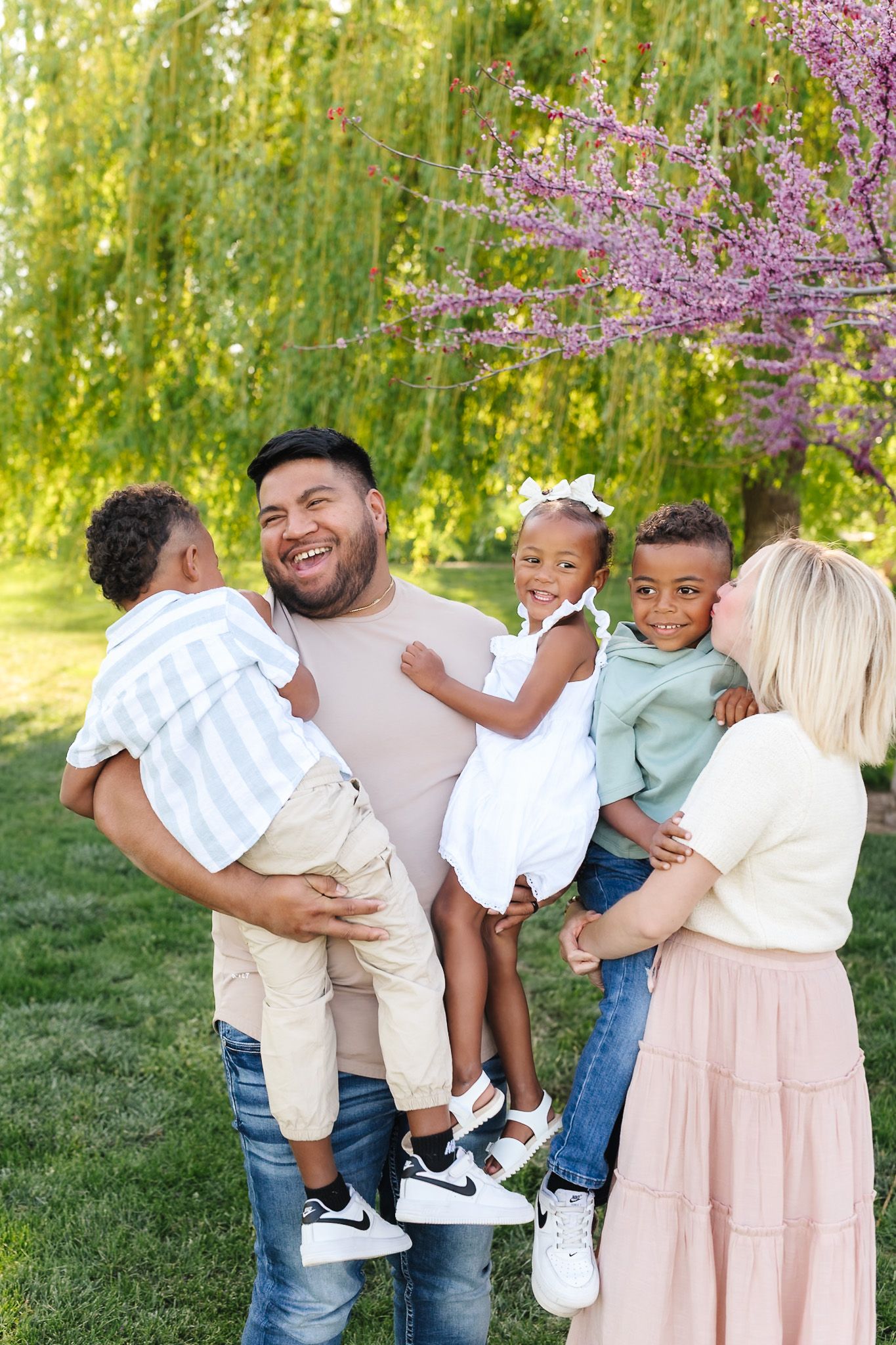
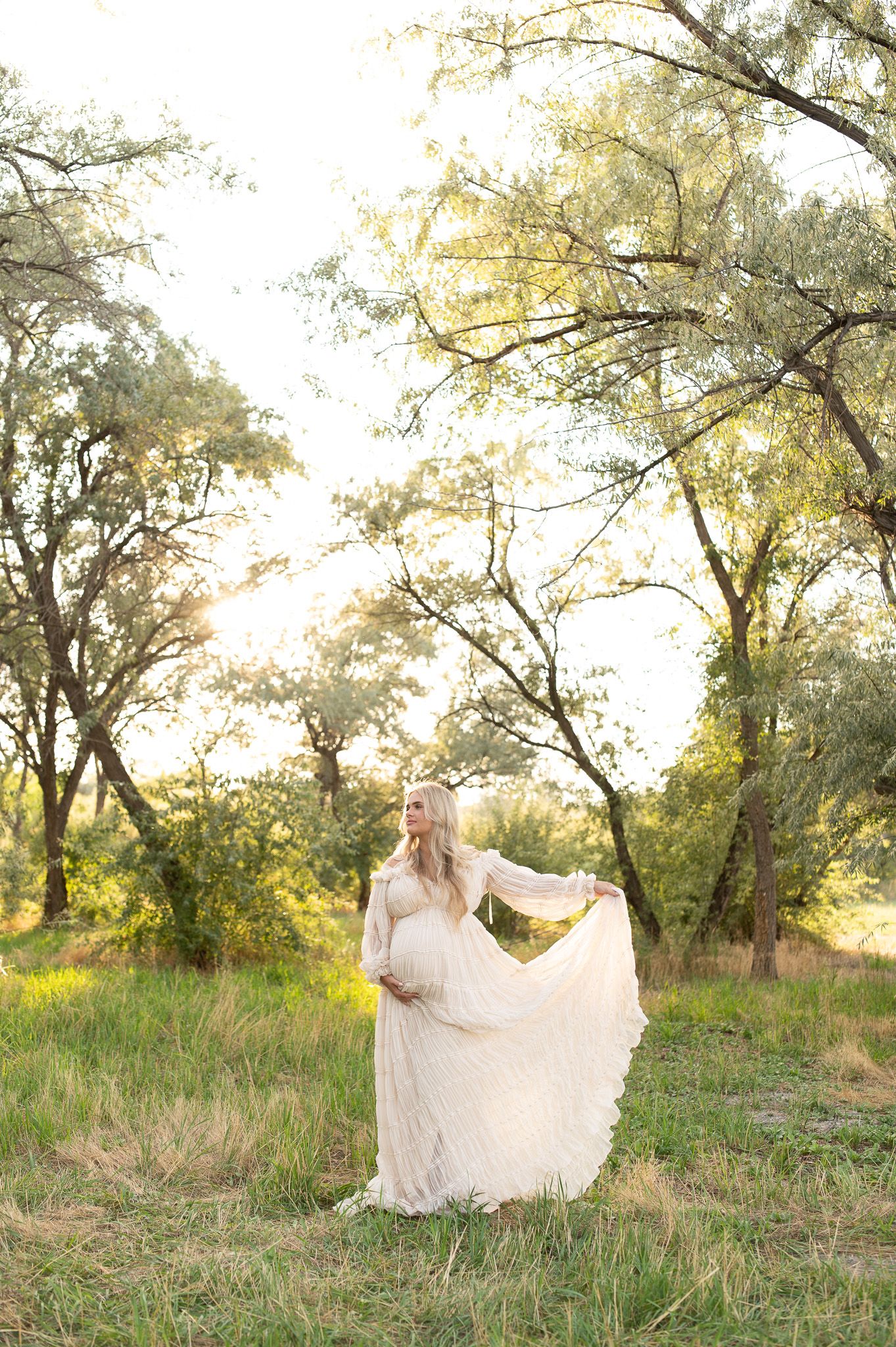
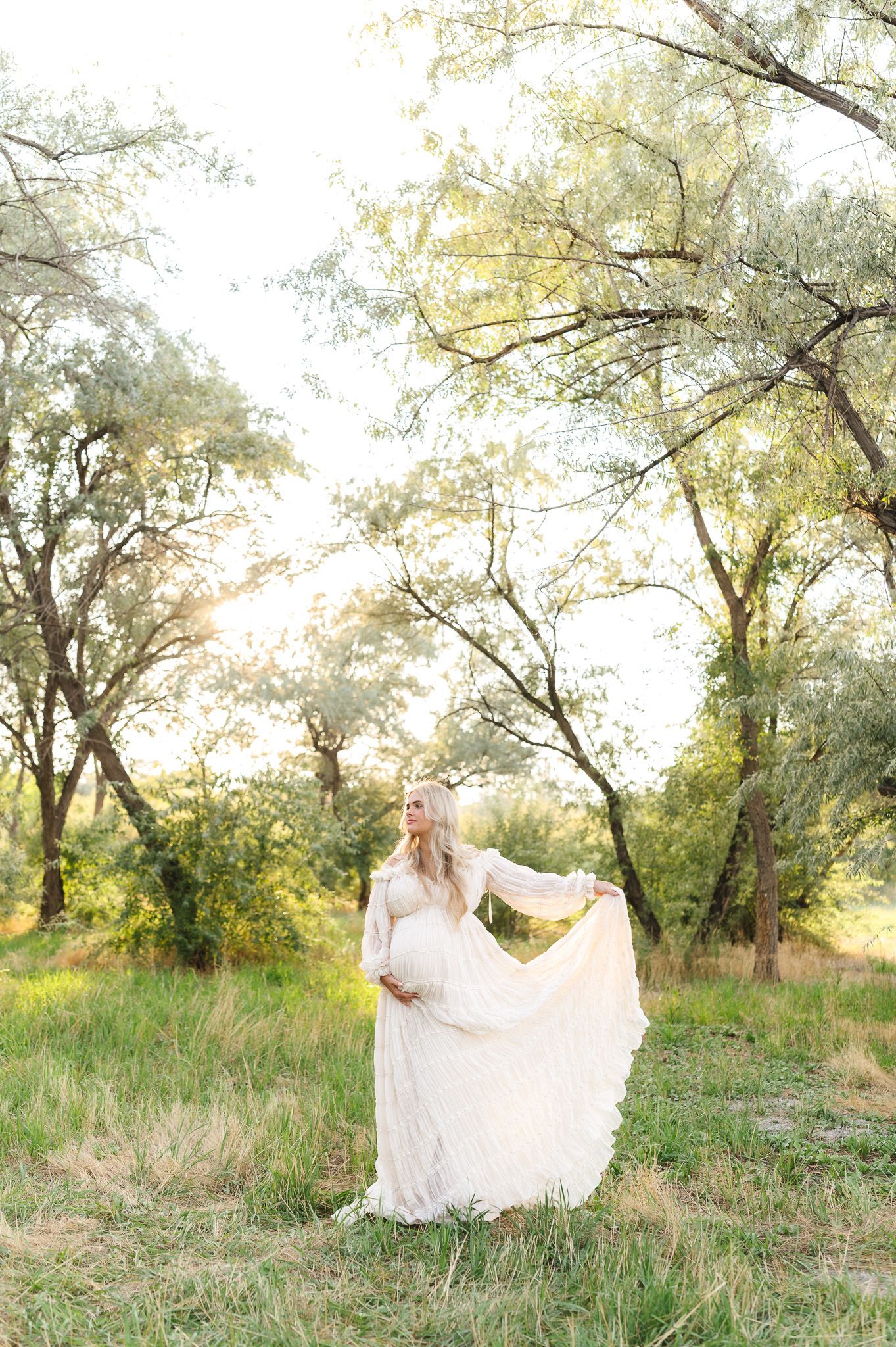
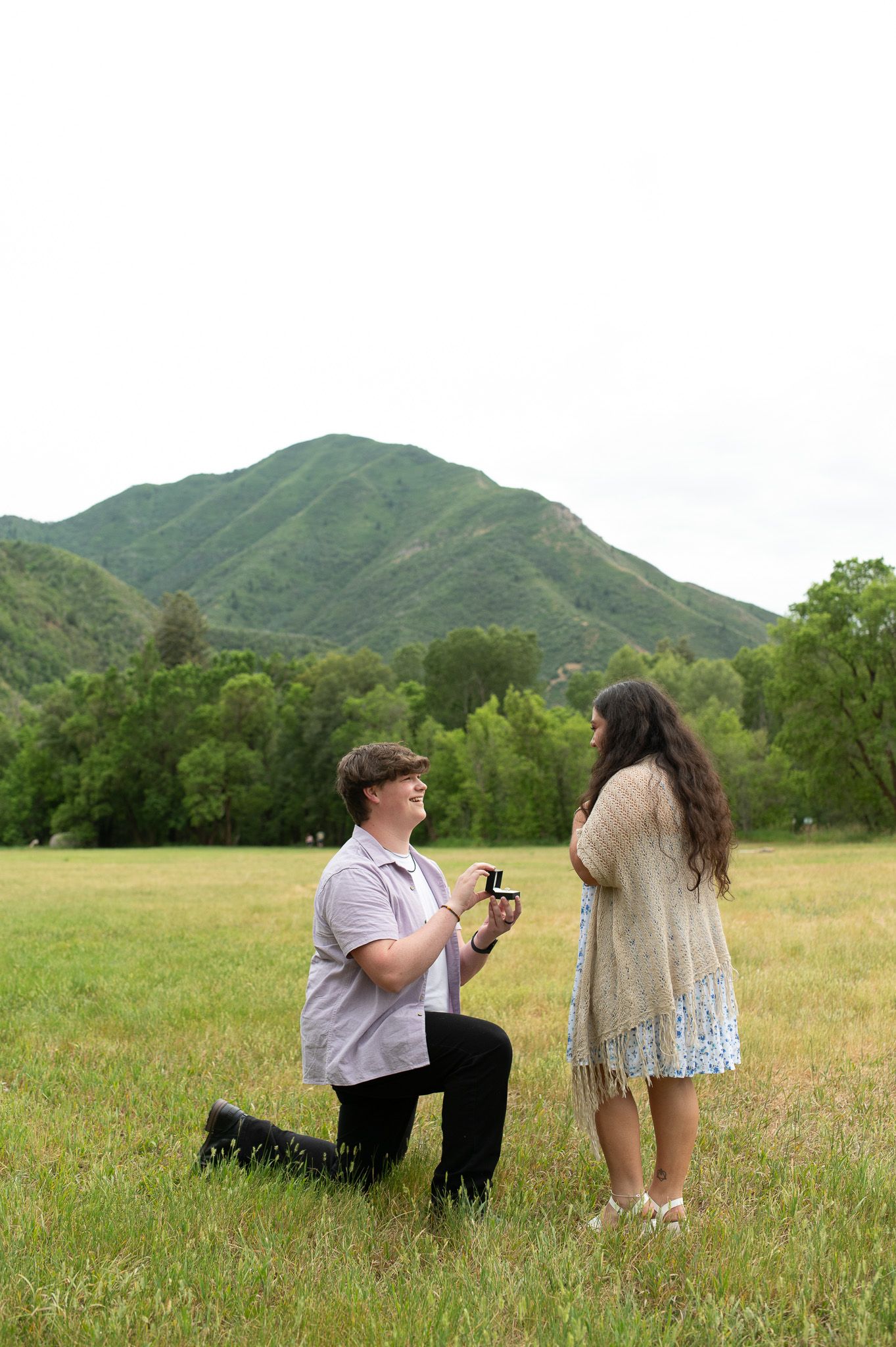
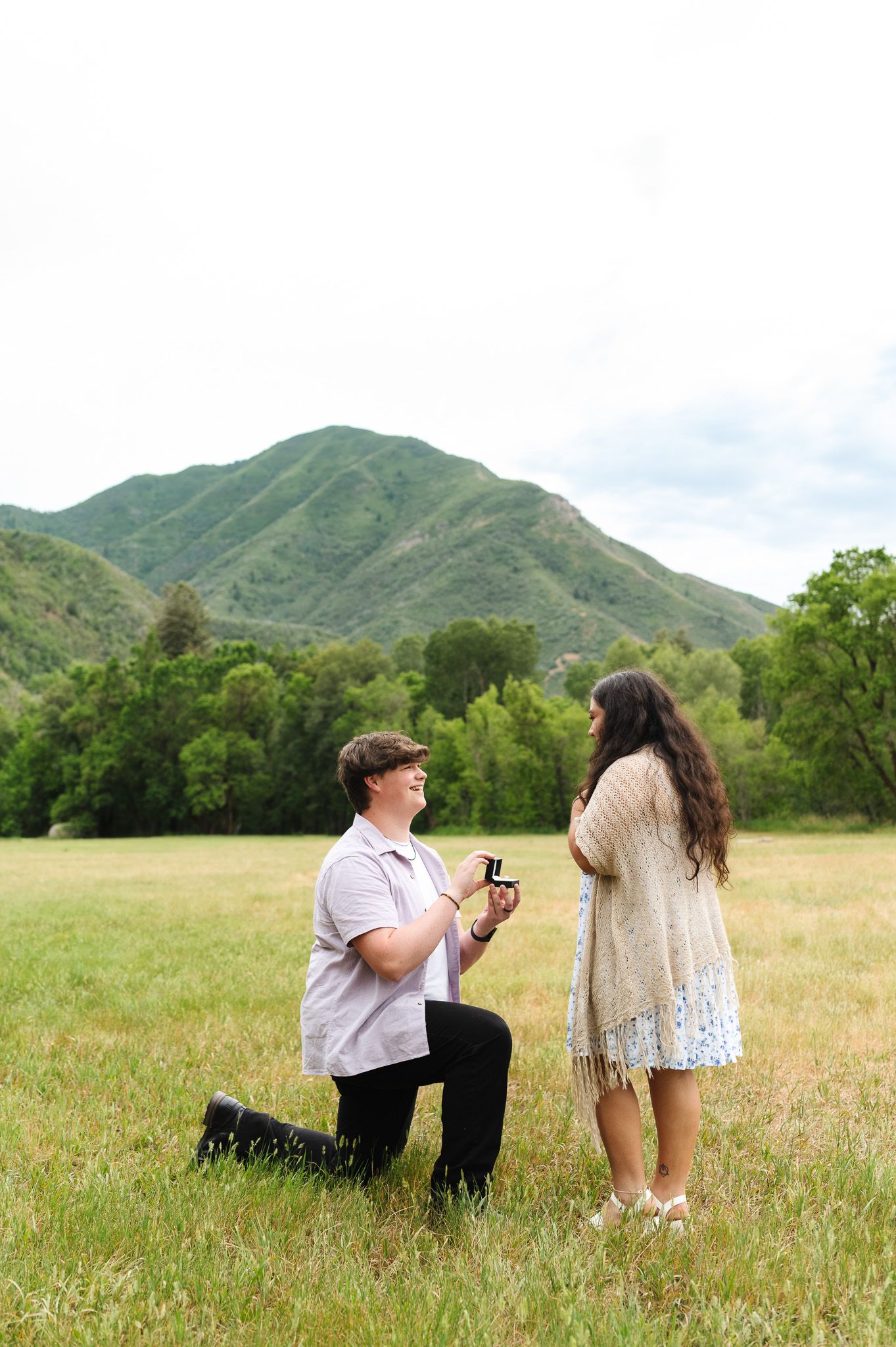
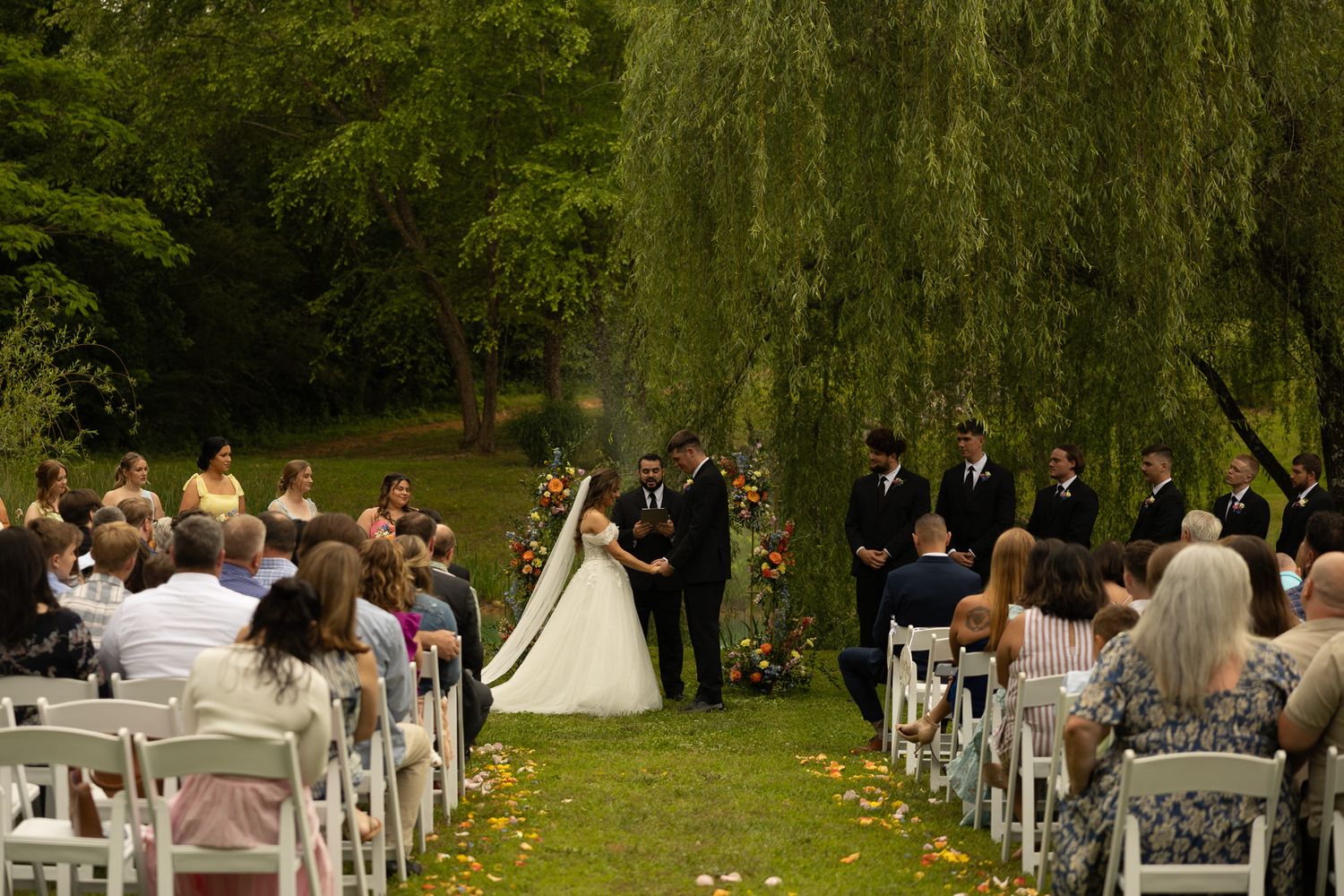
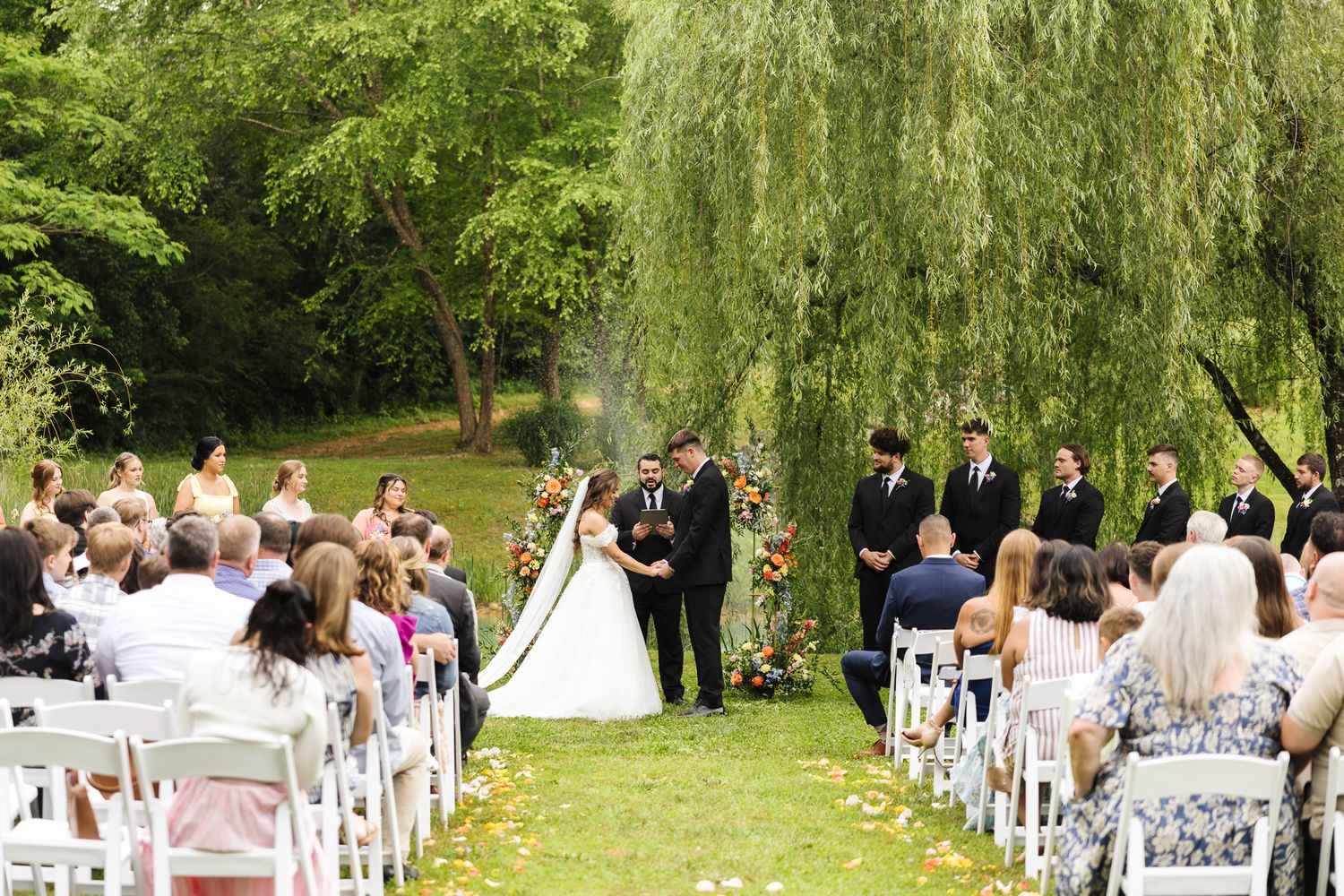
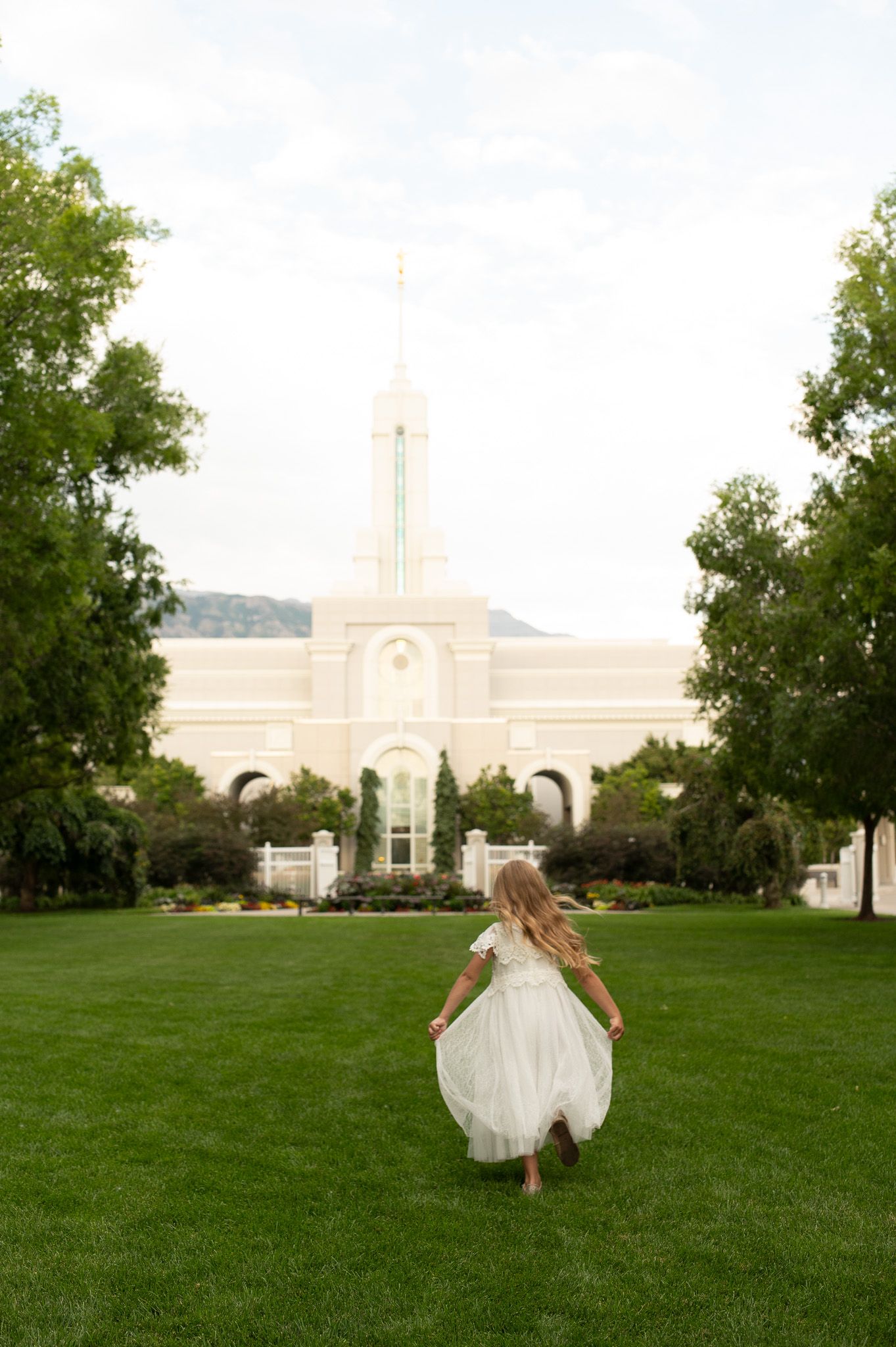
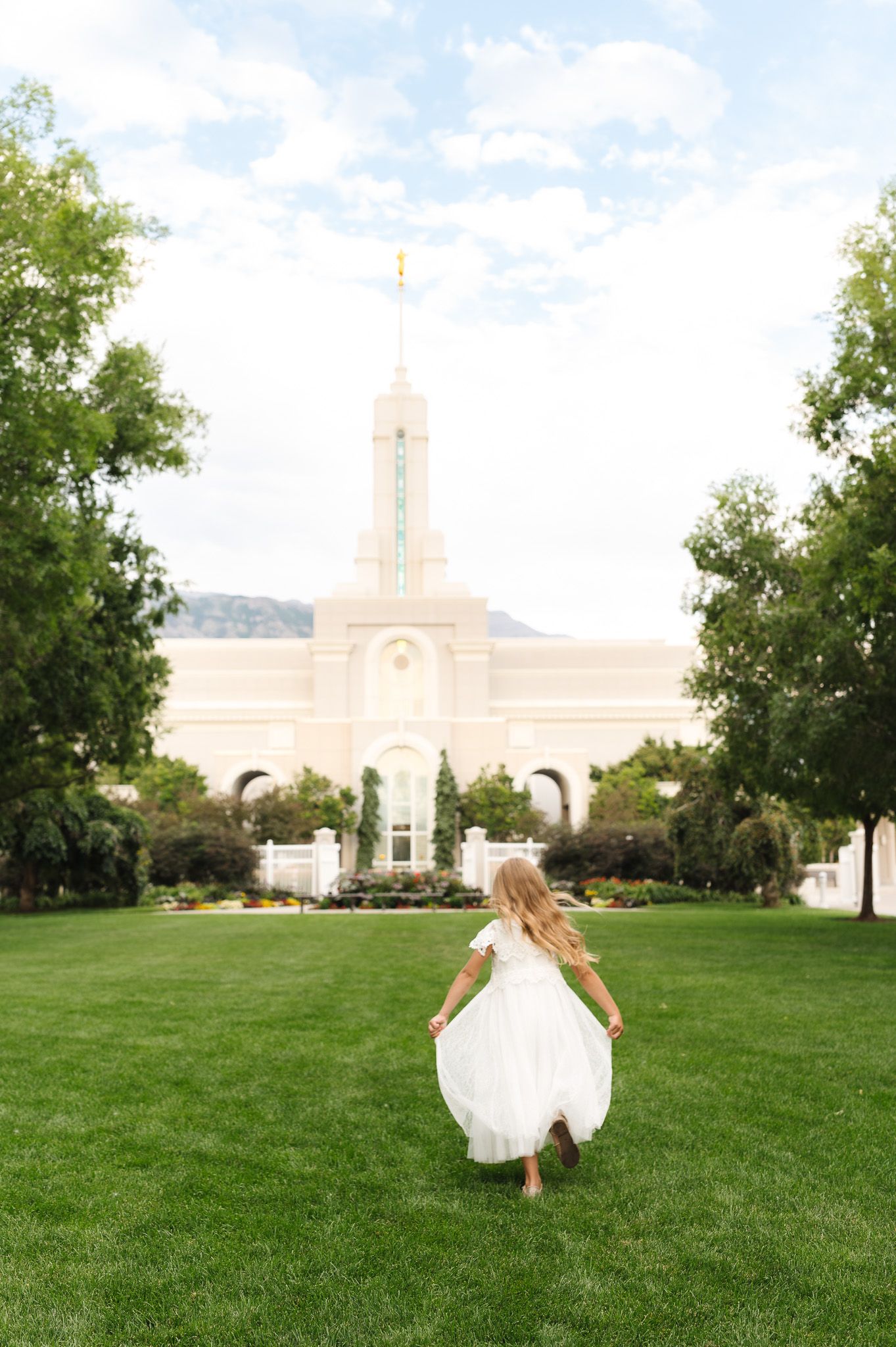
How to Fix Green Skin Tones in Outdoor Photos
In open shade, especially around trees or grass, or a mix of harsh light on grass and cool shade tones skin can pick up green coloring.
This happens because:
- light reflects off surrounding greenery
- the camera picks up those color tones
To fix this:
- adjust tint toward magenta
- refine greens in HSL if needed
- prioritize skin tones over background color
If green skin tones are something you run into often, I put together a full step-by-step guide on how to fix them in Lightroom (including different types of green casts and how to handle each one):
How to Fix Green Skin Tones in Lightroom
BEFORE VS. AFTER
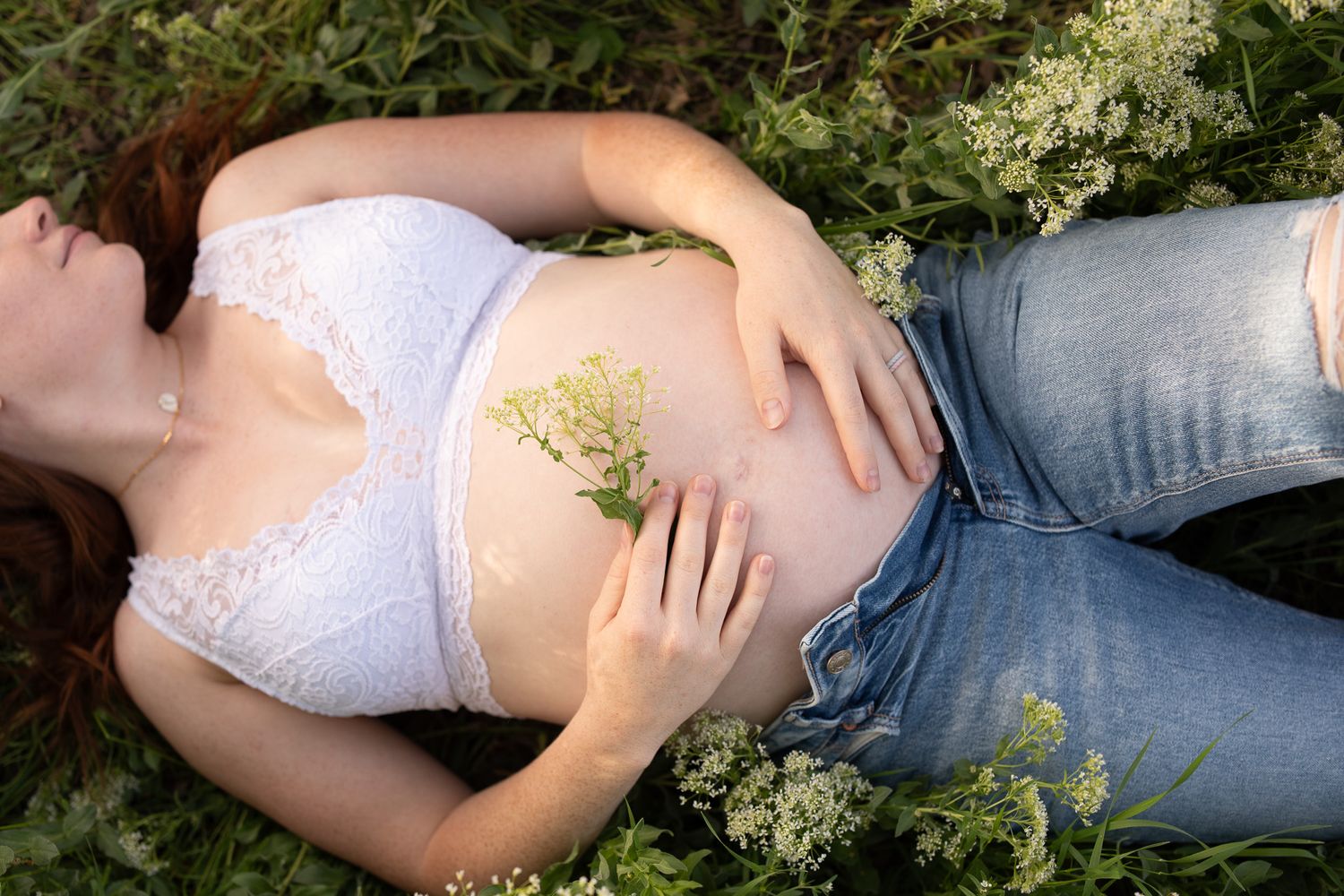
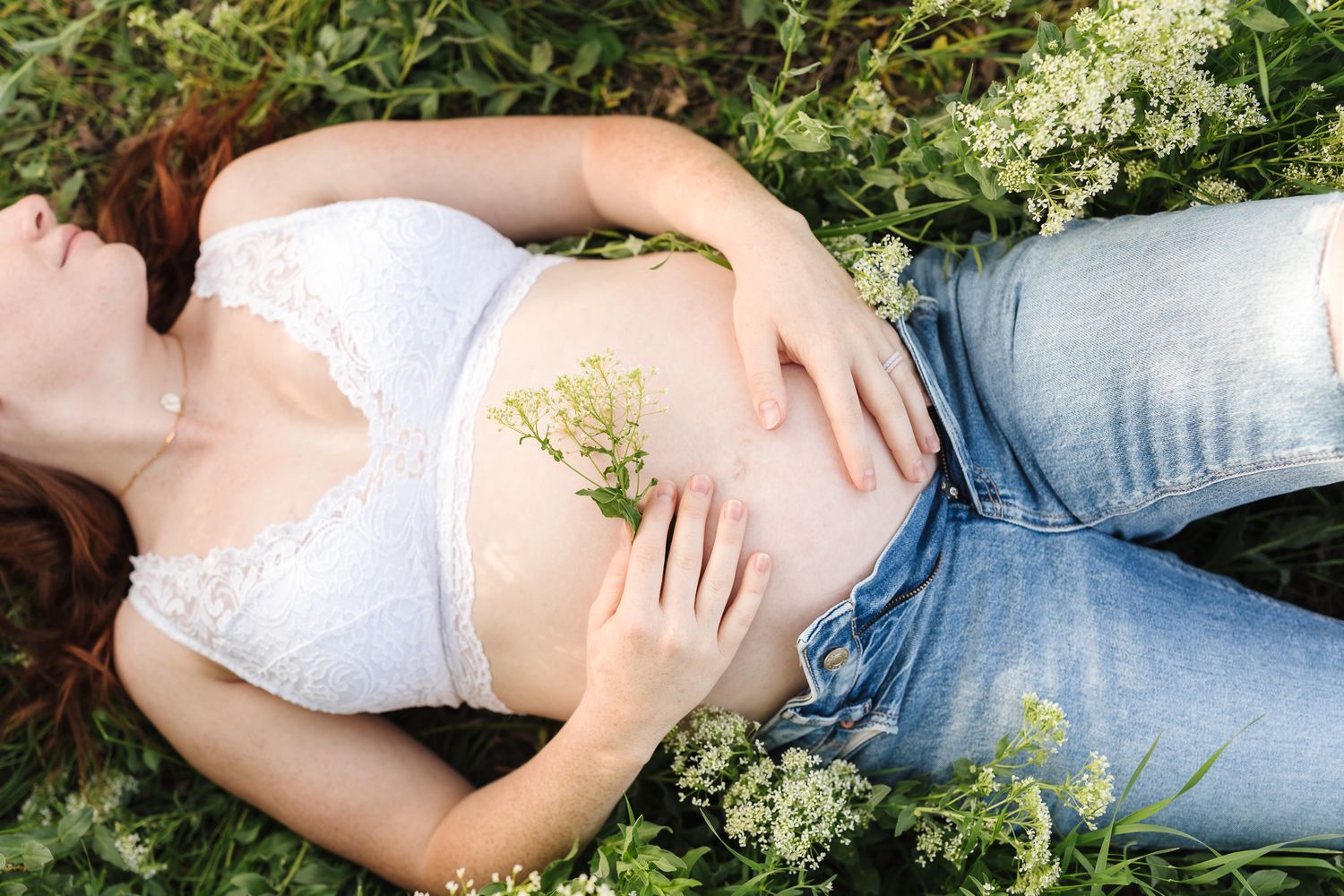
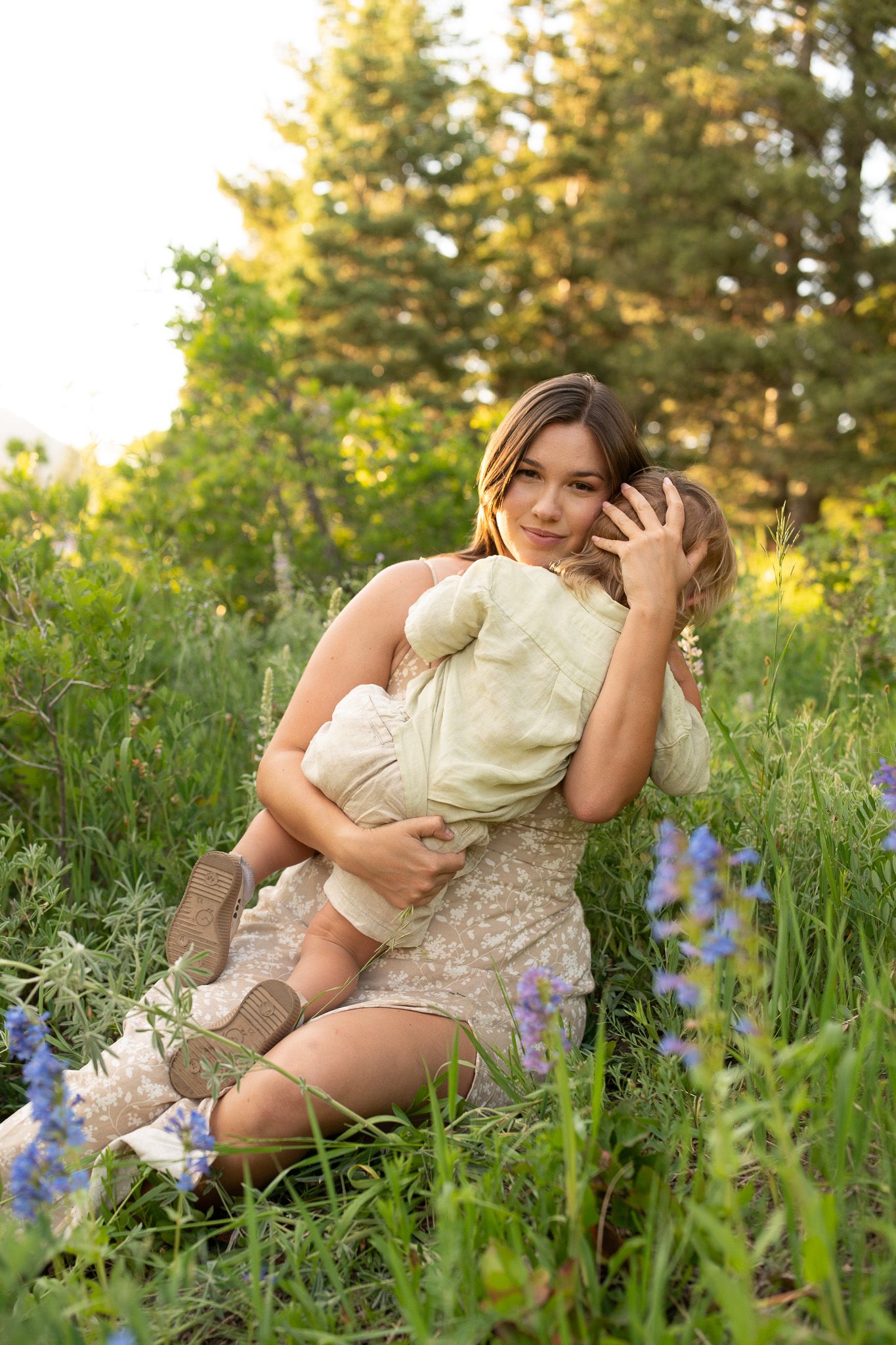
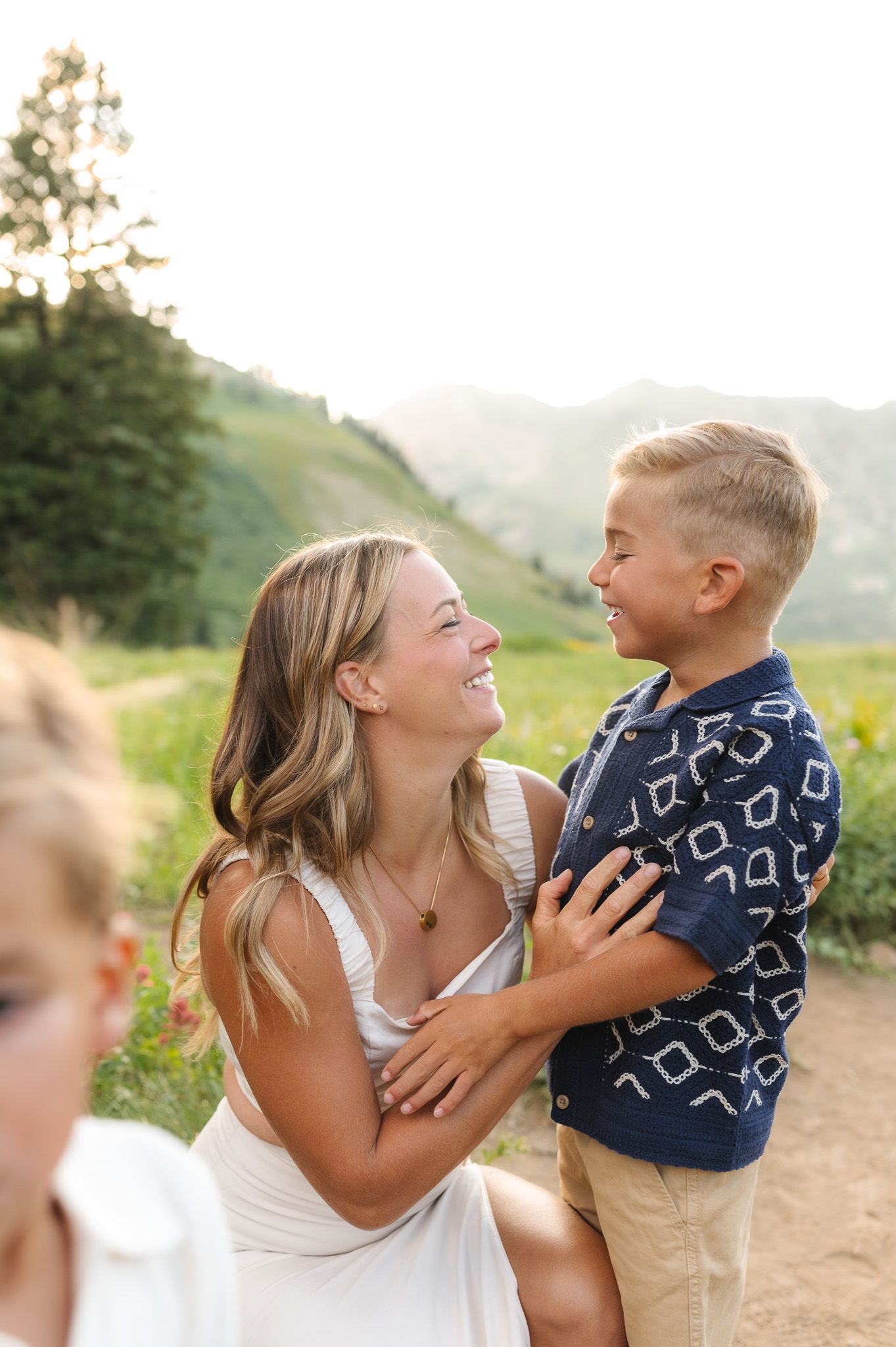
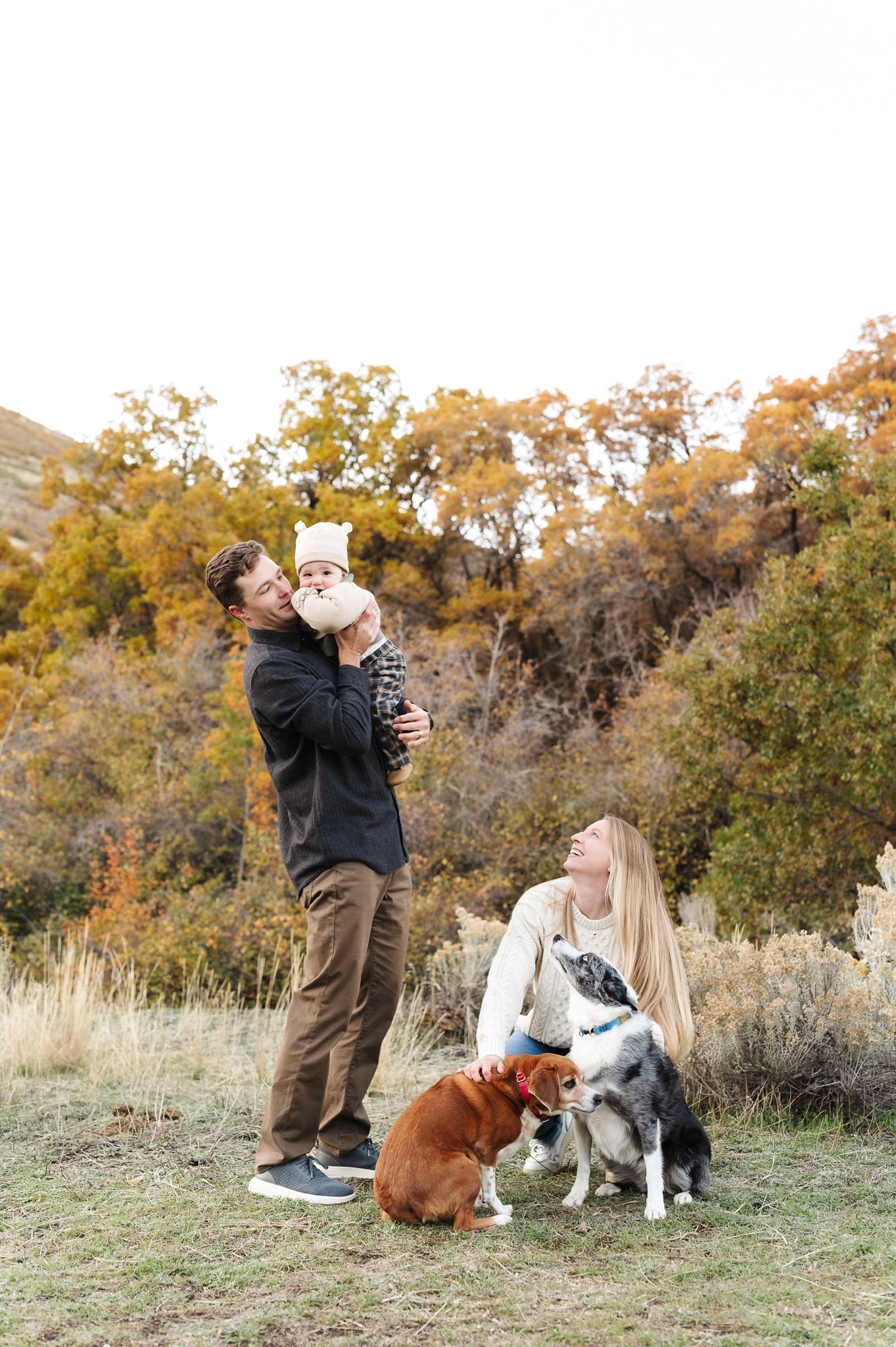
How to Fix Dull or Gray Skin Tones
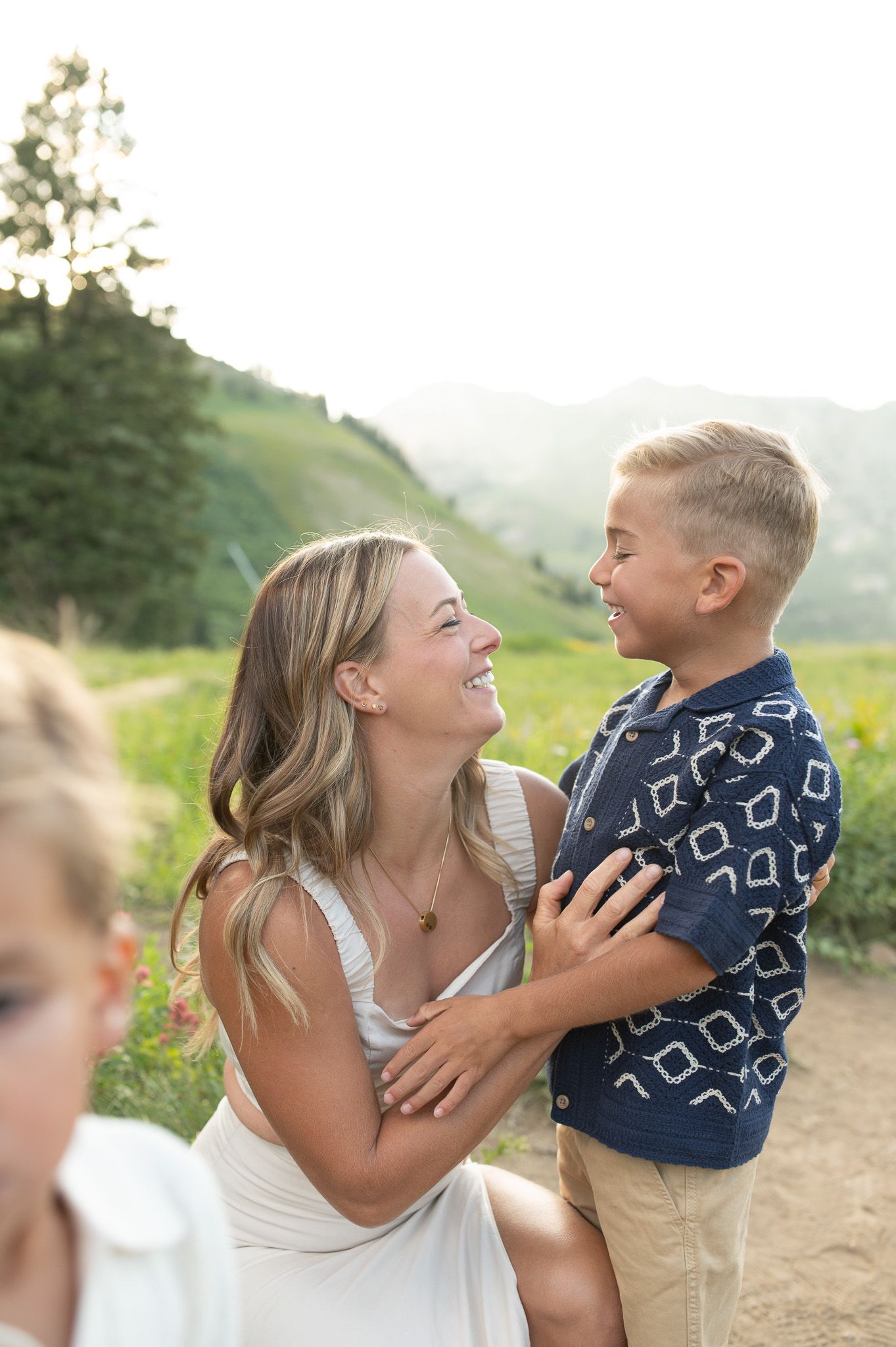
Sometimes skin tones can look flat, gray, or slightly blue.
This happens because:
- cooler light affects overall color
- lack of warmth in the image (and the ability to increase Kelvin only goes so high)
To fix this:
- increase temperature
- refine reds and oranges in HSL if needed
This is one of the situations my presets help with most, especially as a starting point.
BEFORE VS. AFTER
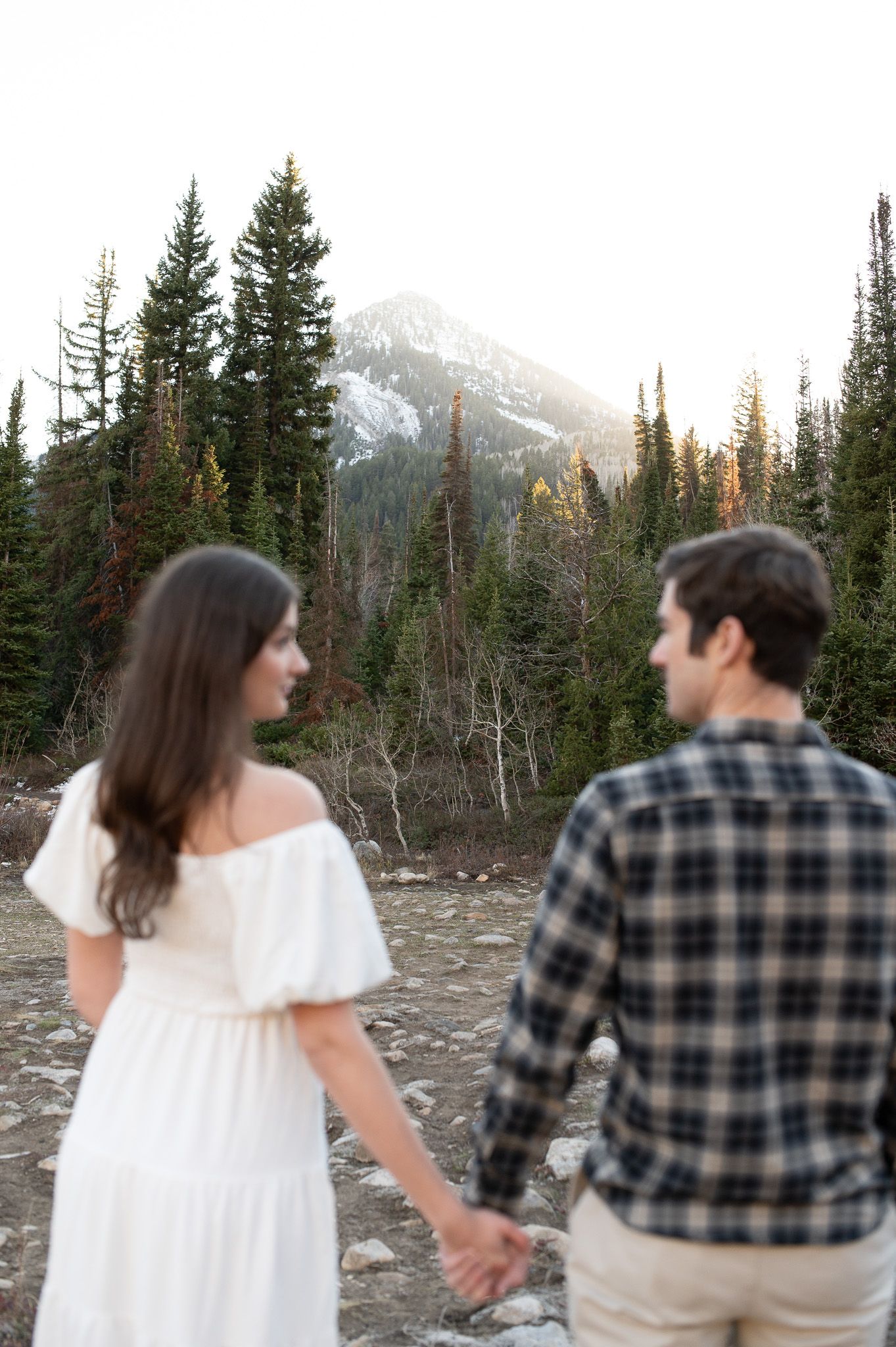
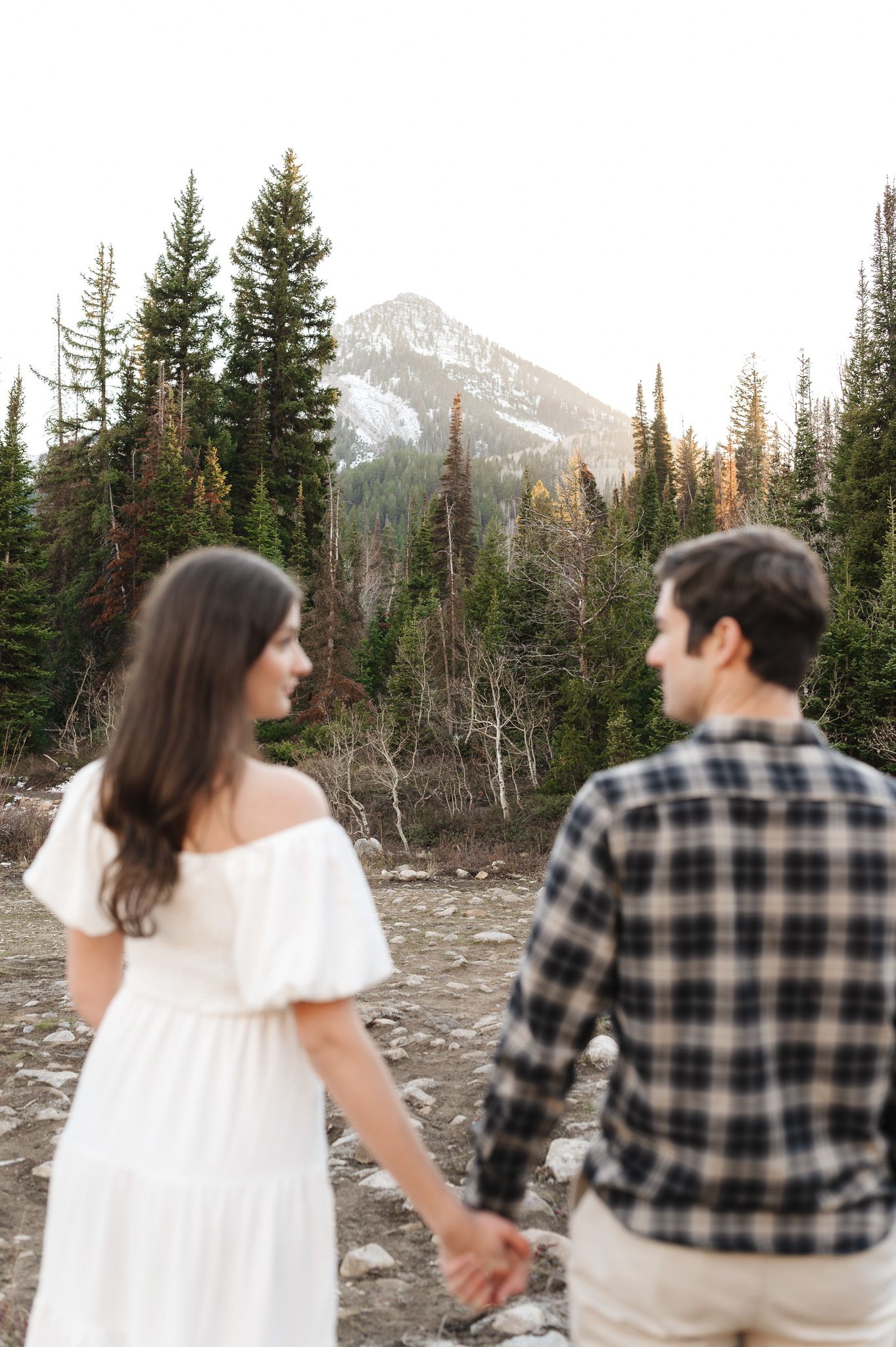
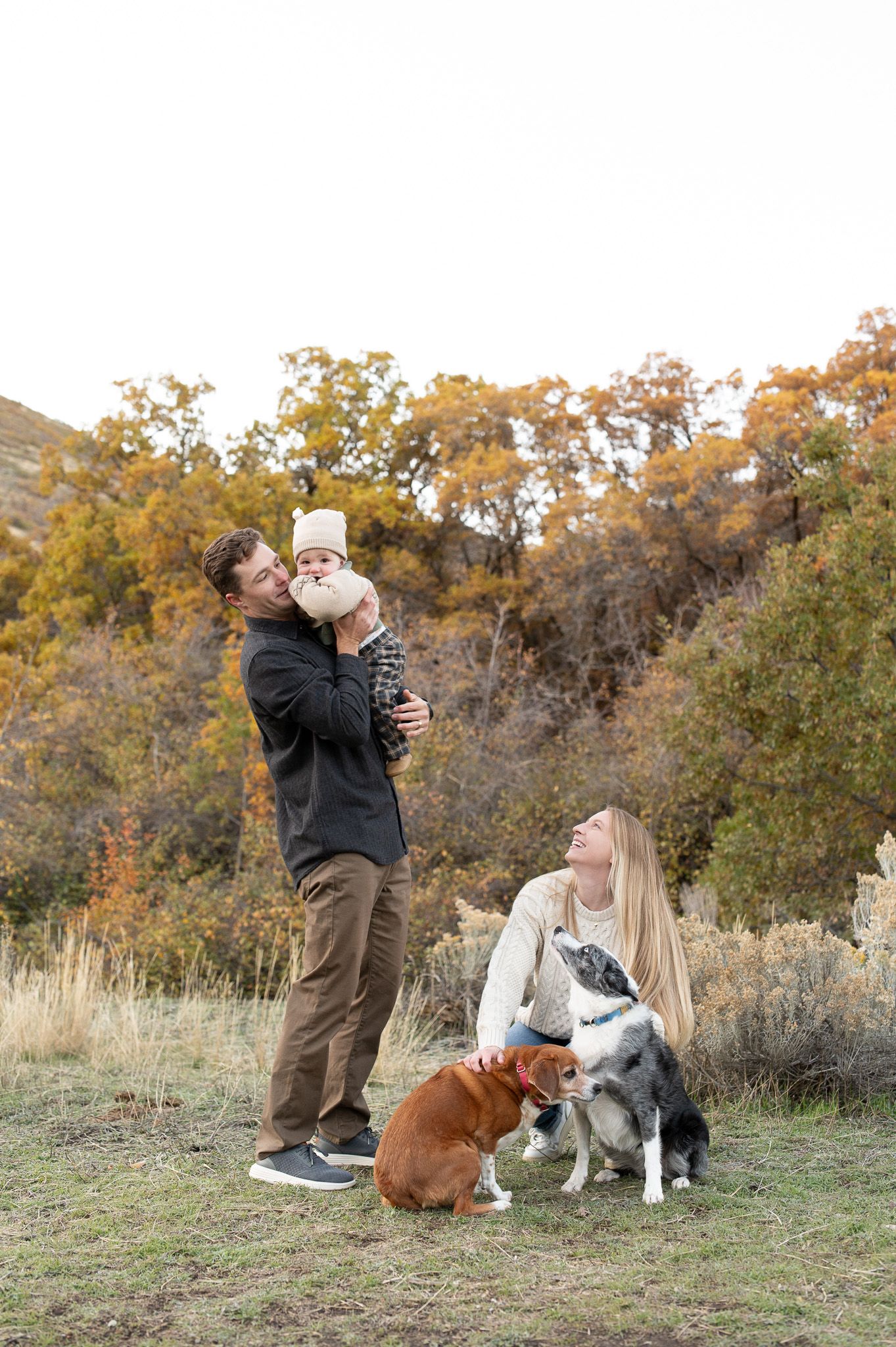
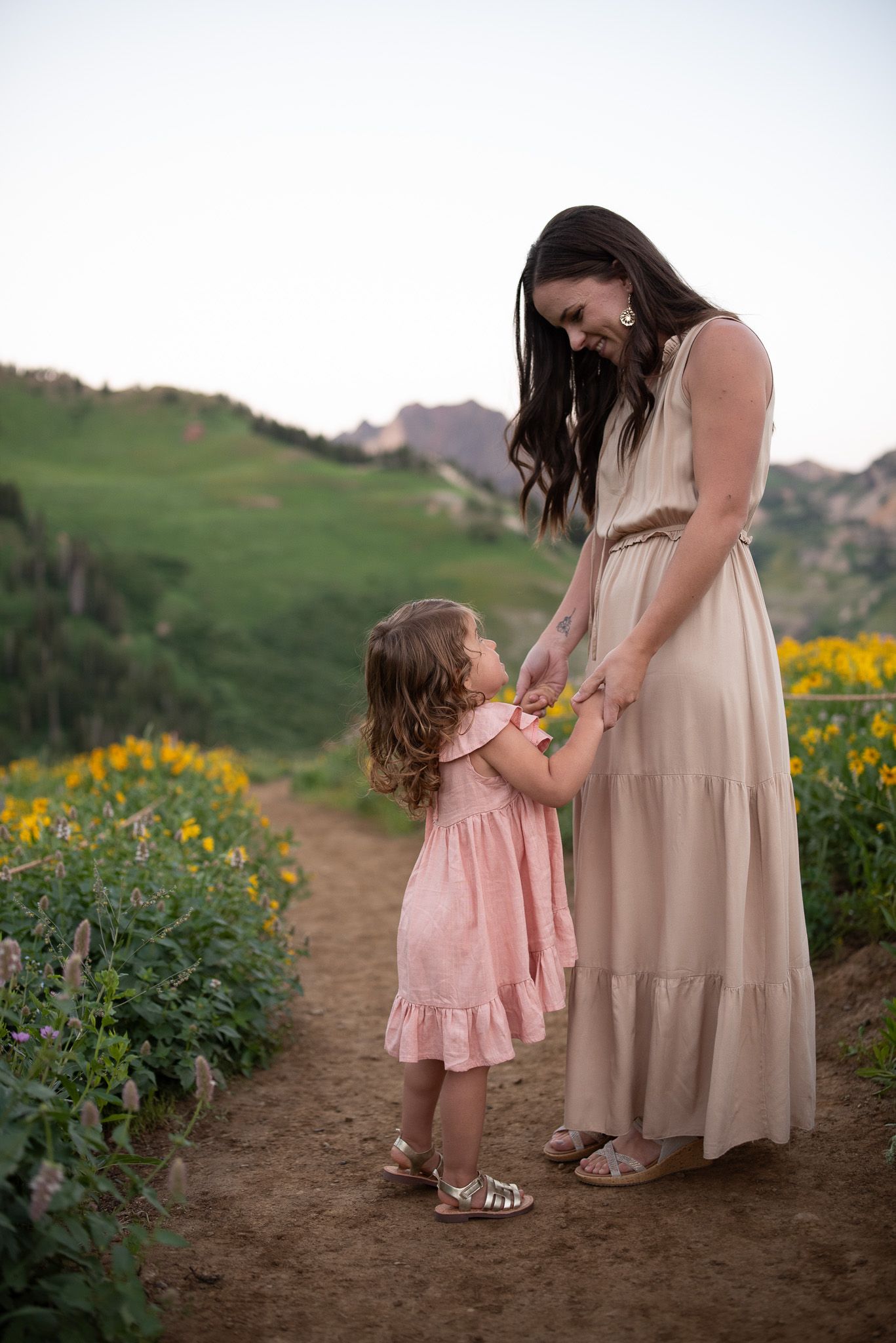
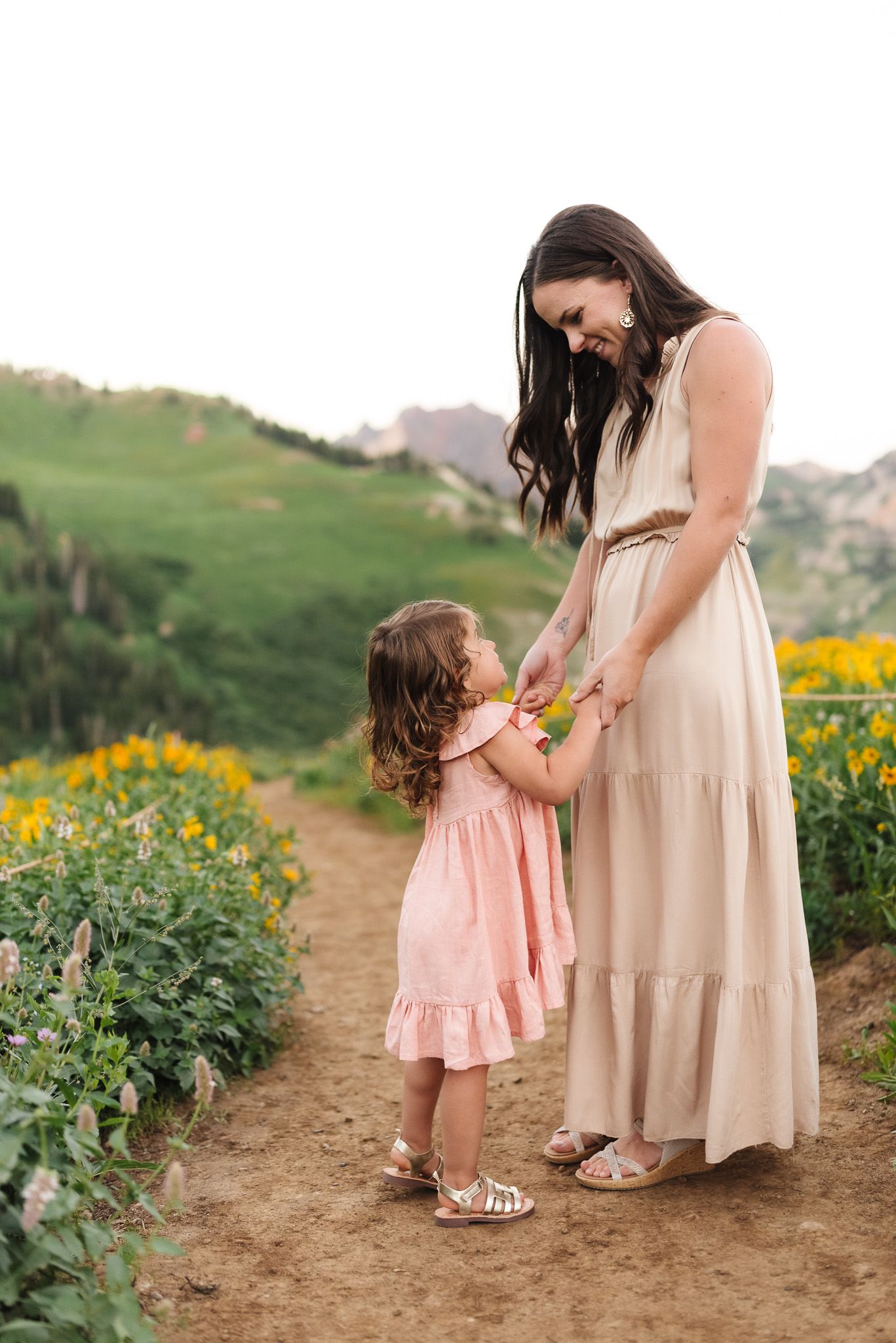
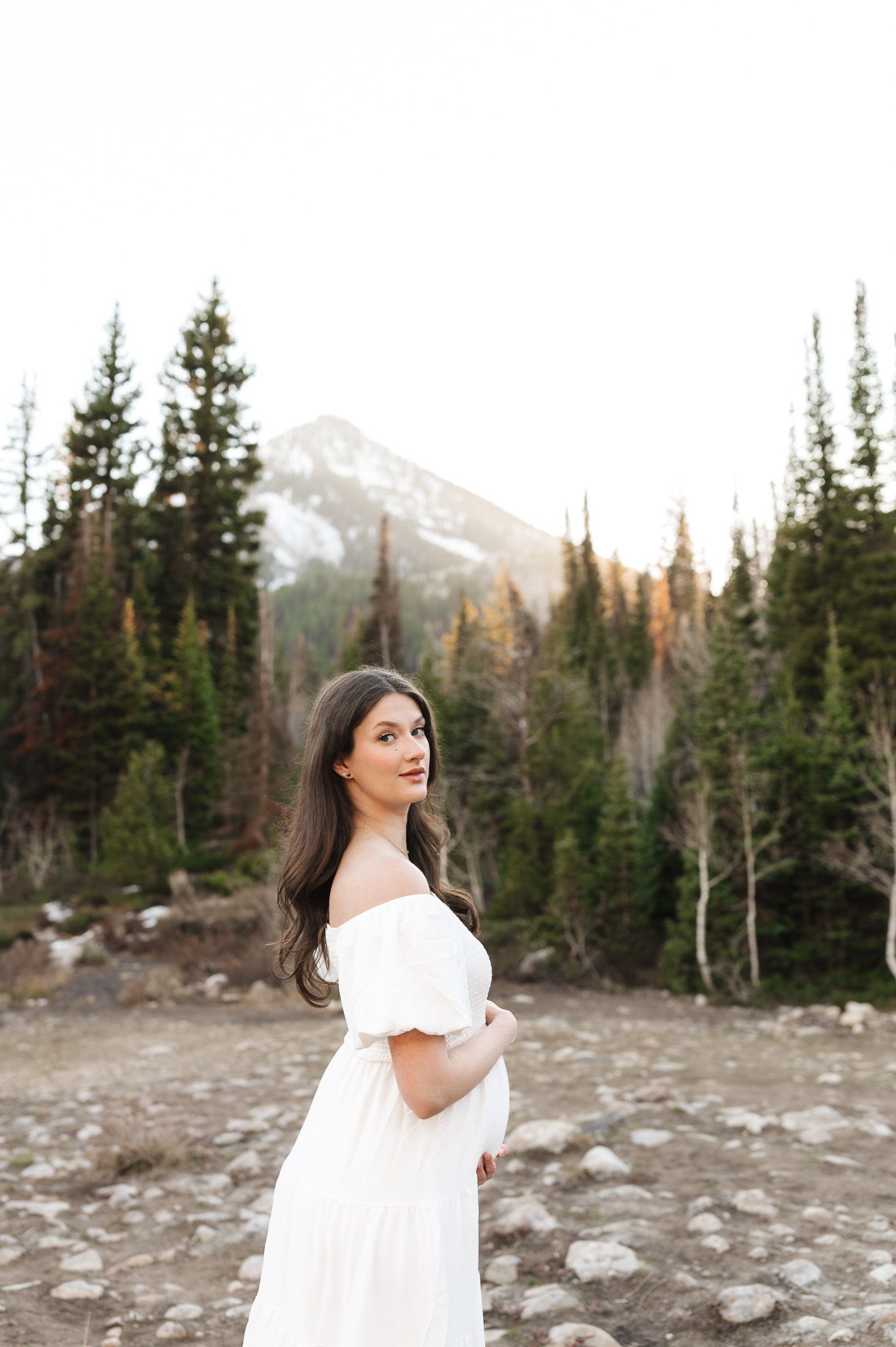
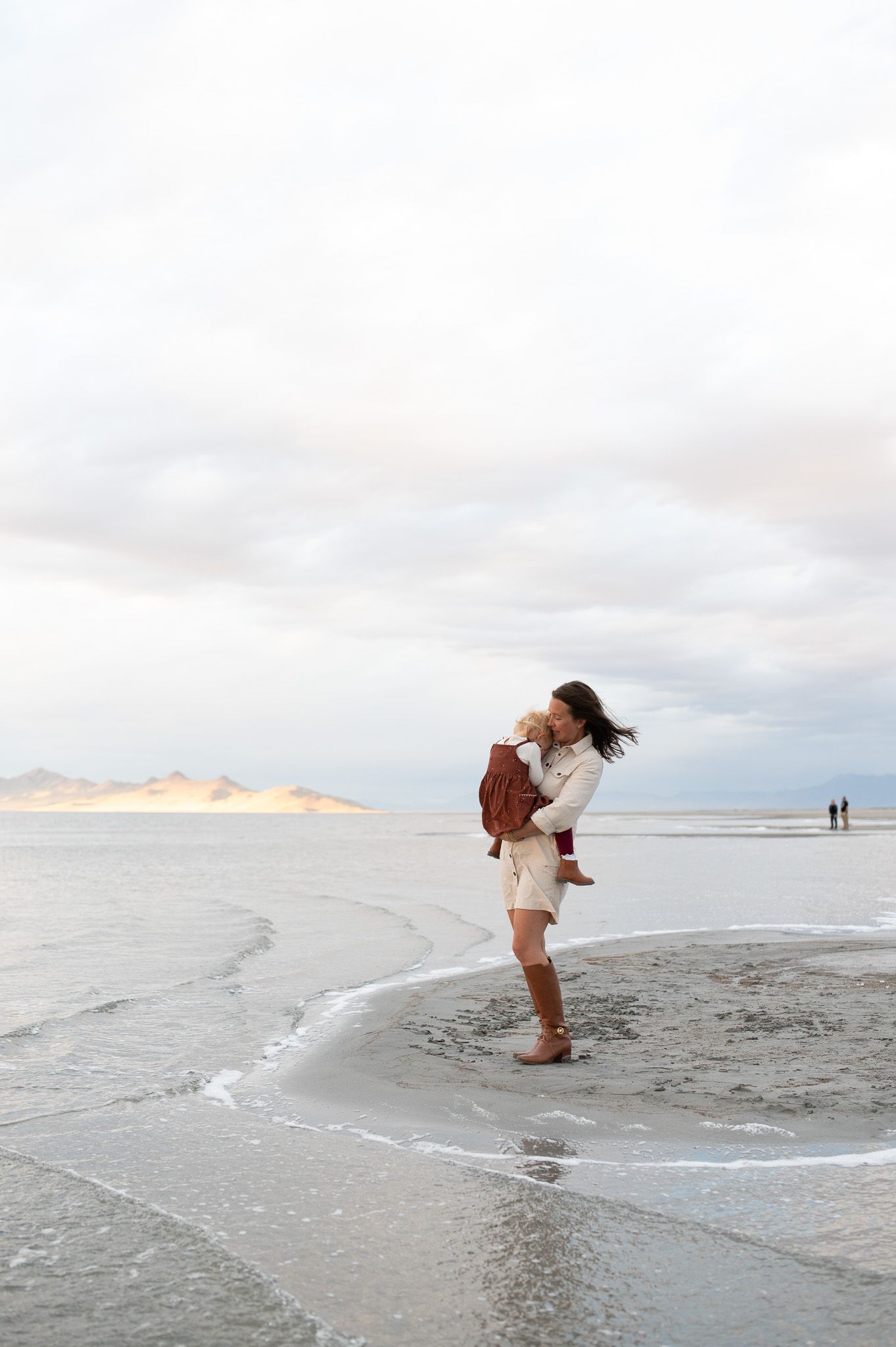
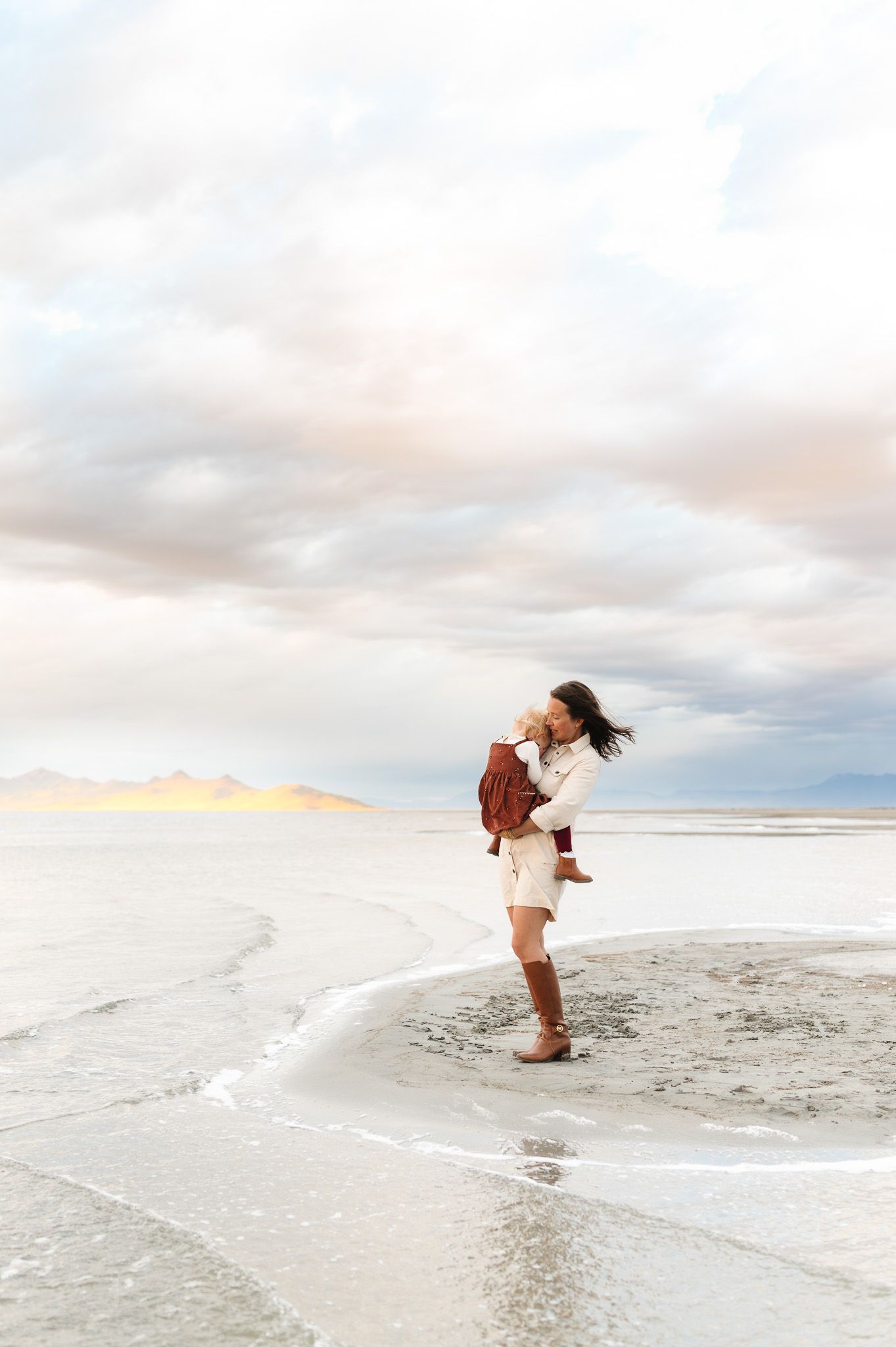
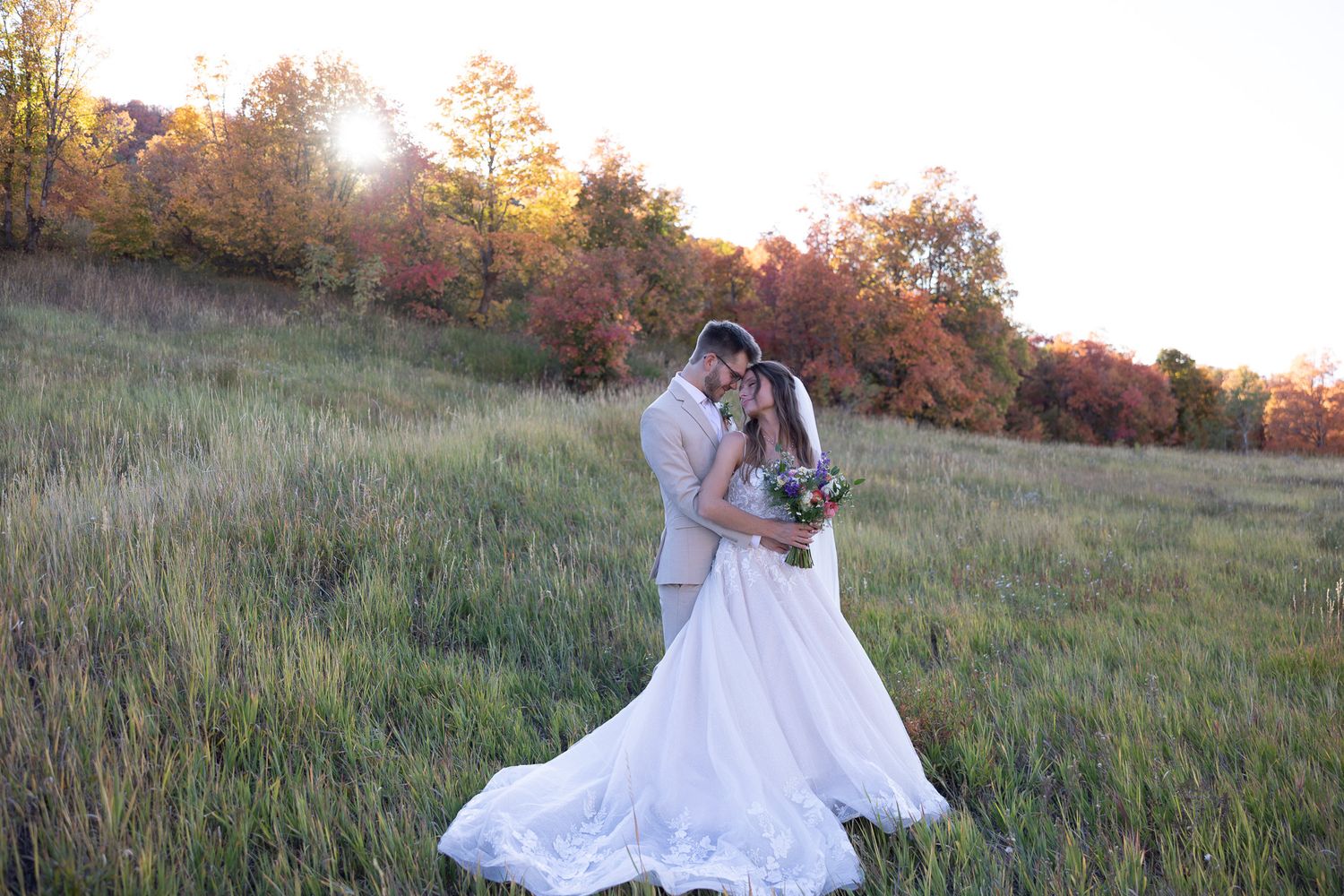
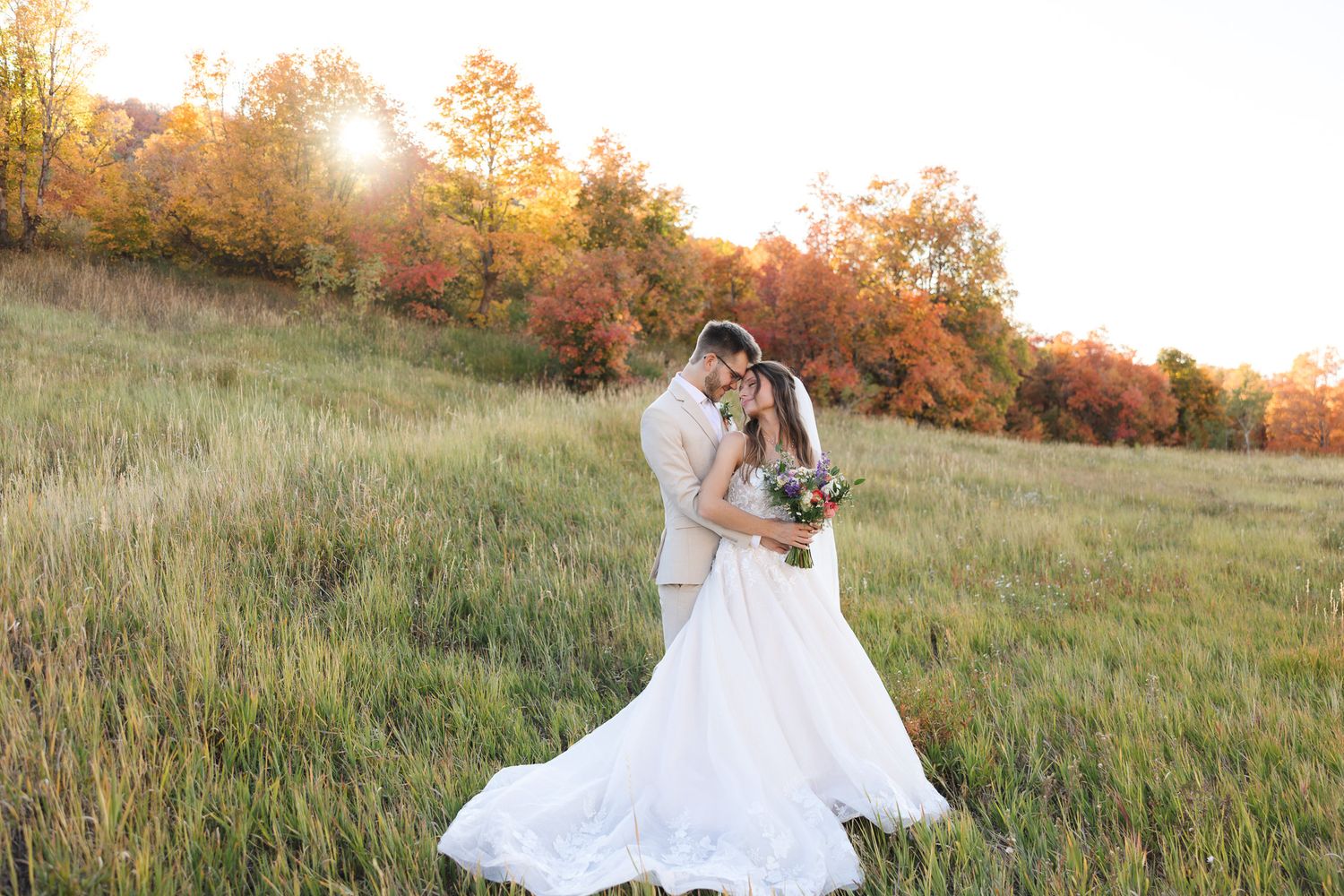
How to Fix Blue or Cool-Toned Images in Lightroom
Some outdoor sessions—especially in overcast weather, open shade, or cooler seasonal light—can leave images looking overly blue, flat, or lacking warmth.
This usually happens because:
- cool ambient light affects the entire frame
- the camera reads the scene as colder than it felt in real life
- skin tones lose warmth and appear dull or muted
The challenge with blue-toned images is that they often need more than just warming the temperature slider.
If you over-correct, the image can quickly become too yellow or unnatural.
To fix this:
- adjust temperature gradually to restore warmth
- refine tint if the image feels too green or magenta
- increase exposure if the image feels flat or underlit
- make subtle HSL adjustments to reds, oranges, and blues as needed
- reduce contrast slightly if the cool tones are exaggerating shadows
- I will sometimes reduce texture to help correct murky skin tones
The goal is not to remove every cool tone—it’s to bring balance back into the image while keeping skin natural and true-to-life.
Some of the most difficult lighting situations are those extreme blue or flat conditions where everything feels slightly “off.”
This is exactly why I created specific presets for cooler and more challenging light—so you have a stronger starting point before making fine adjustments.
BEFORE VS. AFTER
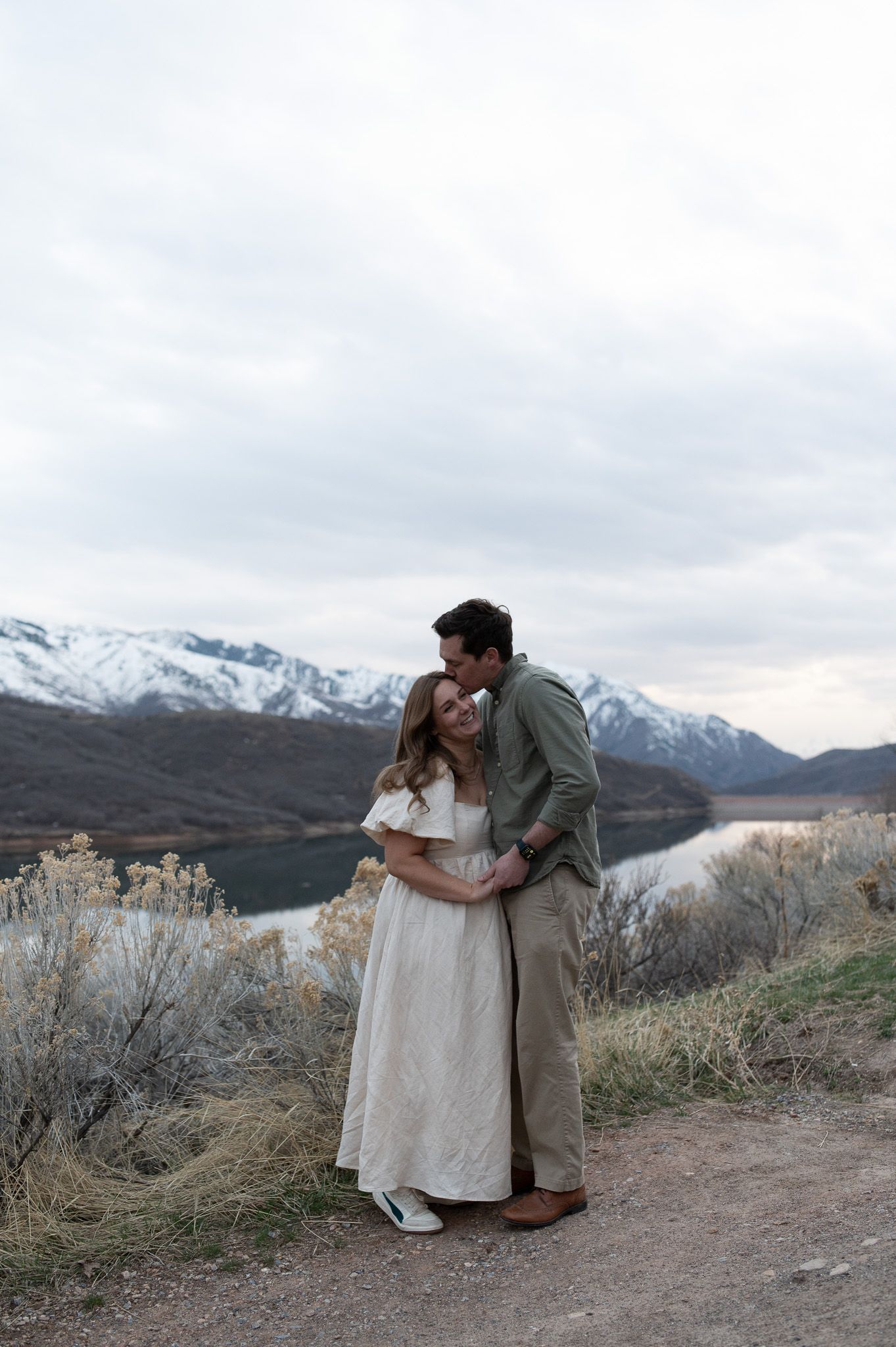
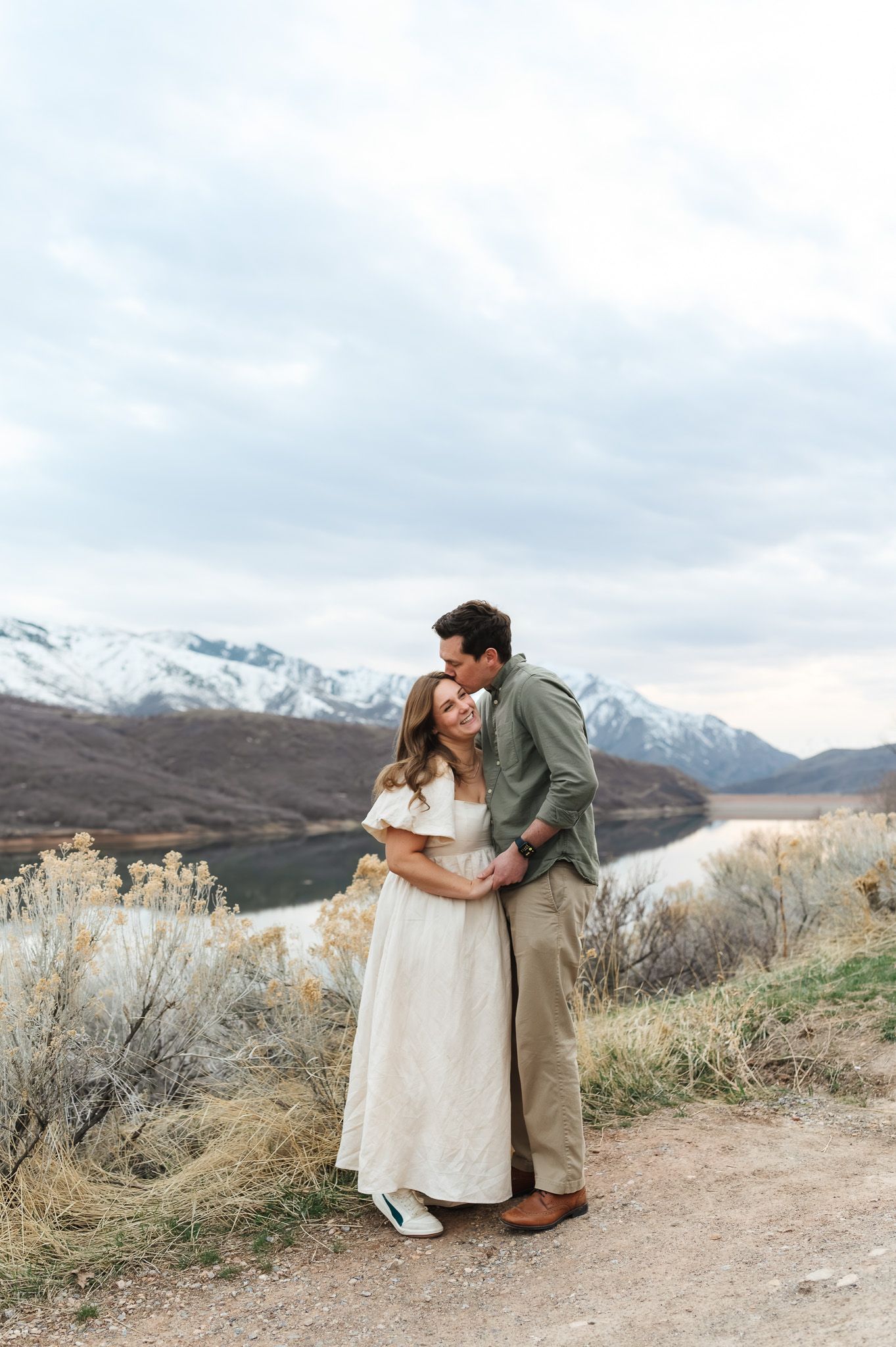
(Notice how the images shift from cool and flat to balanced, warm, and natural)
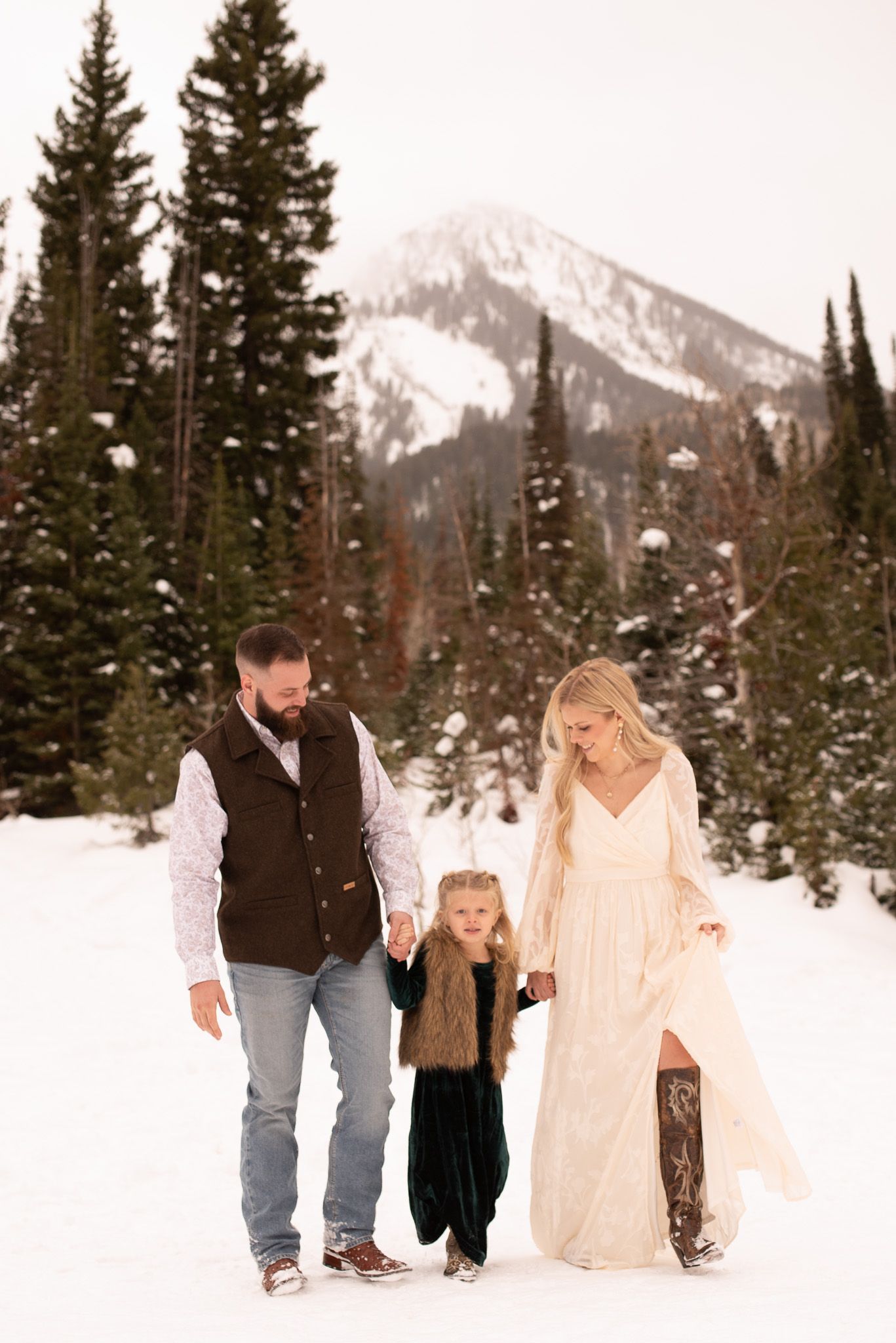
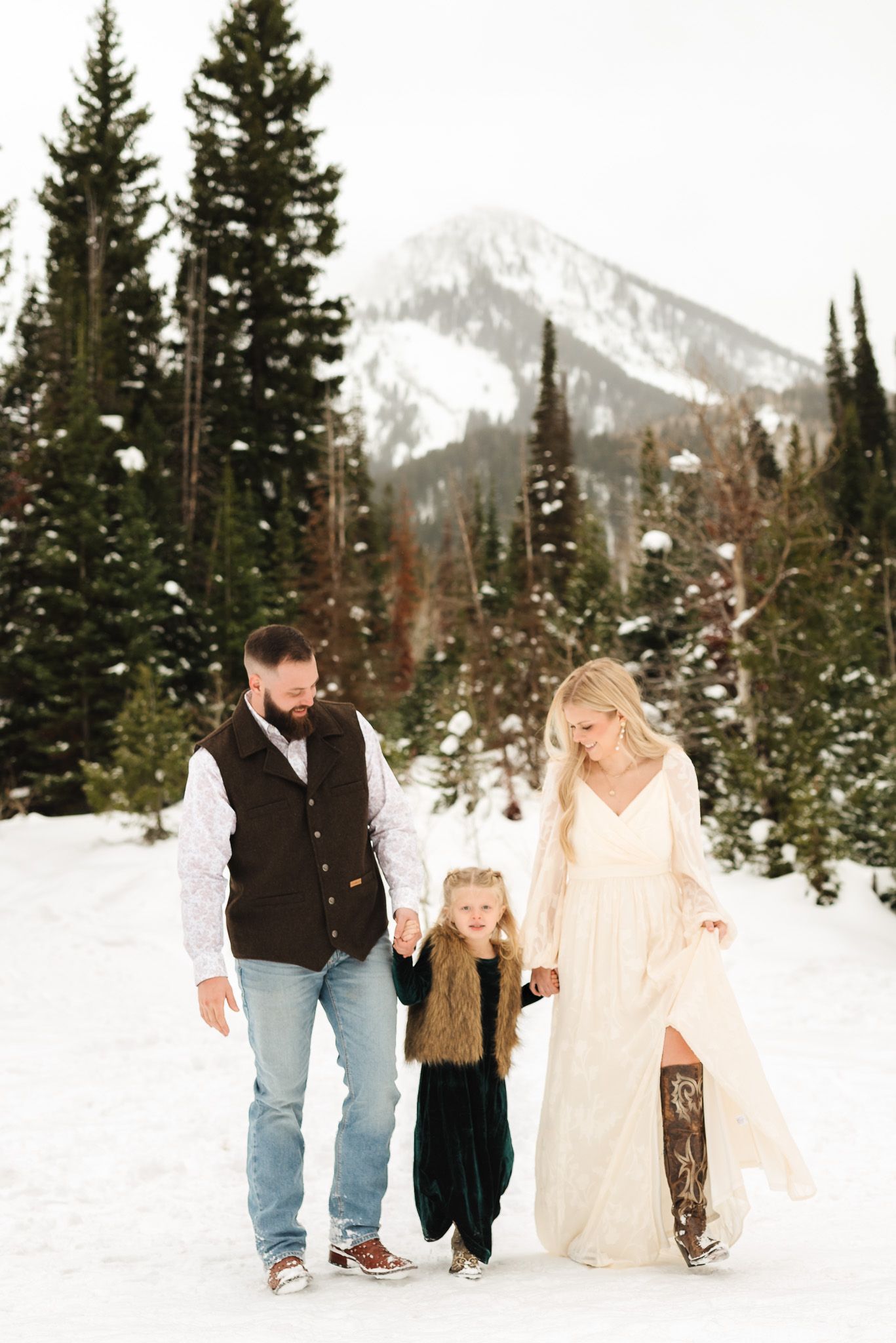
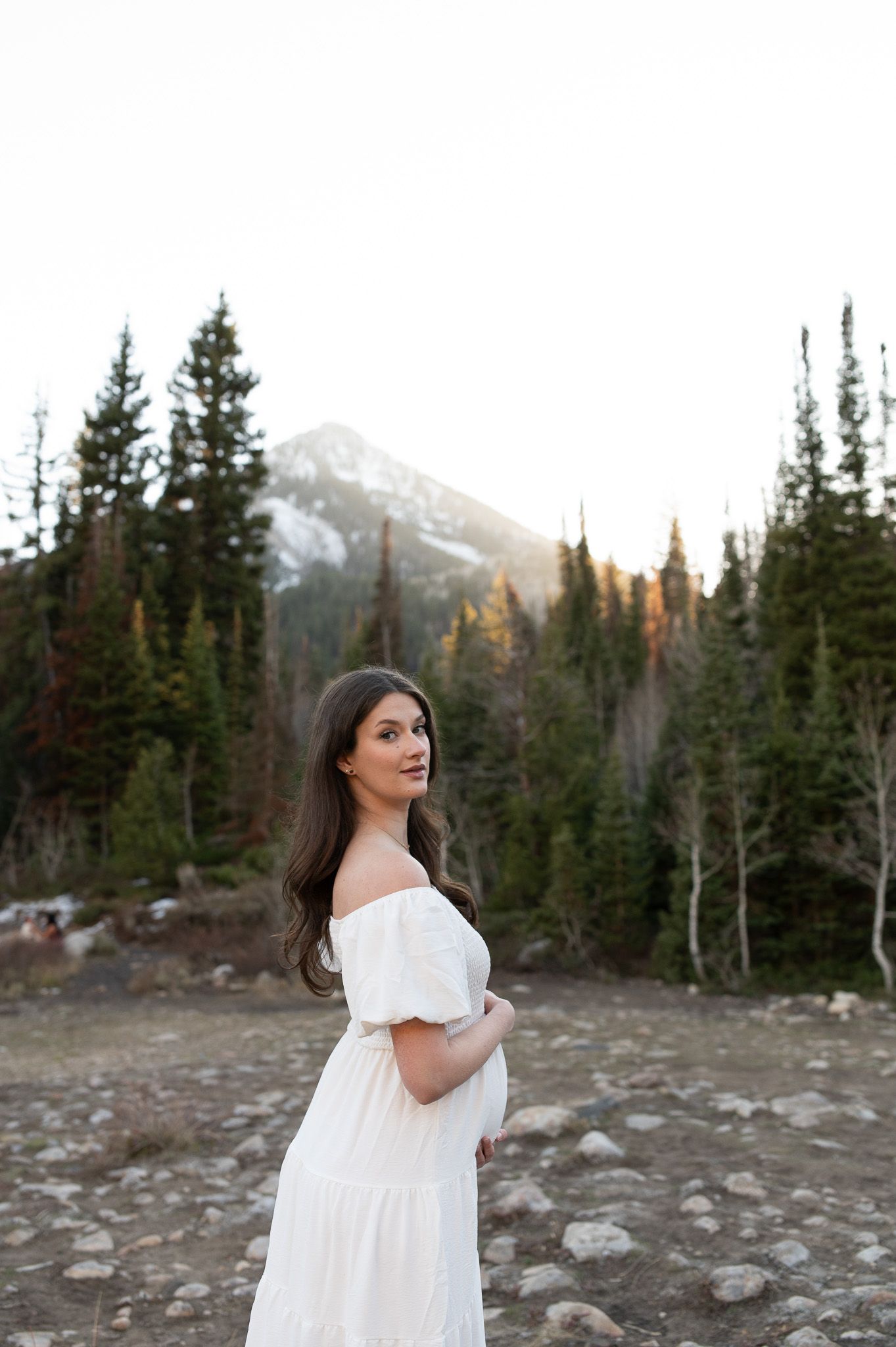
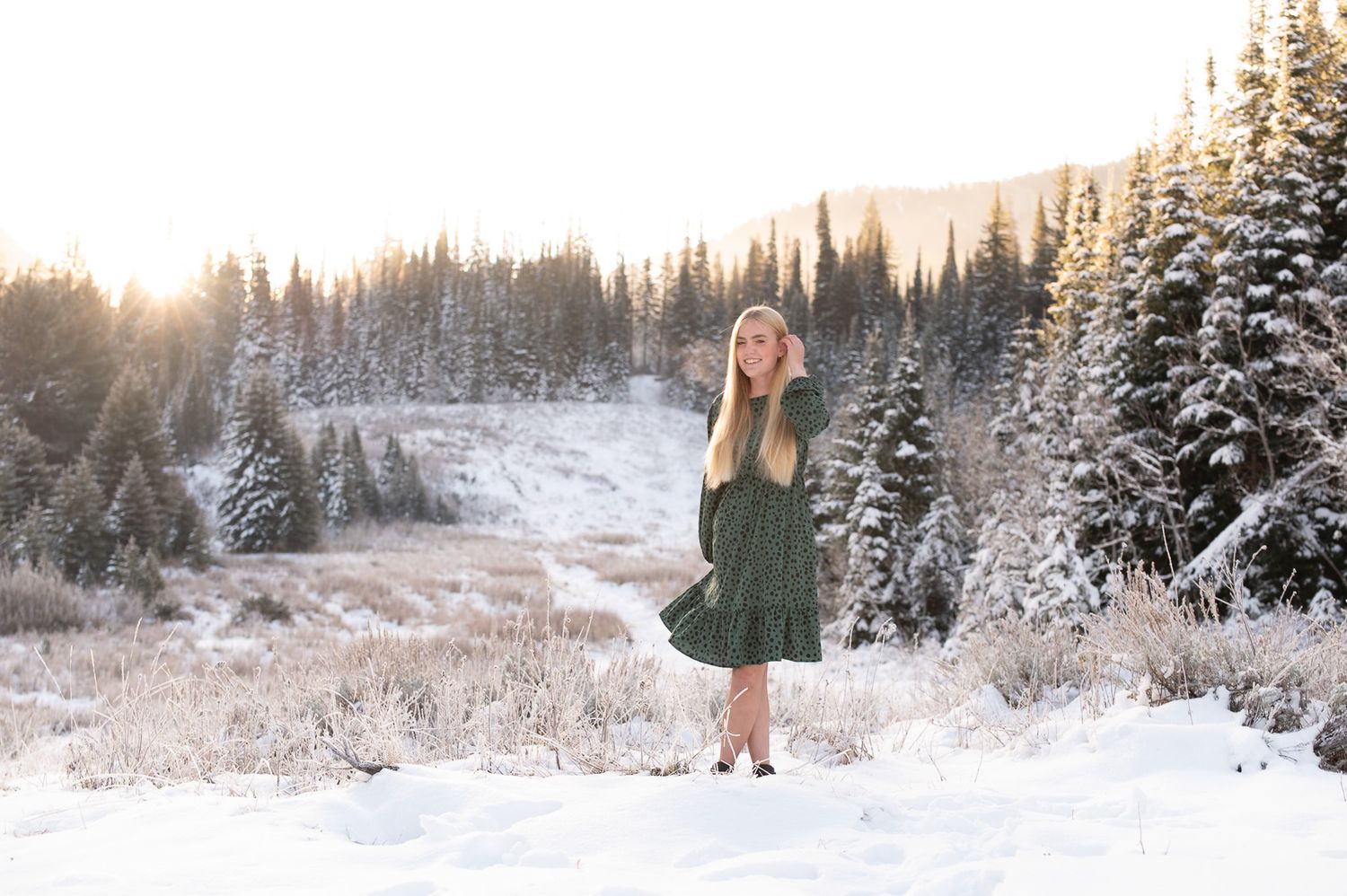
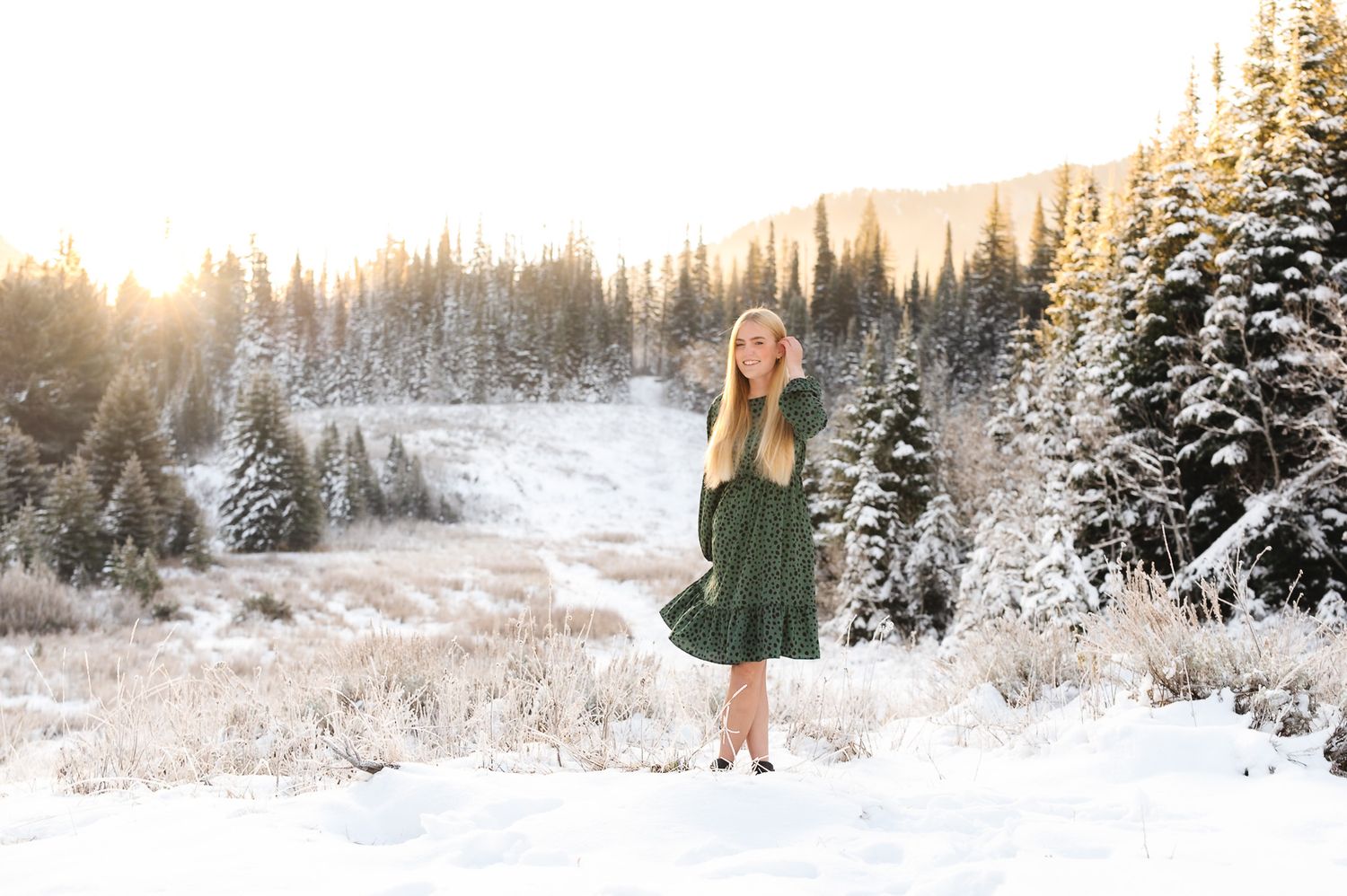
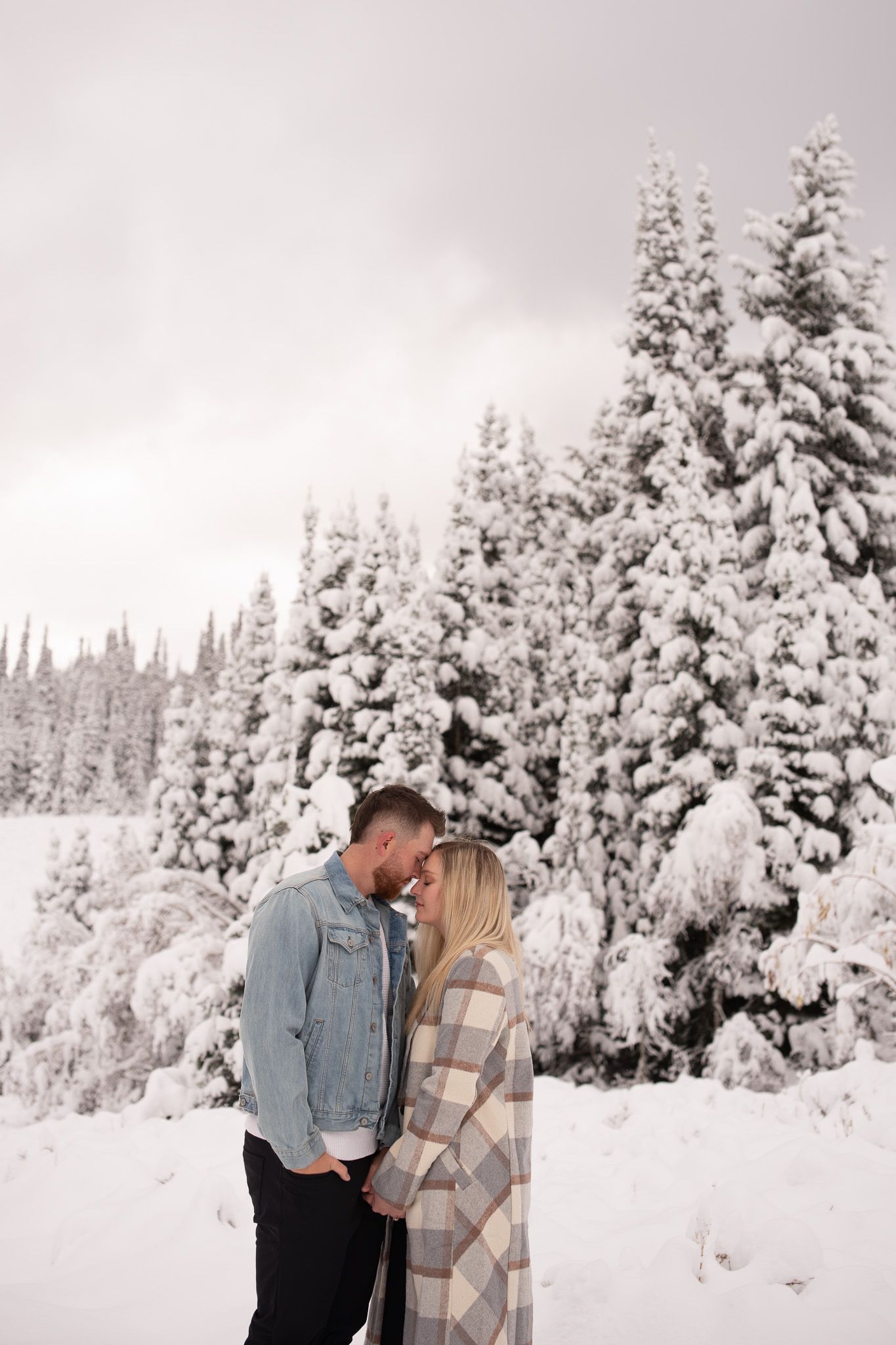
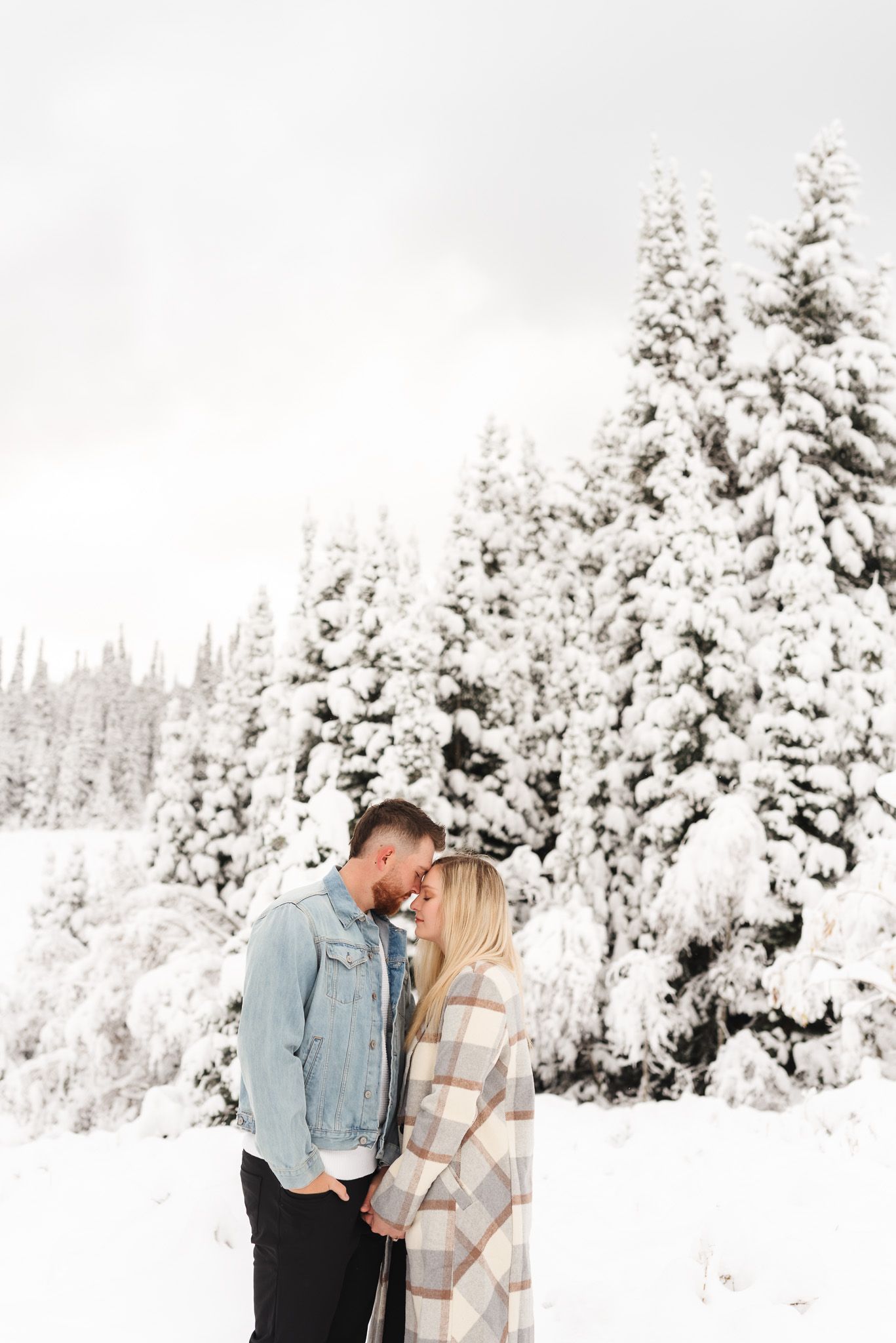
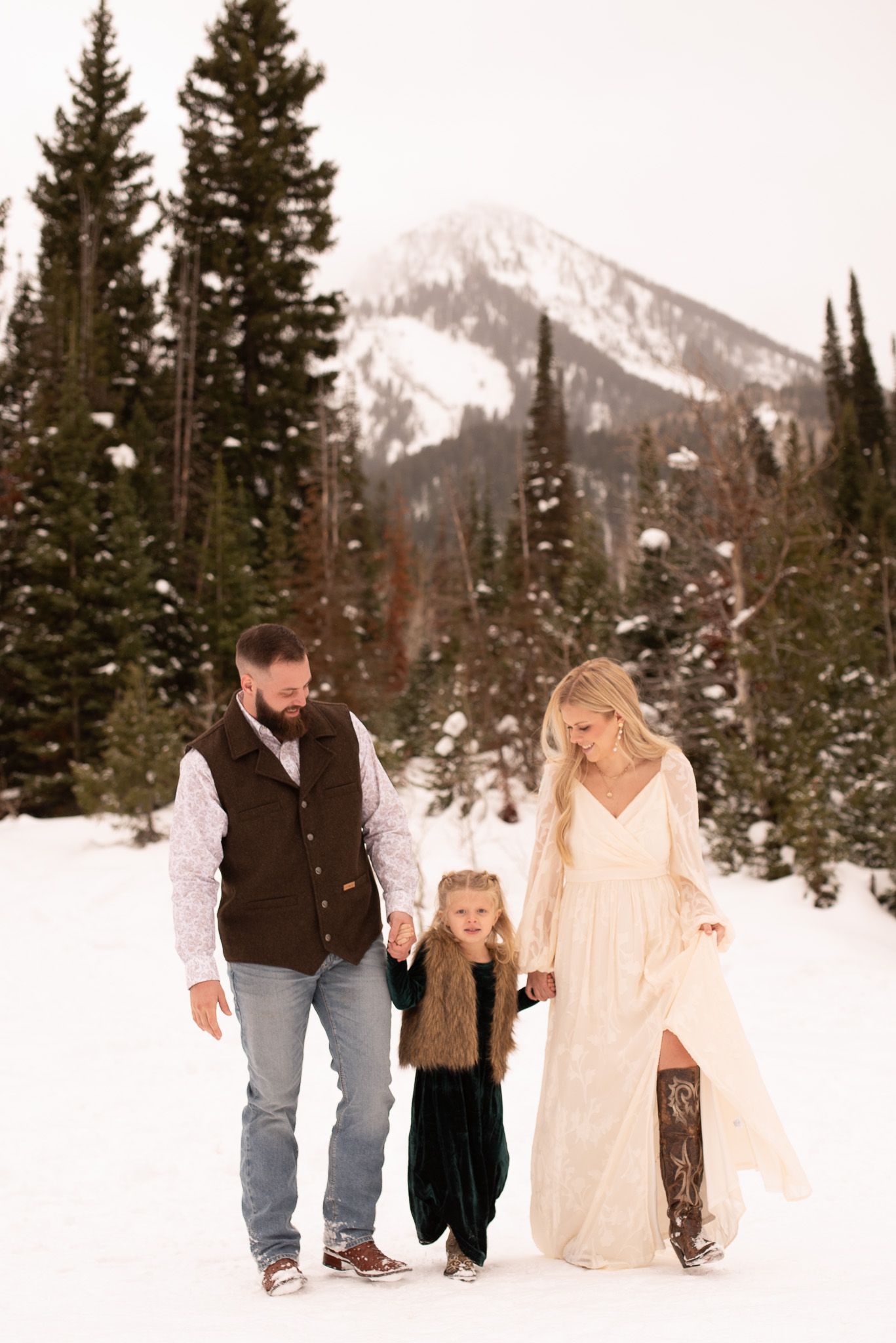
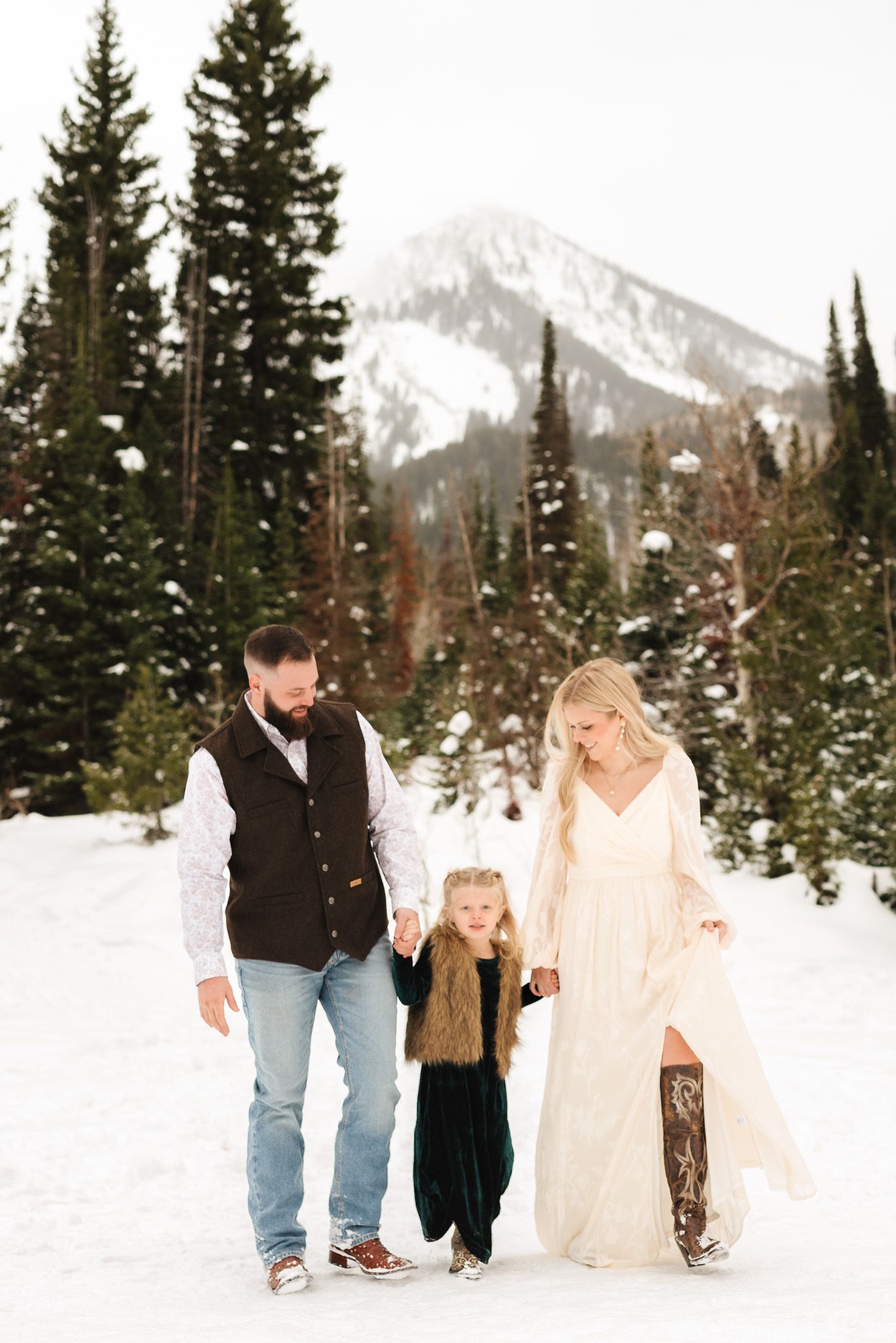
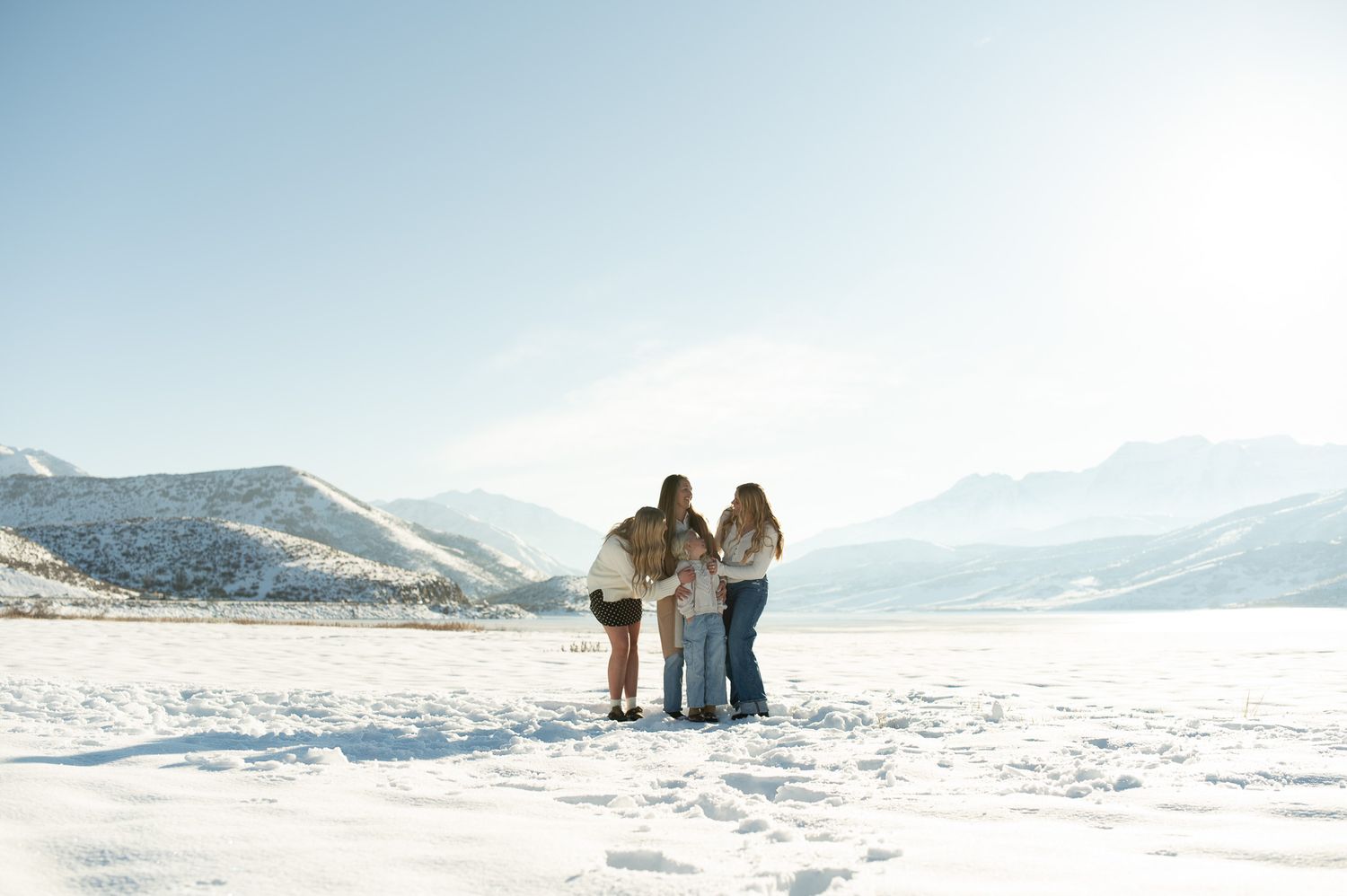
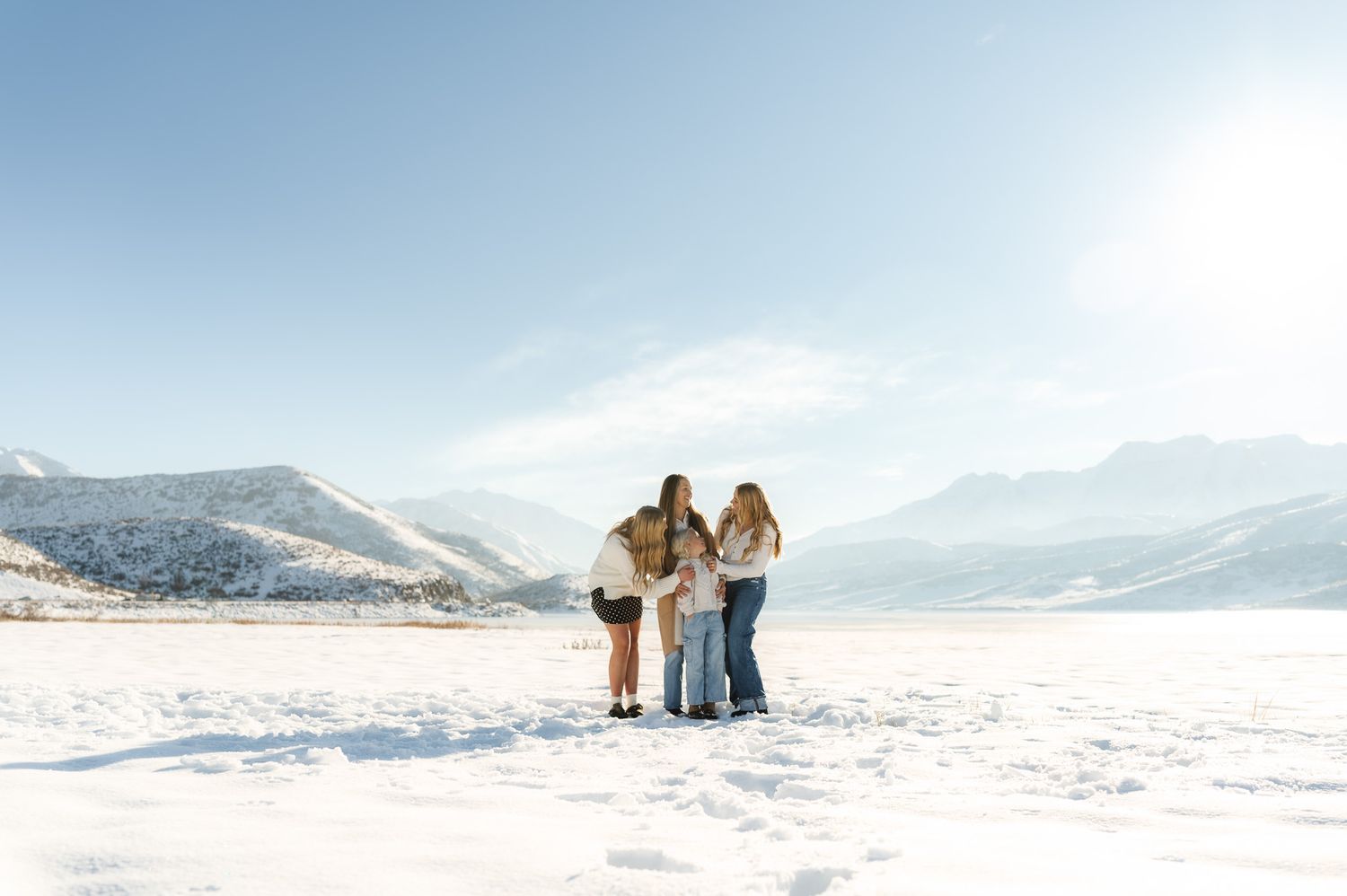
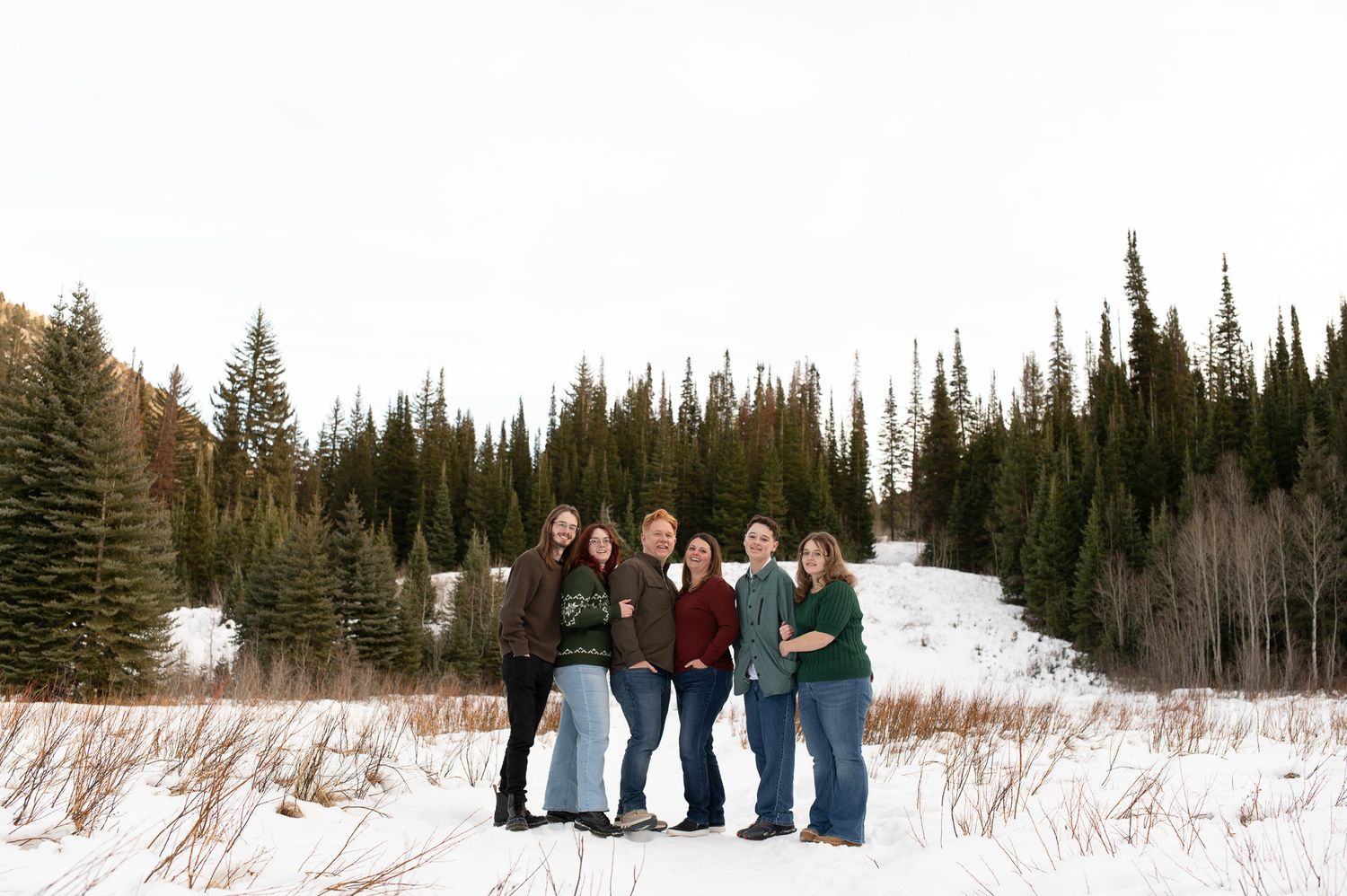
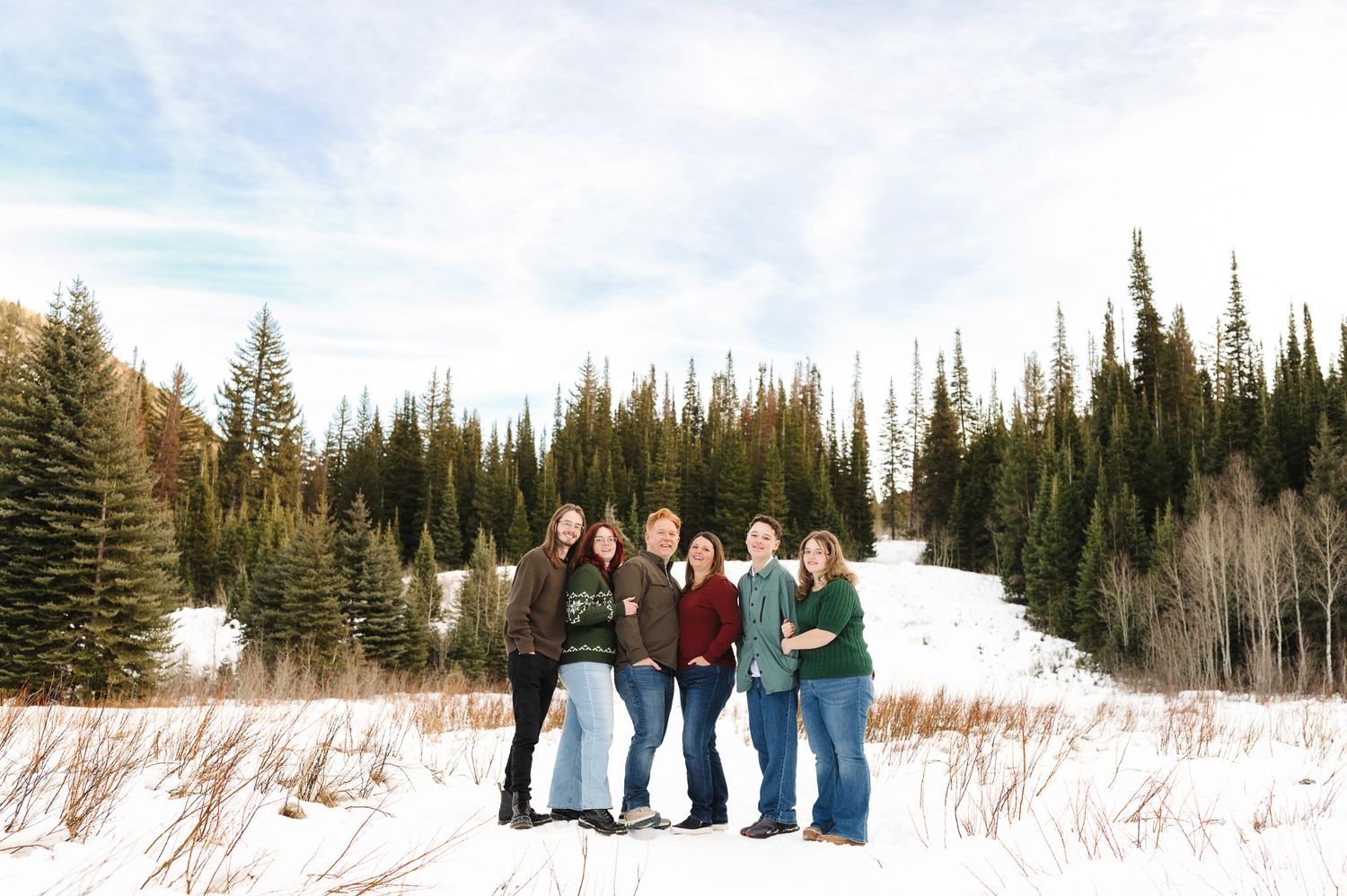
How to Edit with Snow
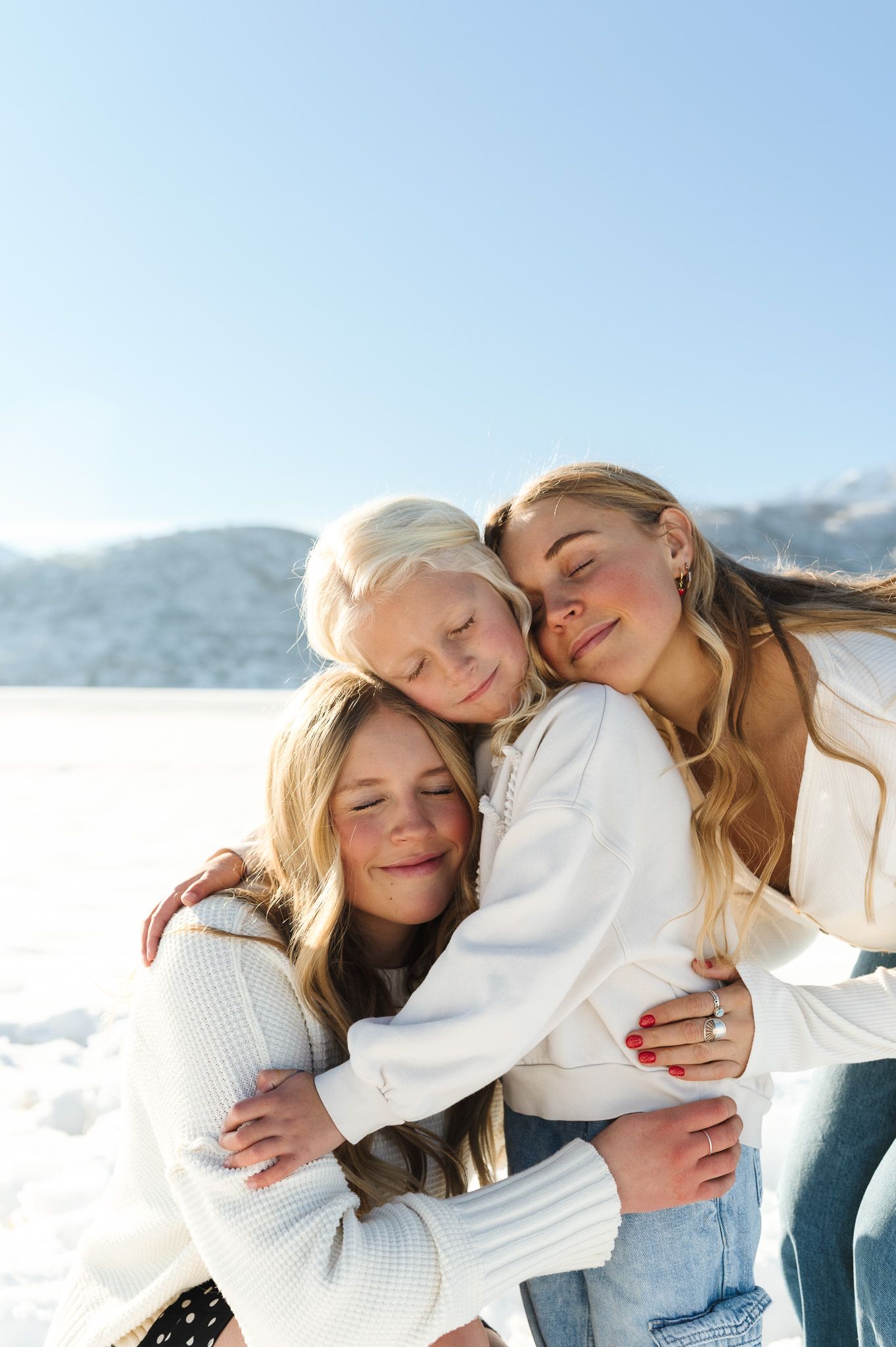
Snow sessions can be beautiful, but they can also be tricky to edit.
Common issues:
- snow looks blue instead of white
- images feel too cool
- skin tones lose warmth
This happens because:
- snow reflects blue tones from the sky
- overall lighting is cooler
To fix this:
- warm up your temperature
- adjust tint if needed
- bring down highlights to keep detail ( you can also add a linear gradient if needed to decrease exposure in the snow)
- keep skin tones natural as your priority
- reduce blue saturation in the color mixer and/or...
- use the color mixer mask to isolate and desaturate blues
BEFORE VS. AFTER

The Presets I Use
After spending so much time adjusting each gallery manually, I created presets to give me a consistent starting point for different types of lighting scenarios.
They’re designed for:
- bright, clean edits
- true-to-color skin tones
- natural light photography
I still make small adjustments depending on lighting, but this cuts my editing time down significantly and keeps everything cohesive. You can shop them here.
Who These Presets Are For
- Family photographers
- Natural light photographers
- Photographers who want bright, clean, true-to-color edits
- Anyone looking for a consistent starting point across their galleries
Editing Style Flexibility
While these presets are designed for a bright, true-to-color editing style, they’re meant to be a starting point—not a one-click final edit.
Many photographers adjust them slightly to fit their own style, whether that means:
- warming up the image
- softening tones
- or making small exposure changes
They’re built to be flexible while still giving you a clean, consistent base.
Curious what other photographers are saying about them? Check out their reviews.
Who They May Not Be Ideal For
- Dark and moody editing styles
- Studio-heavy photography
- Those looking for a final edit without any adjustments
Skin tones can feel complicated, but most of the time it comes down to a few key adjustments and having a consistent starting point.
Once you dial that in, editing becomes so much simpler—and your galleries feel a lot more cohesive.
If you’ve found this helpful and want more personalized guidance, I also offer 1:1 mentorships where we can go deeper into your editing, workflow, and shooting decisions in real time. If you’re interested in a mentorship, you can learn more here.
If you’re looking to streamline your editing, you can check out my presets for photographers to get the same bright, natural look I use in my sessions.
If this was helpful, you can save it on Pinterest to come back to later.
